Search the Community
Showing results for tags 'pdf'.
Found 11 results
-
Version 5.0.0
1,080 downloads
Version 5.0.0 of the D&D Manuals & Modules Platform A surprising new version of the D&D M&M Platform that includes the following changes: Renamed the Dungeons & Dragons Platform to D&D Classic Editions (***see instructions below***). This is the main reason for the revision 5.0.0 release. This rename of the Platform will likely require a reinstallation of the data found within the archive. This is a reorganization of sorts as the Platform Category is named Dungeons & Dragons while the Platforms contained within indicate each D&D Edition. Classic Editions contains Original, BECMI (Basic, Expert, Companion, Master, & Immortal), AD&D 1st edition, and AD&D 2nd Edition. This allows for the future expansion of the Platform Category with 3rd and 4th Editions. The updated pack includes icons/images for both the D&D Classic Editions Platform and the Dungeons & Dragons Platform Category. An update to 5th Edition will be released in the near future with similar changes as those listed below. Renamed 9 items for improved consistency with the original titles, including: TSR3102 - Birthright - Official Game Adventure - BR1 - Sword and Crown. TSR3117 - Birthright - Accessory - BR3 - The Book of Magecraft. TSR3123 - Birthright - Domain Sourcebook - Player's Secrets of Khourane. TSR9279 - Greyhawk Adventures - Official Game Adventure - WGA1 - Falcon's Revenge. (Added a dash after WGA1). TSR9281 - Forgotten Realms - Official Game Adventure - FRA1 - The Horde - Storm Riders. TSR9290 - Forgotten Realms - Official Game Adventure - FRA2 - The Horde - Black Courser. TSR9395 - DragonLance - Official Game Adventure - DLT1 - New Tales - The Land Reborn. TSR9439 - Ravenloft - Official Game Adventure - Adam's Wrath. (Removed RE1 series designation). TSR9448 - Official Game Adventure - Temple, Tower, & Tomb. (Added a comma after Tower) Added Wiki links to ALL items. Now every item offers the ability to further investigate the title with online documentation. Many items redirect to Wikipedia, if a source for that item exists there, but there are several other websites used in order to produce the best collection of related information. Other sites include: RPGGeek, forgottenrealms.fandom.com, dungeonsanddragons.fandom.com, ravenloft.fandom.com, dragonlance.fandom.com, diablo.fandom.com, BoardgameGeek, etc. Added a new item! TSR1106 - The Classic Dungeons & Dragons Game - 2nd Printing. This is an alternate cover produced for TSR1106 - The Classic Dungeons & Dragons Game. This brings the total items for the D&D Classic Editions to 992. Moved or copied data in certain custom filters to more permanent categories in the main metadata. Category ---> Genre Format ---> Release Type Series ---> Series Rule Set ---> Play Mode Thanks to @dukdukgoos and @Dragonsys for these suggestions. Added Player Character Level Suggestion for all adventure modules into the RATING field within the metadata This assists in finding collections of modules geared towards specific character levels. Renamed the Basic/Expert/Master D&D playlist to D&D Original/BECMI This is the proper designation for anything that is not AD&D. BECMI = Basic, Expert, Companion, Master, & Immortal. Minor image updates: TSR1021 - Set 4 - Master Rules - Box Spine and Box 3D images updated with corrected text. TSR1017 - Set 5 - Immortals Rules - Box Spine and Box 3D images updated with corrected text. ***If you already have a prior installation of this Platform, you should probably remove some of the previous D&D files from the earlier versions BEFORE installing this new one as the Platform rename could likely cause duplicates and/or confusion. You should end up with a D&D hierarchy that looks like this: To do this, delete the following files: ..\LaunchBox\Images\Dungeons & Dragons (delete the whole folder) ..\LaunchBox\Data\Platforms\Dungeons & Dragons.xml ..\LaunchBox\Data\Playlists\Basic_Expert_Master D&D.xml Overwrite any other files when prompted. Thanks so much to websites like TSRArchive, RPGGeek, DriveThruRPG, eBay, and Worthpoint which without these amazing sites, none of this would be possible. I must remind everyone, however, that NO PDFs or Software are included with this platform. This retrospective image and data compilation is for the preservation, enjoyment, and appreciation of the mythology, artwork, history, development, and universe that is D&D. --------------------------------------------------------------------------------------------------------------------------- INSTALLATION INSTRUCTIONS For a new installation, just extract the LaunchBox folder in the archive into the same folder where your LaunchBox installation exists. ***See Important note above for those with a prior installation. This should update everything properly. However, there may be playlists and images with defunct filenames left over from any previous D&D installations. Delete these, if desired. Be sure to clear your image Cache in LaunchBox and BigBox to see the newest images. The paths to the Game/PDF files are all now set to Z:\ in the D&D Classic Editions.xml, since I am currently using a network drive that contains my files. You can change this to your path by doing the following: Navigate to your \LaunchBox\Data\Platforms folder and open the D&D Classic Editions.xml file in TEXT Editor program (such as Notepad++). Find/Replace Z:\ with yourpath\ - You can use a RELATIVE (no specific drive letter) path such as ..\D&D\ or an ABSOLUTE path such as C:\DnD\ I've included a couple D&D Classic Editions XML files in the DnD RAR archive that already have this step done for you. Just rename the file of your choice to D&D Classic Editions.xml Be sure to back up your existing D&D Classic Editions.xml before overwriting. Setting Up the D&D Platform after copying: Using your PC's Explorer/file system: Place your D&D PDFs in a folder that is at the same level as your LaunchBox directory (I use a network drive mapped to z:/D&D). See the image above on how to change that. Use FATMATCH or a similar program to rename your PDFs so they are similar to the image filenames: https://emumovies.com/files/file/227-fatmatch-file-renamer/ Selecting Platform Categories should make the D&D Platform automatically appear. If it doesn't, you can do the following: Within the LaunchBox Application Add a new Platform by selecting TOOLS ==> IMPORT ==> ROM Files Select the folder where you've stored your PDFs. In my case it's c:/D&D If you use a folder named D&D that's at the same level as your LaunchBox folder, you'll only need to scan in a few files. This is just to get the Platform to show up. The relative paths for the PDFs are already set to ..\D&D\ in the LaunchBox D&D Classic Editions XML. If you store your PDFs in a different named folder or at a different level then you'll have to rescan all the files. It's easier just to rename the directory. You can also FIND/REPLACE the ..\D&D\ path in the Dungeons & Dragons XML with your path. For example, if your D&D PDFs folder is c:\Emulators\Dungeons & Dragons, you would need to set the <ApplicationPath>..\D&D\ for every game in the XML to <ApplicationPath>..\Emulators\Dungeons & Dragons\ I have done this installation numerous times on different PCs to test. If you need help, please ask. I am not responsible if you mess up your LaunchBox installation In order to attach a D&D playlist to the D&D Classic Editions Platform, perform the following steps within LaunchBox: On the left drop-down menu select Playlists. This should allow you to see all the D&D Playlists I've created. Right-click on a playlist and select EDIT. Click the Parents tab Uncheck the ROOT checkbox Check the box next to D&D Classic Editions To get the D&D 3D images to show up do the following: Select the D&D Classic Editions menu item in LaunchBox Navigate to TOOL ==> VIEW ==> IMAGE GROUP ==> 3D BOXES To have the PDFs Launch with the PDF reader of your choice: In LaunchBox, select ALL images that pertain to PDFs Right-click on one of the images and select EDIT. The BULK Edit window will pop up. Select EMULATOR from the Field and change the value to either Adobe Acrobat or Rocket Launcher In order to launch your PDFs, you can set up Adobe Acrobat (or some other PDF Reader) as an emulator in LaunchBox. Click on the 3 horizontal lines near the top left then navigate to TOOLS ==> MANAGE ==> EMULATORS Click ADD then add Adobe Acrobat as a new emulator as seen in this image. Add D&D Classic Editions as an associated Platform for the Adobe Acrobat emulator. To have the background image in LaunchBox be the same as the Box-Front image, perform the following steps: Navigate to TOOLS ==> OPTIONS Click on Background Priorities and check the BOX-FRONT checkbox. Set the Default Background to Use Blown Up Art To get all D&D screenshot images to display for previewing, check the BOX-FRONT, BOX-BACK, BOX-3D, and BOX-SPINE checkboxes in SCREENSHOT Priorities. If you are missing artwork for the Video Games Playlist, do the following in LaunchBox: Open the D&D Video Games Playlist do CTRL+A to select all items in the playlist. Click the Main Menu (the 3 horizontal lines) near the upper left-hand corner. Select Download Metadata and Media. The D&D Video Games Playlist is by no means complete for every console and arcade title out there. It presently contains mostly PC games. If you have an extensive library, add any and all games you'd like to the playlist. If you want to add a description to the main D&D Platform, do the following in LaunchBox: Open the D&D Classic Editions Platform Notes text file provided here: LaunchBox D&D Platform Notes.txt. Right-Click on the D&D Classic Editions Platform and select EDIT. Click on the Notes tab. Copy then Paste the text from the D&D Classic Editions Platform Notes into the NOTES text box. Click OK Do the same for the D&D Platform Category. --------------------------------------------------------------------------------------------------------------------------- Installing and Running the D&D Software Applications. The D&D collection contains 5 PC CD-ROMs which require special handling to get working. If you want to set up these PC CD-ROMS to work with the Dungeons & Dragons LaunchBox System, you can set them up through Rocket Launcher or through LaunchBox. Both methods are described below. If you need help, please don't hesitate to ask. There are seemingly a lot of steps but all of them are fairly easy. This tutorial is for running ONLY the following 4 programs*: TSR2176 - Core Rules - CD-ROM 2.0 TSR11543 - AD&D Core Rules 2.0 Expansion TSR11448 - Dragon Magazine Archive - 250 Issues of Dragon Magazine - CD-ROM TSR11451 - Forgotten Realms - Interactive Atlas You can find some updates to these software applications at https://web.archive.org/web/20110322093635/http:/www.wizards.com/dnd/article.asp?x=dnd/ex20020218a Create 1 ISO from 5 ISOs for the Dragon Magazine Archive program The Dragon Magazine Archive usually has 5 ISOs associated with the program. To avoid mounting all those ISOs, you can easily turn these 5 ISOs into 1 by doing the following: Mount each ISO separately in Windows 10/11 by right-clicking and selecting MOUNT from the menu. Extract/copy all the files from each disc into one new folder on your hard drive. The first disc has all the installation files while the other 4 just have the Dragon Magazine PDFs located in the Mags folder Download, install ImgBurn, and follow the simple GUI directions to create 1 new fully contained ISO. Name the new ISO TSR11448 - Dragon Magazine Archive - 250 Issues of Dragon Magazine - CD-ROM and place it in your D&D ISOs folder. D&D PC Software Setup Using Rocket Launcher 1. Install Core Rules 2.0 (and Core Rules 2.0 Expansion) onto the drive you choose - i.e. C:\D&D\AD&D Core Rules 2.0 folder. The main executable for this program will then be found in C:\D&D\AD&D Core Rules 2.0\Program\tsrp3.exe The BAT files should be put inside this same folder C:\D&D\AD&D Core Rules 2.0\Program\AD&D Core Rules 2.0 - CD Mount.bat C:\D&D\AD&D Core Rules 2.0\Program\AD&D Core Rules 2.0 - CD Unmount.bat You can further suppress any visible CMD windows from popping up by creating shortcuts to these BAT files inside the same folder, then setting the shortcuts to minimized in the properties. 2. EXTRACT the DUNGEONS & DRAGONS.ini file from the RocketLauncher\Modules\PCLauncher folder in the RAR archive and place it into the same Rocket Launcher folder found at (drive Letter)\RocketLauncher\Modules\PCLauncher . Edit any and all folder paths in the INI file to the path where you installed the program on your device. Wherever you decide to put the BAT/LNK files, you must change the paths in the Dungeons & Dragons.ini file to point to these BAT/LNK files (see image below). 3. The Rocket Launcher Dungeons & Dragons.ini file then should contain a code block like this one for EVERY added CD-ROM. Notice the reference to the LNK shortcut files and not the BAT files. [TSR11543 - AD&D Core Rules 2.0 Expansion] Application=..\..\D&D\AD&D Core Rules 2.0\Program\tsrp3.exe ExitMethod=Process Close Application PreLaunch=..\..\D&D\AD&D Core Rules 2.0\Program\Core Rules 2.0 Expansion - CD Mount.lnk PostExit=..\..\D&D\AD&D Core Rules 2.0\Program\Core Rules 2.0 Expansion - CD Unmount.lnk PostExitSleep=5000 4. Place the NirCmd program in the same folder as your BAT files as it helps with changing resolutions on the fly - http://www.nirsoft.net/utils/nircmd.html This is only if you want AD&D Core Rules 2.0 and Core Rules Expansion to show in full-screen. It also works fine as a small windowed screen with a black background. In the Core Rules 2.0 Expansion - CD Mount.bat file you can see where the ISO file and the NIRCMD.EXE are referenced: @echo off PowerShell Mount-DiskImage -ImagePath \"C:\D&D\D&D ISOs\TSR11543 - AD&D Core Rules 2.0 Expansion.iso\" nircmd.exe setdisplay 800 600 32 This should then successfully and very discreetly launch the Core Rules 2.0 Expansion application without any interfering windows or popups. Upon exit, the program should shutdown and unmount the ISO from the virtual drive. Follow the same steps for the other 2 programs: TSR11448 - Dragon Magazine Archive - 250 Issues of Dragon Magazine - CD-ROM TSR11451 - Forgotten Realms - Interactive Atlas D&D PC Software Setup Using LaunchBox For this tutorial, we will use TSR11448 - Dragon Magazine Archive. Extract the BAT files from the archive. They can be found at the root of the RocketLauncher folder. Put them in the same location as your D&D PDF files. You can further suppress any visible CMD windows from popping up by creating SHORTCUTS (LNK files) to these BAT files inside the same folder, then setting the shortcuts to minimized in their properties. Core Rules 2.0 - CD Mount and Unmount BATs are are copies of Core Rules 2.0 Expansion - CD Mount and Unmount BATs, just named differently to correspond to the associated application. You may need to edit the BAT files so the paths correspond with the location where your ISO files exist. My ISOs are located in D:\D&D\D&D ISOs. Use Notepad++ for this. @echo off PowerShell Dismount-DiskImage \"D:\D&D\D&D ISOs\TSR11448 - Dragon Magazine Archive - 250 Issues of Dragon Magazine - CD-ROM.ISO\" You will now need to install the Dragon Magazine Archive software into any folder of your choice. I use my main D&D PDF folder for all these software installations. Mount the ISO you created in step 5 in Windows 10/11 by right-clicking and selecting MOUNT from the menu. Once the software is installed, make sure it runs properly. Create a shortcut (LNK file) for the main program file and place it in your main D&D PDF folder. Rename the shortcut to TSR11448 - Dragon Magazine Archive - 250 Issues of Dragon Magazine - CD-ROM.lnk Click on Additional Apps in this same editor and ADD 2 items The first item should point to the main ISO image file. Check the box that says Automatically Run Before Main Application. The second item points to the Dragon Magazine Archive - CD Unmount.LNK file. Check the box that says Automatically Run After Main Application. The program should now mount the disc and run from LaunchBox. It should also dismount the disc once the program is exited. IMPORTANT NOTE: The TSR2176 - Core Rules - CD-ROM 2.0 and TSR11543 - AD&D Core Rules 2.0 Expansion have different EXE files to launch the program. TSR2176 - Core Rules - CD-ROM 2.0 uses EVERMORE.EXE TSR11543 - AD&D Core Rules 2.0 Expansion uses TSRP3.EXE If you install the Expansion software, the EVERMORE.EXE file gets deleted and only TSRP3.EXE will remain. If the Core Rules Expansion is installed, point both programs and BAT files to use TSRP3.EXE *SPECIAL NOTE: The above methods WILL NOT work for TSR2167 - Core Rules - CD-ROM because it is a Windows 3.1 program. To install this program, you will need to use this DOSBox tutorial: TSR2167 - Core Rules - CD-ROM Installation Instructions These same installation instructions can also be found in the readme.txt file inside the RocketLauncher folder within the D&D RAR archive. Supporting media files can be found there too. -
 It took a little investigating to find a pdf viewer that supported both full-screen [upon opening] and a minimal footprint (sorry new Foxit reader versions). It turns out SumatraPDF does all of this with a few quick settings to set. Download (installer / portable zip , 32-bit / 64-bit ) I used the portable version. Put it somewhere you don't mind making it's permanent home. Run it once to create the necessary settings config file. Open the SumatraPDF-settings plain-text config file. Ensure the following settings are set: Set Esc key to escape the program EscToExit = true Under "FixedPageUI"... comment out the background line to turn off what is essentially a colored overlay on the pdf #BackgroundColor = #ffffff The only way to set the actual background behind the pdf is to set the following. I set a slight gradient but a single black #000000 can be set as well. GradientColors = #111111 #000000 A single whole page at a time as the default view DefaultDisplayMode = single page Set fullscreen as the default WindowState = 3 Obviously you'll need to set this as your default PDF viewer. This isn't tremendously difficult, but I'm sure others are looking for a possible solution to a front-end "hands-off"-ish manual viewing in BigBox. Esc is then set for exiting and the arrow keys will change pages. Set these with your controller(s) and your front-end solution should be good until there's a local pdf solution.
- 25 replies
-
- 7
-

-

-
- sumatrapdf
- manuals
- (and 2 more)
-
Hi, I'm thinking about paying for EmuMovies because I'd really like the PDF instruction manuals for games. From your own experience, does EmuMovies have manuals for most games and consoles? For example, would it have all SNES, N64, Genesis, Saturn etc. What is it like for Atari and Commodore 64?
-
Version 2.0 of the D&D M&M Platform... now with 3D Images! After months of searching through countless images on numerous websites then fabricating nearly 1000 new 3D images, I am finally proud to bring you Version 2.0 of the Dungeons & Dragons Manuals & Modules Launchbox Platform. It now has the following enhancements. 960 new 3D images all created by yours truly using Photoshop and a lot of time and learning. The images may not be perfectly accurate, sized, or shaped renditions of the original book, box, accessory, or component but they are quite good representations. Here on the LaunchBox forums is the only place you will find any 3D image collection of this magnitude of these original Dungeons & Dragons items. Nowhere else will have these! Searching for box side art, photoshop mockups, and action files plus fabricating all of these was a massive undertaking that I began last March. There will definitely be updates to images as I find better shots of side art, better PSD mockups, and better actions files. In addition to the 3D images, I fixed a few hundred 2D images by cropping, blending, or replacing distorted, truncated, or otherwise poor images. Resampled many images that were either too large or too small so the size of the image cache is now much smaller and more evenly distributed. The old image collection was quite large (~5.5 GB). The new collection is similar in size but contains over 960 more images. Minor description and filename fixes. Follow the directions below in order to install. You can basically bolt this pack on by placing the folders in the archive into the corresponding LaunchBox folders. Fabricating these images was a massive undertaking which has, hopefully, help to preserve the beauty of TSR's artwork. In addition, the synopsis for each TSR item, from D&D's inception to the end of 2nd Edition, is included with each image. If you're a Dungeons & Dragons fan, whether casual or serious, I hope you will enjoy the D&D M&M platform. More importantly, if you have never much paid attention to the Dungeons & Dragons universe, I hope this platform will spark you interest. Please take a risk and install the platform if for no other reason than to enjoy the beautiful artwork. With a new Dungeons & Dragons movie in the works, I am hoping this platform may introduce or refamiliarize you to the world of D&D, preparing you for the onslaught of D&D fiction that is surely to come. The PDF files these images are associate with are NOT included with this platform. A simple Google search will return a TROVE of results. Please let me know your thoughts on this system and the images. The images will continue to be updated as I find better photos to work with. I really enjoy hearing from D&D fans that enjoy the game/artwork as much as I do. NOTE: In addition to this LaunchBox Platform being a graphical way to launch your games/PDFs, this system is also for historical and educational preservation purposes. Hope you Enjoy!

-
 Most importantly, I got the idea from FASM's topic posted a while back so a lot of this credit goes to him/her. However, I noticed it only halfway functioned and didn't really do what I wanted it to. An excellent start though! I have created a video with the tutorial in the description over at but for those who just want to get into it, here as follow. TUTORIAL FULLSCREEN MANUAL SUPPORT, BIGBOX Go here http://www.mediafire.com/file/hzgyg8awfbzd8dn/SumatraPDF.exe and get Sumatra PDF. Go here http://www.mediafire.com/file/dnb7v7wdfwl31ue/Chrono+Trigger.pdf and get a test manual if you want. - Put SumatraPDF.exe anywhere you'd like, I chose a folder I named SumatraPDF inside my LB folder. - Click SumatraPDF.exe one time, it will make a txt file called sumatraPDFsettings, open this file (default should be in notepad). - At the very top is a line that says EscToExit, change this to True. This will let you instantly exit with the ESC key. - Hold CTRL + F and search RememberStatePerDocument and change this to = false (manuals will be restarted when reopened) - Do the same with DefaultDisplayMode and change it to = single page (this will fix seeing the bottom page of the next page like seen in the Final Fantasy manual in the video.) - Do the same with Window State, it's right under the last line. Change the number to = 3 (this is borderless fullscreen) - Save the document, exit. - Right click a .pdf file on your computer or use the one I included (most manuals are in this format) and click 'open with' then 'choose another app'. - MAKE SURE to click 'always use this app to open .PDF files' FIRST, even before selecting one, do that now. - click 'show more' then scroll to the bottom, click 'use another app on this PC' - Locate where you put the SumatraPDF.exe and select it. - It should either open the manual in fullscreen OR go back to the app menu with SumatraPDF added to it. If it went back to the menu, click SumatraPDF and click 'okay' - TEST it! The manual should open in fullscreen, move with arrow keys. CONTROLLER SUPPORT FOR MANUALS, BIGBOX Go here *link removed* to download Controller Companion. - Install Controller Companion where ever you like. I put it in it's own folder called Controller Companion inside my LB folder. - For the purpose of this tutorial, I am using a Wireless Xbox One controller. Connect your controller and open Controller Companion. - If it opens up on screen, close it. If not, right click the icon in your taskbar and open settings. - For right now, leave balloon tips and play sounds on. Turn on Start Controller Companion when Windows Starts Up to On if you use Big Box a lot. There will be an option later to turn it off with your controller when not using it. - Click the Bindings tab. Now this is a personal preference, I like to clear every binded button on my controller, you can do this by selecting the button icon and clicking 'nothing'. - Select the Left D-Pad button and make it the left arrow key. It is located in 'keyboard' then 'navigation and edit'. Do the same with the Right D-Pad button and make it the right arrow key. - Click Apply and close out of the window. - TEST it! Open notepad, type a few letters/numbers and use your controllers D-Pad to see if you can move between the letters and numbers with it. If it doesn't work, try again after holding the SELECT/BACK button and pressing the START button. FINAL STEPS, YAY! - Your manuals should be located in your LaunchBox folder under 'manuals' inside the system of the game. They should be named exactly as the roms name. For example, if Final Fantasy 3's rom is named 'Final Fantasy 3 (USA) then your manual for that game should be named 'Final Fantasy 3 (USA).pdf'. - Open Launchbox and go to options. Go to 'controller automation' turn this on and make the buttons as so. Hold Button = START and Close the Active Window = SELECT or BACK button. - TEST it! Go to a game, select a manual and see if it opens in fullscreen. If not, hold the SELECT/BACK button and then press the START button. To close out of a manual and any running emulator currently in Big Box, hold the START button and press the SELECT/BACK button. SUCCESS! A final note, Controller Companion can be active in every single window applicable in Windows.To toggle it between off and onat anytime, hold the SELECT/BACK button and press the START button. It can do many more things than just arrow keys such as toggle virtual keyboards and such. There are many detailed tutorials on Google and YouTube. Enjoy and support the LB BB team! Hopefully in days come a true plugin will be built for BB but for nice, this works just fine! Also, forgive me for making another topic like this a couple weeks ago, the last one didn't have a tutorial and people were asking me. I'm not trying to showcase my video on YouTube, rather, I am trying to showcase it I guess Anywho, much love and LBBBFTW!
 -
 Pre-configured SumatraPDF + JoyToKey to view PDF's with a controller in LaunchBox View File This is a pre-configured SumatraPDF and JoyToKey to use for viewing PDF manuals in LaunchBox with a controller. It was setup with a DS3 using ScpTools Reloaded so it should also be compatible with a Xbox 360 controller. I have not tested it with any other controllers. The zip file contains SumatraPDF, JoyToKey and a AHK script that will launch JoyToKey in a hidden state, then SumatraPDF and when SumatraPDF is closed it will kill JoyToKey. For it to display PDF's in LaunchBox you need to configure the Windows default PDF viewer as 'SumatraPDF-JoyToKey.exe'. You can update either SumatraPDF or JoyToKey by placing the contents of the portable installs in the root directory. Script usage outside of LB is: "c:\path\to\SumatraPDF-JoyToKey.exe" "c:\path\to\pdf\file.pdf" Controls: D-Pad/Left analog stick: Up Down Left Right Right analog stick Up+Down/L+R triggers: Zoom in/out L+R bumpers: Go to First/Last page Cross (Green A on 360): Next page Square (Blue X on 360): Rotate image 90' Triangle (Yellow Y on 360): Cycle through zoom/fit to screen modes (reset zoom) Circle (Red B on 360): Exit SumatraPDF Forum thread Credits: JoyToKey SumatraPDF AutoHotKey Submitter teeedubb Submitted 03/22/2017 Category Third-party Apps and Plugins
- 4 replies
-
- 3
-
-
-
- controller
- (and 3 more)
-
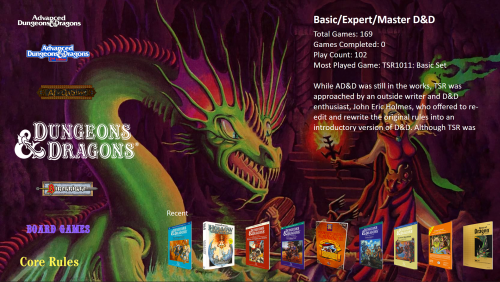
Hey everyone, I hope you're having a wonderful day. I've been working on a new LB Dungeons & Dragons system, mostly for personal enjoyment, for quite some time now. I originally made it for my Hyperspin installation but finally decided to try it out for Launchbox. Once I saw how feature-rich LaunchBox is, I decided to rework this D&D system for LB. I extracted the front and back images from all modules and manuals, reworked almost every filename so they are longer and more descriptive, and added NOTES/Descriptions for all 960 files. This took a LONG time but was totally worth it (it gave me something to do). I think I started on it in September and worked on it as I had time but the 1st draft is finally here for you all to enjoy. If you're a D&D fan or simply enjoy the artwork, I think you may enjoy this system. The games within the system consist of Dungeons & Dragons rulebooks, gaming modules, cards, and boardgames from Original D&D all the way through the end of AD&D 2nd Edition (~1972-2000). This is not a video game system but a PDF e-reader system. Of course, there will definitely be updates to the filenames, images, and notes as I find misspellings, omissions, grammatical errors, and other mistakes. I did not type all the notes myself but found a lot of information and back-cover descriptions for each file on sites such as rpggeek.com, tsrbothgunsblazing.com, tomeoftreasures.com, waynesbooks.com, dmsguild.com, worthpoint.com, and several others. Much of the data on these sites had a lot of misspellings, omissions, and grammatical errors so I did my best in refining the data. The images are quite large so each folder (front, back, background, etc.) of 960 images is around 2.5 GB. I am not sure if the community wants images in this size or if I should run them through some sort of image compression process so they are much smaller. I like having the originals but PLEASE LET ME KNOW how you would like them before I upload them Also, the painstaking effort of naming and describing every file was extremely time consuming. It would be awesome if there was some way to add not only the images but all the filenames (not the PDFs themselves of course) and notes to a online repository so others can simply download these images and notes files through the LB program. Of course, I will upload everything first so people can simply BOLT-ON the system and start enjoying it immediately but I wanted to get the admins' and users' responses for what I have so far. The whole system on my drive is over 8GB so I am sure it will need to be slimmed down quite a bit, You may be wondering how it works with a PDF reader. Well, I use Soda PDF with Rocket Launcher and it works amazing. I will detail how to set all that up once I post the files in the downloads section. I've included several playlists that make up the various game settings such as Forgotten Realms, Planescape, Ravenloft, and DragonLance. As you can see in the examples, I use the front page of the manual as the background for the selected item. Using the FLIP feature, you may also view the artwork/descriptions from the backs of every item. I also included several background images and logos for the various playlists. It definitely needs more work to reach its full potential but I am happy with how it's turned out so far. PLEASE Let me know your thoughts! I will be posting the bolt-on of this system soon. I just need to slim down the size (unless people want the originals). Here are examples of the system so far: Best regards, Larry
-
For example If I want to add a guide for a game, I add the pdf file as an Additional App, and when I try to open it in Big Box i get a nice Black Screen. I can configure it in order to use adobe acrobat but I would like to view it with the new built in viewer like "normal" manuals.
-
Version 0.2
384 downloads
This is a pre-configured SumatraPDF and JoyToKey to use for viewing PDF manuals in LaunchBox with a controller. It was setup with a DS3 using ScpTools Reloaded so it should also be compatible with a Xbox 360 controller. I have not tested it with any other controllers. The zip file contains SumatraPDF, JoyToKey and a AHK script that will launch JoyToKey in a hidden state, then SumatraPDF and when SumatraPDF is closed it will kill JoyToKey. For it to display PDF's in LaunchBox you need to configure the Windows default PDF viewer as 'SumatraPDF-JoyToKey.exe'. You can update either SumatraPDF or JoyToKey by placing the contents of the portable installs in the root directory. Script usage outside of LB is: "c:\path\to\SumatraPDF-JoyToKey.exe" "c:\path\to\pdf\file.pdf" Controls: D-Pad/Left analog stick: Up Down Left Right Right analog stick Up+Down/L+R triggers: Zoom in/out L+R bumpers: Go to First/Last page Cross (Green A on 360): Next page Square (Blue X on 360): Rotate image 90' Triangle (Yellow Y on 360): Cycle through zoom/fit to screen modes (reset zoom) Circle (Red B on 360): Exit SumatraPDF Forum thread Credits: JoyToKey SumatraPDF AutoHotKey- 3 reviews
-
- 9
-
-
-

-
- controller
- (and 3 more)
-
This video is basically demonstrating FASM's method of viewing manuals, I did not come up with it though I did do some tweaks. There wasn't any videos of it in action, so.. here ya go! Everything you see is being inputed by my Xbox One controller ONLY. Perfect for that home console feel! Using the guide FASM wrote over at https://forums.launchbox-app.com/topi... but with some tweaks to the interface and I've also added Controller Companion in the background to control .pdf files so it all works seamlessly. Controller companion even auto-opens only on .PDF files and auto closes as well so no background tasks going on when you're not using it. Also, the manuals will fill the entire fullscreen, no borders or anything to show that it's being ran off a .PDF viewer. Another thing, the reason Morrowind doesn't fill the entire screen is because the manual was shaped like a PS2 manual! Final Fantasy VII was a PSX manual shaped like a square Let me know what you think, I can try to write out a detailed tutorial if anyone is interested!
-
 Ok, I'm just throwing this out here because a "wouldn't it be nice if this where a thing" post in this forum inspired me to develop this. I've got a crazy crude joystick driven PDF viewer for viewing manuals with a Joystick. Currently, the controls are hard coded to support the two controllers I happen to own: XBOX 360 wireless and iBuffalo SNES pads. It MIGHT work with others. I am NOT a .NET developer (I do website development to pay the bills). This is an ALPHA release. It's only a proof of concept and has had super minimal testing. It could crash in any number of horrible ways so please use with caution. In other words "use at your own risk". You can find the full source on GitHub as JPDFViewer. XBOX Controller: A -- Page Down B -- Page UP Pov Hat -- Tap up/down to move a single line. Currently it doesn't scroll, so you must tap per line. Back button: Exit the viewer SNES Pad A -- Page Down B -- Page UP DPAD -- Tap up/down to move a single line. Currently it doesn't scroll, so you must tap per line. Select: Exit the viewer I'm attaching the binary to the Alpha release. To use it, extract the files to the directory of your choosing and make it your default PDF viewer. Obviously this is intended for systems that are used exclusively for LaunchBox/BigBox. Future versions may include a pass-through feature so that only PDF's in your manuals directory open with this. How much dev time this gets depends on if anybody actually wants to use this. JPDF ALPHA.zip