Search the Community
Showing results for tags 'organization'.
Found 5 results
-

Version 1.0.0
40 downloads
🎮 Retrospace Neon Platform Folders – LaunchBox I created a custom set of platform folders for Windows 10 designed specifically for use with LaunchBox setups. The goal was to make something that feels retro, arcade-inspired, and modern at the same time, combining neon aesthetics with classic gaming imagery. ✨ Features Neon themed retro-futuristic design Inspired by arcade culture and classic gaming Designed for Windows 10 folder icons ( Need Dr. Folder and convert to .ico ) Perfect for organizing LaunchBox platform folders Clean and consistent visual style across all platforms 🕹 Platforms Included The pack includes folders for multiple systems, such as: Atari platforms Nintendo consoles Sega consoles PlayStation systems Handheld consoles PC platforms Arcade systems Each folder follows the same visual identity, making the library look cohesive. 🎨 Design Concept The concept behind this pack is Retrospace — a neon-inspired interface that mixes: classic arcade imagery retro gaming logos futuristic neon lighting dark backgrounds to highlight platform branding The goal was to create something that looks like a retro arcade interface from the future. Thanks so much for all the creators that made many of the images that I could use to make this for this community. I don´t have the name of all of them, so. Thank you Everyone. Enjoy!!!!- 1 review
-
- 4
-

-

-

-
- windows folder
- organization
- (and 2 more)
-
Retrospaceos Folders - Platform-Collection-Banner-Emulator View File 🎮 Retrospace Neon Platform Folders – LaunchBox I created a custom set of platform folders for Windows 10 designed specifically for use with LaunchBox setups. The goal was to make something that feels retro, arcade-inspired, and modern at the same time, combining neon aesthetics with classic gaming imagery. ✨ Features Neon themed retro-futuristic design Inspired by arcade culture and classic gaming Designed for Windows 10 folder icons ( Need Dr. Folder and convert to .ico ) Perfect for organizing LaunchBox platform folders Clean and consistent visual style across all platforms 🕹 Platforms Included The pack includes folders for multiple systems, such as: Atari platforms Nintendo consoles Sega consoles PlayStation systems Handheld consoles PC platforms Arcade systems Each folder follows the same visual identity, making the library look cohesive. 🎨 Design Concept The concept behind this pack is Retrospace — a neon-inspired interface that mixes: classic arcade imagery retro gaming logos futuristic neon lighting dark backgrounds to highlight platform branding The goal was to create something that looks like a retro arcade interface from the future. Thanks so much for all the creators that made many of the images that I could use to make this for this community. I don´t have the name of all of them, so. Thank you Everyone. Enjoy!!!! Submitter retrospace Submitted 03/14/2026 Category Platform Banners
-
Version 1.0.0
46 downloads
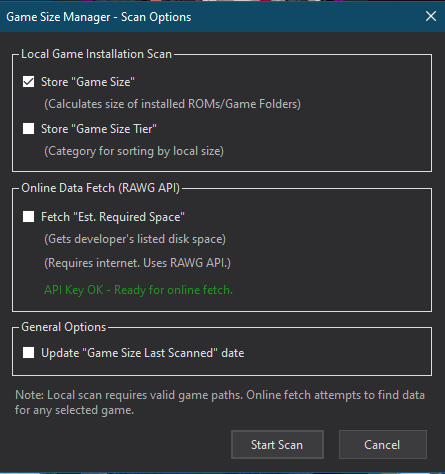
Hey folks, RegularRegs here (reg0lino on GitHub). I've put together a LaunchBox plugin that I hope some of you will find useful for managing your game libraries, especially when it comes to disk space. Game Size Manager (v1.0.0). What it does, plain and simple: This plugin looks at your games and tells you how big they are. For games you have installed locally (PC games, ROMs, CUE+BIN sets), it calculates their actual size on your drive. For any game (installed or not), it can also try to fetch the estimated required disk space from the RAWG.io online database. This is handy if you're thinking about downloading something big or just want a ballpark figure. All this info gets put into new custom fields right in LaunchBox, so you can see it in your game list or details panel. Here's what the Scan Options look like when you run it: (URL: https://github.com/user-attachments/assets/ec81198e-eff3-4b13-b517-3aeea802eba3 ) (The Scan Options dialog – choose what to calculate and fetch) And here's an example of the kind of info you'll see in your Game Details: (URL: https://github.com/user-attachments/assets/c4c037e8-fcd6-4720-a504-1e57ba8f3f48 ) (Example of the new custom fields in the Game Details panel - Sometimes RAWG is inaccurate, but I have mods on for this game) Core Features: Local Size Calculation: Checks your actual game folders, ROMs, and disc images (including CUE+BIN). Online Estimated Size: Pulls listed disk space requirements from RAWG.io (you'll need to get your own free API key from them for this part). New LaunchBox Custom Fields: Game Size (the local size) Game Size Tier (a category to help sort by local size) Est. Required Space (the online estimate) Game Size Last Scanned (when the plugin last looked at the game) Easy to Access: Works from the Tools -> Game Size Manager menu in LaunchBox for scanning whole platforms. (URL: https://github.com/user-attachments/assets/ac4d437a-81c3-4c1f-8bd5-f28e5704273d ) (Accessing via the Tools Menu) (URL: https://github.com/user-attachments/assets/615e147a-3b9d-4064-93d7-b7c2d75572b6 ) (Platform Actions dialog) (URL: https://github.com/user-attachments/assets/03b8858d-5f1e-40be-a6a2-bffd9359eba2 ) (Choosing your platform) Also available via right-click on selected games. You're In Control: The "Scan Options" dialog (pictured earlier) lets you pick exactly what data to grab each time. Online fetching is off by default and only works if you've set up your RAWG API key. Error Reports: If it can't find a path or get info from the API, it'll list those games out for you. Download & Setup: Download Link: (Use the forum's link button for this) https://github.com/Reg0lino/LaunchBoxGameSizeManager.Plugin/releases (Look for GameSizeManager_v1.0.0.zip) VERY IMPORTANT - "Unblock" the ZIP File First! Before you unzip it, right-click the downloaded .zip file, go to Properties. If there's an "Unblock" checkbox at the bottom (under a security warning), check it and click OK/Apply. (URL: https://github.com/user-attachments/assets/afb89578-4235-42a2-a184-f4836ed882f6 ) (The "Unblock" checkbox in file Properties) Install: Unzip the GameSizeManager_v1.0.0.zip file. You'll get a folder named GameSizeManager. Copy that whole GameSizeManager folder into your main LaunchBox\Plugins\ directory. (The path will look something like LaunchBox\Plugins\GameSizeManager\LaunchBoxGameSizeManager.Plugin.dll) RAWG.io API Key (If you want "Est. Required Space"): This feature uses RAWG.io. You need a free API key from them: (Use forum link button) https://rawg.io/apidocs In the LaunchBox\Plugins\GameSizeManager\ folder, you'll find RAWG_API_KEY.txt and API_DIRECTIONS.txt. Follow API_DIRECTIONS.txt to put your key in RAWG_API_KEY.txt. Restart LaunchBox. How It Works: Scanning: Whole platform: Tools -> Game Size Manager. Selected games: Right-click, Game Size Manager -> Calculate Game Size(s).... Scan Options: (Dialog shown earlier). Choose what to calculate/fetch. Viewing Data: Add the new custom fields (like Game Size, Est. Required Space) as columns in LaunchBox. Clearing Plugin Data: Use the "Clear Game Size Data" options. Just So You Know: "Est. Required Space" info depends on RAWG.io. If they don't list it, the plugin will report "Size Info Not Found." Local game size accuracy needs correct game paths in LaunchBox. A detailed log file is created in LaunchBox\Plugins\GameSizeManager\ for troubleshooting. Known Issues & Future Plans (v1.0.0): API Data Variations: The "Est. Required Space" feature relies on data from RAWG.io. If RAWG doesn't have storage info listed for a game, or if it's in an unusual format, the plugin will report "Size Info Not Found." I am thinking about fallback scrapes, or just leaving it alone, not sure yet. Multi-File Disc Games (e.g., some PS1, Dreamcast): If your game uses a .cue sheet (like most PS1 CUE+BIN sets) or a Dreamcast .gdi file, the plugin will calculate the total size of all referenced tracks. However, if LaunchBox points directly to a single .bin file (e.g., Track 01.bin) without an associated .cue file that lists all tracks, the plugin will currently only calculate the size of that single .bin file. For accurate sizing of the full multi-track game in such cases, ensure LaunchBox is using a proper .cue or .gdi file that references all parts of the game. Specific Extracted Game Formats (e.g., Original Xbox, Wii U Loadiine): While the plugin attempts to find the root folder for PC-like game structures, some specific console extracted formats (like original Xbox game folders if LaunchBox points to the default.xbe, or Wii U games in Loadiine format if LaunchBox points to an internal .rpx file) might not have their total size calculated perfectly yet. The plugin often defaults to the size of the executable or the RootFolder if set. Future v1.1/v2.0 Goal: We plan to enhance GamePathLogic with more platform-specific rules to better identify the correct root directory for these types of extracted console game formats (e.g., Xbox, Xbox 360, Wii U) to provide more accurate local size calculations. Support for Dreamcast .gdi files (similar to .cue sheets) is also planned. Feedback / Questions? This is v1.0.0, so feedback is welcome! GitHub Issues: (Use forum link button) https://github.com/Reg0lino/LaunchBoxGameSizeManager.Plugin/issues Or reply here. Hope it's useful! All the best, RegularRegs (reg0lino on GitHub) License: MIT License (full text in LICENSE.txt with the download).-
- 3
-
-
-
- files
- organization
- (and 1 more)
-
Game Size Manager View File Hey folks, RegularRegs here (reg0lino on GitHub). I've put together a LaunchBox plugin that I hope some of you will find useful for managing your game libraries, especially when it comes to disk space. Game Size Manager (v1.0.0). What it does, plain and simple: This plugin looks at your games and tells you how big they are. For games you have installed locally (PC games, ROMs, CUE+BIN sets), it calculates their actual size on your drive. For any game (installed or not), it can also try to fetch the estimated required disk space from the RAWG.io online database. This is handy if you're thinking about downloading something big or just want a ballpark figure. All this info gets put into new custom fields right in LaunchBox, so you can see it in your game list or details panel. Here's what the Scan Options look like when you run it: (URL: https://github.com/user-attachments/assets/ec81198e-eff3-4b13-b517-3aeea802eba3 ) (The Scan Options dialog – choose what to calculate and fetch) And here's an example of the kind of info you'll see in your Game Details: (URL: https://github.com/user-attachments/assets/c4c037e8-fcd6-4720-a504-1e57ba8f3f48 ) (Example of the new custom fields in the Game Details panel - Sometimes RAWG is inaccurate, but I have mods on for this game) Core Features: Local Size Calculation: Checks your actual game folders, ROMs, and disc images (including CUE+BIN). Online Estimated Size: Pulls listed disk space requirements from RAWG.io (you'll need to get your own free API key from them for this part). New LaunchBox Custom Fields: Game Size (the local size) Game Size Tier (a category to help sort by local size) Est. Required Space (the online estimate) Game Size Last Scanned (when the plugin last looked at the game) Easy to Access: Works from the Tools -> Game Size Manager menu in LaunchBox for scanning whole platforms. (URL: https://github.com/user-attachments/assets/ac4d437a-81c3-4c1f-8bd5-f28e5704273d ) (Accessing via the Tools Menu) (URL: https://github.com/user-attachments/assets/615e147a-3b9d-4064-93d7-b7c2d75572b6 ) (Platform Actions dialog) (URL: https://github.com/user-attachments/assets/03b8858d-5f1e-40be-a6a2-bffd9359eba2 ) (Choosing your platform) Also available via right-click on selected games. You're In Control: The "Scan Options" dialog (pictured earlier) lets you pick exactly what data to grab each time. Online fetching is off by default and only works if you've set up your RAWG API key. Error Reports: If it can't find a path or get info from the API, it'll list those games out for you. Download & Setup: Download Link: (Use the forum's link button for this) https://github.com/Reg0lino/LaunchBoxGameSizeManager.Plugin/releases (Look for GameSizeManager_v1.0.0.zip) VERY IMPORTANT - "Unblock" the ZIP File First! Before you unzip it, right-click the downloaded .zip file, go to Properties. If there's an "Unblock" checkbox at the bottom (under a security warning), check it and click OK/Apply. (URL: https://github.com/user-attachments/assets/afb89578-4235-42a2-a184-f4836ed882f6 ) (The "Unblock" checkbox in file Properties) Install: Unzip the GameSizeManager_v1.0.0.zip file. You'll get a folder named GameSizeManager. Copy that whole GameSizeManager folder into your main LaunchBox\Plugins\ directory. (The path will look something like LaunchBox\Plugins\GameSizeManager\LaunchBoxGameSizeManager.Plugin.dll) RAWG.io API Key (If you want "Est. Required Space"): This feature uses RAWG.io. You need a free API key from them: (Use forum link button) https://rawg.io/apidocs In the LaunchBox\Plugins\GameSizeManager\ folder, you'll find RAWG_API_KEY.txt and API_DIRECTIONS.txt. Follow API_DIRECTIONS.txt to put your key in RAWG_API_KEY.txt. Restart LaunchBox. How It Works: Scanning: Whole platform: Tools -> Game Size Manager. Selected games: Right-click, Game Size Manager -> Calculate Game Size(s).... Scan Options: (Dialog shown earlier). Choose what to calculate/fetch. Viewing Data: Add the new custom fields (like Game Size, Est. Required Space) as columns in LaunchBox. Clearing Plugin Data: Use the "Clear Game Size Data" options. Just So You Know: "Est. Required Space" info depends on RAWG.io. If they don't list it, the plugin will report "Size Info Not Found." Local game size accuracy needs correct game paths in LaunchBox. A detailed log file is created in LaunchBox\Plugins\GameSizeManager\ for troubleshooting. Known Issues & Future Plans (v1.0.0): API Data Variations: The "Est. Required Space" feature relies on data from RAWG.io. If RAWG doesn't have storage info listed for a game, or if it's in an unusual format, the plugin will report "Size Info Not Found." I am thinking about fallback scrapes, or just leaving it alone, not sure yet. Multi-File Disc Games (e.g., some PS1, Dreamcast): If your game uses a .cue sheet (like most PS1 CUE+BIN sets) or a Dreamcast .gdi file, the plugin will calculate the total size of all referenced tracks. However, if LaunchBox points directly to a single .bin file (e.g., Track 01.bin) without an associated .cue file that lists all tracks, the plugin will currently only calculate the size of that single .bin file. For accurate sizing of the full multi-track game in such cases, ensure LaunchBox is using a proper .cue or .gdi file that references all parts of the game. Specific Extracted Game Formats (e.g., Original Xbox, Wii U Loadiine): While the plugin attempts to find the root folder for PC-like game structures, some specific console extracted formats (like original Xbox game folders if LaunchBox points to the default.xbe, or Wii U games in Loadiine format if LaunchBox points to an internal .rpx file) might not have their total size calculated perfectly yet. The plugin often defaults to the size of the executable or the RootFolder if set. Future v1.1/v2.0 Goal: We plan to enhance GamePathLogic with more platform-specific rules to better identify the correct root directory for these types of extracted console game formats (e.g., Xbox, Xbox 360, Wii U) to provide more accurate local size calculations. Support for Dreamcast .gdi files (similar to .cue sheets) is also planned. Feedback / Questions? This is v1.0.0, so feedback is welcome! GitHub Issues: (Use forum link button) https://github.com/Reg0lino/LaunchBoxGameSizeManager.Plugin/issues Or reply here. Hope it's useful! All the best, RegularRegs (reg0lino on GitHub) License: MIT License (full text in LICENSE.txt with the download). Submitter RegularRegs Submitted 05/14/2025 Category Third-party Apps and Plugins

-
 Hey there, I'm currently importing various MAME/MESS system that might have different media/medium for a system, e.g. Atari 800 that has cartridge, floppy disk, and casette. Is there any recommended way to create only a single platform but easier way to group by Media? Reason being the emulator command differ depending on the media, especially when using MAME emulator, using -cart for cartridge, -flop1 for floppy, etc. Wish LB has a native field called Media or Medium for us to sort. Also thinking of using Version field but it's best reserved for its original purpose. Initially I was thinking to use a Custom Field: Media, then generate auto playlist based on the filter. Unfortunately the auto playlist field didn't support custom field. Another approach is to create separate platform for it, such as Atari 800 (CS), Atari 800 (CT) and Atari 800 (FD). But doing is is convoluted and make BigBox navigation more cumbersome. Wish to see how you guys did it!


