Search the Community
Showing results for tags 'curated'.
Found 4 results
-
 If you've been fuddling with complex boot sequences for various computer systems in MAME/MESS, look no further! I'm now sharing a collection of MAME-tested Lua autoboot scripts that I've personally written to seamlessly launch software for various classic computer systems that often have complex boot sequences. Say goodbye to manual boot commands and enjoy a smoother MAME launching experience! Key features include: Curated & Tested: A collection of reliable Lua autoboot scripts, verified against MAME 0.278 ROM sets. Seamless Launching: Designed to automatically handle complex boot sequences for various computer systems. Modular Design: Features a autoboot_common.lua library for easy maintenance and readability, encapsulating complex timing and future expansion. No more complex coding the frame time or button sequences! Simply call the intuitive functions encapsulated in this library! Easy Integration: Simply download and extract to your MAME scripts folder. LaunchBox Friendly: My MAME Curated Softlist Importer v1.1.0 plugin can automatically configure -autoboot_script command lines for matching titles in LaunchBox." If you're interested to run those obscure MESS system without having to execute those complex boot sequence, look no further! Currently it can autoamte 24 system softlists by the time of posting, which are selected based on some obscure or common computer systems that has most working titles. I'm open for suggestion if you have any more systems that would like to automate! https://github.com/dsync89/mess-curated-autoboot-scripts
- 7 replies
-
- 3
-

-

-
- autoboot scripts
- mame
- (and 3 more)
-
Version 1.0.0
84 downloads
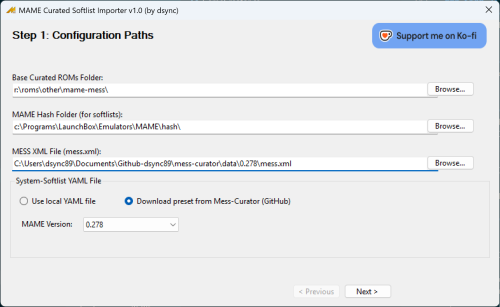
MAME Curated Platform Softlist Importer for LaunchBox (v1.0.0) Have you ever wanted to import your MAME Software Lists (softlists) into LaunchBox in a clean, organized, playble, and automated way? This plugin is designed to do just that, acting as a powerful companion to tools like mess-curator. It goes beyond simple importing by using a highly-configurable YAML file to intelligently map MAME systems and softlists to the correct LaunchBox platforms, apply the right emulator settings, mark games as broken if there is relevant metadata, and even handle complex scenarios like clones and importing artwork. This plugin, when importing using my MAME 0.278 system-softlist YAML preset, will add 106 Platforms and ~16k games to your Launchbox collections, all ready to play, or at least those that I tried :-) Important Plugin Note Note: This is NOT a successor nor replacement for the amazing MAME Software Lists Import Tool - plugin 6.0.2 that is developed by @JoeViking245 that also serve the purpose to import MAME softlist into Launchbox. The original tool is perfect for users who want a simple, direct way to import softlist games using the MAME hash XMLs. If that's your goal, I strongly recommend using it. This plugin, however, was inspired by it and was born from my own OCD needs and is designed for a more complex, automated workflow. It excels at creating highly customized "curated" platforms that can contain a mix of different softlist media, obscure systems, and custom launch commands—all managed through a central configuration file that simplifies maintenance for future MAME updates. The curated list (system-softlist YAML) used by this plugin is also maintained by me and is readily available as preset by this plugin. Perhaps that list will be contributed by the communities if it is able to gain some attention 🙂 Release Note 2025.07.11 - Initial release to the public community Launchbox forum Motivation While there exist other tools can import MAME Software Lists such as MAME Software Lists Import Tool by @JoeViking245, they often fall short when dealing with the complexity and quirks of MAME's database. This plugin was created to solve common frustrations: Platform Clutter: MAME often has multiple system drivers and media types (cassette, floppy, cartridge) for a single real-world platform. Other importers can create a messy platform list (e.g., "Amstrad CPC (Cassette)", "Amstrad CPC (Floppy)"). This tool intelligently maps them all to a single, clean platform like "Amstrad CPC". Manual Emulator Configuration: Getting softlist titles to run correctly often requires specific command-line arguments for each game or media type. This tool automates that process entirely based on a flexible configuration file. Complex System Mapping: What about systems that have no softlists but are still desirable to import, like JAKKS Pacific Plug & Play devices? This tool allows you to map them to the correct platform, ensuring they are not overlooked. Or even better, having a mixture of systems and softlist titles under one single platform, e.g. some JAKKS Pacific Plug & Play devices has pluggable soft keys. Fine-Grained Control: The import process is driven by a powerful YAML file, giving you complete control to override default settings, define custom command lines for specific games, and handle exceptions gracefully. In short, this plugin was built for curators who want their MAME softlist collection in LaunchBox to be not just imported, but correctly and cleanly organized with minimal manual effort. What's best is that job is already done for you by me, which I also maintained a template here. Key Features Wizard-Style Interface: An easy-to-use, step-by-step wizard to guide you through the import process. Intelligent Platform Mapping: Uses a YAML configuration to map multiple MAME systems and softlists to a single, clean LaunchBox platform (e.g., mapping a2600, a2600_cass, etc., all to "Atari 2600"). Automatic Emulator Configuration: Sets the correct MAME driver and command-line parameters for each game, ensuring they are immediately playable. Advanced Clone Handling: Choose how to handle clone ROMs: Import as Additional Apps (Recommended). Import as separate, standalone games. Skip them entirely. Artwork & Manuals Importing: Automatically finds and copies associated artwork (Gameplay, Title, Select Screens) and manuals from your MAME extras folders. Game Health Status: Automatically flags games as "Broken" in LaunchBox if they are marked as supported="no" or status="preliminary" in MAME's database. Detailed Progress Reporting: See real-time updates on which platform and file is being processed. Cleanup Options: Can remove all existing games from a platform before import to ensure a fresh start. How It Works The importer relies on three main sources of information: Your Curated ROMs Folder: It scans a folder where your ROMs are organized by platform, system, and softlist. This structure is essential for the importer to understand the context of each file. MESS's XML Database (mess.xml): This file provides the ground truth for all machine information, software details, and parent-clone relationships. YAML Configuration (system_softlist.yml): This is the heart of the importer. It defines how a system or softlist titles is mapped to LaunchBox platforms, which emulator to use, what custom command-line arguments are needed, and more. This file gives you complete control over the final import. The YAML Configuration (system_softlist.yml) can be automatically generated using my mess_curator tool. The tool processes this information to create perfectly configured game entries in LaunchBox, complete with metadata, artwork, and the correct launch commands. Dependencies To use this importer plugin, you must first organize your MAME softlist ROMs using a companion tool, mess-curator CLI/UI that I developed. The importer relies on the specific folder hierarchy and metadata references created by mess-curator's system_softlist.yml configuration. You can either use a preset system_softlist.yml provided by mess-curator or generate your own. Prerequisites Before you begin, you will need: 1. MAME Curated Softlist Importer Launchbox Plugin Download and place the MAMECuratedSoftlistImporter.dll file into Launchbox\Plugins\MAMECuratedSoftlistImporter folder. 2. Curated ROMs Folder A folder containing your MAME softlist ROMs, organized in a specific structure. My mess-curator companion tool can generate this structure for you via mess-curator copy-roms subcommand. - Your_Base_Roms_Folder/ <-- e.g., "roms" - platform-friendly-display-name/ <-- e.g., "jakks-pacific-tv-game" - mame_system_name/ <-- system without any softlist titles, e.g., "jak_batm" - system.zip <-- e.g., matches the mame_system_name (zip file), should only have one single zip file - mame_system_name/ <-- system with softlist titles, e.g., "jak_dora" - softlist_name/ <-- e.g., "jakks_gamekey_nk" - softlist_game1.zip <-- e.g., "dora.zip" - softlist_game2.zip <-- e.g., "popsnow.zip" - softlist_game3.zip <-- e.g., "volbird.zip" Steps Download the latest release from mess-curator Releases page. Run python src\mess_curator.py and go through the initial setup wizard until you reach the point where it download the mess.xml for your matching MAME romset version. Refer here for the initial setup. Run python src\mess_curator.py copy-roms to start copying roms from your MAME romset adhering to the system/softlist structure defined in the system_softlist.yml file. Check your output rom folder, profit! 3. MAME/MESS XML File An XML file containing metadata for non-arcade systems that matches your MAME ROMset version, downloadable from https://www.progettosnaps.net/mess/repository. E.g. for MAME 0.278, download https://www.progettosnaps.net/download/?tipo=mess_xml&file=/mess/packs/xml/mess278.zip. 4. system_softlist.yml YAML Config File This is the most important file that defines the metadata for the rom files detected during import configurations. You can use a pre-defined template that is selectable in Step 1 Setup Wizard with my mess-curator tool. This file is critical. It tells the importer how to handle each system and softlist titles. Here is an example snippet with explanations: # This is a single entry for the Amstrad CPC system. amstrad_cpc: # A list of all MAME system/driver names that should be mapped to this platform. mame_system_names: - cpc464 - cpc664 - cpc6128 # ... and so on. # The final, user-friendly name for the platform in LaunchBox. platform_name: Amstrad CPC # A list of all MAME softlist names that belong to this platform. softlist_names: - cpc_cass - cpc_flop # (Optional) The category for this platform in LaunchBox. platform_category: Computer # (Optional) Defines the emulator and command-line parameters. emulator: # The name of the Emulator entry in your LaunchBox setup. name: MAME (Cartridge) # {mame_system_name} and {media_type} are placeholders that the importer will fill in. default_command_line_parameters: '{mame_system_name} {media_type}' See my mess-curator repo README here for more information. 5. MAME (MESS) Emulator Create an emulator named as MAME (MESS) and configure it to point to your mame.exe emulator. The emulator name is not hard coded in the plugin itself, and is lookup from the system_softlist.yml, and MAME (MESS) is the default emulator name specified in that file. Usage: Step-by-Step The importer is designed to be run from within LaunchBox (Tools > MAME Curated Softlist Importer). Step 1: Configure Paths Set the paths to your ROMs, MAME hash folder, MAME XML file, and the system softlist YAML file. For the system softlist YAML file, you can also automatically select a template matching your MAME ROMset version from my mess-curator repo. Step 2: Select Platforms Choose which platforms (as defined in the system softlist YAML file) you want to import or update. You can select by category and see a list of platforms that belonged to that category. Step 3: Import Options Configure how clones and unsupported games are handled. You can also choose to remove existing games in the platform before importing to ensure all rom paths are up to date. Step 4: Import Artwork & Manuals Select which types of artwork and manuals you want to copy over from your MAME extras folders. Ideally you want all since Launchbox database might not have the snaps for all of these softlist titles. The plugin will intelligently mapped each artwork type to the right Launchbox artwork folder for each selected platform. Step 5: Processing & Summary The tool will now process all selected platforms, providing real-time progress updates. Once complete, it will display a detailed summary of the import session. The screenshot above shows the output for all 105 platforms (took ~5 minutes). Import complete! Games Removed: 3254 Imported: 16542 games Updated: 0 games Skipped (already existed): 462 games Clones Added as Additional Apps: 4365 games Platforms Created: 68 platforms --- Metadata Details --- Used MAME System Description Fallback: 1054 games Metadata Not Found (used filename): 1 games --- Health Status --- Marked as Broken (Unsupported/Preliminary): 3828 games --- Artwork & Manuals Summary --- Title Screens Copied: 6886 Gameplay Snaps Copied: 7583 Select Screens Copied: 117 Manuals Copied: 424 A Note on Saving: After the import is finished, LaunchBox needs to save all the changes to its database. For very large imports (100+ platforms), this can take several minutes. The UI may appear to hang during this time—this is normal. Please be patient and let it complete the save. Just for reference, this is what a fresh Launchbox collections will looked like after importing all 106 platforms for MAME 0.278 ROMset, using my preset 0.278 system-softlist YAML file. FAQ Q: Why create per-game custom command lines instead of using a universal LUA script? A: Simplicity and reliability. This method ensures that every game has a self-contained, correct launch command without relying on external scripts that can sometimes fail or require complex setup. It's the most straightforward way to guarantee playability out of the box. For advanced users who want to automate complex sequences (like loading from a tape, entering commands, etc.), MAME's autoboot_script feature is the ideal solution. You can find excellent examples of such scripts at RandoMame's autoboot_script repository. As a matter of fact, I'm also working on a separate project to provide these autoboot scripts. Stay tuned! Future Work Automatically assign newly added Platform to the Platform Categories from system-softlist YAML file Even though the system-softlist YAML file already defined various Platform Categories for the Platforms, I couldn't find any reference in the Launchbox Plugin API that mention how to assign multiple Platform Categories for a Platform. So for now you have to add them manually. Disclaimer This tool modifies your LaunchBox database (LaunchBox.xml and other files). Please back up your LaunchBox Data folder before running a large import for the first time. The author is not responsible for any data loss. Use at your own risk. -
MAME Curated Softlist Importer View File MAME Curated Platform Softlist Importer for LaunchBox (v1.0.0) Have you ever wanted to import your MAME Software Lists (softlists) into LaunchBox in a clean, organized, playble, and automated way? This plugin is designed to do just that, acting as a powerful companion to tools like mess-curator. It goes beyond simple importing by using a highly-configurable YAML file to intelligently map MAME systems and softlists to the correct LaunchBox platforms, apply the right emulator settings, mark games as broken if there is relevant metadata, and even handle complex scenarios like clones and importing artwork. This plugin, when importing using my MAME 0.278 system-softlist YAML preset, will add 106 Platforms and ~16k games to your Launchbox collections, all ready to play, or at least those that I tried :-) Important Plugin Note Note: This is NOT a successor nor replacement for the amazing MAME Software Lists Import Tool - plugin 6.0.2 that is developed by @JoeViking245 that also serve the purpose to import MAME softlist into Launchbox. The original tool is perfect for users who want a simple, direct way to import softlist games using the MAME hash XMLs. If that's your goal, I strongly recommend using it. This plugin, however, was inspired by it and was born from my own OCD needs and is designed for a more complex, automated workflow. It excels at creating highly customized "curated" platforms that can contain a mix of different softlist media, obscure systems, and custom launch commands—all managed through a central configuration file that simplifies maintenance for future MAME updates. The curated list (system-softlist YAML) used by this plugin is also maintained by me and is readily available as preset by this plugin. Perhaps that list will be contributed by the communities if it is able to gain some attention 🙂 Release Note 2025.07.11 - Initial release to the public community Launchbox forum Motivation While there exist other tools can import MAME Software Lists such as MAME Software Lists Import Tool by @JoeViking245, they often fall short when dealing with the complexity and quirks of MAME's database. This plugin was created to solve common frustrations: Platform Clutter: MAME often has multiple system drivers and media types (cassette, floppy, cartridge) for a single real-world platform. Other importers can create a messy platform list (e.g., "Amstrad CPC (Cassette)", "Amstrad CPC (Floppy)"). This tool intelligently maps them all to a single, clean platform like "Amstrad CPC". Manual Emulator Configuration: Getting softlist titles to run correctly often requires specific command-line arguments for each game or media type. This tool automates that process entirely based on a flexible configuration file. Complex System Mapping: What about systems that have no softlists but are still desirable to import, like JAKKS Pacific Plug & Play devices? This tool allows you to map them to the correct platform, ensuring they are not overlooked. Or even better, having a mixture of systems and softlist titles under one single platform, e.g. some JAKKS Pacific Plug & Play devices has pluggable soft keys. Fine-Grained Control: The import process is driven by a powerful YAML file, giving you complete control to override default settings, define custom command lines for specific games, and handle exceptions gracefully. In short, this plugin was built for curators who want their MAME softlist collection in LaunchBox to be not just imported, but correctly and cleanly organized with minimal manual effort. What's best is that job is already done for you by me, which I also maintained a template here. Key Features Wizard-Style Interface: An easy-to-use, step-by-step wizard to guide you through the import process. Intelligent Platform Mapping: Uses a YAML configuration to map multiple MAME systems and softlists to a single, clean LaunchBox platform (e.g., mapping a2600, a2600_cass, etc., all to "Atari 2600"). Automatic Emulator Configuration: Sets the correct MAME driver and command-line parameters for each game, ensuring they are immediately playable. Advanced Clone Handling: Choose how to handle clone ROMs: Import as Additional Apps (Recommended). Import as separate, standalone games. Skip them entirely. Artwork & Manuals Importing: Automatically finds and copies associated artwork (Gameplay, Title, Select Screens) and manuals from your MAME extras folders. Game Health Status: Automatically flags games as "Broken" in LaunchBox if they are marked as supported="no" or status="preliminary" in MAME's database. Detailed Progress Reporting: See real-time updates on which platform and file is being processed. Cleanup Options: Can remove all existing games from a platform before import to ensure a fresh start. How It Works The importer relies on three main sources of information: Your Curated ROMs Folder: It scans a folder where your ROMs are organized by platform, system, and softlist. This structure is essential for the importer to understand the context of each file. MESS's XML Database (mess.xml): This file provides the ground truth for all machine information, software details, and parent-clone relationships. YAML Configuration (system_softlist.yml): This is the heart of the importer. It defines how a system or softlist titles is mapped to LaunchBox platforms, which emulator to use, what custom command-line arguments are needed, and more. This file gives you complete control over the final import. The YAML Configuration (system_softlist.yml) can be automatically generated using my mess_curator tool. The tool processes this information to create perfectly configured game entries in LaunchBox, complete with metadata, artwork, and the correct launch commands. Dependencies To use this importer plugin, you must first organize your MAME softlist ROMs using a companion tool, mess-curator CLI/UI that I developed. The importer relies on the specific folder hierarchy and metadata references created by mess-curator's system_softlist.yml configuration. You can either use a preset system_softlist.yml provided by mess-curator or generate your own. Prerequisites Before you begin, you will need: 1. MAME Curated Softlist Importer Launchbox Plugin Download and place the MAMECuratedSoftlistImporter.dll file into Launchbox\Plugins\MAMECuratedSoftlistImporter folder. 2. Curated ROMs Folder A folder containing your MAME softlist ROMs, organized in a specific structure. My mess-curator companion tool can generate this structure for you via mess-curator copy-roms subcommand. - Your_Base_Roms_Folder/ <-- e.g., "roms" - platform-friendly-display-name/ <-- e.g., "jakks-pacific-tv-game" - mame_system_name/ <-- system without any softlist titles, e.g., "jak_batm" - system.zip <-- e.g., matches the mame_system_name (zip file), should only have one single zip file - mame_system_name/ <-- system with softlist titles, e.g., "jak_dora" - softlist_name/ <-- e.g., "jakks_gamekey_nk" - softlist_game1.zip <-- e.g., "dora.zip" - softlist_game2.zip <-- e.g., "popsnow.zip" - softlist_game3.zip <-- e.g., "volbird.zip" Steps Download the latest release from mess-curator Releases page. Run python src\mess_curator.py and go through the initial setup wizard until you reach the point where it download the mess.xml for your matching MAME romset version. Refer here for the initial setup. Run python src\mess_curator.py copy-roms to start copying roms from your MAME romset adhering to the system/softlist structure defined in the system_softlist.yml file. Check your output rom folder, profit! 3. MAME/MESS XML File An XML file containing metadata for non-arcade systems that matches your MAME ROMset version, downloadable from https://www.progettosnaps.net/mess/repository. E.g. for MAME 0.278, download https://www.progettosnaps.net/download/?tipo=mess_xml&file=/mess/packs/xml/mess278.zip. 4. system_softlist.yml YAML Config File This is the most important file that defines the metadata for the rom files detected during import configurations. You can use a pre-defined template that is selectable in Step 1 Setup Wizard with my mess-curator tool. This file is critical. It tells the importer how to handle each system and softlist titles. Here is an example snippet with explanations: # This is a single entry for the Amstrad CPC system. amstrad_cpc: # A list of all MAME system/driver names that should be mapped to this platform. mame_system_names: - cpc464 - cpc664 - cpc6128 # ... and so on. # The final, user-friendly name for the platform in LaunchBox. platform_name: Amstrad CPC # A list of all MAME softlist names that belong to this platform. softlist_names: - cpc_cass - cpc_flop # (Optional) The category for this platform in LaunchBox. platform_category: Computer # (Optional) Defines the emulator and command-line parameters. emulator: # The name of the Emulator entry in your LaunchBox setup. name: MAME (Cartridge) # {mame_system_name} and {media_type} are placeholders that the importer will fill in. default_command_line_parameters: '{mame_system_name} {media_type}' See my mess-curator repo README here for more information. 5. MAME (MESS) Emulator Create an emulator named as MAME (MESS) and configure it to point to your mame.exe emulator. The emulator name is not hard coded in the plugin itself, and is lookup from the system_softlist.yml, and MAME (MESS) is the default emulator name specified in that file. Usage: Step-by-Step The importer is designed to be run from within LaunchBox (Tools > MAME Curated Softlist Importer). Step 1: Configure Paths Set the paths to your ROMs, MAME hash folder, MAME XML file, and the system softlist YAML file. For the system softlist YAML file, you can also automatically select a template matching your MAME ROMset version from my mess-curator repo. Step 2: Select Platforms Choose which platforms (as defined in the system softlist YAML file) you want to import or update. You can select by category and see a list of platforms that belonged to that category. Step 3: Import Options Configure how clones and unsupported games are handled. You can also choose to remove existing games in the platform before importing to ensure all rom paths are up to date. Step 4: Import Artwork & Manuals Select which types of artwork and manuals you want to copy over from your MAME extras folders. Ideally you want all since Launchbox database might not have the snaps for all of these softlist titles. The plugin will intelligently mapped each artwork type to the right Launchbox artwork folder for each selected platform. Step 5: Processing & Summary The tool will now process all selected platforms, providing real-time progress updates. Once complete, it will display a detailed summary of the import session. The screenshot above shows the output for all 105 platforms (took ~5 minutes). Import complete! Games Removed: 3254 Imported: 16542 games Updated: 0 games Skipped (already existed): 462 games Clones Added as Additional Apps: 4365 games Platforms Created: 68 platforms --- Metadata Details --- Used MAME System Description Fallback: 1054 games Metadata Not Found (used filename): 1 games --- Health Status --- Marked as Broken (Unsupported/Preliminary): 3828 games --- Artwork & Manuals Summary --- Title Screens Copied: 6886 Gameplay Snaps Copied: 7583 Select Screens Copied: 117 Manuals Copied: 424 A Note on Saving: After the import is finished, LaunchBox needs to save all the changes to its database. For very large imports (100+ platforms), this can take several minutes. The UI may appear to hang during this time—this is normal. Please be patient and let it complete the save. Just for reference, this is what a fresh Launchbox collections will looked like after importing all 106 platforms for MAME 0.278 ROMset, using my preset 0.278 system-softlist YAML file. FAQ Q: Why create per-game custom command lines instead of using a universal LUA script? A: Simplicity and reliability. This method ensures that every game has a self-contained, correct launch command without relying on external scripts that can sometimes fail or require complex setup. It's the most straightforward way to guarantee playability out of the box. For advanced users who want to automate complex sequences (like loading from a tape, entering commands, etc.), MAME's autoboot_script feature is the ideal solution. You can find excellent examples of such scripts at RandoMame's autoboot_script repository. As a matter of fact, I'm also working on a separate project to provide these autoboot scripts. Stay tuned! Future Work Automatically assign newly added Platform to the Platform Categories from system-softlist YAML file Even though the system-softlist YAML file already defined various Platform Categories for the Platforms, I couldn't find any reference in the Launchbox Plugin API that mention how to assign multiple Platform Categories for a Platform. So for now you have to add them manually. Disclaimer This tool modifies your LaunchBox database (LaunchBox.xml and other files). Please back up your LaunchBox Data folder before running a large import for the first time. The author is not responsible for any data loss. Use at your own risk. Submitter dsync89 Submitted 07/11/2025 Category Third-party Apps and Plugins
-
Thanks for your time. I setup Mame on my computer more than a decade ago and I recall spending countless hours trying to fix games that wouldn't work or crashed etc. I just installed it again and downloaded some roms and already I am finding similar issues. Most of the roms have problems or don't work properly etc. Has someone made the effort to curate a set great roms which just work and made them available for download by chance?
