Search the Community
Showing results for tags 'copy'.
Found 5 results
-
 Summary Within LaunchBox, launching a compressed zip game, which opened RetroArch, was very slow (40+ seconds). I discovered that I had two file protection services on: my normal Eset Smart Security (antivirus) and NordVPN with its File protection option turned on. Turning off NordVPN File protection made things run smoothly again. I'm hoping this information will save others time. Side issue I later noticed that just copying zip files among various different SSDs was very slow (would calculate for many seconds and then cap out around 550 Kb/s), but copying other file types (like large video files) was nearly instantaneous. Troubleshooting I'm on LaunchBox 13.14. For debugging purposes, I turned on logging: Tools > Options > General > Debugging > Enable Debug Logs check box. In the log files, I confirmed that the time between trying to launch a game and having the zip finish extracting was in the tens of seconds. Ignore this kind of error. It's apparently a Microsoft Windows benign error per this thread: "Options taking forever to open on LB & BB 13.6" https://forums.launchbox-app.com/topic/75266-options-taking-forever-to-open-on-lb-bb-136 2024-06-23 12:22:18 AM FIRST CHANCE EXCEPTION: Could not load file or assembly 'F:\LaunchBox\Core\Unbroken.LaunchBox.Windows.XmlSerializers.dll'. The system cannot find the file specified. at System.Runtime.Loader.AssemblyLoadContext.LoadFromPath(IntPtr ptrNativeAssemblyLoadContext, String ilPath, String niPath, ObjectHandleOnStack retAssembly) I then saw this issue regarding 7-Zip. 2024-06-23 12:23:53 AM FIRST CHANCE EXCEPTION: Could not find file 'F:\LaunchBox\ThirdParty\7-Zip\Temp\link'. at Microsoft.Win32.SafeHandles.SafeFileHandle.CreateFile(String fullPath, FileMode mode, FileAccess access, FileShare share, FileOptions options) I went to <LaunchBox directory>\Plugins and moved the ArchiveCacheManager folder out in case that was causing issues. That didn't fix the issue, so I moved it back. I went to Tools > Manage > Emulators to open Retroarch settings. I unchecked the "Extract ROM archives before running" check box. (I can't remember why I normally have this checked. Perhaps it's because some cores don't support compressed files, or perhaps I have a mixture of zip and 7z files, or perhaps some later-generation consoles for CD games require extraction.) Anyway, unchecking the box made things perform correctly. I was ready to be content with that. Later on, I was testing out copying around 20 of the zipped ROM files from one directory to another (across different SSDs) for backup purposes. I noticed that Windows copied the files very slowly. I restarted the computer in safe mode and no longer had the slowness. Back in normal mode, the slowness occurred again. (Sometimes the zip files would copy super fast as expected, but most of the time they would be slow and I'd cancel out. The occasional fast copy was probably just a fluke.) Given that safe mode disables most applications, I figured I should check my antivirus settings. In Eset Smart Security, I went to Setup > Advanced Setup > Cloud-based protection. Toggling off Enable ESET LiveGuard didn't fix my issue. I found this post: "Eset slowing down windows 10 copy/paste to a crawl" https://forum.eset.com/topic/39788-eset-slowing-down-windows-10-copypaste-to-a-crawl/ That was the answer. Turning off NordVPN File protection fixed the zip file copying and thus also the LaunchBox slowness. (I was able to recheck the "Extract ROM archives before running" check box to turn that back on.)
 -
.thumb.png.daba333a61f5a96e85d850eeae9c53f3.png) MAME to Demul Rom Copier (MAME .184 & demul07a_180816) View File So Derek (@DOS76), originally posted these scripts, and I saw that they were not copying over all of the files for these systems, and that there were now some errors thrown in. So I updated all of the scripts to include name changes, newly added games, and now the Naomi GD and Naomi GD2 scripts also copy over CHD files. Required Files: 1. These scripts obviously. 2. MAME .184b and demul07a_180816 2. A MAME .184 split or non-merged rom set. Searching mame dome of pleasure helps. (Non-merged is suggested for the best compatibility, even though it's much larger). 3. A MAME .184 CHD pack. This is optional, but the Naomi GD and Naomi GD2 games will either not run correctly or at all. The CHD pack only comes as "merged". How to Use: 1.Download the zip 2. Extract the contents of the zip to a folder (like your Demul folder). 3. Move the scripts (.bat) files to your MAME .184 roms folder. 4. Run each of the scripts 1 by 1, and when the script is done it will ask you to press a button to close the Windows Command Prompt. 5. It will create new folders, sorted to the top of your current view; These folders begin with _ so they move to the top. 6. Move those folders to a location of your choosing so that you can import them in to LaunchBox. 6.5 Make sure to set the "Scrape As" option for these platforms all to Arcade (Will automatically pop up during import when you type in a non-default System name) and check the box "Force using MAME Metadata" (That box is on the final screen with the rest of those check boxes). Remember, these are all Arcade MAME Games, so all of their metadata will be in there. 7. Make sure to also tell Demul where your MAME roms are located for parent and dependency reasons. You can add this in the Plugins and Bioses options menu in Deuml, pictured below. The Systems this script will copy games for: Naomi NaomiGD Naomi 2 Naomi 2 GD Sammy Atomiswave Hikaru Gaelco This script uses 2 commands, copy and xcopy, and I can only promise that it will work on Operating Systems that LaunchBox supports (Windows 7, Windows 8 / 8.1 and Windows 10 currently). If you have any questions, leave a comment on the download page or the thread. I will also post Derek's original script for the version of MAME he edited them for. To clarify, his scripts work on a older version of MAME and Demul. Submitter SentaiBrad Submitted 04/18/2017 Category Third-party Apps and Plugins
MAME to Demul Rom Copier (MAME .184 & demul07a_180816) View File So Derek (@DOS76), originally posted these scripts, and I saw that they were not copying over all of the files for these systems, and that there were now some errors thrown in. So I updated all of the scripts to include name changes, newly added games, and now the Naomi GD and Naomi GD2 scripts also copy over CHD files. Required Files: 1. These scripts obviously. 2. MAME .184b and demul07a_180816 2. A MAME .184 split or non-merged rom set. Searching mame dome of pleasure helps. (Non-merged is suggested for the best compatibility, even though it's much larger). 3. A MAME .184 CHD pack. This is optional, but the Naomi GD and Naomi GD2 games will either not run correctly or at all. The CHD pack only comes as "merged". How to Use: 1.Download the zip 2. Extract the contents of the zip to a folder (like your Demul folder). 3. Move the scripts (.bat) files to your MAME .184 roms folder. 4. Run each of the scripts 1 by 1, and when the script is done it will ask you to press a button to close the Windows Command Prompt. 5. It will create new folders, sorted to the top of your current view; These folders begin with _ so they move to the top. 6. Move those folders to a location of your choosing so that you can import them in to LaunchBox. 6.5 Make sure to set the "Scrape As" option for these platforms all to Arcade (Will automatically pop up during import when you type in a non-default System name) and check the box "Force using MAME Metadata" (That box is on the final screen with the rest of those check boxes). Remember, these are all Arcade MAME Games, so all of their metadata will be in there. 7. Make sure to also tell Demul where your MAME roms are located for parent and dependency reasons. You can add this in the Plugins and Bioses options menu in Deuml, pictured below. The Systems this script will copy games for: Naomi NaomiGD Naomi 2 Naomi 2 GD Sammy Atomiswave Hikaru Gaelco This script uses 2 commands, copy and xcopy, and I can only promise that it will work on Operating Systems that LaunchBox supports (Windows 7, Windows 8 / 8.1 and Windows 10 currently). If you have any questions, leave a comment on the download page or the thread. I will also post Derek's original script for the version of MAME he edited them for. To clarify, his scripts work on a older version of MAME and Demul. Submitter SentaiBrad Submitted 04/18/2017 Category Third-party Apps and Plugins -
Version 1.0.0
580 downloads
So Derek (@DOS76), originally posted these scripts, and I saw that they were not copying over all of the files for these systems, and that there were now some errors thrown in. So I updated all of the scripts to include name changes, newly added games, and now the Naomi GD and Naomi GD2 scripts also copy over CHD files. Required Files: 1. These scripts obviously. 2. MAME .184b and demul07a_180816 2. A MAME .184 split or non-merged rom set. Searching mame dome of pleasure helps. (Non-merged is suggested for the best compatibility, even though it's much larger). 3. A MAME .184 CHD pack. This is optional, but the Naomi GD and Naomi GD2 games will either not run correctly or at all. The CHD pack only comes as "merged". How to Use: 1.Download the zip 2. Extract the contents of the zip to a folder (like your Demul folder). 3. Move the scripts (.bat) files to your MAME .184 roms folder. 4. Run each of the scripts 1 by 1, and when the script is done it will ask you to press a button to close the Windows Command Prompt. 5. It will create new folders, sorted to the top of your current view; These folders begin with _ so they move to the top. 6. Move those folders to a location of your choosing so that you can import them in to LaunchBox. 6.5 Make sure to set the "Scrape As" option for these platforms all to Arcade (Will automatically pop up during import when you type in a non-default System name) and check the box "Force using MAME Metadata" (That box is on the final screen with the rest of those check boxes). Remember, these are all Arcade MAME Games, so all of their metadata will be in there. 7. Make sure to also tell Demul where your MAME roms are located for parent and dependency reasons. You can add this in the Plugins and Bioses options menu in Deuml, pictured below. The Systems this script will copy games for: Naomi NaomiGD Naomi 2 Naomi 2 GD Sammy Atomiswave Hikaru Gaelco This script uses 2 commands, copy and xcopy, and I can only promise that it will work on Operating Systems that LaunchBox supports (Windows 7, Windows 8 / 8.1 and Windows 10 currently). If you have any questions, leave a comment on the download page or the thread. I will also post Derek's original script for the version of MAME he edited them for. To clarify, his scripts work on a older version of MAME and Demul. -
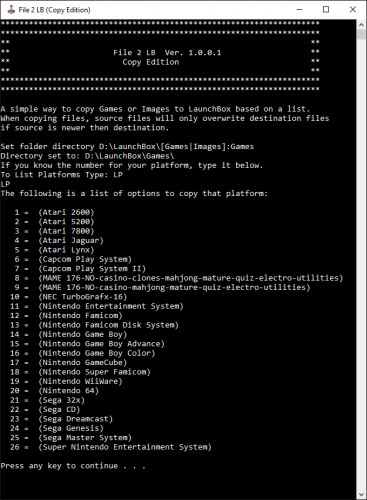
File 2 LB View File This is a basic cmd/bat script. It's main purpose is to copy full sets from a huge source folder. It's only purpose is to copy or move roms and images to your LaunchBox Games or Images folder based on a list. Because the file extension is set up with a wildcard, it can copy or move any file with the same name of the rom. Example being: Super Mario Bros. (World).zip / Super Mario Bros. (World).nes / Super Mario Bros. (World).mpg / Super Mario Bros. (World).png all can be moved/copied because it ignores the extension. Just make sure to run the .bat in the correct source folder, weather it be roms, images, videos ect. This is a .bat so you can view it in notepad if you want to see what exactly it's doing. I provided a readme file with example code I used and will continue to add more platforms. I've expanded upon my initial release of just copying mame roms, to copying or moving many platform roms or images. I know no one wants 30,0000+ mame roms in LaunchBox when most either don't work or a lot are weird mature or mahjong roms There is currently 30 platforms and 2 options for MAME and options for mame bios/device files. File names are based on the No-Intro rom/image sets. Each platform is a list of file names to be moved or copied, similar to a HyperList xml. I'm using file names only based off No-Intro sets, which is what seems to be what Hyperspin uses. So for example if the HyperList xml of Atari 2600 has 667 roms, I've created a file list to copy/move 667 roms. Files will be copied/moved within the same drive. Once it's done you can move/rename the destination folder to where ever you want. Use either .bat file: File 2 LB (Copy).bat File 2 LB (Move).bat Place the .bat file in the folder of the source of your roms, images, or whatever source your needing. Ex: D:\Nintendo Entertainment System Source <-- (Place the .bat here) Run the .bat by double-clicking it. If your running this on the root of your C:\ drive you may need to right click the .bat and "Run as Administrator" Here is an example below: Follow the instructions on screen. Set folder directory D:\LaunchBox\[Games|Images]:Games List the Platform you want to copy or move. Type: LP (This will List Platforms) The following is a list of options to copy/move that platform: 1 = (AAE) 2 = (Atari 2600) 3 = (Atari 5200) 4 = (Atari 7800) 5 = (Atari Jaguar) 6 = (Atari Lynx) 7 = (Capcom Play System) 8 = (Capcom Play System II) 9 = (Cave) 10 = (MAME NO-casino-clones-mahjong-mature-quiz-electro-utilities) 11 = (MAME NO-casino-mahjong-mature-quiz-electro-utilities) 12 = (MAME _NoFiller-Plus 675 Most Popular working roms) 13 = (Mame Bios Pack) 14 = (Mame Devices Pack) 15 = (NEC TurboGrafx-16) 16 = (Nintendo Entertainment System) 17 = (Nintendo Famicom) 18 = (Nintendo Famicom Disk System) 19 = (Nintendo Game Boy) 20 = (Nintendo Game Boy Advance) 21 = (Nintendo Game Boy Color) 22 = (Nintendo GameCube) 23 = (Nintendo Super Famicom) 24 = (Nintendo WiiWare) 25 = (Nintendo 64) 26 = (Sammy Atomiswave) 27 = (Sega 32x) 28 = (Sega CD) 29 = (Sega Dreamcast) 30 = (Sega Genesis) 31 = (Sega Master System) 32 = (Sega Naomi) 33 = (Super Nintendo Entertainment System) Type Platform number:16 Read on screen instructions and press any key to start. When it is finished it will create a LOG file in folder of the copied/moved files, and copy/move the roms or images based on the exe to the destination folder (D:\LaunchBox\Games\Nintendo Entertainment System) Read the provided ReadMe.txt file for any other information or how to read the log file. If you have any issue let me know and I'll do my best to answer them here. (As with anything, make backups of your roms and images if you are in fear of them getting deleted) Safe bet is using the Copy Version as it only copy's, but I've used both and had no issues. Thanks and enjoy! Submitter Sithel Submitted 08/15/2016 Category Third-party Apps and Plugins
-
Version 1.0.0.2
104 downloads
This is a basic cmd/bat script. It's main purpose is to copy full sets from a huge source folder. It's only purpose is to copy or move roms and images to your LaunchBox Games or Images folder based on a list. Because the file extension is set up with a wildcard, it can copy or move any file with the same name of the rom. Example being: Super Mario Bros. (World).zip / Super Mario Bros. (World).nes / Super Mario Bros. (World).mpg / Super Mario Bros. (World).png all can be moved/copied because it ignores the extension. Just make sure to run the .bat in the correct source folder, weather it be roms, images, videos ect. This is a .bat so you can view it in notepad if you want to see what exactly it's doing. I provided a readme file with example code I used and will continue to add more platforms. I've expanded upon my initial release of just copying mame roms, to copying or moving many platform roms or images. I know no one wants 30,0000+ mame roms in LaunchBox when most either don't work or a lot are weird mature or mahjong roms There is currently 30 platforms and 2 options for MAME and options for mame bios/device files. File names are based on the No-Intro rom/image sets. Each platform is a list of file names to be moved or copied, similar to a HyperList xml. I'm using file names only based off No-Intro sets, which is what seems to be what Hyperspin uses. So for example if the HyperList xml of Atari 2600 has 667 roms, I've created a file list to copy/move 667 roms. Files will be copied/moved within the same drive. Once it's done you can move/rename the destination folder to where ever you want. Use either .bat file: File 2 LB (Copy).bat File 2 LB (Move).bat Place the .bat file in the folder of the source of your roms, images, or whatever source your needing. Ex: D:\Nintendo Entertainment System Source <-- (Place the .bat here) Run the .bat by double-clicking it. If your running this on the root of your C:\ drive you may need to right click the .bat and "Run as Administrator" Here is an example below: Follow the instructions on screen. Set folder directory D:\LaunchBox\[Games|Images]:Games List the Platform you want to copy or move. Type: LP (This will List Platforms) The following is a list of options to copy/move that platform: 1 = (AAE) 2 = (Atari 2600) 3 = (Atari 5200) 4 = (Atari 7800) 5 = (Atari Jaguar) 6 = (Atari Lynx) 7 = (Capcom Play System) 8 = (Capcom Play System II) 9 = (Cave) 10 = (MAME NO-casino-clones-mahjong-mature-quiz-electro-utilities) 11 = (MAME NO-casino-mahjong-mature-quiz-electro-utilities) 12 = (MAME _NoFiller-Plus 675 Most Popular working roms) 13 = (Mame Bios Pack) 14 = (Mame Devices Pack) 15 = (NEC TurboGrafx-16) 16 = (Nintendo Entertainment System) 17 = (Nintendo Famicom) 18 = (Nintendo Famicom Disk System) 19 = (Nintendo Game Boy) 20 = (Nintendo Game Boy Advance) 21 = (Nintendo Game Boy Color) 22 = (Nintendo GameCube) 23 = (Nintendo Super Famicom) 24 = (Nintendo WiiWare) 25 = (Nintendo 64) 26 = (Sammy Atomiswave) 27 = (Sega 32x) 28 = (Sega CD) 29 = (Sega Dreamcast) 30 = (Sega Genesis) 31 = (Sega Master System) 32 = (Sega Naomi) 33 = (Super Nintendo Entertainment System) Type Platform number:16 Read on screen instructions and press any key to start. When it is finished it will create a LOG file in folder of the copied/moved files, and copy/move the roms or images based on the exe to the destination folder (D:\LaunchBox\Games\Nintendo Entertainment System) Read the provided ReadMe.txt file for any other information or how to read the log file. If you have any issue let me know and I'll do my best to answer them here. (As with anything, make backups of your roms and images if you are in fear of them getting deleted) Safe bet is using the Copy Version as it only copy's, but I've used both and had no issues. Thanks and enjoy!

.thumb.png.daba333a61f5a96e85d850eeae9c53f3.png)


