Search the Community
Showing results for tags 'atari 5200'.
Found 8 results
-
figured out how to copy the post I'm going to post this answer in a few different areas on the forum. I have been trying to figure out how to launch retroarch mame for the systems that don't have a stand alone core. I have finally found a mostly elegant solution 1) Add a New Emulator - I have named mine RetroArch MAME console cores Add your retroarch.exe Make sure to check "Don't use quotes..." 2) Tab over to the Associated Platforms Here's the magic sauce example 1 "neocdz -cdrm \"%romfile%\"" example 2 "a5200 -rp \"F:\Roms\Atari 5200\" -cart \"%romfile%\"" example 3 "coleco -rp F:\Roms\ColecoVision\ -cart \"%romfile%\"" The reason for the "Don't use quotes" and adding this as a new emulator is because of the special thing we have to do to the command line using mostly the same arguments has standalone mame/mess you have to have all the arguments in double quotes " but because of how Windows handles long file names with spaces the locations have to be in quotes to. This throws retroarch/the windows commandline off. This is where the \ before the double quote at the beginning and the \ before the closing double quote per directory/location. Also we can use the launchbox variable %romfile% to help make this work. 3) On top of all that you also have to specify the rompath if the mame core hasn't generated an ini with the rompath. This is needed for the bios of the core you are loading. If all your mame console bios files are in the same dir you could just use that for each entry The core will generate ini files for each system after first run. 4) I also edited my retroarch core options file. I probably enable boot to bios but I don't at the moment. There is my setup for launching roms through retroarch mame. I hope this helps

-
.thumb.jpg.a72c991c37b9fe50a9c7f315ecd692cf.jpg)
Version 1.0.0
132 downloads
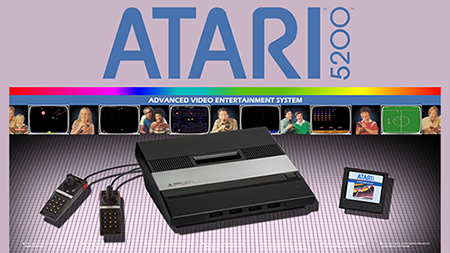
Complete Atari 5200 1G1R Fanart Pack compiled and created by CORE Team. 1920x1080 JPEG No intro naming-
- 4
-

-
- atari 5200
- fanart
- (and 2 more)
-
Hello all, I'm struggling with Kat5200... Looking for suggestions on how to exit out of Kat5200 using a controller in BigBox. In Launchbox I'm only able to exit a Kat5200 game by hitting ESC on the keyboard (which only exits the game to the kat5200 emulator GUI) then I have to use a mouse in the kat5200 GUI to exit the emulator using the dropdown exit button. I haven't figured out a way to set a hotkey in Kat5200, and I do have the "Exit AutoHotkey script" section of "edit emulator" in Launchbox, but as mentioned above, it takes ESC + mousing to "Exit" in the kat5200 GUI to actually exit the emulator completely. This 2 step process makes it impossible to use the key mapping function to exit in BigBox. Anyone else run into this, and what was your solution? After scouring the forums for days, I can't seem to find the issue mentioned anywhere... FYI: I would rather streamline things and just use the Atari800 core in Retroarch to run my 5200 library, but I'm having issues with serious gameplay slow down, and sound distortion (in BigBox only) That said, Atari 5200 games run perfectly fine in both Launchbox, and directly out of Retroarch when using the Atari800 core... hence the reason for Kat5200 which runs very well, and to me actually looks better on screen, but the exit issue is driving me mad. Thanks in advance!
-

atari 5200 How to Play Atari 5200 Games on Your Computer (Kat5200)
ResidentEvul13 posted a topic in Noobs
There is one prerequisite to playing Atari5200 games via emulator – and that’s the BIOS file. This ROM file can be found floating around the web, so it is up to you to obtain this file. It’s not too hard to find. Next up, we need to get an emulator that can make this all happen. One such emulator is Kat5200. This can be googled Now, you need to find a nice convenient place on your hard drive and create a folder for all of your Atari 5200 needs. In that folder, create a folder for all of your ROM images and another for the Kat5200 emulator. Now (assuming you downloaded the binaries archive), drag and drop all of the Kat5200 files from the archive folder you downloaded into the Kat5200 folder you made. Now, place your 5200 rom file and place it somewhere in the Kat5200 emulator folder (it’s easier to find in the emulator after this way). Now, open up the emulator by double-clicking on the Kat5200.exe file. You’ll probably get wizard that’ll guide you through the set-up process, but if you couldn’t get things to work, no worries, we’ll show you what you need to modify outside of the wizard. The first thing we need to do is get the emulator to detect the 5200 ROM BIOS file. For that, you click (or hover) your mouse on the “Machine” drop-down menu I’ve highlighted above. In the menu, you need to click on “Bios files”: In the new screen, you’ll see a line for the Atari 5200 BIOS. Simply click on browse and use their built-in browser to find your BIOS ROM file (you can either use the “Up” button or double-click on the [..] line to go up a directory if need be). Once you have found the ROM file, click on it to highlight it and then click “Load”. Then, click on “OK” to leave the BIOS “window”. Cool! You’ve now pointed the emulator to the BIOS file needed to run the games! Now, we need to find out the controls. Atari 5200 controllers, weirdly enough, look like large telephone’s complete with a number pad. This emulator will reflect that. To tweak the controls, simply click on the “Options” drop-down menu and click on “Input”: You’ll get a new window that looks something like this: To find out what each button does, click on the button on the left hand side (i.e. Top Button). On the right hand side in the line that says “PART NUM”, you’ll see a box with what key on your keyboard corresponds with the virtual controller. If you want to change this, simply click on the “Auto-Detect” button. A window will prompt you to press the key that you prefer to use. Press the key and not only will the window will disappear, but the new key will be featured in the “PART NUM” box. When you are done configuring your controller, click on the “OK” button. The next part is to find out how to save and load states. This can be found by clicking on “Options” and “User Interface”: In the new window, you’ll notice that configuring these other options is much like setting up your virtual controller. There is one thing to note, however: there is a line “Device Num” is the key that you hold. The “Part Num” line is the key you press on your keyboard. So, for loading save state 1, you hold down Alt and press “1” as per the default. See below screenshot for this: Again, use Auto-Detect to change the keys. Generally, I found the default settings to be sufficient, but that’s just personal preference. Finally, you get to load a game. Before you can load a game in the emulator, you have to make sure the game’s are not in a zipped or otherwise compressed archive. If you try to load a game in, say, a .7z archive, the emulator will simply crash after the Atari loading screen, complaining of a CPU crash. So, if your game is in an archived format, extract the .bin file in your ROMs folder first and load the .bin file instead. While the emulator can detect all of the files in the directory, it can only load certain kinds of files as a game. Now, go into your emulator and click on the “File” drop-down menu. Next, click on “Load Rom”: In the new window, highlight the .bin file of the game you want to load and click “load”. You’ll go back to the previous screen, but the game is loading. If you feel like it’s taking to long to load, move the mouse around a little. Usually, by that time, you’ll get to the Atari loading screen. When you want to exit the game, simply hit the “Esc” key on your keyboard. You’ll be taken back to the menu screen. You can go back to where you left off in the game by simply going into “File” and “Back to Game”. When you are done with the emulator, just go to “File” and “exit” That’s it! Happy gaming! FAQ I’m trying to get the game to start, but nothing seems to be working. What’s going on? Some games require you to hit a button to tell it that you are ready to play. By default, the F10 key will get the game started. This depends on whether or not you’ve changed the default keys (in which case, hit escape and look at the config file to see which of those is the Start button on your keyboard. I have a game that keeps crashing even though it’s not in an archived format. What’s going on? I found that rom images labelled “prototype” don’t do so well with this game. If it’s labelled “proto” or “prototype”, it might not be supported by the emulator. The game still crashes and it’s a regular ROM image? Could be the ROM in question. It could also be unsupported. Either find a different ROM or a different emulator in that case. The game looks really small and it’s hard to see. How do I make it bigger? In the emulator screen, go into “Options”, then “Video”. On the lower right hand part of the screen, you’ll see a pull down menu next to the word “Zoom”. I found 2x Zoom works comfortably well. #credit: Freeze -
Version 1.0.0
385 downloads
Please subscribe to my Youtube Channel! My work blends a few influences relevant to the platform while showcasing the machine itself along with the games the platform ran: 1) Music made using sounds available on the platform (where possible) 2) The platform's boot screen (if possible) 3) Commercial influences usually in the form of the platform's marketing jingle. 4) The platform's packaging. In this way, the platform video itself gives an accurate interpretation of what the platform is, was marketed as, and what it looked and sounded like. In this video, the beginning displays the NTSC box design that expands into the PAL version to display game play. -
Atari 5200 Platform Video View File Please subscribe to my Youtube Channel! My work blends a few influences relevant to the platform while showcasing the machine itself along with the games the platform ran: 1) Music made using sounds available on the platform (where possible) 2) The platform's boot screen (if possible) 3) Commercial influences usually in the form of the platform's marketing jingle. 4) The platform's packaging. In this way, the platform video itself gives an accurate interpretation of what the platform is, was marketed as, and what it looked and sounded like. In this video, the beginning displays the NTSC box design that expands into the PAL version to display game play. Submitter mcfilmmakers Submitted 09/15/2018 Category Platform Theme Videos
-
.thumb.png.4e85e967fcbe5221588d1edf73b00d81.png)
Version 1.0.0
259 downloads
I could put the picutre in here but right now im to lazy to do that shit lol. -
Atari 5200 Silver Ring Clear Game Logo Set View File I could put the picutre in here but right now im to lazy to do that shit lol. Submitter SuperSprayer40 Submitted 09/22/2017 Category Game Clear Logos


.thumb.jpg.a72c991c37b9fe50a9c7f315ecd692cf.jpg)


.thumb.png.4e85e967fcbe5221588d1edf73b00d81.png)
