
Fantastic - could not be better! The support has been amazing and I now have three different Stripe payment forms that I can keep on duplicating and changing the name of the product.

Last updated on November 30, 2023 by Formidable Team
How To Send a WordPress Form to Google Sheets [The Easy Way]
Looking for a way to send the data from a WordPress form to Google Sheets? This step-by-step guide will show you how!

Approximate read time: 7 minutes
We’ve all been there before.
We make a new Google Sheet in our Google Drive to get all our data in one place. But then we realize there's a mountain of data to enter, import, and clean up. 😰
There's got to be a better way.
There is!
You can send WordPress form data to Google Sheets directly with Formidable Forms. And it’ll take only a fraction of the time to do it manually.
Sound good? Let’s get those form submissions into Google Sheets now!
Upgrade your WordPress site with powerful, flexible forms.
Why connect a WordPress form to Google Sheets?
Google Sheets is the top alternative to Microsoft Excel. More people use Google Sheets than Excel!
And that’s because of its flexibility. Users love features like autosaving, sharing options, collaboration tools, and more.

Since Google Sheets makes most things easy, the hardest part is often importing data from different sources.
Manually copying and pasting Google Sheet data from one spreadsheet to another is time-consuming and can lead to many errors. But thankfully, you can connect your WordPress site to Google Sheets with a plugin and avoid all this hassle!
Here are just a few benefits of connecting WordPress forms to Google spreadsheets:
- Easy filtering: No one wants to scroll through row after row of information. So, Google Sheets makes filtering and searching for the information you need easy.
- Team sharing: When managing a large team, sending and receiving separate files can confuse people. However, with Google Sheets, you have one place where everyone can collaborate.
- Autosaving: Remember when you’d forget to save and lose everything when the power went out? Not anymore. Google Sheets saves every edit you make as soon as you make it.
- Automated import: Forget all that copying and pasting we were talking about. You can automatically send the data from your WordPress form to Google Sheets.
Now that we’ve covered why you should use Google Sheets for your WordPress forms, let’s look at how to send form submissions to Google Sheets.
From Idea to Reality in Minutes. Build Powerful Forms, Dashboards, Apps and More.
Formidable Forms makes advanced site building simple. Launch forms, directories, dashboards, and custom WordPress apps faster than ever before.
How do I get data from a WordPress form into Google Sheets?

The easiest way to connect a WordPress form to Google Sheets spreadsheet is with the Formidable Forms plugin.
If you don't already have Formidable, pick up a license for our WordPress form maker.
We know what you're thinking... "Is there a way to send my WordPress form to Google Sheets for free?" Unfortunately, no. There aren’t any free plugins that offer this feature.
Okay, got your Formidable plan? Great!
First things first, install and activate the plugin. You can check out this guide to getting started in Formidable if you need help!
Once you've added Formidable Forms to your WordPress site, follow these steps to send a WordPress form to Google Sheets:
☝️ One word of advice — ensure you've already created a blank new Google Sheet in your Google account. You'll also want to set up the column headers in your spreadsheet so it's easier and faster to map form fields to Google Sheets later.
Step 1: Activate the Google Sheets add-on
Now that you have Formidable go to your WordPress dashboard and Formidable → Add-Ons, then find the Google Sheets WordPress integration and click Install.

Click Activate after to turn on the plugin.
Well done 🙌 , you finished the first step!
Step 2: Create a Google API project
This step takes the most time. That's because Google requires a little setup to get things working correctly.
For the complete steps, head to this Knowledge Base document. It guides you through the process step-by-step. But here are the highlights:
- Create a Google API project
- Setup OAuth Consent Screen
- Get OAuth Client ID
- Save project keys in settings
- Display your form

Don’t let the wording scare you, though! It’s surprisingly simple!
So, once you get that setup, head to step two.
Step 3: Make your Google Sheets form
Still with us? Great! The hard work is behind you now. Everything is easy peasy from here on out!
So, let’s get your form in WordPress set up.
From your WordPress dashboard, go to Formidable → Forms → Add New to add a form.
You can choose from one of our many WordPress form templates or pick Blank Form if you want to start from scratch.
Next, give your form a name and then click Create.
This opens up Formidable's user-friendly drag and drop WordPress form builder.

Here, you can customize your form by adding, removing, and editing whatever form fields you want. Email, text boxes, and more are easy to drag and drop into your form.
If you want to customize the field settings, click on a field in your form on the right side of the builder to pull up the form field editor on the left side of the screen.
Once your form is created, click Update to save your changes.
Now, let’s get Google Sheets connected to your form.
Step 4: Connect your form to Google Sheets
From within your form, go to Settings → Actions & Notifications and click the Google Sheets icon.

This opens the additional settings below. Give your action an Action Name for your reference. Only you will see this.
You have a few other options you can customize here, too.

- Action Name — Set your action name
- Trigger this action when — Choose when the action is triggered
- Select File — Select the Google Sheets file where you want to send the data (make sure to add a column header in the Google Sheet to map your fields to the headers)
- Select Sheet — If you have multiple sheets in your file, then you can choose what sheet the data is sent to
- Map Sheet Headers — Map your form fields to your sheet headers
Once you’re done, click Update to save your changes. Once the form is submitted, everything is taken care of for you.
Note: If you already have existing form entries, you can send those, too! No data left behind is our thought process.
Now that everything is set up, it’s time to display your form and collect those entries!
Step 5: Display your form
Displaying your form on your website with Formidable is easy.
Simply go to the post/page on your WordPress site you want to display the form and add a new WordPress block. Search Formidable, and select the Formidable WordPress block.
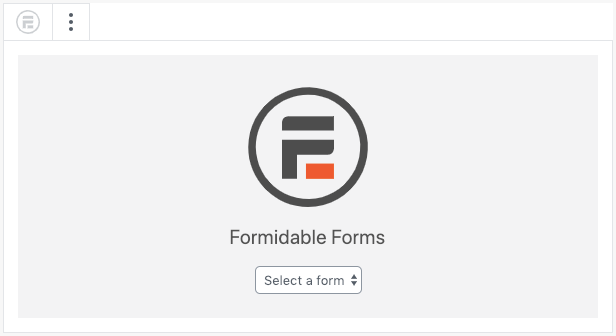
Select your form from the dropdown menu, then update your page.
And that’s it! All your entries will now automatically be sent straight to Google Sheets.
If you want to use a shortcode to embed your Google Sheets form in another place on your WordPress website, Formidable has that option, too!
Simply go to Formidable → Forms and click the <> button underneath Actions next to your form.
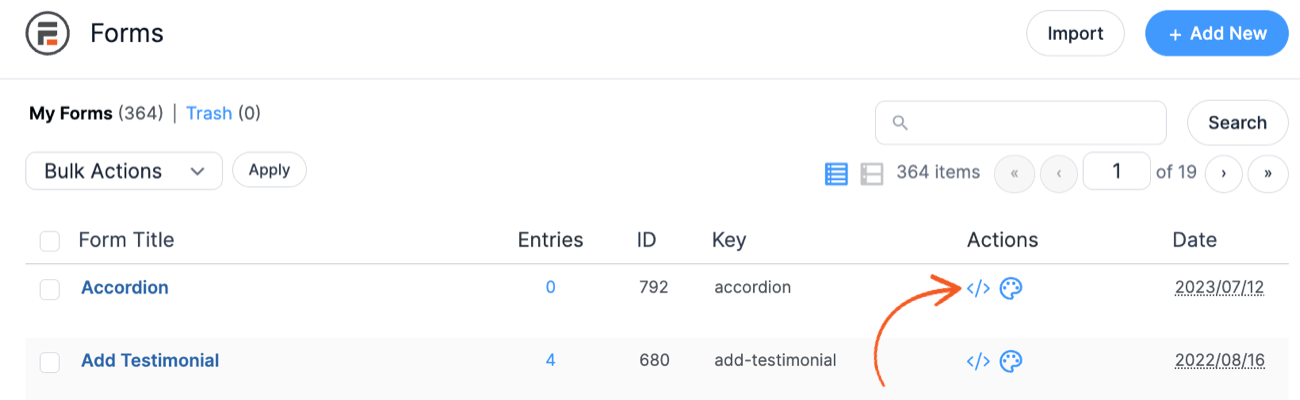
Then, select Insert manually and copy the WordPress shortcode.
Last, go to your post/page, add a Shortcode WordPress block, and paste the form shortcode. Click Update, and you’re done!
Handle all your WordPress form data with Formidable

Whether you want to send a WordPress contact form to Google spreadsheets, payment information, or more, it’s all simple with Formidable’s WordPress spreadsheet forms.
Formidable is one of the few WordPress form plugins with native Google Sheets integration.
That doesn’t only apply to Google Sheets. Here are just a few of the other features you get with Formidable:
And so much more. For a full list of features, check out our Features page.
Ready to connect your WordPress to Google Sheets?
As you can see, learning how to link a WP form to Google Sheets isn't that hard.
What will you use the Google Sheets feature for? Let us know in the comments!
And, if you’re not already, follow us on Facebook, Twitter, and YouTube for more Google Sheets and WordPress tips!
Want to learn more about Google and Formidable Forms?
 WordPress Forms for Zapier: The Ultimate Integration
 7 Best WordPress Google Sheets Plugins [Sheets Made Easy!]
 How to Export Form Entries in WordPress
This article may contain affiliate links. Once in a while, we earn commissions from those links. But we only recommend products we like, with or without commissions.
