
Fantastic - could not be better! The support has been amazing and I now have three different Stripe payment forms that I can keep on duplicating and changing the name of the product.

Last updated on June 25, 2025 by Formidable Team
How To Convert a WordPress Form to PDF (The Easy Way!)
Want to convert a WordPress form to PDF? This post will show you how to easily turn your form to a PDF in WordPress with Formidable Forms.

Approximate read time: 8 minutes
Standard PDF forms are clunky. They’re confusing to fill out on a computer, and sometimes, you’re unsure if you’re filling out the right field. We get it.
But what if you could create an engaging WordPress form that automatically generates a PDF when it is submitted?
Well, now you can! And in this post, we'll show you how to use a WordPress form to PDF generator to do everything you need.
Let’s jump into it.
Upgrade your WordPress site with powerful, flexible forms.
Why use WordPress to create a PDF from a form?
Your website has forms everywhere: contact forms, survey forms, payment forms, and maybe more.
Wouldn’t it be nice to have a way to take the information from those forms and put it into a neat and orderly PDF? The PDF can then be an easily printable paper trail or proof of purchase that you can email customers to confirm their order.
But that’s just one example of why you might want to have WordPress generate a PDF from a form. You can also:
- Send a PDF quote to a potential client
- Create a PDF invoice for your records
- Generate a paper receipt for purchases
- Print out a member profile
You could even have the WordPress Form to PDF email option to send a PDF document.
The visitor submits the form, and you get an email with it compiled into a PDF. You can also have it emailed to the customer if you’d like. How cool is that?
And there’s one plugin that surpasses all the others in this task: Formidable Forms.
From Idea to Reality in Minutes. Build Powerful Forms, Dashboards, Apps and More.
Formidable Forms makes advanced site building simple. Launch forms, directories, dashboards, and custom WordPress apps faster than ever before.
How do I create a PDF form in WordPress?

To get started, you must download and install Formidable Forms, the best WordPress form plugin. Once you activate it, we’ll dive in.
There are only three easy steps to create a PDF form in WordPress:
Short on time? Try one of the WordPress PDF templates the plugin offers instead! These practical pre-built solutions come with form templates and the PDF View template.
Step 1: Create your form
We can create a form inside your WordPress admin. Go to Formidable → Forms and click Add New in your WordPress dashboard.

Don't have Formidable Forms yet? Click below to get the most powerful WordPress form maker on the market.
Next, choose Create a Blank Form or one of our many pre-made form templates.
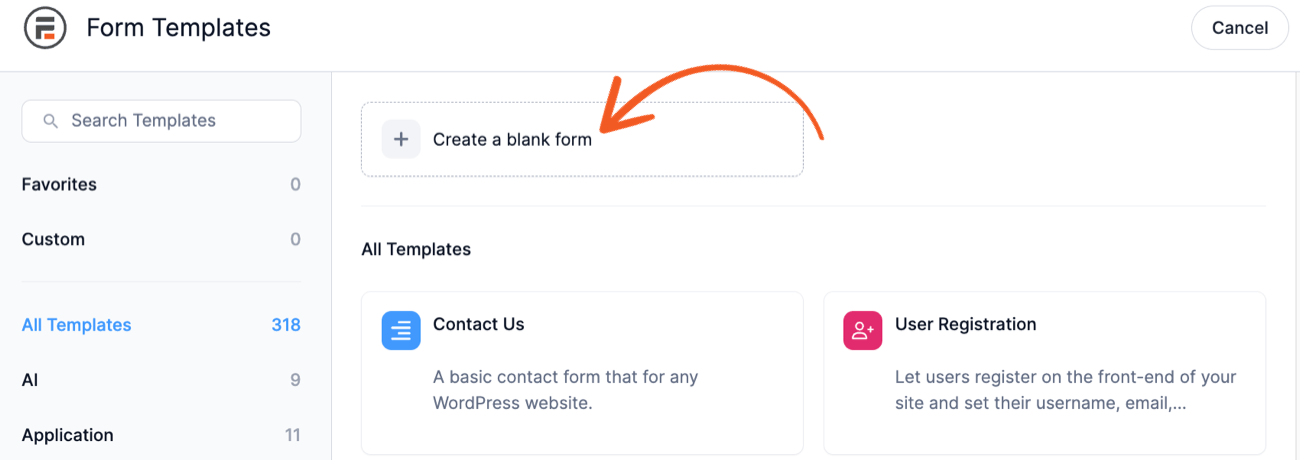
Now, let’s add some fields to your form. As we mentioned above, you can drag these into the canvas. Anything from email addresses to file upload fields is available for you.
And you can also click them to add them to the form. It’s a user-friendly way to build forms.

Once finished, click Update to save your form. You’re halfway there.
Step 2: Set up PDF settings
Okay, now that we’ve set up our form to collect entries, how do you convert those forms to PDF format?
You have three options here:
- Export the form data as a PDF
- Attach the PDF file to an email
- Insert a shortcode for a download link
Before you do any of this, in your WordPress admin, go to Formidable → Add-Ons and click Install on the WordPress PDFs plugin.
Now, we’ll show you how to use the PDF plugin.
Export the entry as a PDF
To export a specific entry, go to your form Entries page, then select View or Edit below the entry on its details page.
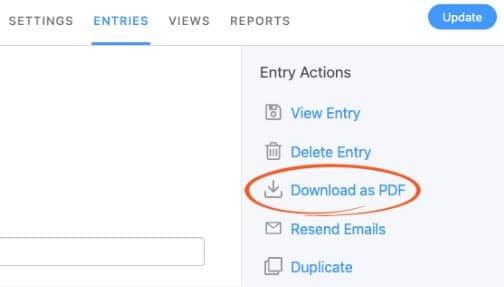
In the sidebar, under Entry Actions, select Download as PDF.
Pretty easy, right?
Attach the PDF file to an email
First, go to your form’s Settings → Actions & Notifications.
Click on the email notification action to edit it, or click the Send Email icon to add a new one.

Scroll down to Attach PDF of entry to email and toggle the switch.
That’s it.
Let’s move on to the last method.
Insert a shortcode for a download link
This is an easier way to download the PDF. You paste the shortcode on a page, post, email, or View. When visitors click it, the document will get open, and they can download it.
To do this, put a bit of shortcode into the area:
[frm-pdf id=x]In this shortcode, replace the ‘x’ with the ID of the ID you want to show.
You can find the ID on the entry details page.
For example, you can set up the shortcode like this:
[frm-pdf id=x label="Click to download entry as PDF"]Three easy ways to take your form entries and export them to a PDF. Simplicity is beautiful, and it’s something we prioritize.
Step 3: Customize the PDF
You'll notice the PDF looks a bit basic.
But it doesn't have to. You can customize it to look exactly how you want!
To start, go to Views in your form builder. Then, click Add New to create a new View.
You can choose any template you want to get started, but we'll show a Grid view to start.
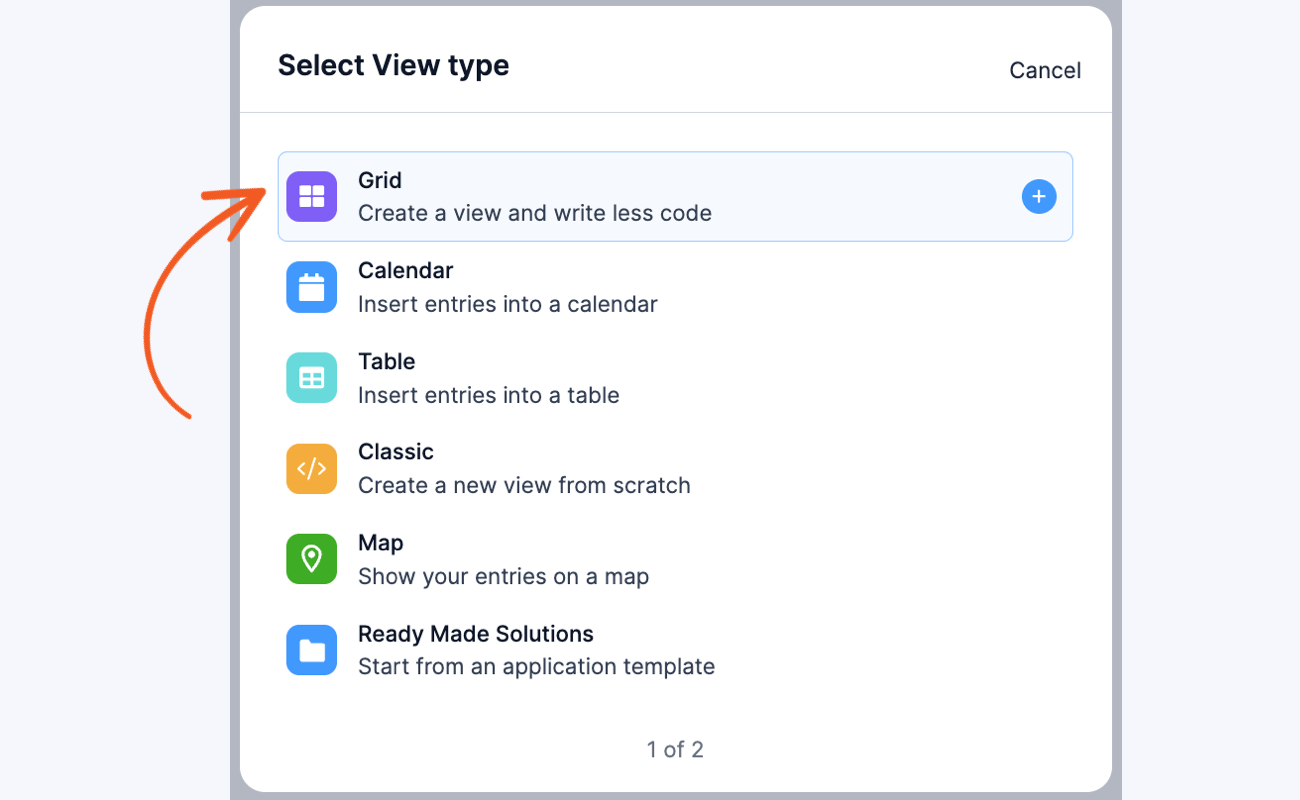
Next, name the View, then click the Create a view button.
The plugin will take you to the View Builder, where you can click Layout Builder. The Layout Builder is drag and drop like the form builder. So you can drag the different columns based on your preferences.

Then, click Save Layout.
You can click inside the column, which will open the Visual/Text editor. Here, you can begin customizing your View—your PDF! Add text, images, and more until you get your desired design.
For example, if you're using the PDF editor to create a certificate, you can create something like this:

Once you design your PDF, it's easy to display it on form submissions and let users download the PDF easily.
Head to a post or page where you want to show your PDF download.
Then add a bit of shortcode:
[frm-pdf view="*YOUR VIEW ID*" public="1"]Then, when you update and preview the page, you can click the download link to view your PDF!

For a more detailed guide to customizing your PDF, check out this post explaining how to create custom PDFs in WordPress.
Why use Formidable Forms for your web form to PDF in WordPress
Regardless of your industry, the Formidable Forms PDF add-on makes using a WordPress form to generate a PDF simple and fast.
No matter what form you’re using — survey, payment, or contact form — you can design your PDF form to fit the form fields. To be clear, you can convert a WordPress contact form to PDF or any form on your site!
It’s almost like having a fillable PDF (we think it’s better)!
So, look no further if you’re searching for a WordPress contact form to PDF plugin.
With Formidable Forms' drag-and-drop builder, designing forms is effortless and fast.
This form can serve as your PDF template. With the plugin, you can design a form your customers fill out and generate a PDF using the contact form.
Print this PDF, send it as an email attachment, or display it in our unique Views feature. Or display a download PDF button in WordPress.

No other WordPress plugin has anything like this built in. Not Gravity Forms/Gravity PDF, not the Contact Form 7 plugin, not Caldera Forms, none of them.
With Views, you can create a dashboard where the admin can add information for each customer and then display it on the admin side or your website.
All you need is the Formidable Business plan to get started!
But you get far more than just the PDF add-on with the Business plan. Here are some more features:
- Drag-and-drop form builder
- 175+ form templates
- Conversational forms
- Formidable Views data visualization features
- Integrations with all the most popular email marketing platforms and CRMs
- Online calculators
- And much more
If you’re unsure, give it a try. You have 14 days to try it out and get a full refund if you don’t like it.
But we’re sure you will.
Ready to get your form to PDF WordPress plugin?
Don’t you love when things are easy? At Formidable Forms, that’s built into everything we do.
This post taught you how to convert a form to PDF with our fantastic PDF add-on. But don’t stop with just our contact form to PDF WordPress add-on. Formidable can do so much more.
Discover all the features of Formidable Forms.
There’s more you can do with WordPress forms to PDF. Fill out your knowledge completely so you know all the options available.
Also, join our community on Facebook, Twitter, LinkedIn and YouTube to get all our tips and tricks. You don’t want to miss out on these.
Get the Formidable Forms Newsletter ⬇️
Learn more about Formidable PDFs
 Add Charts and Graphs in Emails & PDFs with Formidable Forms!
 How To Sell Digital Downloads on WordPress [Step by Step!]
 How To Add a WordPress PDF Viewer to a Website
 Print to PDF on WordPress (Posts, Form Entries, & More)
 How To Sign a PDF in WordPress With a PDF Signature Plugin
 How To Create PDF Invoices in WordPress [5 Steps!]
 You Can't Export Typeform to PDF. Here's Something Better!
 5 Best WordPress Plugins To Download PDF Files (& Upload PDFs Too)
 How To Use a WordPress PDF Certificate Generator
 Formidable PDF: Custom WordPress PDF Generator Plugin
 How To Use a PDF Editor in WordPress [Design Your PDFs!]
 The Best Alternative to the Gravity PDF WordPress Plugin
 How To Add a Download PDF Button in WordPress (2 Easy Ways!)
 Want To Use WordPress To Fill PDF Forms? Here’s an Easy Way
 20 Best WooCommerce Plugins For Your Online Store [Free & Paid!]
This article may contain affiliate links. Once in a while, we earn commissions from those links. But we only recommend products we like, with or without commissions.
