
Fantastic - could not be better! The support has been amazing and I now have three different Stripe payment forms that I can keep on duplicating and changing the name of the product.

Last updated on October 21, 2023 by Kyle Cash
How To Update Repeater Fields in ACF [The Easy Way!]
Looki ng to update repeater fields in ACF? This post will show you how to use Advanced Custom Fields to update repeaters in WordPress with no code!

Approximate read time: 4 minutes
ACF is a powerful tool.
And its repeater fields allow you to collect loads of data. But, creating and editing the fields can be dull. You spend hours coding to get a relatively simple field.
But what if you didn't have to? What if there was a way to use ACF to update field repeaters without code?
Well, there is. In this post, we'll show you exactly how to do it on your WordPress website.
Upgrade your WordPress site with powerful, flexible forms.
How do you update fields in ACF?
To update fields currently, you must know how to use ACF to update repeater fields programmatically.
And programmatically updating something involves using the right code.

Things like field functions, post IDs, field arrays, field keys, repeater rows, and much more. But, if you want to avoid all this code, you need something that makes it easy.
And that’s where a plugin comes in.
Want up update an ACF field from the front end?: How to Update an ACF Field From the Frontend [An Easy Way!]
From Idea to Reality in Minutes. Build Powerful Forms, Dashboards, Apps and More.
Formidable Forms makes advanced site building simple. Launch forms, directories, dashboards, and custom WordPress apps faster than ever before.
How to update an ACF repeater field in WordPress with Formidable and ACF
First, you’ll need a few tools to get started:
- Formidable Forms
- Formidable's ACF add-on
- ACF Plugin (ACF Pro)
With Formidable Forms and ACF Pro, you have a match made in heaven. ACF was already powerful, but Formidable's ACF builder takes it and levels it up…all while making things easier, too.
So, get Formidable installed and activated, as well as ACF Pro. In your WordPress dashboard, go to Formidable → Add-ons and install the ACF Forms add-on.
Then, it’s a few simple steps:
For example, we have a website called Cheap n’ Cheesy, where we sell the best cheese at a fantastic price.
We already have a form for our customers to leave reviews for our cheeses. But updating it can be a pain in the backside with all the code.
So, enter Formidable Forms to help us out by making it faster and easier.

Step 1: Create your ACF form in Formidable
We already have our Field Group created in ACF.
There is a Repeater with three Sub Fields — Select, Range, and Text Area. These three fields let the customer choose the Cheese Type and Cheese Rating and leave any comments.
Usually, you would have to update the sub-fields using code, but not with Formidable.
So, we’ll create a form in Formidable to match the fields for mapping between Formidable and ACF.
Go to Formidable → Forms and click Add New.
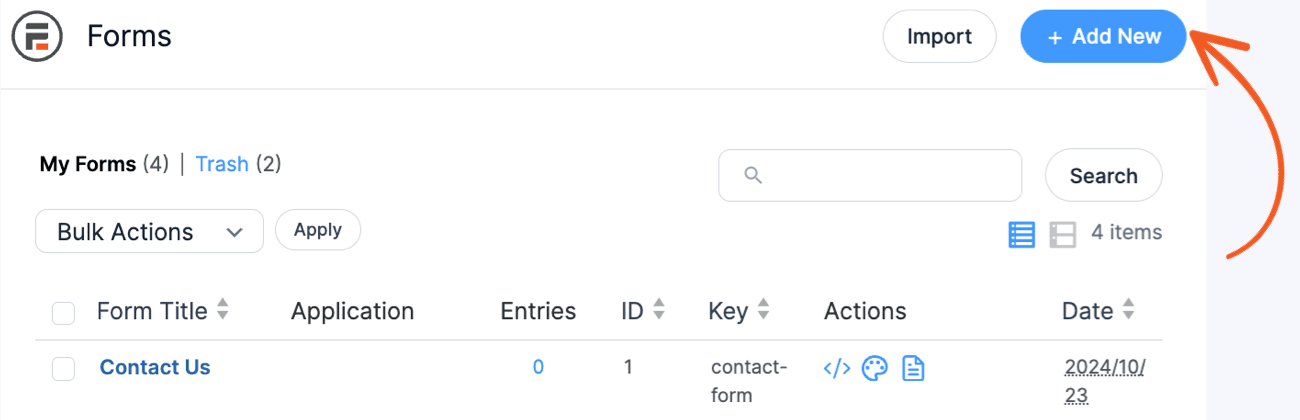
Since our fields are already created in ACF, we’ll use a Blank Form in Formidable to customize it properly. Feel free to use the Testimonials template to speed things up, though.
Next, we’ll give the form a name and then click Create.
The plugin directs to Formidable’s drag-and-drop form builder. Here, we can add any form fields we want.

For our example, we’ll add a Repeater field first. Then, we’ll add three fields to it to match our ACF fields:
- Dropdown
- Star Rating
- Paragraph
You can add whatever fields, like a file upload, table, or even a nested repeater!
But we’ll keep things simple.
Then, we’ll customize the labels so the form is clearer to our customers. Last, we’ll click Update to save our changes.
Now, we just need to map the fields between the two plugins.
Step 2: Map your ACF and Formidable fields
First, click Settings in the form builder and go to Actions & Notifications.

Next, click Create Post. In the action, scroll down to the Custom Fields section and click the Map form fields to Advanced Custom FIelds toggle.

Choose your ACF field group from the dropdown, then match the Formidable Fields to the Advanced Custom Fields.
We only have three, so it’s easy to match the Cheese Type, Rating, and Comments.
Last, click Update to save the changes!
Now, we can set it this way for all future updates — with zero code. Just update the field in ACF like usual, then do the same in Formidable, and the form is good to go!
So, let’s show how to display the form on our website for customers.
Step 3: Display your form
We’ll head to the post/page where we want to show the form.
For us, we have a dedicated Testimonials page, but you can display it in blog posts, home pages, and more!
Next, we’ll add a new WordPress block and search Formidable.
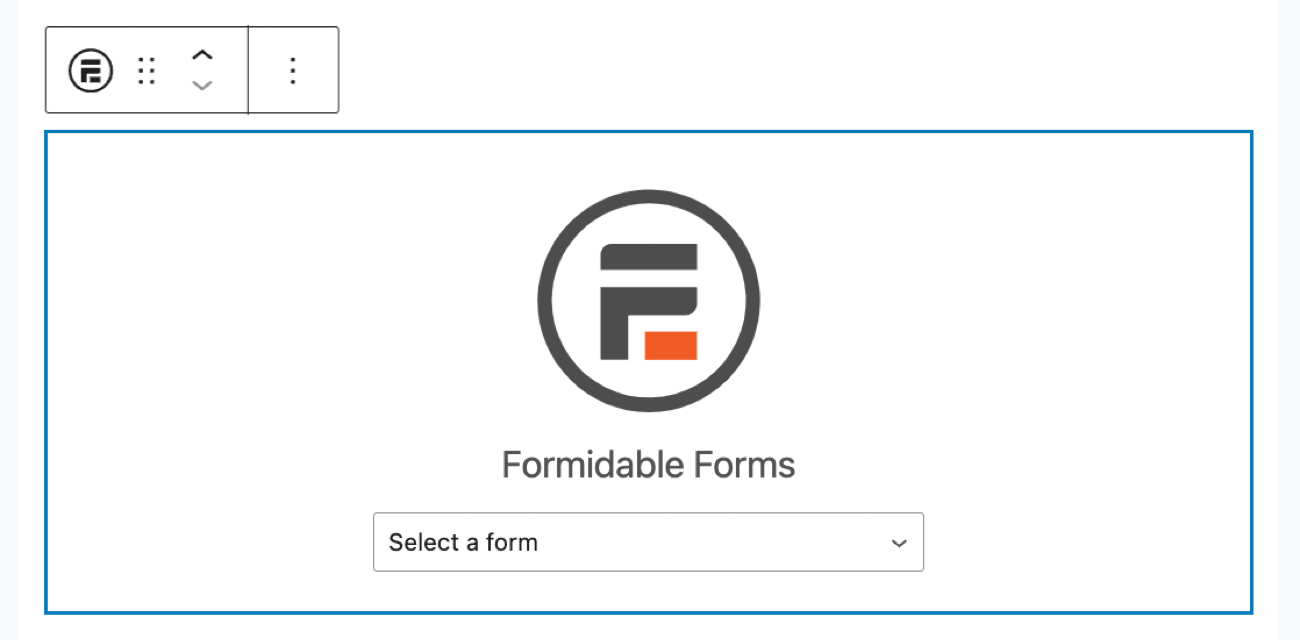
We’ll select the Formidable Forms WordPress block, then choose our form from the dropdown.
If you prefer to use a shortcode, you can also display the form!
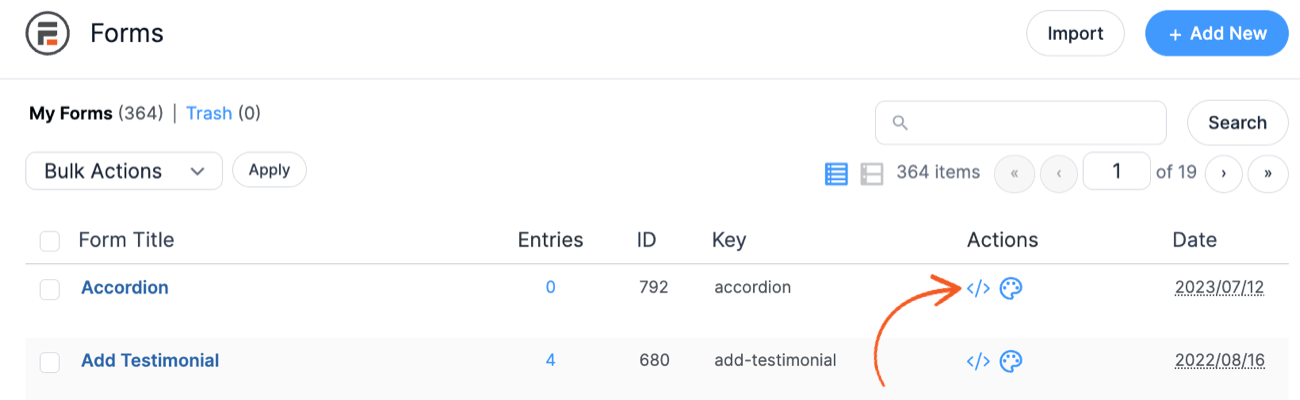
Once we click Update on the page, our form is live for all customers to leave comments!
We’re excited to see the ratings we get for our cheese!
How will you use Advanced Custom Fields repeater fields in WordPress?
ACF is already powerful, but consistently coding can be a hassle.
This post taught you how to use a repeater field in ACF and update it easily using Formidable Forms. And the same is true if you want to know how to update custom fields of any type!
If you’re looking for more on Formidable x ACF, check out how to create an ACF frontend form using Formidable! We’re sure you’ll love its ease of use. Whether using Elementor or displaying it yourself, you’ll have it done in minutes.
But if you’re ready to start now, head to Formidable and grab a subscription to supercharge your website today!
Last, follow us on Twitter, Facebook, and YouTube for more ACF tips and tricks!
Read more about ACF
 How To Update a Field in ACF From the Frontend [No-Code!]
 How To Create an ACF Frontend Form [No Code!]
This article may contain affiliate links. Once in a while, we earn commissions from those links. But we only recommend products we like, with or without commissions.
