
Fantastic - could not be better! The support has been amazing and I now have three different Stripe payment forms that I can keep on duplicating and changing the name of the product.

Last updated on March 4, 2025 by Formidable Team
How To Save Data to a WordPress Contact Form Database
Learn how to save data to a WordPress contact form database easily. This guide walks you through each step to securely store form entries on a WordPress site.

Approximate read time: 6 minutes
Imagine never losing an important message from a website's contact form again.
For many people managing a WordPress website, saving form data is a game-changer. Whether tracking customer inquiries or following up with potential leads, storing contact form entries directly in the WordPress database ensures you’re always in control of the data.
In this post, we'll walk through simple steps to save data to a WordPress contact form database and how to use the right tools to manage it.
Let's get started.
Upgrade your WordPress site with powerful, flexible forms.
Why save contact form data?
Saving contact form entries in WordPress makes a huge difference in getting and managing data.
Besides simply having the data, there are a few reasons to save it to a database, though. Here are a few:
- Reliable backup: Form data stored in a WordPress database won't get lost, even if an email notification fails. And WordPress sometimes has a sending email issue.
- Easy access: View and manage entries anytime in one place. And when the data is yours, you choose how to export, search, delete, and view your contact form submissions.
- Improved follow-up: Quickly follow up on any leads or questions without sorting through emails.
- Data insights: Analyze form submission trends to respond to customers quicker and better.
Normally, you would need a database plugin to handle a contact form database in WordPress. But all you need is a contact form plugin 👇.
From Idea to Reality in Minutes. Build Powerful Forms, Dashboards, Apps and More.
Formidable Forms makes advanced site building simple. Launch forms, directories, dashboards, and custom WordPress apps faster than ever before.
How to save data to a WordPress contact form database
The easiest way (without coding it yourself) to save data to a WordPress contact form database is by using the best WordPress form plugin, Formidable Forms.
Its drag-and-drop form builder makes creating any type of form, especially a contact form, take only a few minutes. Its form entry management allows you to create a searchable database to find data easily.
Best of all, you can use the free online form builder to do it! So, grab the free version of the plugin, install and activate it, then it's a few easy steps to start:

Step 1: Create a contact form
Once the plugin is ready, head to the WordPress dashboard, go to Formidable → Forms, and click Add New.
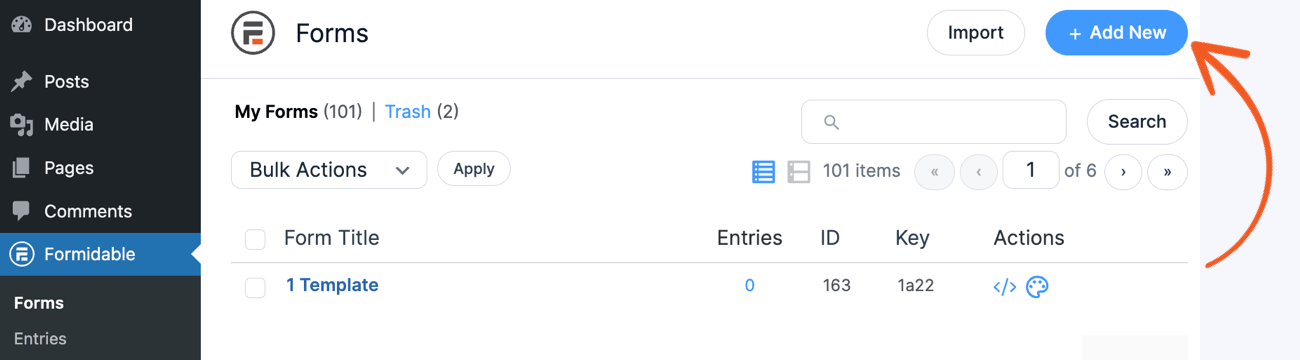
Next, you have a few options:
- Create a contact form from scratch
- Use a pre-built WordPress form template
- Use the AI form builder
Choose the option that best fits your situation, and the plugin will take you to its user-friendly drag and drop form builder. Here, you can add any fields you may need. If you choose a contact form template (like the Contact Us form), most fields are already there.
So, feel free to add any you may need.

Once you've customized the form, click the Save button to save your progress and name it.
Step 2: Publish the form
Once the form is ready to go live, it's time to get some entries.
So, head to the post or page where you want to show the form. Next, add a new WordPress block and search for the Formidable Forms block.
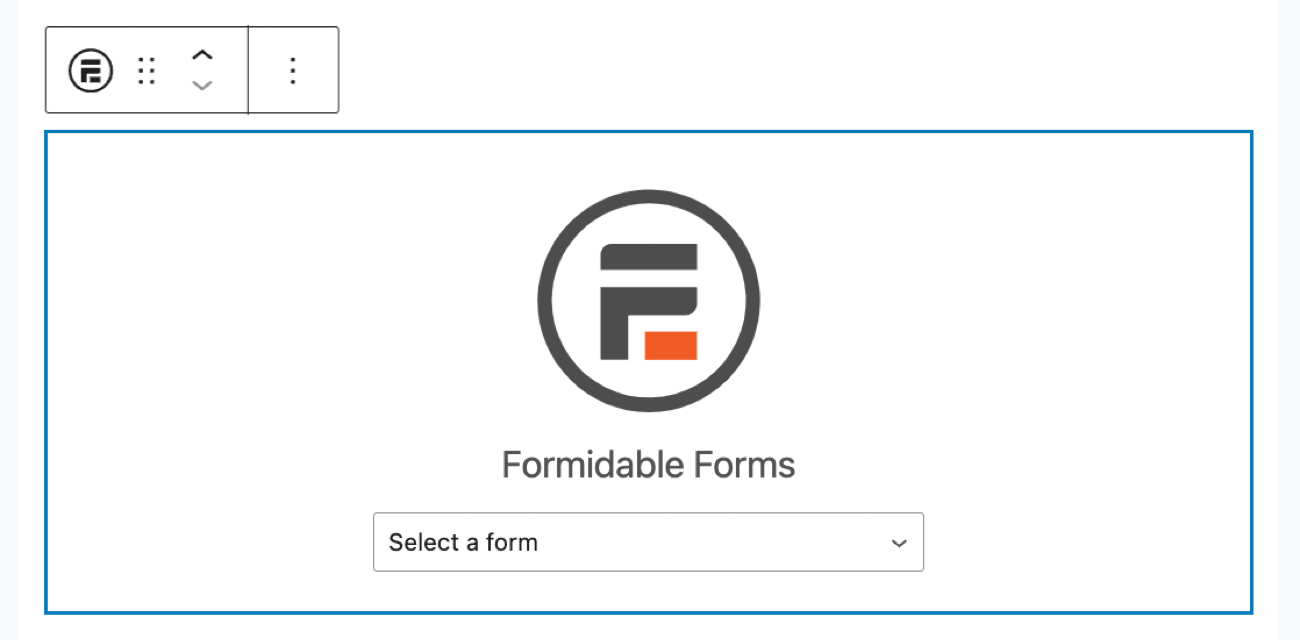
Then, use the dropdown menu to choose the form. The block will change to your form and give you a preview of what it looks like on the page. You can preview it and see how it looks, then make any necessary changes to the form.
Once you have what you like, click the Update button on the page and the form is live!
Step 2: Manage the submitted data
Once you start getting form submissions, you can view or manage them in the form entry section of Formidable.
To get to it, go to Formidable → Entries. You can see form entries from all the forms on the website here. So, if you have multiple forms, this list will combine all the data. To find data specific to your contact form, use the View All Forms dropdown and choose the form from the menu.

You can view, delete, and manage the entries in the backend here. But Formidable can also help you display the data on the frontend using Formidable Views, too.
Either way, this is a much easier way to manage data than using phpMyAdmin or editing the code in a website's backend.
So, let's see how you can use the data now.
Step 3: Import or export any form data
Let's imagine you have existing form entries you want to import. Or maybe you need to export the ones from your form to use in other tools.
You can easily import or export data in Formidable's dashboard.
First, to import forms, entries, or styles, go to Formidable → Import/Export. Next, you can choose the file under the Choose a Formidable XML or any CSV file.

If it's a Formidable file, it'll automatically load and import. If it's a CSV file, you'll have some mapping to the database table so the fields properly fill in the data.
It's a straightforward process and just takes matching the data to the correct column/header.

Last, click the Import button, and it'll be finished!
To export form data form the database, scroll down on the same page and find the Export section.
First, choose the file format using the Export Format dropdown (XML or CSV). Next, choose what to include in the file — forms, entries, views, or styles. Next, choose the form from which you want to export the data. Last, click Export Selection to export the file.

And that's it. You can use it with any tool that supports XML or CSV files!
Save your data to a WordPress contact form database today!
There you have it. With a simple WordPress plugin and a little time, you can easily save all your data to a WordPress contact form database.
And this is only the start of the WordPress form features that Formidable Forms has. It has plenty more to create a contact form, manage form data, and simplify forms on a WordPress site.
So, if you want to stay current and get all Formidable's form updates in the future, be sure to join our email list and get updates straight away!
WordPress tips & tricks straight to your inbox 📨
Also, join our community on Facebook, Twitter, LinkedIn and YouTube for the latest from us!
Read more about contact forms!
 How To Create a Contact Form in WordPress In Under 3 Minutes
 How To Add a Google Map to a WordPress Contact Form [Free!]
 How To Embed a Form on Any Website (Not Only WordPress!)
This article may contain affiliate links. Once in a while, we earn commissions from those links. But we only recommend products we like, with or without commissions.
