
The Quiz Maker plugin allows you to automatically score quizzes and show possible results based on the outcome. These online quizzes are great for online courses, teachers who want to go paperless, and more.
- Create a trivia quiz using Scored quizzes.
- Create an interactive viral quiz using Outcome quizzes.
Upgrade your WordPress site with powerful, flexible forms.
Download and install
- If you haven't already, install and activate the current version of Formidable Forms Premium on your WordPress site.
- After confirming your Formidable Forms license, proceed to the Formidable → Add-Ons page and toggle on the WordPress Quiz Maker plugin.


From Idea to Reality in Minutes. Build Powerful Forms, Dashboards, Apps and More.
Formidable Forms makes advanced site building simple. Launch forms, directories, dashboards, and custom WordPress apps faster than ever before.
Create a scored quiz

When a scored quiz action is selected, you can designate the correct answer and assign points to each option. By default, each correct answer is worth one point.
Step 1: Create a quiz form
Set up the scored quiz form by adding the necessary questions and answer choices in the form field.
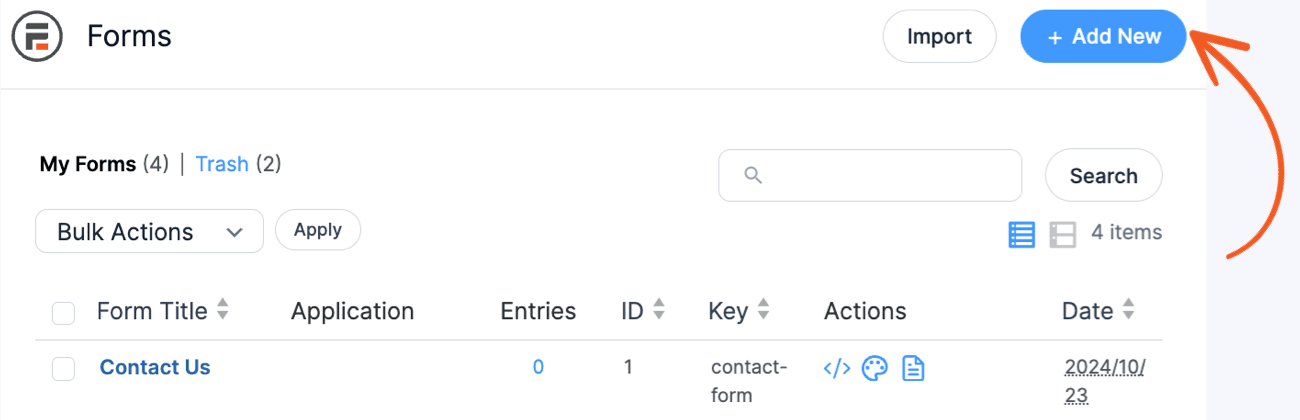
- Go to Formidable → Forms and click the Add New button at the top of the page to start creating your quiz form.
- You will be redirected to the form templates page. Click the Create a blank form option, to build a quiz form from scratch.
If you prefer a quiz form template, select the Quiz category or search for Quiz. Learn more on how to use form templates. - In the form builder, click the Save button to give your new form a name.
- Create your quiz using form fields to add the question and answer choices. For example, add a checkbox, dropdown, or radio field into the form to make a multiple-choice quiz. In the field settings, type your question as the field label and answer choices as the options.
Add a single-line text or paragraph field to the form if you plan to build a text-based question. In the field settings, type your question as the field label.


Step 2: Choose quiz type
- Go to your form Settings → Actions & Notifications.
- Select the Scored Quiz form action.
- Add an Action Name for easy reference. The name will only be visible on the backend.
- Choose when this action is triggered: Entry is created, Entry is updated, and Entry is imported.
- The Scored Quiz action has different settings you could choose from.
- Randomize questions: Show the fields in a random order each time the form is loaded
- Randomize options: Change the order of options in a field with multiple options (radio, checkbox, dropdown).
- Allow negative scoring: Applicable only for questions with advanced scoring. If you have a checkbox field that offers four answer choices, assigning scores of +1 or -1 to each option is possible. For instance, if the options were scored as 1, -1, -1, and 1, respectively, the entire question would be worth 2 points, but wrong answers could result in a deduction of 2 points.


Step 3: Choose the results display
If you want the quiz taker to see their score immediately after submission, click the What would you like to show after submit dropdown and choose from the different options.
Use default settings: Displays the default submit message. To change the default message included with the user’s score, you can edit it in your Confirmation action.
Show the score: Displays the default submit message with the total score and correct answer count. Using this option with manually scored fields is not recommended, as the score will be zero.
Show user's answers: Displays the default submit message with the quiz score and the submitted answers of the user.
Show correct answers: Displays the default submit message and the submitted answers of the user. If the answer is incorrect, the correct answer will be shown.
Step 4: Set correct answers
- In the Scored Quiz action, click the Customize Quiz Scoring button.
- Set the correct answer by clicking the toggle button next to the question. Each correct answer is worth one point by default.
- Type the correct answer for text or paragraph questions in the field. You can filter the correct choices or score the field manually.
- Choose the correct option(s) from the dropdown, radio, or checkbox fields to provide accurate answers for multiple-choice questions. You can assign point values to each answer choice by selecting advanced scoring.
- Click Done to save your changes.


Step 5: Display the scored quiz
After building your quiz, you can start collecting and automatically grading quizzes.
- Publish the quiz to any page or post using a shortcode or with a block.
- When a quiz is created or updated, the score received is automatically saved and stored in the designated Quiz Score field of the respective entry.


Create an outcome quiz

When outcome form action is selected, the form action will include options to create the possible results. It is where each answer is mapped to a result. Each will be counted as one point toward the result.
-
- If you haven't yet, create a form the same way as other Formidable forms.
- Drag and drop the fields you need and add any options you want to include. For example, to create a multiple choice question, you can use a radio button field in your form. This method is also good for true/false questions. You can use different form fields to create your quiz questions.
- Go to the form you would like to use with the Quiz Maker. Click on Settings → Actions & Notifications → Quiz Outcome.
- Give your Outcome Quiz action an Action Name for easy reference. This name will only be seen on the back-end.
- Choose when this action should be triggered: Entry is created, Entry is updated, and Entry is imported.
- Click the Upload image button to display a featured image with the outcome results. This image will be shown above the text results.
- In the Visual/Text editor, add the results you want to display. It uses the WordPress rich text editor that allows you to easily add bold text, links, ordered lists, blockquotes, etc.
- If you have multiple options, click the Add another outcome button.
- Select the Add Outcome Conditions button. Set it up to trigger the results when a certain outcome condition has been set.The outcome with the highest number of matches will show after form submission. When there is a tie, it shows the outcome with the lower ID.
- Your quiz form is ready to start collecting and automatically displaying outcome results. When a quiz is created or updated, the result is saved in the Outcome Quiz field in that entry.
- If you haven't yet, create a form the same way as other Formidable forms.


-
-
- An outcome with no conditions will be the default if none of the other outcomes match.
- An outcome with no image and no content will not be used.
-
Scoring a quiz
Scoring a quiz can be customized by clicking the Customize Quiz Scoring button in the Quiz form action settings. By default, each correct answer is worth one point. The following field types are excluded from the scoring:
- User ID field
- Hidden field
- Rich text field
- File upload fields
- Signature fields
Filtering correct choices
Single-line text and Paragraph fields can enter a comma-separated list of correct choices.
When filtering the correct answers, the following options are available:
- Should equal: Requires an exact answer to be correct.
- Should contain all: Requires answer to contain all choices to be correct.
- Should contain one: Requires answer to contain at least one of the choices to be correct. For example, if the correct choice is today, answers like It is Today will be accepted.
- Should not contain: Requires answer not to contain any of the choices to be correct.
- Less than: Requires answer to be less than the correct answer.
- Greater than: Requires answer to be greater than the correct answer.
Advanced scoring
Click the toggle button right to question and select the Advanced scoring checkbox to add points for each option.
Manual scoring
Text fields and paragraph fields include an option to Score this field manually. To set this up, follow the steps below.
- Select the Score this field manually checkbox to set a maximum score for this field. After a quiz is submitted, it will be unscored until the manual portion is graded.
- To score a submitted quiz, go to the Formidable → Entries page and click the link to view that entry.
- Any fields that need to be scored will include a Change link below the answer.
- Click Change, enter the score, and click the Save button.
- Now, a score will be given for the whole quiz.


Set a custom grading scale
The default grading scale includes only letter grades (A, B, C, D, and F). To customize this scale, go to the Formidable → Global Settings → Quizzes page. Any numbers that are not covered by the scale settings will not show a letter grade when the score is displayed.
Display the quiz
Display the quiz score
By default, the quiz score is displayed as the fraction of correct answers (ie "9/10"). The formatting options are listed below. In these examples, replace 'x' with the ID or field key of the Quiz Score field in the form. You can use these examples in a View, Email Notification, success message, or other Formidable contexts where field shortcodes work.
- Fraction correct (default). Example: 9/10
[x]
- Correct answer count. Example: 9
[x show=total]
- Percentage correct. Example: 90%
[x show=percent]
- Percentile correct. Example: 75
[x show=percentile]
Displays what percentile the score is in a range of 0-100.
- Letter grade. Example: A
[x show=grade]
If a user is logged in when the submit a quiz, you can add a User ID field the the form. With this, it's easy to add the quiz score anywhere with:
[frm-field-value field_id=x show=percent user_id=current]
Display the quiz outcome

You can display the quiz outcome with shortcodes and conditional statements. Use the show attribute with the outcome field shortcode to display different results.
- Entry results of the outcome (default).
[x]
- ID of the outcome.
[x show=id]
- Shows the count for each outcome. It works in the outcome content or in a View.
[x show=totals]
- Image HTML for the uploaded image used in the outcome.
[x show=image]
- Post_title of the outcome action.
[x show=title]
- Post_content description of the outcome action (wysiwyg).
[x show=message]
- Quiz score in fractions. Example: 2/4
[x show="score"]
- Quiz score in percentage. Example: 50%
[x show="percent"]

Display multiple results in the quiz outcome
With the Outcome quiz, you can allow multiple results to be displayed either as a score or a percentage. For example,
You have the following skin type:
50% Combination Skin
20% Dry Skin
0% Normal Skin
30% Oily Skin
To configure this, you can use the outcome parameter in the shortcode like this:
[x show="percent" outcome="5301"] Combination Skin
[x show="percent" outcome="5302"] Dry Skin
[x show="percent" outcome="5304"] Normal Skin
[x show="percent" outcome="5301"] Oily Skin
Replace x with the Score field ID. Replace 5301, 5302, 5303, and 5304 with the Outcome form action ID.
Display the quiz score in emails
When using the [default-message] shortcode in the email message, it will show the quiz score with the submitted answers of the user. If the answer is wrong and you want to show the correct answer, use the shortcode below.
[default-message format="quiz_correct_answers"]
Using conditionals based on quiz
Show content based on quiz score
If you would like to display a block of content if the quiz score has a specific correct answer count, use this shortcode. Replace x with the ID of the Quiz score field.
- Equals
[if x equals="2"]Scored 2[/if x]
If the quiz score equals '2', then the content between the opening and closing if statements will be displayed.
- Not equal
[if x not_equal="2"]Did not score 2[/if x]
If the quiz score is NOT equal to '2', then the content between the opening and closing if statements will be displayed.
- Greater than
[if x greater_than="8"]Congratulations! You passed.[/if x]
If the quiz score is greater than '8', then the content between the opening and closing if statements will be displayed.
- Less than
[if x less_than="7"]You failed. Take the quiz again.[/if x]
If the quiz score is less than '7', then the content between the opening and closing if statements will be displayed.
Show content based on quiz score grade
When using a custom grading scale, you can display a block of content if the quiz score has a specific grade with this shortcode. Replace x with the ID of the Quiz score field.
- If the quiz score letter grade equals 'A', then the content between the opening and closing if statements will be displayed.
[if x show=grade equals="A"]Scored an A[/if x]
- If the quiz score letter grade is NOT equal to 'A', then the content between the opening and closing if statements will be displayed.
[if x show=grade not_equal="A"]Did not score A[/if x]
Show content based on quiz score percent
If you would like to display a block of content if the quiz score has a specific percentage, use this shortcode. Replace x with the ID of the Quiz score field.
- If the quiz score percent equals '100%', then the content between the opening and closing if statements will be displayed.
[if x show=percent equals="100%"]Scored 100%[/if x]
- If the quiz score percent is NOT equal to '100%', then the content between the opening and closing if statements will be displayed.
[if x show=percent not_equal="100%"]Did not score 100%[/if x]
Show content based on quiz outcome
If you would like to display a block of content if the quiz outcome has a specific ID or text, use this shortcode. Replace x with the ID of the Quiz Outcome field.
- Equals
[if x equals=26]Match by outcome ID[/if]
If the quiz outcome matches the outcome ID equals '26', then the content between the opening and closing if statements will be displayed.
[if x show="title" equals="My outcome title"]Match by outcome title[/if x]
If the quiz outcome matches the outcome title, then the content between the opening and closing if statements will be displayed.
Send quiz results by email
By default, the results are immediately shown upon completion of the quiz. If you want to send a copy of the results to the quiz taker through email, follow the instructions provided below.
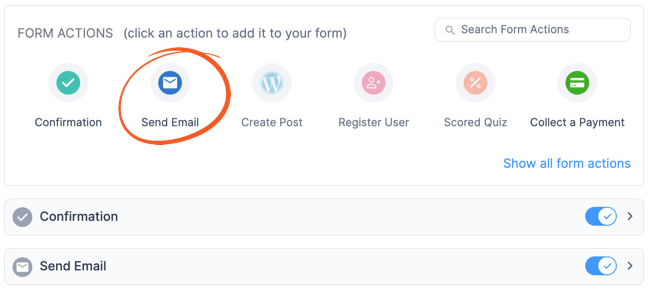
- Go to your form Settings → Actions & Notifications. Select the Send Email action.
- In the Messages box, the [default-message] shortcode is inserted by default. Learn more about how to show the correct answers.
- To customize the email message, click the dotted icon at the bottom right corner of the Message text editor.
- Find the Score field from the list of options and click it. It will automatically insert the Score quiz ID/key in the text editor.
- Type in any text or HTML that you want in the Message box. For example, your message could look like, "Thank you for submitting your responses! Based on your answers, you scored [18668]." Replace 18668 with the Score quiz ID/key.
Read more on how to customize the email message.


Related developer hooks
- Set which fields or field types are included in the score with frm_quiz_score_field.
- Set if an answer is correct or not with frm_quiz_is_correct.
- Customize the border radius of the uploaded image in an Outcome Quiz with frm_quiz_outcome_image_border_radius.
- Increase the limit in an Outcome Quiz with frm_quiz_outcome_action_options.
- Display a form HTML in an Outcome Quiz results with frm_main_feedback.