
Fantastic - could not be better! The support has been amazing and I now have three different Stripe payment forms that I can keep on duplicating and changing the name of the product.

Last updated on June 19, 2025 by Formidable Team
How To Use AI To Create Forms in WordPress [3 Steps!]
Learn how to use AI to create forms in WordPress easily. This guide shows you step-by-step how AI makes form creation simple and quick. Try it today!

Approximate read time: 5.5 minutes
What if you could snap your fingers and have AI create forms on any WordPress website?
Sounds pretty cool, right? With AI, it's possible! Well, almost. Entering in the type of form would take a few finger strokes, but you get the point.
This post will show you how to use AI to create WordPress online forms. Whether you're a time-strapped blogger, a freelancer with multiple projects, or just looking to streamline your processes, AI can help.
So, let's dive in and see how AI can switch up your workflow.
Upgrade your WordPress site with powerful, flexible forms.
Why use AI for form creation
Most people might immediately think, "Can AI create forms?"
After all, people can do it just fine. Why even bother using AI? But there are a few benefits to AI-created forms:
- Saves time: AI automates form building. So you don't have to start from scratch every time. That means more time to focus on other projects.
- Customizable and smart: AI adapts to all requirements, giving smart recommendations to improve forms.
- Better user experience: AI can build more user-friendly layouts, which means they're optimized and easier to use.
And those are just a few of the reasons! Overall, AI can benefit any WordPress site.
Now, let's get to the practical stuff — how to use AI to create a form in WordPress.
From Idea to Reality in Minutes. Build Powerful Forms, Dashboards, Apps and More.
Formidable Forms makes advanced site building simple. Launch forms, directories, dashboards, and custom WordPress apps faster than ever before.
How to use AI to create forms in WordPress
To start, we'll use Formidable Forms. Formidable is the most advanced WordPress form builder, and its AI form creator is the best example of how advanced it is for creating online forms.

Formidable's AI form generator takes a prompt and then generates the form from that prompt. It's about as simple as you can get! So, grab Formidable's Business plan or above, and then we'll start!
It's just a few steps to start:
Step 1: Install and activate Formidable Forms and the AI add-on
First, we must install and activate Formidable Forms on the WordPress website.
The process is pretty straightforward if you've ever installed a WordPress plugin. But if you have any trouble, our support documentation can help.
After it's on the website, we'll need the AI add-on to power everything. So, in the WordPress dashboard, go to Formidable → Add-Ons. Then, search for or find the AI Forms add-on, and click Install.

Everything is ready to go after that's installed, and now we'll create the form.
Step 2: Use the AI create form function
Go to Formidable → Forms and click the Add New button. Then, click the Create with AI button to start the form.

Next, a box will appear, and you can type in the prompt. Describe the type of form clearly. For example, describe its use and any fields that must be included in the form. There is an example prompt to help guide you.

After, hit the Continue button.
The form will confirm the type of form fields to be included. If you don't like its recommendations, you can hit Retry in the bottom left to try again.
Otherwise, click the Create Form with AI button to get started.

The plugin automatically opens the drag-and-drop form builder to edit the form. You can add missing fields or adjust the labels on any of them.
Feel free to drag and drop and adjust the form to match your needs.

If the form suits your needs, you can click the Save button at the top right and name it. You can also edit the form design under the Style tab.
Once you're finished, it's time to publish the form on the website.
Step 3: Publish the AI-created form
Last, go to the post or page where you want to show the form.
Then, add a new WordPress block and find the Formidable Forms block to add it. Then, choose the form from the dropdown menu.
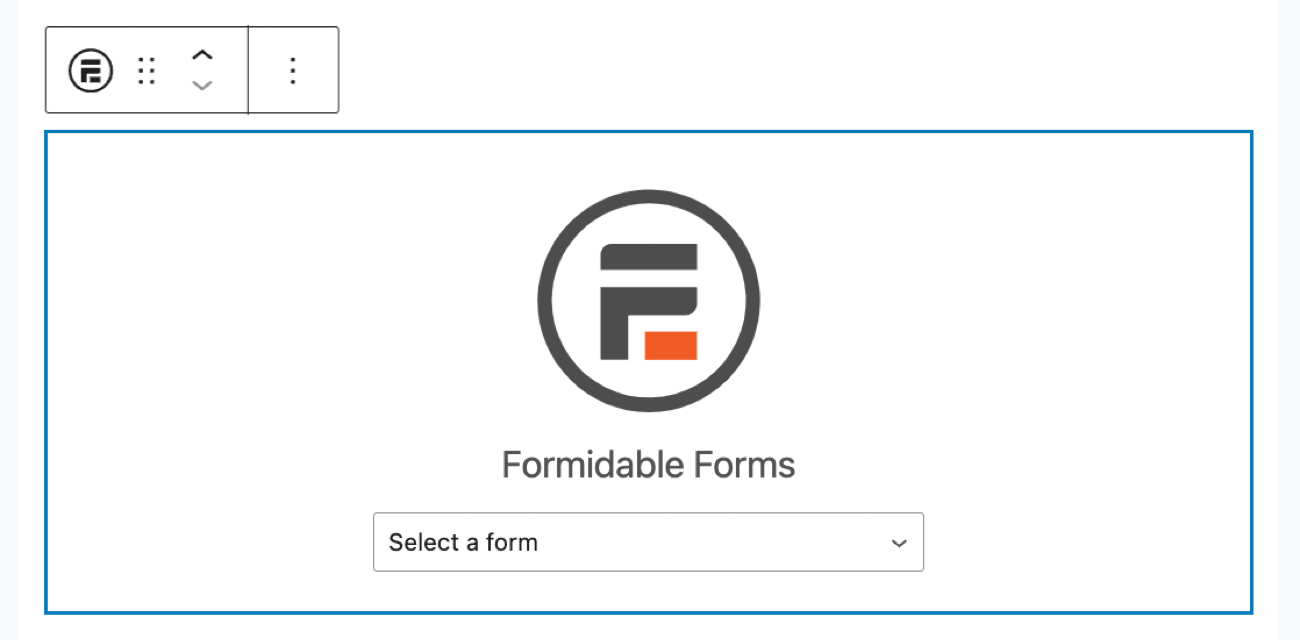
Now, you must publish/update the post or page!
And that's it! It's easy to have a completely AI-created form on your WordPress website.
Example AI-generated forms
Here are some examples to inspire or show some forms Formidable can create.
These are straight from the AI form builder with very few changes. However, depending on the AI-generated form, you may need to make some simple changes.
Contact form

This is an example contact form that could work on many different websites. You can leave off the "and a submit button" part, as the submit button will already be on the form.

Event registration form

An event registration form is great for conferences, weddings, parties, and everything in between. You can add more to the prompt if you need specific fields, but this basic form works for most situations.

Feedback form

This is a basic product feedback form that businesses can use with customers. However, this form can easily be adapted to review services like hotel stays, tours, etc. These details can be added in the prompt or the form builder after the form has been generated.

Ready for AI to create forms for you?
Pretty amazing, right? Using AI to create forms in WordPress isn't some cool trick. It's an incredible way to save time, reduce errors, and ensure your forms are the best they can be.
AI tools take the hassle out of form building. So, ready to give it a try? You may find it's the thing you need to streamline your workflow and grow your business today! If so, click the button below to grab Formidable Forms Pro and start today!
Also, join our community on Facebook, Twitter, and YouTube for more AI tips and tricks!
Read more from the Formidable blog
 How One Freelancer Manages 30 Websites with Formidable Forms
 The Formidable Forms 2025 Black Friday Sale
 Unlock HUGE WordPress Form Builder Savings This Black Friday!
This article may contain affiliate links. Once in a while, we earn commissions from those links. But we only recommend products we like, with or without commissions.
