
Fantastic - could not be better! The support has been amazing and I now have three different Stripe payment forms that I can keep on duplicating and changing the name of the product.

Last updated on March 6, 2025 by Kyle Cash
How To Make a BuzzFeed Quiz in WordPress [4 Easy Steps!]
Discover how to make a BuzzFeed quiz on WordPress! Follow easy steps and plugin tips to create interactive, shareable content for your site.

Approximate read time: 7.5 minutes
What type of potato are you?
Which city should you actually live in?
These BuzzFeed-style quizzes are fun, and they're also perfect for connecting with your audience and driving traffic to your site.
But it's not always easy to put one on your website. Or is it? What if you could make a BuzzFeed quiz easily and put it on your website in under an hour? Well, you've come to the right place.
In this post, I'll show you how to make a BuzzFeed quiz in WordPress in a few easy steps. And it's so easy, anyone can do it. Whether you want a trivia quiz to test people's knowledge or a personality quiz to tell people which Disney character they are — this is the post for you.
So, let's dive in.
Upgrade your WordPress site with powerful, flexible forms.
Why make a BuzzFeed quiz in WordPress
BuzzFeed quizzes aren't just fun.
They're also powerful tools to drive traffic, keep visitors on your site, and even collect leads! Whether it's personality quizzes, trivia quizzes, you can easily create and customize them to fit your brand or message perfectly with a BuzzFeed-style quiz maker.
Here's why adding a BuzzFeed-style quiz to your site can make a HUGE difference:
- Boost engagement: Quizzes are interactive, making people more likely to stay on your site. The longer they stay, the more they explore other pages.
- Drive traffic and social shares: Fun and engaging quizzes are highly shareable. If someone loves it, they'll likely share your quiz with friends and family.
- Gather leads and grow your list: Ask for email signups at the end of a quiz, and you'll have a fun way to attract new leads from your target audience without being too pushy.
Building quizzes directly in WordPress means you keep full control, use your site's design, and get a tool that grows your audience and keeps people coming back.
And that's a win-win!
From Idea to Reality in Minutes. Build Powerful Forms, Dashboards, Apps and More.
Formidable Forms makes advanced site building simple. Launch forms, directories, dashboards, and custom WordPress apps faster than ever before.
How to make a BuzzFeed quiz in WordPress
The first thing you need to make a BuzzFeed quiz on WordPress is Formidable Forms.

Formidable is the best WordPress form builder. It has a drag and drop builder that anyone can use, and it helps create any form in a few minutes. And with its Quiz Maker add-on, which includes helping you create a BuzzFeed quiz. So, use the button below to get Formidable Forms, and we'll start.
Once you have it, it's five easy steps:

Step 1: Install and activate Formidable Forms and the Quiz add-on
Once you've purchased Formidable Forms, you must install and activate the plugin.
You can install it by going to Plugins → Add New, then search for Formidable. Wait until the plugin is installed and activated, then go to Formidable → Global Settings and click the Connect an Account button to connect your Formidable Forms Pro account.
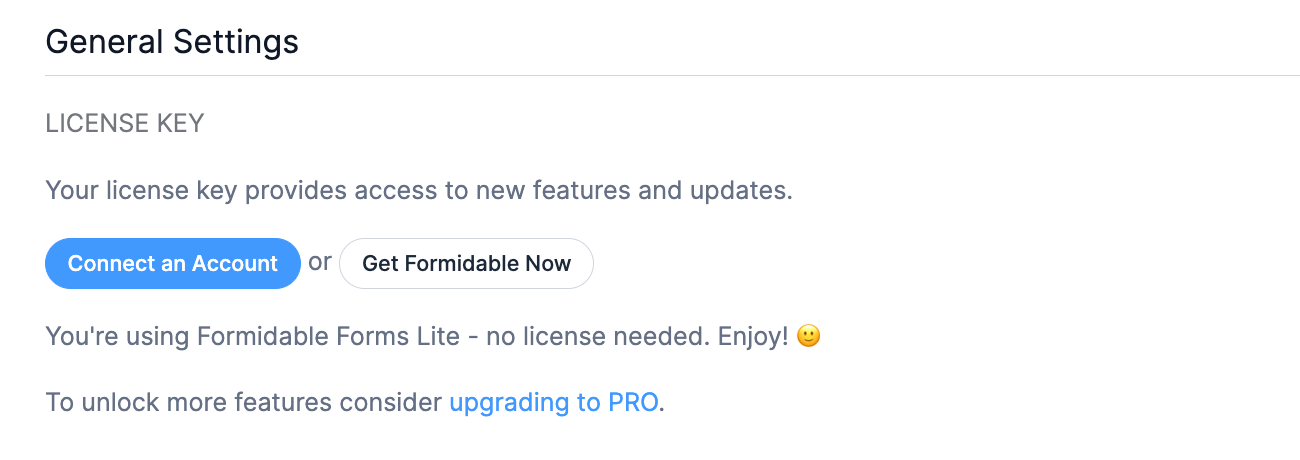
Follow the setup wizard to finish connecting the account.
Next, go to Formidable → Add-Ons, find the Quiz Maker add-on, and toggle the switch to activate it.

Once your account is connected and the Quiz builder is installed, it's time to start.
Step 2: Create a quiz
Now that Formidable Forms is set up, let's get started on the quiz.
To help guide you through this, we'll create our own BuzzFeed quiz to show you a real example of what you can create. For our example, we'll create one with the quiz topic of "Which Decade Do You Actually Belong In?" But feel free to create any types of quizzes you need (like a personality quiz).
First, we'll go to Formidable → Forms and click the Add New button.
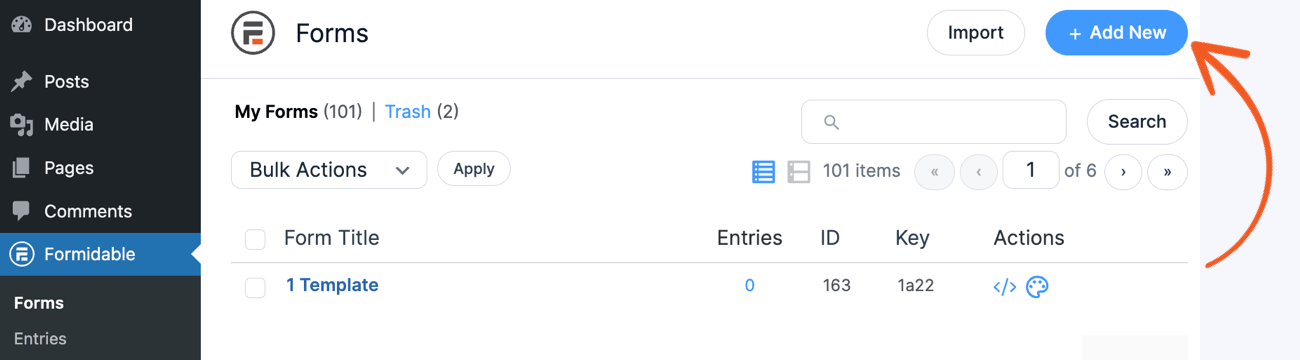
Next, we have three options:
- Create a blank form
- Use a pre-built WordPress form template (including quiz templates)
- Use the AI form builder
We'll start with a Blank Form, but feel free to follow along with any of the options above.
Once we choose, the plugin takes us to its drag and drop form builder where we can start adding questions and answers to our form.

Since BuzzFeed often uses images for the answers, we'll do the same. The easiest way to do this is using Radio Buttons for answer options, so we'll add some Radio Buttons for our questions.
The problem is that it doesn't resemble a multiple-choice style quiz. And the radio buttons don't automatically show images, as shown in the image below.

However, we can easily change this using the field options in the left panel. Instead of using the Simple option under Display format, we'll choose Images. This will allow us to upload images for a better (and more attractive) quiz style.

We can gather our images, then click the Upload image for each answer and attach our image. Once we've uploaded all of our images, our quiz will look something like this:

We'll repeat this process for all of our other questions. Then, to make the quiz more engaging, we'll add a Page Break, click the Update button, and give the form a name.
We must adjust the quiz settings to set up the results based on user answers.
Step 3: Adjust the quiz settings
First, go to Settings → Actions & Notifications to adjust these outcomes.
Next, we'll find the Quiz Outcome action and click it to add it. A tab will appear below (titled Quiz Outcome 1).

In the Paragraph box, we can type out the display message, add an image, or any other items we want.
Since this will be our outcome for the "1950s" answer, we want to style this to match it. So, we'll customize the result with an image, heading, and a blurb to make things more exciting for the quiz taker.

But you're probably wondering how the outcomes are decided. And that's where we can scroll down a bit to see the Outcome Conditions.
Here is where we can match the answers to the outcome. For example, we'll choose the first question, "How do you usually spend a night in?" and choose it to equal "Watching a classic movie marathon" as the answer. This is the start of the outcome for a quiz taker to get the 1950s as an answer.
But we can't only choose that answer to get the outcome. Otherwise, this could cause errors when people select answers for the 1980s, 90s, or 2000s.
So, we'll also add the other answers aimed at the 1950s.

If users choose all these answers, they'll get the 1950s outcome.
Next, we'll repeat this for the other decades—the 1950s, 1970s, 1990s, and 2000s. So we'll click the Add another outcome button and add the proper conditions for each decade.
At the end, we'll have something that looks like this:

From this list, the outcome with the highest number of matches is the one that shows. Once that's finished, we can click Update to save the progress.
Step 4: Publish the quiz
The last step is to display the quiz on the website. So, we'll head to the post or page where we want to show the quiz and add a new WordPress block.
Next, we'll search for and add the Formidable Forms block. Then, we'll choose the quiz form from the dropdown menu.
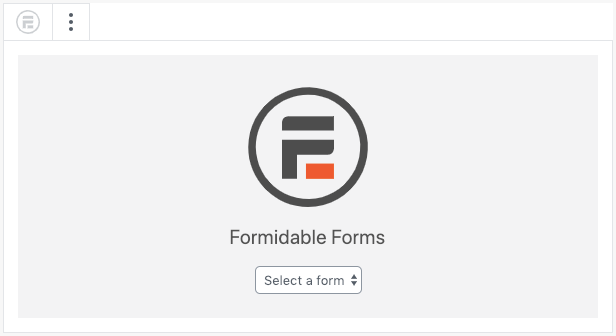
Once we choose the form, we will see a version of the quiz on our site.
But we can click the Preview button and test how it works to ensure everything works correctly.

This is what our quiz looks like with the Page Breaks added, which helps create a one-question-at-a-time quiz style.
And this is what our example quiz results page looks like for one of the results:

This is a pretty basic page, but we could make it more eye-catching by adjusting our theme or customizing the form using Formidable's Form Styler.
Ready to make a BuzzFeed quiz?
And that's it! It's that easy to make a BuzzFeed quiz in WordPress.
With a few simple steps, you can create a viral WordPress quiz using one of the best quiz creators! We hope this tutorial helped, and you can get a quiz on your site today! If you have trouble, check out our helpful documentation for more information.
Get the Formidable Forms Newsletter ⬇️
This article may contain affiliate links. Once in a while, we earn commissions from those links. But we only recommend products we like, with or without commissions.
