
Fantastic - could not be better! The support has been amazing and I now have three different Stripe payment forms that I can keep on duplicating and changing the name of the product.

Last updated on July 3, 2025 by Formidable Team
How To Embed a Form on Any Website (Not Only WordPress!)
Want to embed a form on your website? This guide covers easy steps for adding forms to any platform, not just WordPress, to boost interaction on your site.

Approximate read time: 6 minutes
Did you know that 63% of websites use a content management system (CMS) other than WordPress?
That's A LOT of websites. But some of the best form builders are made for WordPress. So, using a WordPress form builder on a non-WordPress site is impossible, right?
Not exactly.
You can use different WordPress form builders on any website. And it's not difficult to share your form, especially with the right WordPress plugin. So that's what we'll show you how to do today.
This post will show you how to embed a web form on any website using Formidable Forms step-by-step. That way, you can still get the power of Formidable's features — no matter the site.
Let's get started.
Upgrade your WordPress site with powerful, flexible forms.
How to embed a form on a non-WordPress website
We recommend using Formidable Forms (besides being our own plugin) because it's the most powerful WordPress form builder.

Its drag and drop form builder and pre-built WordPress form templates save you time with form building. And its incredible extra features help you handle big projects with only one plugin, which saves you time and hours of coding.
One of those features is the Formidable API (also API Webhooks).

This add-on extends Formidable's ability to work on any website. And that includes embedding a form on any page — whether it's a WordPress page or not. So you get full power from Formidable without any coding hassle. To get started, you'll need Formidable's Business plan or above.
Then, it's only a few steps:

Step 1: Install and activate Formidable Forms and the API
First, go to your WordPress dashboard and install Formidable Forms Lite.
You can go to Plugins → Add New and search for Formidable Forms. Install and activate the plugin. Once ready, go to Formidable → Global Settings and click the Connect an Account button to connect your Formidable Forms Pro account.
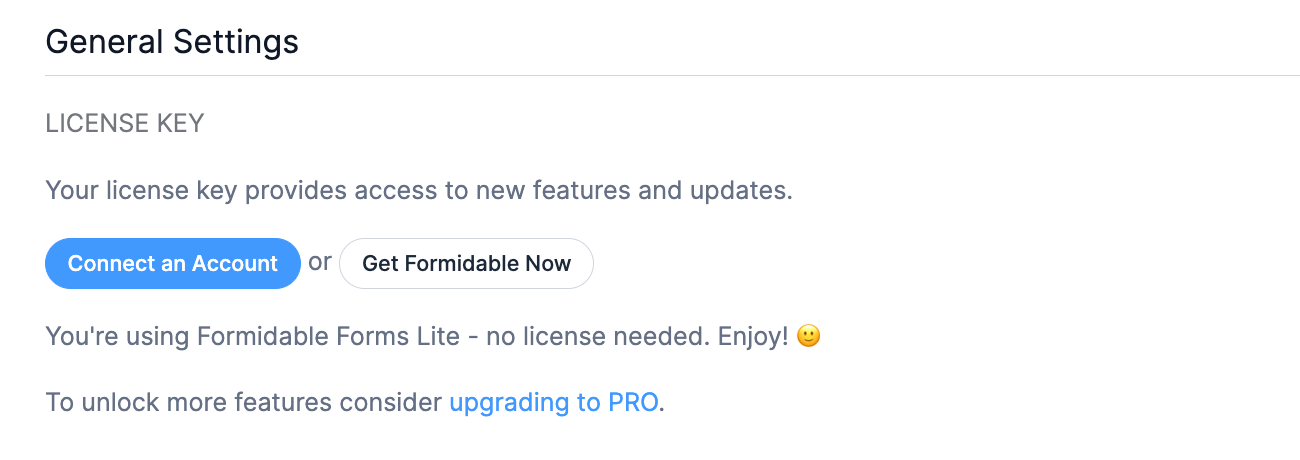
Follow the setup wizard to finish connecting your account. If you don't have an account yet, click the Get Formidable Now button to grab Formidable Forms Pro.
Next, go to Formidable → Add-Ons, find the Formidable API add-on, and activate it.

Once it's active, it's time to create the form you want to embed on a website.
Step 2: Create a form
Go to Formidable → Forms and click the Add New button to create a form in WordPress.
Next, you can choose three ways to create a form:
- Build a form from scratch
- Use a pre-built WordPress form template
- Use the AI form builder
Whatever option you choose, the plugin takes you to its drag-and-drop form builder, where you can start customizing any type of form.

Feel free to spend some time here and customize the form you need. It has a range of form fields that are great for many types of online forms — from contact forms to surveys and quizzes.
When you're finished, click the Save button to update the form and give it a name.
Next, click the Embed option in the top right, which opens the Embed form menu. Next, click the Insert manually option.

Then, copy the script under API Form script.
You'll use this to show the form on a non-WordPress website, so keep this handy during the next steps.

Also, mark down the number after id= under the WordPress shortcode section. This is your form ID, and you'll need it in the next step.
Step 3: Paste the API form script into another website's HTML
Next, go to your non-WordPress website.
Depending on your CMS, there are different ways to edit your website's HTML. Website builders like Squarespace and Wix have their own steps for this process, so check your CMS's official documentation for instructions.
For this tutorial, we'll be using Wix. Like WordPress, you can add HTML code to blog posts with a block.
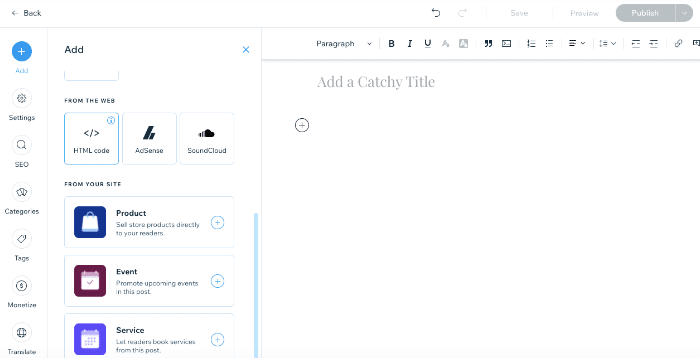
Then, paste the API form script you copied into your new HTML block.
You must also add a piece of HTML to it. So, feel free to use this script below and change the pieces marked in red. The form ID you copied from the previous step goes in the id-goes-here section (number only). And enter your site URL in the yoursite.com part.
<div id="frmapi-id-goes-here" class="frmapi-form" data-url="http://yoursite.com/wp-json/frm/v2/forms/id-goes-here?return=html"></div>
<script type="text/javascript">
jQuery(document).ready(function($){1
var frmapi=$('.frmapi-form');
if(frmapi.length){
	for(var frmi=0,frmlen=frmapi.length;frmi<frmlen;frmi++){
		frmapiGetData($(frmapi[frmi]));
	}
}
});
function frmapiGetData(frmcont){
	jQuery.ajax({
		dataType:'json',
		url:frmcont.data('url'),
		success:function(json){
			frmcont.html(json.renderedHtml);
		}
	});
}
</script>
When you're finished editing the form embed code, publish or update the web page. Then, visit the published version on your website to see if the form was imported properly.

If you have any trouble, check out our documentation to help!
Step 4: Style your form (optional)
You may have noticed that the form looks a bit basic. And it likely won't match much else on your website, especially if you have a brand theme.
But you can fix this easily.
Go to Formidable → Styles to edit the style for all the forms you create. You can quickly edit the form using the Quick Settings. These are great if you want to adjust the form quickly but don't want to dive into every part of it.

If you want full control over the form's appearance, including borders, colors, font sizes, etc., click the Show advanced settings button at the bottom.

This will give you more options for customizing the form.
You can expand each label to reveal more customization options, like General.

Feel free to use these options to customize a form that matches your theme or brand.
From Idea to Reality in Minutes. Build Powerful Forms, Dashboards, Apps and More.
Formidable Forms makes advanced site building simple. Launch forms, directories, dashboards, and custom WordPress apps faster than ever before.
Ready to embed a form on a non-WordPress website?
This is just the tip of how Formidable can help any website — WordPress or not — grow and create huge projects. You can do plenty with other features like Formidable Views to display data, create PDFs, connect to Google Sheets, and more.
So, check out Formidable's full list of features to see how it can help you today.
Also, follow us on Facebook, Twitter, LinkedIn, and YouTube for more WordPress tips and tricks! Or use the form below to sign up for our newsletter, which will be delivered straight to your inbox.
Get the Formidable Forms Newsletter 👇
Read more about how to use forms
 How To Create a Contact Form in WordPress In Under 3 Minutes
 How To Add a Google Map to a WordPress Contact Form [Free!]
 How To Make a Divi Contact Form [4 Easy Steps!]
This article may contain affiliate links. Once in a while, we earn commissions from those links. But we only recommend products we like, with or without commissions.
