
Fantastic - could not be better! The support has been amazing and I now have three different Stripe payment forms that I can keep on duplicating and changing the name of the product.

Last updated on November 20, 2023 by Formidable Team
How To Create An Appointment Booking Form in WordPress
Ready to turn your site into an appointment scheduling solution? With just two plugins, you can create a booking form in WordPress in no time. Here's how!

Approximate read time: 7.5 minutes
Ready to streamline your online scheduling and elevate any WordPress website?
In this post, we'll explore the quickest and easiest way to add a booking system to WordPress websites. This is perfect for travel agencies/travel agents, WordPress hotel reservations, and more!
We'll use two great plugins, Formidable Forms and Simply Scheduling Appointments, to add a booking engine to WordPress without writing a single line of code. This duo is perfect for business owners looking to optimize their time and boost client commitment with upfront payments. It makes booking and billing a breeze.
So, let's get started.
Upgrade your WordPress site with powerful, flexible forms.
The best WordPress booking plugin pair
If you're looking for the cheapest and easiest way to add online bookings to your website, you only need two WordPress plugins: Formidable Forms and Schedule Appointments.
What is Formidable Forms?

Formidable Forms is a super flexible WordPress form builder that simplifies the creation of all kinds of web forms and applications.
This plugin lets you create everything you need for your site without coding, from basic contact forms to searchable databases.
Check out all the features of Formidable Forms to learn how else it can help you create a great WordPress site.
What is Simply Schedule Appointments?

Simply Schedule Appointments is a user-friendly WordPress appointment scheduling and reservation plugin. In the developer's words, it offers "just the features you need without the clutter and confusion of features you don’t."
Simply Schedule Appointments helps with:
- Unlimited appointment types, each with its own unique set of restrictions,
- Advanced scheduling options,
- Blackout dates,
- And plenty more.
Its booking calendar integrations also let you instantly sync a Google calendar to WordPress forms.
However, in their mission to create a WordPress appointment booking tool without bloat, the Simply Schedule Appointments team felt there was no reason to reinvent the wheel when building appointment booking forms.
And that's where Formidable comes in! Together, these two make a powerful appointment-booking pair.
Now, let's see how to get them on your site so you can start taking online appointments today.
From Idea to Reality in Minutes. Build Powerful Forms, Dashboards, Apps and More.
Formidable Forms makes advanced site building simple. Launch forms, directories, dashboards, and custom WordPress apps faster than ever before.
How to create an appointment booking form in WordPress
Follow these five simple steps to add online bookings to your WordPress site.
Step 1: Get the plugins
The first step is to install and activate Formidable Forms and Simply Schedule Appointments on your WordPress site. If you don't have the plugins yet, grab the appointment booking plugin here and click the button below to pick up the form maker.

Each plugin has free versions, but you'll need the premium versions to create a booking form on WordPress.
Once both are on your website, you can start building your first booking form!
Step 2: Create a new appointment type in Simply Schedule Appointments
An appointment "type" is a specific kind of appointment you want people to be able to book via your form. For example:
- A 30-minute phone consultation
- A one-hour personal training session
- A particular medical procedure
- A specific guided tour
- A certain service requested
First, go to Appointments → Appointment Types in your WordPress dashboard and click Create a New Appointment Type.

At the top, enter basic details like the name of the appointment type and the duration.

Next, you can use the options below to provide more advanced details.
First, use the Availability section to control when you're available for bookings.

These are the times people will choose from when submitting a booking form.
Next, use the Scheduling Options section to control restrictions like the number of this kind of appointments that can be booked per day, how much notice is required before an appointment, and how much time should be left before and after a reservation.

Formidable Forms will automatically apply these limits to your booking form.
Check out any other relevant settings and customization options. Then, click the Save button to finish creating your appointment type.
Step 3: Create your basic WordPress appointment booking form
Next, head to Formidable → Forms → Add New to create a new form.
To get started, add the basic fields for information that you want to collect from people who book appointments. For example:
- Name,
- Email address,
- Phone number,
- Etc.
Depending on whether you're making forms for hotel booking calendars or restaurant reservations, you may have other information you'd like to collect during the booking process.
So feel free to use all of Formidable Forms' custom fields to collect as much information as you need.
For example, you can insert a File Upload field to let people attach a file or add Checkboxes and Radio Buttons to select preferences like whether to receive SMS notifications about their appointment.

You could even accept online payments to book your appointment form — we'll show you how later in this article.
Step 4: Add and configure the Appointment form field
Add the Appointment field to your form to let people choose a date and time from your calendar.

If you click on the Appointment field to edit its settings, you can choose exactly which appointment type or service people can book through this form. You can either include:
- All appointment types
- A specific appointment type, if you have multiple options

Hit Update to save your form, and let's move on to the last step!
Step 5: Publish your booking form
All that's left is to insert your form on whichever WordPress page or post you choose.
From your WordPress admin, open up the page you want to use as your booking page and click the + icon in the block editor to add a block.
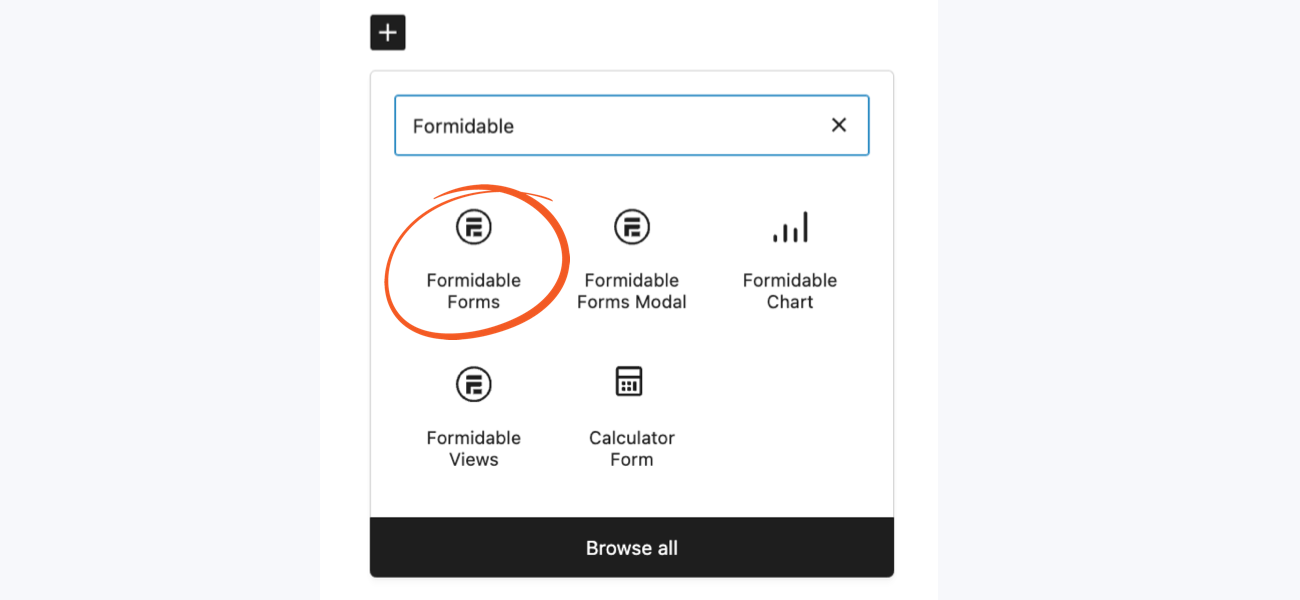
Search for and select the Formidable Forms block. Then, choose your form from the dropdown menu, and finally, Update or Publish the page.
And there you go! You can start taking appointment bookings and reservations on your website!
Here's what your visitors will see on your site:

Once they choose a time slot, they'll see a confirmation of their time. Then, they can click Submit to submit the form data and book their appointment. Cool, right?

Manage your bookings
If you'd like, you can use Formidable Forms for notifications and reminders. You can send SMS text message confirmations or email notification autoresponders to create appointment reminder emails.
Now, we're switching over to the backend.
If you view that entry in Formidable Forms, you'll see a summary of the details, along with a link to manage the appointment in Simply Schedule Appointments:

And then, if you go to Simply Schedule Appointments, you'll still see all the details from your other Formidable Forms fields, along with a link to view the entry in Formidable Forms:

You'll also see this information if you expand an appointment in the main Simply Schedule Appointments list:

Take payments with your booking form
Now that you have your booking form in WordPress, you'll want to connect it to a payment gateway. With Formidable Forms, you can choose between PayPal, Stripe, and Authorize.net to process payments.
We assume you already have a PayPal, Stripe, or Authorize.net account. But if you don't, click the following links to create a PayPal Business account, Stripe account, or Authorize.net account.
With your account(s) ready to go, you must integrate them with Formidable Forms. You'll find the setup guides for each integration below:
Once you've connected a payment gateway, add a Payment field to your booking form and set up payment details. Take a look at this quick guide to accepting payments on WordPress forms.

Hint: Test your form and payment collection before promoting your paid sessions!
Create an entire event calendar
With Formidable Forms and Simply Schedule Appointments, you can create flexible WordPress appointment booking forms to take appointments online, avoid double bookings, blackout certain times and dates, charge deposits, process payments, and manage all your reservations or appointments.

You can even create an event calendar to show upcoming events to a team or an audience or an appointment calendar to showcase upcoming appointments!
So, pick up our booking plugin for WordPress below and get started now!
Get the Formidable Forms Newsletter ⬇️
Read more posts about WordPress booking forms
 The Complete Guide to Building Web Apps in WordPress (30+ Examples)
 How to Build a Custom Booking System in WordPress
 How To Create a WordPress Form With a Datepicker [3 Steps!]
This article may contain affiliate links. Once in a while, we earn commissions from those links. But we only recommend products we like, with or without commissions.
