
Fantastic - could not be better! The support has been amazing and I now have three different Stripe payment forms that I can keep on duplicating and changing the name of the product.

Last updated on September 7, 2023 by Formidable Team
How To Create a Custom Calculator in WordPress [6 Steps!]
Looking to create a custom calculator in WordPress? We'll show you how to make a calculator to turn your site into a lead magnet! Here’s how.

When you think about calculators, what comes to mind?
Nightmares of tax season? Flashbacks to a high school math exam? If you connect calculators with maddening math-based tasks, you aren't alone.
But we've got some good news! Calculators don't have to be scary.
And in this post, we'll show you why.
So, let’s show you how to create a custom calculator for your website in a few easy steps. No coding or calculus required — this handy WordPress calculator plugin is all you need!
Upgrade your WordPress site with powerful, flexible forms.
Why make a calculator for your websites?
Can an interactive calculator have a significant effect on the websites you build?
It sure can! Interactive content helps people understand better, and they like it more.
Plus, online calculators can be great lead-generation tools. For example, imagine you’re a travel agency, and you want to help travelers calculate their trip budget. By making a simple calculator form with just a few fields, you can instantly give them an idea of what to expect.
And that’s not the only way creating a custom calculator can help! You can also use them for:
- Financial and tax calculators (ROI calculators, loan calculator forms, etc.)
- eCommerce price calculators
- Date calculators for rental costs or shipping date estimations
- Health and fitness calculators
- Real estate mortgage simulators
Normally, you'd have to hire a WordPress developer to create one for you based on the type of calculator you need. But a form builder plugin can solve all of that.

From Idea to Reality in Minutes. Build Powerful Forms, Dashboards, Apps and More.
Formidable Forms makes advanced site building simple. Launch forms, directories, dashboards, and custom WordPress apps faster than ever before.
How to create a custom calculator
If you want an easy way to create a calculation form in WordPress, you can’t go wrong with Formidable Forms.
It’s the most advanced WordPress form plugin, perfect for making contact forms, surveys, and other powerful forms. And that includes any type of WordPress calculator you need — no matter your skill level.
To begin, you’ll need a Formidable Forms Business plan or above. If you don't already have a license, head to our pricing page and grab this form maker at an excellent price.
Got it and ready to go? Just follow these steps:
Step 1: Install and activate Formidable Forms
First, go to Plugins → Add New in the WordPress admin panel.
Next, search for Formidable Forms, click the Install button, then click Activate. Then, go to Formidable → Global Settings and click Connect an Account.

You can now Connect to your account and Activate Formidable Forms Pro. Easy, right? Now it’s time to create a calculator form!
Step 2: Create your calculator form
To make a new form, open your WordPress dashboard, then head to Formidable → + Add New
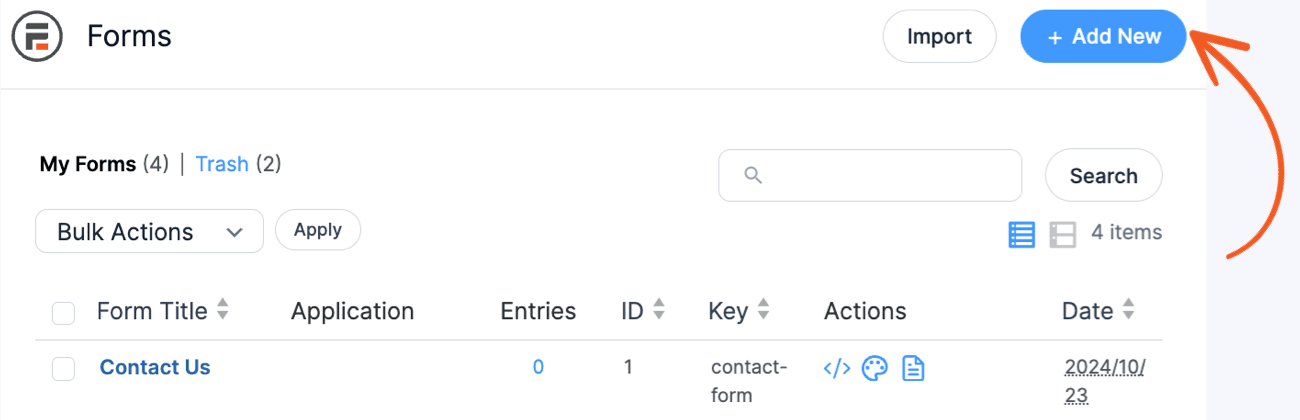
Next, pick one of our pre-built form templates or choose Create a blank form to start from scratch.
For this example, we’ll build a custom travel budget calculator from the ground up.

After, give the form a name and click Create.
And now, it’s time to add form fields. Thankfully, Formidable makes it easy with a drag and drop form builder. To start building, choose a field and drag it to the form.

For a percentage calculator, add three fields: the number, the percentage, and the value.
That’s it.
For our example, we’ll add a couple of fields and then name them:
- Text field → Destination
- Number field → Number of travelers
- 2 Date fields → Travel Start Date/Travel End Date
- 4 slider fields → Accommodation/Food/Activities/Extras budget
You can adjust the field label in the left-hand tab under the Field Options.

Our form ends up looking like this:

Now, we need to add some total fields in there. It would help if travelers could get a total and how much it costs per traveler and day.
That way, visitors have a more thorough cost breakdown.
Step 3: Create a total field
This step is the only one that requires a little bit of math.
But don’t worry—you won’t be reliving your school days here! To get started, add a number field to the form for your calculated fields.
Click the Read Only checkbox to ensure users can’t edit the field.
You can label it whatever you want. We’ll stick with “Total Budget.”
Next, in the Field Options, click Advanced, then the calculator icon, and find Default Value. This is where you’ll type in your equation.
For example, we want to add the Accommodation, Food, Activities, and Extras budgets.

So, we'll add the shortcodes next to each field name: [382]+[383]+[385]+[384]. When we adjust each budget, the total field changes to show the new cost! Pretty cool, right?
But we want to make the form a little more in-depth, so we’ll add three more number fields: length of trip, per day, and per traveler.
The formulas for each of these are pretty simple:
- Length of trip: [379]-[378]+1 (End of trip - Start of trip + 1)
- Per day: [376]/[386] (Total budget/Length of trip)
- Per traveler: [376]/[367] (Total budget/Number of travelers)
Instead of making a Length of trip field, you could use a datepicker to calculate the number of days between dates automatically. You know, if you want to get fancy! 😉
We'll keep it basic for now, but we'll add Page Breaks to break up the form and make it less intimidating.

Once we work our magic, it’ll look something like this:

Remember, this is just one example of what you can do with Formidable's calculator builder. And we’re barely scratching the surface!
So, let’s add some more functionality to our calculator.
Step 4: Add conditional logic
Formidable has many fields for you to play around with and make online calculators unique.
And there were a few ways we thought we could improve it.
For example, Formidable Forms is a conditional logic plugin that hides or shows fields based on user choices.

In our calculator, we added a Radio field so users can select how they’re traveling: flying, driving, or train.
Then, we added a few more Sliders so users can input more information to add to their travel budget.
Next, we added conditional logic to the forms so they only show when a user chooses that travel option.

This makes the experience much more interactive for site visitors and increases the chances they use your calculator.
Step 5: Style your calculator
A basic calculator works and will get people to use it.
But adding an eye-catching calculator to a website? That’ll increase conversions in a big way.
And that’s where Formidable’s Visual Form Styler comes in.

With a simple click, you can change the entire style of the calculator using one of Formidable’s pre-built templates.

Or, customize it yourself and handle every detail! The choice is up to you.

For example, we use the Sleek & Smooth template to make things quick.
And voilà! You've built a custom calculator to help your audience better prepare for their trip!
Step 6: Publish your calculator
Okay, so you’ve created your custom calculator, but how do you add a calculator to a website?
Don't worry. It's super simple with Formidable!
Open the post or page where you want to display your new calculator and click the black + to add a new WordPress block.
Then, search for Formidable and add the Formidable WordPress block.
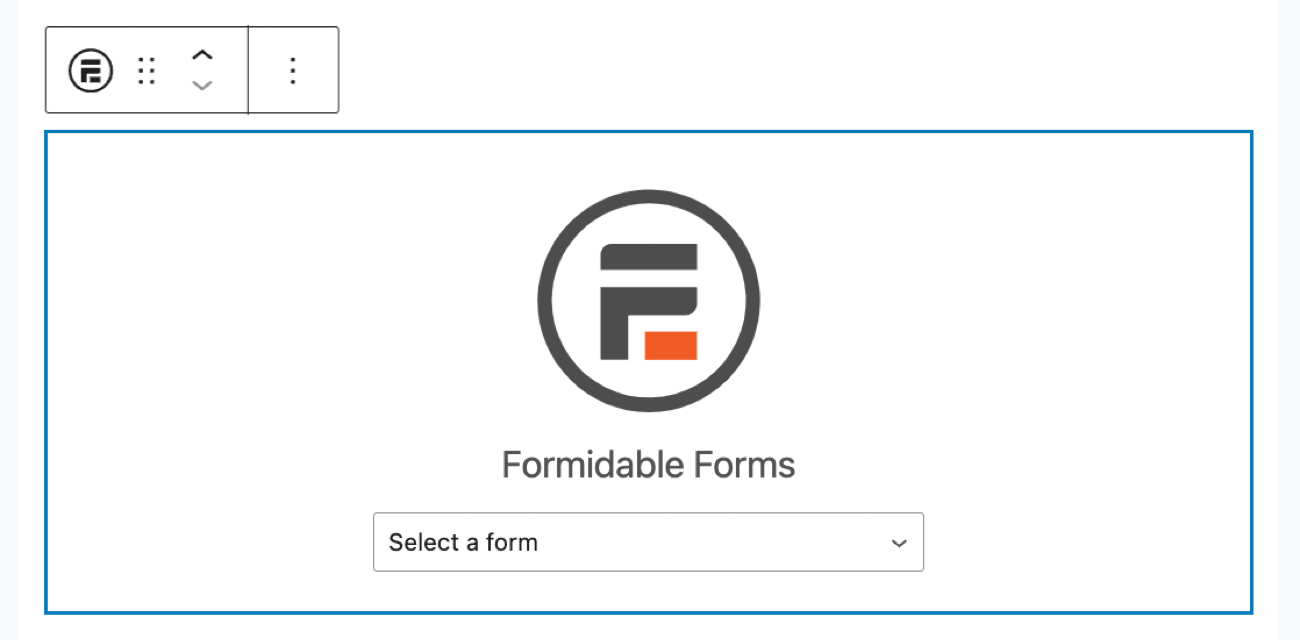
Last, choose your calculator form from the dropdown menu, and you’re finished!
Hit Update or Publish on the page/post, and you’re ready!
Get online calculator superpowers with Formidable Forms

Now that you’ve learned how to make a custom calculator in WordPress, you only scratched the surface.
No matter what type of advanced or simple calculator you need, you now have all the power to make it.

It doesn't matter what type of online calculator for WordPress you need. Formidable is the WordPress calculator plugin for the job.
Here are a few examples.
Use Formidable as a cost calculator builder
Do you have an eCommerce site and want an easy way to show prices to customers?
Then Formidable Forms is the perfect price calculator for your website projects.

A cost calculator plugin is the only employee you need. And a good one simplifies things for you enough that you barely have to do anything.
Well, that’s exactly what you get with Formidable and its web calculators:
- Automatic cost estimation
- WooCommerce integration
- Pre-made calculator form templates
- Visual Form Styler to create a stylish cost calculator
So, whether you’re selling 100,000 products a month or 10, Formidable is here to help you.
Build an online calculator to help people manage finances
Imagine you own a car dealership and help customers find the best financing for their cars.
Formidable’s car loan calculator template helps you quickly get a calculator on a WordPress website.

And that saved time means you start helping customers today. Each customer who fills out the car loan calculator becomes a new business lead.
Power up people’s fitness with a fitness WordPress custom calculator
Body Mass Index (BMI) is a term that gets thrown more than a football on Sunday.
But that’s because people are looking to find out their BMI. And what better way to attract people to a fitness website than with an easy-to-use BMI calculator?

Well, Formidable helps you do that, too. All the calculator powers you need. One simple custom calculator builder.
Ready to build the best WordPress custom calculators?
As you can see, using WordPress to create a calculator from scratch can be complicated. It’s possible but may involve figuring out formulas and doing some math. But no checking lines of code, changing input types, and other difficult tasks.
So, don't wait any longer! Now is your chance to make it happen. Get ready to make an online calculator with Formidable Forms by grabbing a subscription below!
Also, follow us on social media on Twitter, Facebook, and YouTube for more great tips on how to make a calculator website!
Read more WordPress calculator blog posts
 How to Create a WordPress Calculator with Formidable Forms
 WordPress Calculators: The Ultimate Guide
 8 Best Request a Quote WordPress Plugins
This article may contain affiliate links. Once in a while, we earn commissions from those links. But we only recommend products we like, with or without commissions.
