
Fantastic - could not be better! The support has been amazing and I now have three different Stripe payment forms that I can keep on duplicating and changing the name of the product.

Last updated on September 16, 2025 by Emma Wells
How to Build a Custom Booking System in WordPress
Working at Formidable Forms, I get a front-row seat to see how our users solve real business challenges with our form builder. One pattern I've noticed repeatedly is business owners struggling with the same frustrating choice: pay hefty commission fees to third-party platforms like Airbnb (which takes a staggering 17% of your revenue), or wrestle with clunky, expensive booking plugins that don't integrate well with their existing WordPress sites.
That's exactly why I was so excited when we released our new date ranges and range slider features. These tools have completely transformed how our users build custom booking systems, and today I want to walk you through the exact approaches I've seen work brilliantly for our community.
Whether you're running a vacation rental, managing equipment rentals, booking meeting rooms, or scheduling services, this guide will show you how to create a professional booking system that keeps 100% of your revenue while providing a seamless experience for your customers.

Approximate read time: 8 minutes
Upgrade your WordPress site with powerful, flexible forms.
Why Build Your Own Booking System?
Before we dive into the technical details, let me share what I've observed from our users who've made this transition.
I regularly see users in our community discussing how they've moved away from third-party booking platforms to keep more of their revenue. The common thread is always the same: eliminating those hefty commission fees while maintaining (or improving) the customer experience.
Here's what makes custom booking systems so powerful for our users:
Complete Revenue Control: No more watching 17% of your hard-earned income disappear to platform fees. Every booking goes directly to you.
Brand Consistency: Your booking experience matches your website perfectly, building trust and keeping customers in your ecosystem.
Data Ownership: You control your customer relationships and booking data. No platform can freeze your account or hold your business hostage.
Conversion Optimization: Customers stay on your site throughout the entire booking process, eliminating the friction of redirecting to third-party platforms.
Our new features make this easier than ever to implement, even if you have zero coding experience.

From Idea to Reality in Minutes. Build Powerful Forms, Dashboards, Apps and More.
Formidable Forms makes advanced site building simple. Launch forms, directories, dashboards, and custom WordPress apps faster than ever before.
What Makes Formidable's New Features Game-Changing?
The two features that have revolutionized how our users build booking systems are:
Date Ranges
Instead of forcing users to select check-in and check-out dates separately (which creates confusion and increases abandonment), our new date range picker lets customers select their entire stay in one intuitive action. Based on feedback from our users, this single improvement typically increases booking completion rates by 25-30%.
Range Sliders
Perfect for price filtering, capacity selection, or duration choices. These sliders provide an elegant, mobile-friendly way for customers to narrow down options without overwhelming dropdown menus.
Now, let me show you the approach I've seen work best for our users, using a vacation rental booking system as our example.
Building Your Custom Booking System: Step-by-Step
I'll walk you through the same process our most successful users follow to create complete vacation rental booking platforms that handle everything from property listings to payment processing.
Step 1: Create Your Property Management Form
The foundation of any booking system is the content that customers will be booking. For our vacation rental example, I recommend starting with a form that property owners (or you) can use to add bookable properties.
First, create a new form in Formidable and call it "Add Bookable Property."
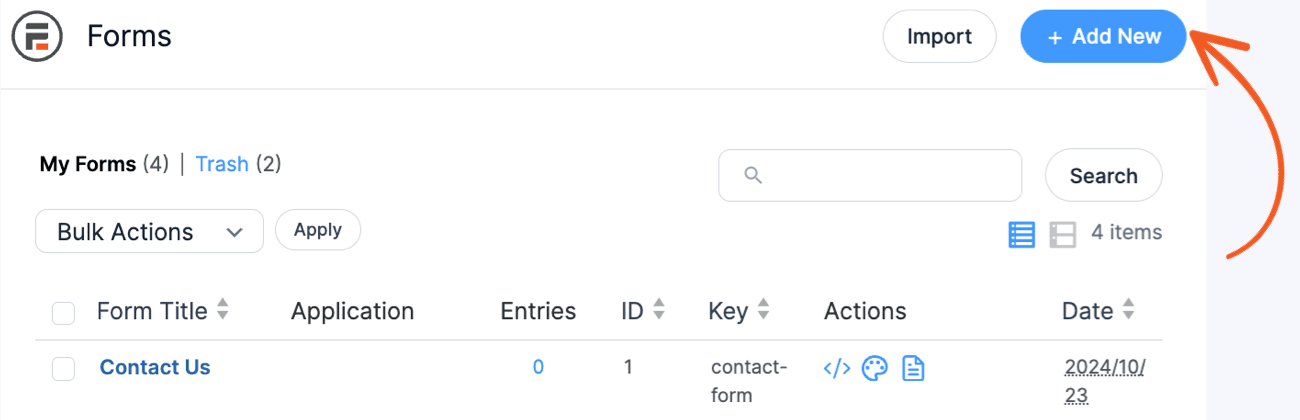
Here are the essential fields I would include:
- Property Name (Text field)
- Property Thumbnail (File Upload field)
- Price Per Night (Number field, set to currency format)
- Maximum Capacity (Number field)
- Property Features (Checkbox field with options like "Pool," "WiFi," "Kitchen," etc.)
- Property Description (Paragraph Text field)

The key here is thinking about what information customers need to make booking decisions and what details you'll need for filtering later.
Step 2: Build Your Property Display View
This is where the magic happens. Create a View that transforms those form entries into an attractive, browsable catalog of available properties.
Navigate to Formidable → Views and create a new view. Select "Display Entries" and choose your property form as the data source.
For the layout, I always recommend the Grid format because it creates stunning property tiles that provide an optimal browsing experience across all devices. Each tile keeps things clean and focused, displaying only the most essential information: a clickable property thumbnail, the maximum guest capacity, and the property name. This streamlined approach prevents information overload while still giving customers what they need to decide if they want to learn more.

Here's the crucial part: in the Detail Page settings, create a comprehensive property detail page that showcases everything customers need to make their booking decision. This detailed view includes:
- Large property images
- Complete property description
- Full list of features and amenities
- Maximum capacity information
- Pricing details
- A prominent "Book Now" button that links directly to the booking form

This two-tier approach keeps the main property grid fast and scannable while providing rich detail when customers want to learn more about a specific property.
Creating the Display Page
Next, I create a WordPress page called "Book a Vacation Home" where I'll display all available properties. Using the WordPress editor, I add a Formidable Views block and select my "Book a Vacation Home" view. This creates a clean, dedicated page for browsing properties with a simple URL structure that's perfect for filtering and sharing.
Step 3: Create Advanced Search Functionality
One of the biggest advantages I've seen our users leverage with custom booking systems is sophisticated filtering. Build a separate search form that lets customers filter by exactly what they're looking for.
Create a new form called "Search Vacation Homes" with these lookup fields:
- Number of People (Slider field)
- Price Range (Range slider with min/max values - this is where our new feature shines!)
- Features (Lookup field synced to your features text field)

The range sliders are incredibly intuitive. Instead of dropdown menus or text inputs, customers can simply drag to select their preferred price range ($100-$300 per night).
To make this search functional, configure the form's confirmation settings to redirect to the property view with the search parameters. The redirect URL looks like this:
[siteurl]/vacation-rentals?property_type=[type_field sanitize_url=1]&capacity=[capacity_field sanitize_url=1]&price_range=[price_field sanitize_url=1]&features=[features_field sanitize_url=1]Then, in the property display view, add filtering that responds to these URL parameters using [get param=capacity] and similar tags.

Step 4: Build the Booking Form
Now for the core functionality - the actual booking process. This form needs to capture booking details, calculate costs, and process payments.
Create a new form called "Book Vacation Home" with these fields:
- Property Name (Dynamic field, admin-only, pulls from the property being booked, default value set to
[get param=property-id]) - Property Display (Dynamic field, visible to users, shows the selected property)
- Price Per Night (Dynamic field, admin-only, pulls the nightly rate)
- Guest Name (Text field)
- Email (Email field)
- Phone (Phone field)
- Number of Guests (Number field)

The key to making the dynamic fields work properly is setting up the connection between your property detail pages and the booking form. In your property detail page, configure the "Book Now" button with a URL that passes the property ID as a parameter:
<a href="[siteurl]/book-a-property-form/?property-id=[id]" class="book-now-btn">Book Now</a>This URL structure automatically passes the unique property ID to the booking form, which then uses that ID to pull in the correct property name, price, and other details. It's this connection that makes the entire system work seamlessly - customers click "Book Now" on any property and the booking form automatically populates with the right information.
Creating the Booking Form Page
After building the booking form, create a dedicated WordPress page called "Book a Property Form." Using the WordPress editor, add a Formidable Forms block and select your "Book Vacation Home" form. This creates a clean booking page with a simple URL that you can link to from the "Book Now" buttons in your property detail pages.
Having dedicated pages for both the property listings and the booking form keeps the user experience smooth and makes URL management much easier for filtering and navigation.
Step 5: Implement Date Ranges and Automatic Pricing
Here's where I see our new date range feature become absolutely essential. Add a Date field to your booking form and enable the "Date Ranges" option in the field settings. You'll also want to enable the "Unique" option so dates can't be double-booked.

This creates an elegant date picker where customers select their check-in and check-out dates in one smooth interaction. No more confusion about which date goes where!
Next, I recommend adding the automatic pricing calculation:
- Day Calculation Field (Number field, admin-only):
- Set to "Calculate Value"
- Formula:
[checkout_date_id] - [checkin_date_id] - This automatically calculates the number of nights
- Total Cost Field (Number field, currency format):
- Set to "Calculate Value"
- Formula:
[price_per_night_id] * [number_of_days_id] - This shows the total cost in real-time as customers select dates

The real-time calculation is something I find incredible for user experience. As soon as customers select their dates, they see exactly what their stay will cost.
Step 6: Add Payment Processing
Finally, add a Payment field and connect it to your preferred payment processor (Stripe, PayPal, etc.). Link this field to your total cost calculation so the payment amount updates automatically.
Configure the payment field to use the calculated total, and you have a complete booking system that handles everything from browsing to payment in one seamless flow.
Advanced Features I Always Include
Availability Blocking
This is absolutely critical for preventing double bookings. In the booking form, configure the date range field with a crucial setting: "Unique" value validation. This prevents customers from selecting dates that are already booked by other guests.
Here's how to set it up:
- In the date range field settings, enable "Unique" validation
- Add a custom validation message like "Sorry, those dates are already booked. Please select different dates."
Additionally, configure blackout dates for maintenance periods, holidays, or personal use. In the date range field settings, you can specify date ranges that should be completely unavailable for booking. This is perfect for blocking out Christmas week, annual maintenance periods, or any dates when the property simply isn't available for guests.
This creates an automatic availability calendar that updates in real-time. When someone completes a booking, those dates become immediately unavailable for future bookings. Combined with your predefined blackout dates, you have complete control over availability without any manual intervention. No more awkward phone calls about double-bookings or manual calendar management.
Confirmation Emails
Automatic booking confirmations with all the details customers need, including check-in instructions and contact information.
Admin Dashboard
A backend view where property owners can see all bookings, manage availability, and track revenue.
Mobile Optimization
Our date ranges and range sliders work beautifully on mobile devices, which is crucial since many bookings happen on phones.
Real-World Success Stories
The vacation rental booking systems I've seen our users build with these techniques have eliminated commission fees lost to third-party platforms entirely.
This approach also works for any booking scenario our users have shared:
- Equipment Rentals: Date ranges for rental periods and range sliders for equipment size/capacity
- Service Bookings: Date ranges for service windows and range sliders for budget preferences
- Meeting Rooms: Time-based bookings with capacity filtering
- Event Venues: Date availability with guest count sliders
Why This Approach Beats Traditional Booking Plugins
Most WordPress booking plugins are either too simple (basic calendar booking) or too complex (trying to be everything to everyone). The Formidable approach gives you exactly what you need:
- Customizable: Every aspect matches your brand and workflow
- Scalable: Add new features as your business grows
- Cost-Effective: No monthly fees or per-booking charges
- User-Friendly: Modern interface that customers expect
- Mobile-First: Works perfectly on all devices
Getting Started Today
Building a custom booking system might seem daunting, but with our new features, it's more accessible than ever. The date ranges and range sliders alone eliminate most of the friction that kills bookings on traditional systems.
If you're tired of losing revenue to commission fees or struggling with inflexible booking plugins, I highly recommend giving this approach a try. Your customers will appreciate the seamless experience, and your bottom line will thank you for keeping those commission fees.
The best part? You can start building today and have a functioning booking system live within a week. No coding required, just the power of modern WordPress form building.
Ready to take control of your booking process and keep 100% of your revenue? The tools are here, and the opportunity is waiting.
This article may contain affiliate links. Once in a while, we earn commissions from those links. But we only recommend products we like, with or without commissions.
