
Fantastic - could not be better! The support has been amazing and I now have three different Stripe payment forms that I can keep on duplicating and changing the name of the product.

Last updated on August 2, 2023 by Formidable Team
How To Require Email To Download Files in WordPress
Wondering how to require email to download files in WordPress? This guide will show you how to create a form for your WordPress gated content!

Approximate read time: 5 minutes
How does doubling subscribers on an email list sound?
Well, that’s the power of requiring an email to download files after form submission in WordPress (aka using gated content). And it can be set up on a WordPress website in minutes to start growing your email list today.
This post will show how to create a beautiful form that converts readers into subscribers through downloadable content, step-by-step.
Let’s get started.
Upgrade your WordPress site with powerful, flexible forms.
Why use WordPress for downloads and email capture?
Some people want access if valuable content is posted on a WordPress website.
And getting an email before downloading in WordPress is the perfect way to start a connection with website visitors.
So why not combine the two? And that’s where gated content comes in.

Gated content is like putting a bouncer in front of a famous club. People can get in, but only if they get past the bouncer first.
Getting more users with a form is fantastic for lead generation, email marketing, or building a more extensive list. You can use various file management tools, such as Google Drive, Microsoft OneDrive, or even WordPress!

After submitting a form with WordPress plugins, we'll show you how to download a PDF. If you're curious, check out our list of the best WordPress gated content plugins.
From Idea to Reality in Minutes. Build Powerful Forms, Dashboards, Apps and More.
Formidable Forms makes advanced site building simple. Launch forms, directories, dashboards, and custom WordPress apps faster than ever before.
How to require an email address to download a file in WordPress
The easiest way to require an email to download files is using Formidable Forms.
Formidable Forms is the best WordPress form plugin. Its drag-and-drop form builder and advanced features, like Formidable Views, handle anything, including creating a form for your gated content on your WordPress site.
So, grab the form maker, download the WordPress plugin, and install and activate it. Then, we’ll start with the guide. If you need help getting set up, check out our Knowledge Base docs!
There are four easy steps to use WordPress to download files after form submission:

Step 1: Create a file upload form
First, we need a way to upload your files and get them into your subscribers' hands.
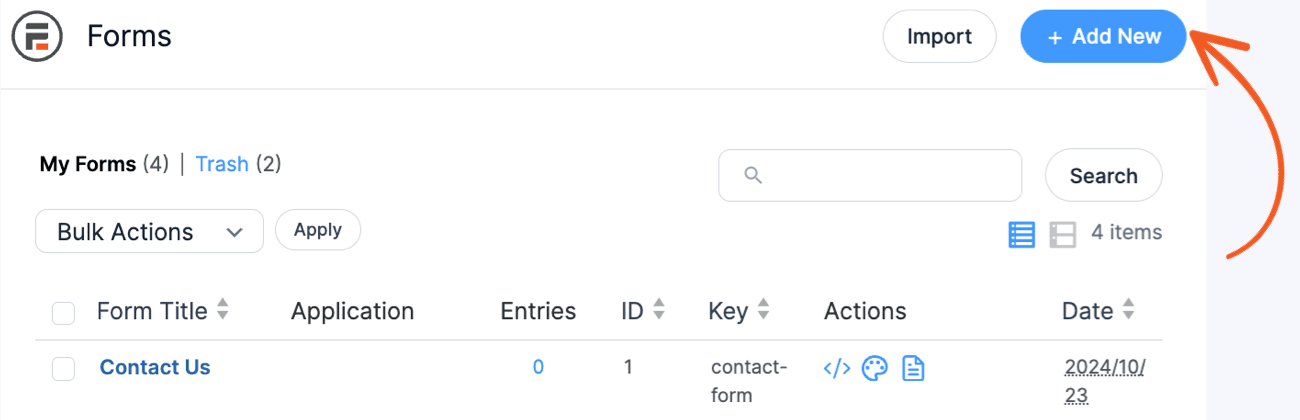
So, create a form for content upload. Head to Formidable → Forms and click Add New inside your WordPress dashboard.
Next, choose Blank Form and give the form a name. The plugin opens the drag and drop form builder to customize the form. Only two simple fields are necessary for the upload form: Text and File Upload.
Drag the fields to the builder, then click the Text field to change the field options. Then, change the label to “File Name” and check the Required and Unique boxes.

Next, drag the File Upload field to add it.
Then click Update to save the changes to the form and the progress so far.

The last thing is to protect the content so not everyone can see it.
So, go to Settings → Form Permissions and check the box next to Protect all files uploaded in this form and Prevent search engines from indexing uploads.

Click Update to save the changes, and it’s on to the file upload!
Step 2: Upload the file and create a View
To manage/monitor file downloads, click the Entries tab at the top of the page, then click Add an Entry.

The file upload form will open. Add the file, type a file name, and select the file type. Finally, click Submit, and the file is ready.
Now, it’s time to create a way for the file to display.
And Formidable Views is the perfect tool for the job. Views is an application builder that displays your entry data on a website's front end.
So, in Formidable, click Views.
Click Add New in the Views section, choose Classic for the template, and give the View a name.

Select Protected Files form in the View editor as the Use Entries from Form choice.
Click the + inside the View, which opens the View editor. Off to the right side, there's a panel containing the fields from the form and the numbers next to them.
Use these to make it easy to open the file. So, to create a download link in WordPress, type the following in the Text Editor to add a download link or file URL:
<a href=”[File Upload #]”>Open [File Name #]</a>So, for example, the editor would look like this:

Once it's customized, click Update view to save the changes.
Next, add a filter to the Advanced Settings of the View to make sure everything shows:

Last, copy the shortcode on the View Editor's left side. It should look something like this:
[display-frm-data id=X]Save this for the next step.
Step 3: Create a signup form
Last, we need a form for our website visitors to enter their email, which will act as the download form.
It can be a simple contact form, email capture form, or anything that collects an email.
So, go to Formidable → Forms and click Add New to create a form. Click Blank Form, give the form a name, and click Create.
Add Name and Email form fields to keep things simple. Also, check the Required box for the email, so the visitor can’t complete it until the submit information is entered.

Feel free to add any other fields to your form before you click Update to save the changes.
Next, click Settings and scroll down to the On Submit section. Set the dropdown to Show Message. Then, under the Messages section, paste the code from the first step into the text box.
Click Update to save the changes. Now, whenever a user fills it out, they can click the file link to open your gated content or see the download in progress! You can also send the download URL for the WordPress file in the confirmation email.
Step 4: Display the signup form
The last step is to show the signup form to the world so people can subscribe!
So, head to the post or page and add a new WordPress block. Next, search Formidable and click Formidable’s WordPress block to add it. Then, choose the signup form from the dropdown menu.
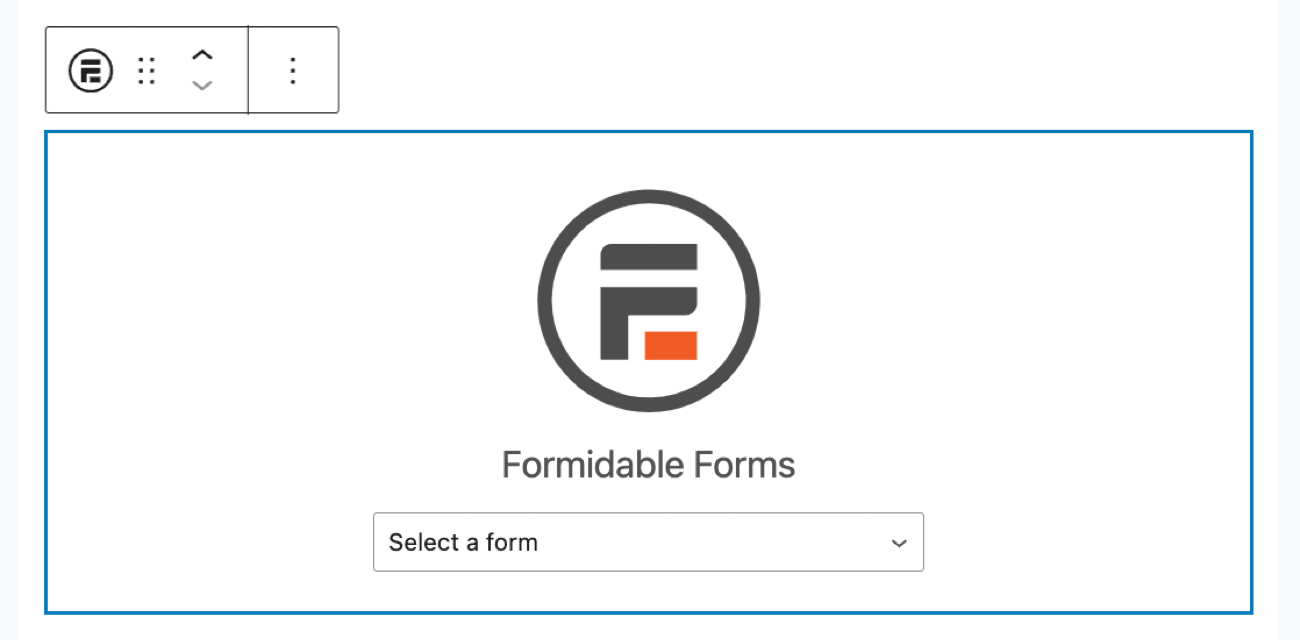
Last, click Update, and the form is live and ready. Now, when a user fills out the form to download a file, they'll get the file!
Are you ready to require email to download files in your forms?
Gated content is a massive opportunity for email lists. The power to require an email to download files is fantastic.
This post showed how to create gated content on WordPress easily with Formidable Forms. Plus, the plugin integrates with popular email services like Mailchimp and ActiveCampaign to simplify email marketing.
So, don’t waste time! Grab the file upload form maker now!
And follow us on social media for more WordPress tips and tutorials: Facebook, Twitter, LinkedIn and YouTube.
Read more about file downloads!
 How To Sell Digital Downloads on WordPress [Step by Step!]
 5 Best WordPress Plugins To Download PDF Files (& Upload PDFs Too)
 5 Best WordPress File Sharing Plugins for Exclusive Content
This article may contain affiliate links. Once in a while, we earn commissions from those links. But we only recommend products we like, with or without commissions.
