
Fantastic - could not be better! The support has been amazing and I now have three different Stripe payment forms that I can keep on duplicating and changing the name of the product.

Last updated on March 4, 2024 by Formidable Team
How To Add a Download PDF Button in WordPress (2 Easy Ways!)
Want to create a WordPress download PDF button but don’t know how? This guide will show you how to easily add a PDF to a button in WordPress.

Approximate read time: 6 minutes
Who would've thought adding a WordPress button to download a PDF would be complicated? There are long guides and other plugins involved.
Most people don't want that. They want a simple solution, not a bunch of headaches. And we assume you're the same way. But it doesn't have to be so hard. It can be very easy to create a button for your PDF downloads.
And we have this guide to adding a download WordPress PDF button today! It'll show you two ways to add it to your website so you can find the best method for your needs.
Let's dive in.
Did you know?
It's really easy to connect Woocommerce to Formidable Forms? And, you can create PDF downloads for any products and catalogs you have!
Upgrade your WordPress site with powerful, flexible forms.
How to add a download PDF button in WordPress
You came here for answers, so we’ll get right to it to give you what you need.
It only takes two simple steps to add a download PDF button in WordPress:
Step 1: Upload PDF to WordPress
First, locate the downloadable file you want to add to your WordPress website. It can be an eBook, graphic, or image.
Once you have it, go to your WordPress admin and navigate to Media → Add New.

Next, drag your PDF to the file upload box. Once it’s finished uploading, click the Copy URL to clipboard button to get your file URL. It should look similar to this: “Download URL: http://URLHERE.com/.”
Remember that you don’t have to upload your PDF to the WordPress media library. Sometimes, the files on your WordPress site are too large, which can slow the website.
You can also upload it to Google Drive or a similar service to provide a download link to the PDF file.
Step 2: Display the WordPress download PDF button on your page/post
Okay, you’ve got your PDF ready, so now we need a way to show it.
First, navigate to your page or post where you want to add a PDF download button in WordPress.
On the page, add a new block and search for Button. Select the Button block to create a download button, then adjust the button position.

Last, click the Link button on the toolbar, and paste the URL you copied in step one.
Update your page, and you’re set! When visitors click the button, they’ll be directed to a PDF reader for a printer-friendly version.
From here, they’ll have all the standard PDF and print buttons. They can use their download manager to download the document, save parts of it, and more. It’s almost like having a WordPress print PDF button!
🔗 Want to link a button to a form? How To Link a Button to a Form in WordPress
From Idea to Reality in Minutes. Build Powerful Forms, Dashboards, Apps and More.
Formidable Forms makes advanced site building simple. Launch forms, directories, dashboards, and custom WordPress apps faster than ever before.
How to add a download PDF button with a WordPress plugin
You may wonder why you need a plugin when we showed you how to add a download button for WordPress PDFs easily.
The method above is excellent, but what if you want to do more with your PDF button?
Maybe you want to grow your email list by offering a PDF in exchange for an email address? Or perhaps you want to convert WordPress form entries to a PDF (like a PDF invoice or legal agreement)?
In that case, the best tool for the job is Formidable Forms, the most powerful form builder for WordPress.

With Formidable’s Form to PDF WordPress add-on, creating and downloading PDFs is simple. Whether you want to show a PDF or email it, it’s easy with our add-on. Plus, it looks great with any theme (like Elementor).
But let's show you how to create your PDF button.
How to link a PDF to a button in WordPress
There are a couple of easy steps here:
Step 1: Create a WordPress download PDF button
For this example, we’ll use the PDF URL we created above. To start, you want to install and activate Formidable Forms.
Once you’ve done this, navigate to the form builder by going to Formidable → Forms.
Then, click Add New at the top and choose Blank Form to start creating your PDF Form.
Once you give your form a name, you’ll see our form editor. This drag and drop form builder has many options, but today, we need the Hidden field. You don’t have to type anything here.

So, drag that onto the builder canvas. Next, we need to turn off the Start Over button, which is enabled (for styling issues).
Let's change this by clicking the Submit button to access its field options in the left pane. Then, we can uncheck the Add Start over button checkbox.

Next, we want to go to Settings → Actions & Notifications. Find the Confirmation action and add it. This action triggers every time a form is submitted, so it's perfect for redirecting users.

Next, open the Confirmation action and click the Redirect to URL button. Then, paste the URL into the Redirect URL field.

Last, click the Update button to save the action.
Want to customize your PDF design? How To Use a PDF Editor in WordPress
Step 2: Display the WordPress download PDF button
For the last step, navigate to the post/page where you want to show your button.
Click the Add Block button and search Formidable. Add the Formidable block, click the dropdown, and select the “form” you created.
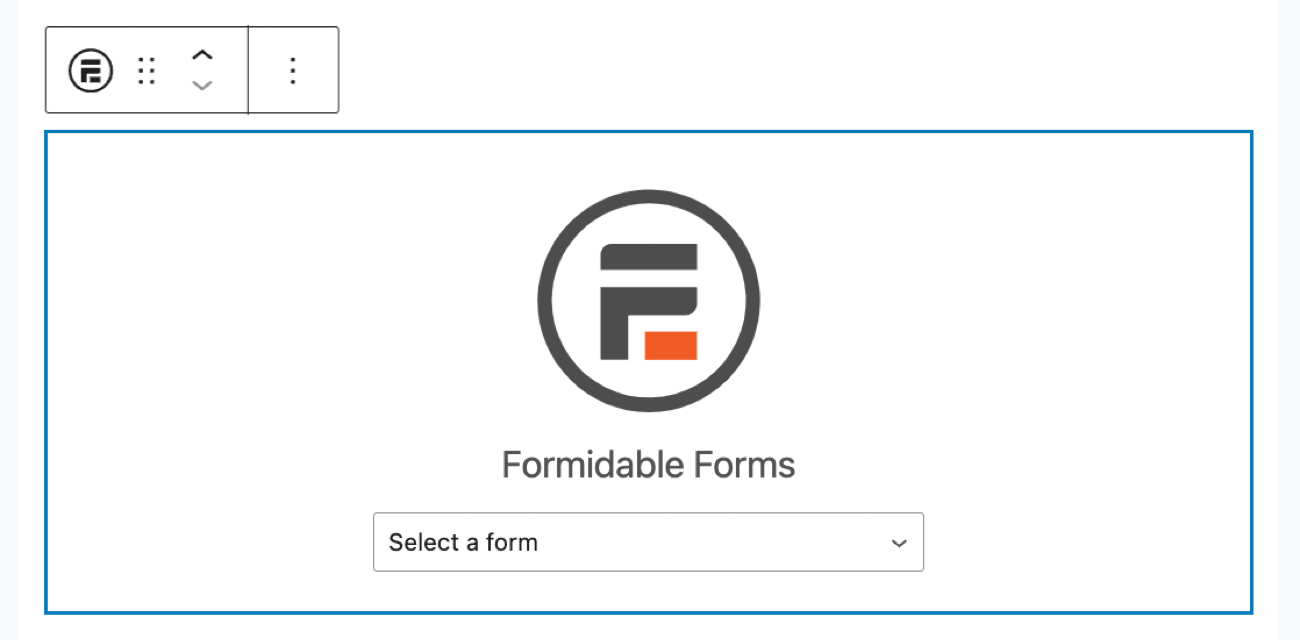
Your button will show on your WordPress post or page as soon as you update it.
Now, when they click the button, it directs them to another webpage to view the PDF in their PDF viewer.
🚀 Take forms even further with Formidable PDF, The Best Custom WordPress PDF Generator Plugin
Which method do you prefer for your WordPress download PDF button?
So, today, you learned a couple of different ways to create a WordPress PDF download button and put it on your website: one for making a very basic download button and another for converting form entries into downloadable PDFs at the click of a button.
Using WordPress alone gets you the basics of what you need. If you want a simple PDF download button, it’s perfect for you. But, if you want the power to do anything more, you need another PDF download option.
And that's where Formidable Forms comes in. Our PDF plugin makes adding a PDF download to WordPress forms, buttons, and even different pages or posts easy. And that's why it's one of the best lead generation tools.
Check out everything Formidable Forms can do to see how it can serve all your WP content upload needs.
Find more WordPress tips and step-by-step video tutorials on Facebook, Twitter, and YouTube.
Get the Formidable Forms Newsletter ⬇️
Read more about PDFs on WordPress
 Add Charts and Graphs in Emails & PDFs with Formidable Forms!
 How To Sell Digital Downloads on WordPress [Step by Step!]
 How To Add a WordPress PDF Viewer to a Website
This article may contain affiliate links. Once in a while, we earn commissions from those links. But we only recommend products we like, with or without commissions.
