
Fantastic - could not be better! The support has been amazing and I now have three different Stripe payment forms that I can keep on duplicating and changing the name of the product.

Last updated on March 7, 2023 by Formidable Team
Make a 'Choose Your Own Adventure' Form with Google Forms (+ More!)
Want to make a Google Forms choose your own adventure story? Here’s how to make a smart form using Google Forms - and another form builder too!

Want to create a choose your own adventure with Google Forms? We’ll show you the way! Also, if you are a WordPress user, we’ve got another solution that might be even better.
Google Forms is a great free form builder for personal use. In this post, we’ll show you how to make a form that features a choose your own adventure story. With Google Forms, this is pretty easy!
After that, we’ll show you another method using a WordPress form builder. If you aren’t using WordPress, feel free to skip it. But if you are using WordPress, this method will be much more powerful.
Upgrade your WordPress site with powerful, flexible forms.
Google Forms how-to: Choose your own adventure
You can create a go-to section based on answer experience in several ways. To build a basic interactive story, you can use a free Google tool.
Don’t worry, you don’t need to maintain a huge spreadsheet, rich Google Docs, or complex Google Slides for this.
Simply, create a new blank form using Google Forms. Then add your multiple-choice questions following some intro text. Choose "Go to section based on answer" from the 3-dot button at the bottom right corner.
Now, beside each question, you will see a dropdown to choose the destination section. Add as many sections and questions as you need. Then link them to each other. That’s it!
Google Forms is great for making choose your own adventure forms. But it does have its shortcomings:
- Less customization: All Google Forms look similar and lack a variety of features.
- Not truly interactive: Users need to click “Next” to move to the next section.
- Data storage: Your data will be stored in the cloud, not on your website.
- Limitations: For example, file uploads are affected by the form owner's Google Drive storage, among other limitations.
? Learn More: 3 Powerful Google Forms Alternatives
From Idea to Reality in Minutes. Build Powerful Forms, Dashboards, Apps and More.
Formidable Forms makes advanced site building simple. Launch forms, directories, dashboards, and custom WordPress apps faster than ever before.
Creating a choose your own adventure story with WordPress
When you have a WordPress website, it’s easy to create a choose your own adventure experience. We will see this using Formidable Forms, the best WordPress form builder plugin. You can create interactive smart forms, adventure books, conversational forms, and much more with it.
Let’s check out the process step by step.
Step 1: Get Formidable Forms
First, we need to get the Formidable Forms plugin. If you’ve installed a plugin in WordPress before, this should be easy!
To unlock all the features needed for a choose your own adventure form, you’ll need the Basic plan, which starts at just $99 a year.
Step 2: Create a form with Formidable Forms
Login to the WordPress admin panel and go to Dashboard → Formidable. Click the Add New Form button to get started.
The form building interface looks like this.

Step 3: Add form fields and enter the story content
We’ll use the Radio Buttons field to build our conversational form (pick a path story). Adding a field is just a matter of a click or a simple drag and drop.

If we click any particular form field on the right, we’ll get the field settings interface in the left sidebar.

For this tutorial, we'll use the following story. It’s simple and short to make the process easily scannable.
Scene 1:
You are in a room with a door, a window, and a rabbit hole. Which one do you want to go through?
- The door
- The window
- The rabbit hole
[The user will choose an option in scene 1. Then scene 2 will arrive with more potential options. Thus, the story will go on.]
We’ve added the story and the initial options to the form.

There are 3 options in the Radio Buttons field. Once the user selects an option, the subsequent content will appear.
Scene 2 consists of the following:
- If the first option is selected, this is next: “Awesome! Have a great outing :)”
- If the second option is selected, this is next: “Oops! Are you sure you can go through the window?”
- If the third option is selected, this is next: “You must be funny! You’ve chosen the wrong exit, you know!”

We’ve added the subsequent responses for our three initial options (A, B, C). Now we will add conditional logic to these 3 new form fields. This will make them appear based on which initial option is selected.
? Want a breakdown of Google Forms vs. Typeform?: Google Forms vs Typeform [Which Form Builder is Best?]
Step 4: Adding Conditional Logic to the story fields
We will add conditional logic to the fields with the following titles:
- Awesome! Have a great outing 🙂
- Oops! Are you sure you can go through the window?
- You must be funny! You’ve chosen the wrong exit, you know!
Let’s start with the “Awesome! Have a great outing :)” field. Click on it and go to the field options.
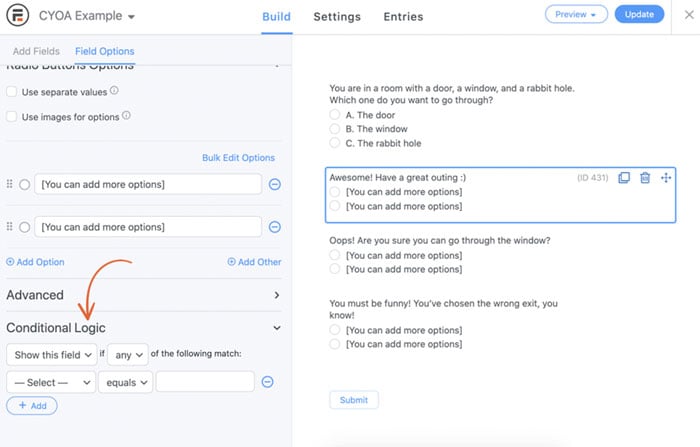
In the above screenshot, you can see, we’ve opened the field options for the “Awesome…” form field. Now, look at the left side. At the bottom left corner, there’s the Conditional Logic section.
Learn More: The Ultimate Conditional Logic WordPress Plugin
For this field, in this particular tutorial, we will choose “Show this field if any of the following match: “You are in a room…..” equals “A. The door”.
Check out the following screenshot.

We’ve set our conditional logic targeting the very first radio button. So, if the first radio button option is pressed, the “Awesome! Have a great outing :)” field will appear. By following this method, you can add more fields and conditions easily.
After updating the form, we can see a preview using the top right option. Here is an animated preview of our interactive story we’ve just built.

It’s working!
Step 5: Publish the story and check out more configurations
You can easily publish your interactive story built using Formidable Forms on a post or page. The easiest way to do this is by copying the shortcode of your form into any page or post. There are other ways too! Learn more here: publishing a form. Also, you might want to learn more about the form settings to configure your forms.
? Learn More: SurveyMonkey vs Google Forms vs Formidable Forms - How to Choose
Wrapping up
A conditional logic form powered by Formidable Forms is so innovative. You can use it to create an interactive story. Also, build a smart experience for any survey, bank form, game, etc. Plus, you’ll find it useful while teaching complex topics like math and arranging a quiz for students.
Read more posts about conditional logic forms
 Unlock Advanced WordPress Form Date Logic & Lookup with Formidable
 8 Ways Conditional Logic Forms Can Boost Conversions!
 The Ultimate Guide to Conditional Forms in WordPress
So, what are you waiting for? Get Formidable Forms and start creating choose your own adventure stories today! Or, try our free plugin to get started even faster.
This article may contain affiliate links. Once in a while, we earn commissions from those links. But we only recommend products we like, with or without commissions.
