
Fantastic - could not be better! The support has been amazing and I now have three different Stripe payment forms that I can keep on duplicating and changing the name of the product.

Last updated on July 18, 2025 by Kyle Cash
How To Make a Multi-File Uploader in WordPress [3 Steps!]
Want to make a multi-file uploader in WordPress? Allowing visitors to upload multiple files makes things easier, and this guide will help you set it up!

Approximate read time: 6.5 minutes
Want to accept uploaded files on your WordPress site easily?
It may seem difficult at first. After all, there are different file upload types, multiple numbers of files, and different max file sizes — how do you accept them all?
Luckily, it doesn’t have to be complicated.
And with this guide, we’ll show you how to create a multi-file uploader in WordPress that accepts all file types and sizes.
So, let’s get into it.
Upgrade your WordPress site with powerful, flexible forms.
Why make a multi-file uploader in WordPress?
You can use a multi-file uploader for many different purposes.
Whether uploading images, videos, PDFs, or other file attachments, allowing different files makes getting the information you need easier.

And that’s beneficial for:
- Job application forms: An easy way for applicants to upload their resumes, cover letters, or certifications.
- Customer support: Visitors can attach screenshots or other files to help staff solve the issue.
- User-submitted content: Users can submit images, blog posts, and more for your website!
- Collect data or feedback: Users can submit data or research to make viewing easier.
These are just a few ways a multi-file upload form can benefit your website! And creating one only takes a few simple steps.
So, let’s dive into how to get one on your website.
From Idea to Reality in Minutes. Build Powerful Forms, Dashboards, Apps and More.
Formidable Forms makes advanced site building simple. Launch forms, directories, dashboards, and custom WordPress apps faster than ever before.
How to make a WordPress multi-file uploader form
To get started with your WordPress file upload form, we recommend using Formidable Forms.
Formidable is the most advanced WordPress form builder, making building the perfect form simple. Plus, it has many other features to take your form to the next level and help your business shine!
So, to get file uploads in your forms, you’ll need at least Formidable’s Basic plan.
Once you get Formidable installed and activated, it’s three simple steps:

Step 1: Create your form
In your WordPress dashboard, go to Formidable Forms → Forms and click Add New.
Next, choose one of our pre-made templates or Blank Form to start from scratch. For our example, we’ll use the Job Application template.
The plugin will take you to its drag-and-drop builder, where you can customize your form.
Add the fields you need, then adjust the labels and settings to match your site’s needs.

Most importantly, you must add a File Upload field if you don’t have one already.
Step 2: Add and customize your file upload fields
You should see the File Upload field in your sidebar, which you can drag to any area of your form.

Add one or a couple of File Upload fields depending on your needs. Then, you can rename them to make them clearer to users.

However, you don’t have to include more than one to have multiple file uploads.
Click on your File Upload field to customize the field settings.

You can customize the settings to your liking by adjusting the following:
- Attachment file extension/file format (jpg, zip files, etc.)
- Upload limit
- Bulk upload
- Maximum upload size/Maximum file size limit
- Resizing options
We want to focus on the Allow multiple files to be uploaded checkbox.

This will allow users to upload as many files as they want. Or, if you’re uploading files from the back end, you can choose the WP content you want from your WordPress media library.
So, you can separate the user’s documents by using two File Upload fields, or you can simplify it by putting them into one and using the multiple files option.
The choice is yours! But once it’s set up, it’s as simple as dragging and dropping multiple file uploads to work!
Once you customize your file upload fields, click Update to save your changes.
Last, let’s get that form on your site so people can fill it out!
Step 3: Publish your form
First, head to the post or page where you want to show your file upload form.
Next, add a new WordPress block and search for Formidable Forms, then add the Formidable WordPress block.
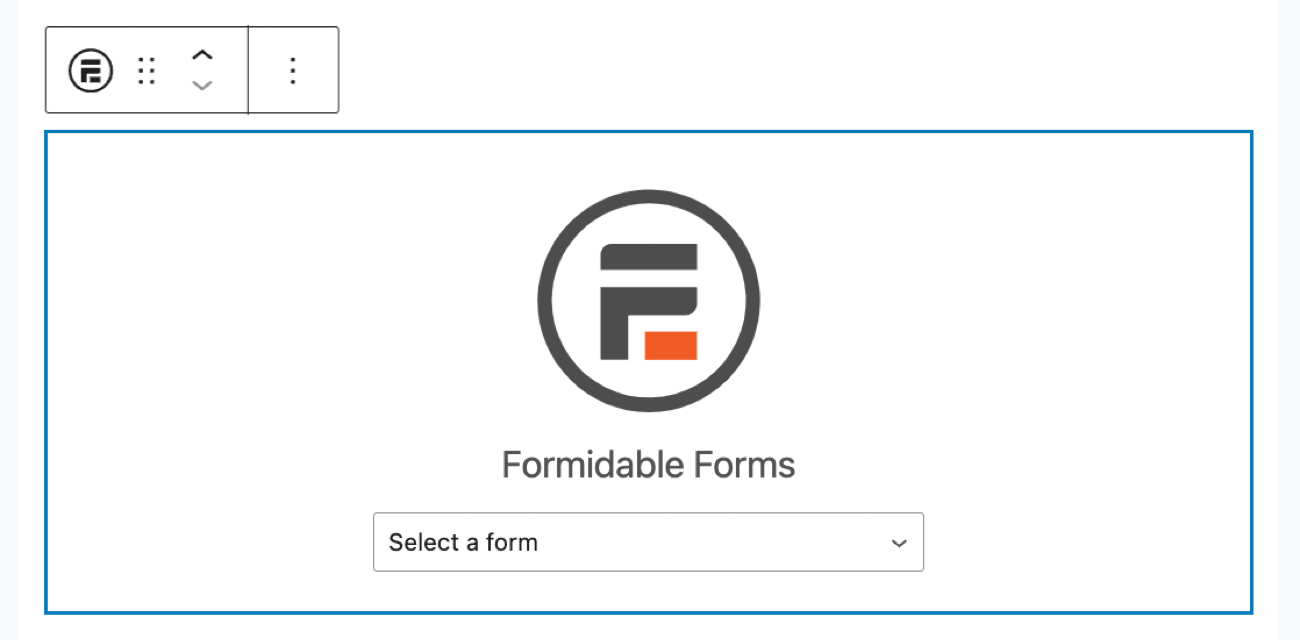
Next, choose your form from the dropdown menu, and you’ll see your form displayed.
Last, update your post or page, and your file upload form is ready!
Improve your forms even more
Use conditional logic to personalize your form
Too many form fields can get overwhelming.
So, simplify them with conditional logic. And you’ll see your form conversions improve instantly!
To do this, click on any field in your form and find the Conditional Logic field in the form field settings.

Next, you can customize your form fields to only show when a specific condition is met.
For example, we only want full-time employees to upload their certifications. So, we can set up a conditional logic statement to only show the Certifications field if the Employment Desired equals Full-Time.

When users select full-time, they’ll see the Certifications file upload appear below the Resume field.

Simple and clean means your visitors are more likely to complete your form.
Increase engagement with conversational forms
Conversational forms (or one question at a time forms) are all the rage online.
And that’s because they improve the chances of your visitor filling out your form. Just like conditional logic, the idea is to keep things simple for your visitors.

And we’ve made it simple to help your visitors.
All you have to do is enable the Conversational Forms add-on, then turn it on in the Settings tab of your form.

And that’s it! With a simple toggle, your entire form becomes conversational and ready to increase conversions!

Generate revenue with payment collection
You don’t have to stop making things look great for your visitors.
You can also turn them into paying customers! And this is great for directories, job listing sites, and more!
With Formidable Forms, you can access multiple payment methods to receive payment from all your customers — no matter their service.

PayPal, Stripe, and Authorize.net are all available, so you can start accepting payments immediately.
Export your form entries to a PDF
PDFs are great for your records, sending them to customers, or even printing them out to file away.
And form to PDFs is another thing Formidable helps you with. Like the other features, it’s as simple as enabling the add-on and then choosing how to get your PDF in the Entries tab.

So, whether you’re creating order forms or logging survey answers, a PDF is a great way to keep a record of it.
Ready to make your multi-file uploader in WordPress?
If you’ve been wondering how to upload multiple files to your website, you now have your answer!
This guide taught you how to use Formidable Forms, the best form builder and WordPress plugin for multiple file uploads. So, your WordPress site is ready, no matter the form or file type.
So, if you’re ready to get started, grab this form maker now so you can begin accepting file uploads!
If you want more on file uploads, check out how to create a contact form with file uploads.
Last, follow us on Twitter, Facebook, and YouTube for great WordPress form tips!
Read more about file uploads!
 How to Use WordPress to Upload Files to Google Drive
 How To Create a WordPress Contact Form with File Uploads
 5 Best WordPress Plugins To Download PDF Files (& Upload PDFs Too)
Did you know that Formidable Forms is one of the fastest WordPress form builder plugins available today? If you're not already using it, get started with our free plugin or the full-featured pro version!
This article may contain affiliate links. Once in a while, we earn commissions from those links. But we only recommend products we like, with or without commissions.
