

Linking & parking
Flock serves projects in two ways: parked folders, where every subfolder becomes a site, and linked sites, which are single projects.
Parking a folder
Every subdirectory of a parked folder is served as <subdirectory>.test. New projects in that folder are picked up automatically, so ~/Code/blog is http://blog.test as soon as you create it. You can park as many folders as you like.
Open Settings… from the Flock panel and go to General. Under Project folders, click + and choose one or more folders.
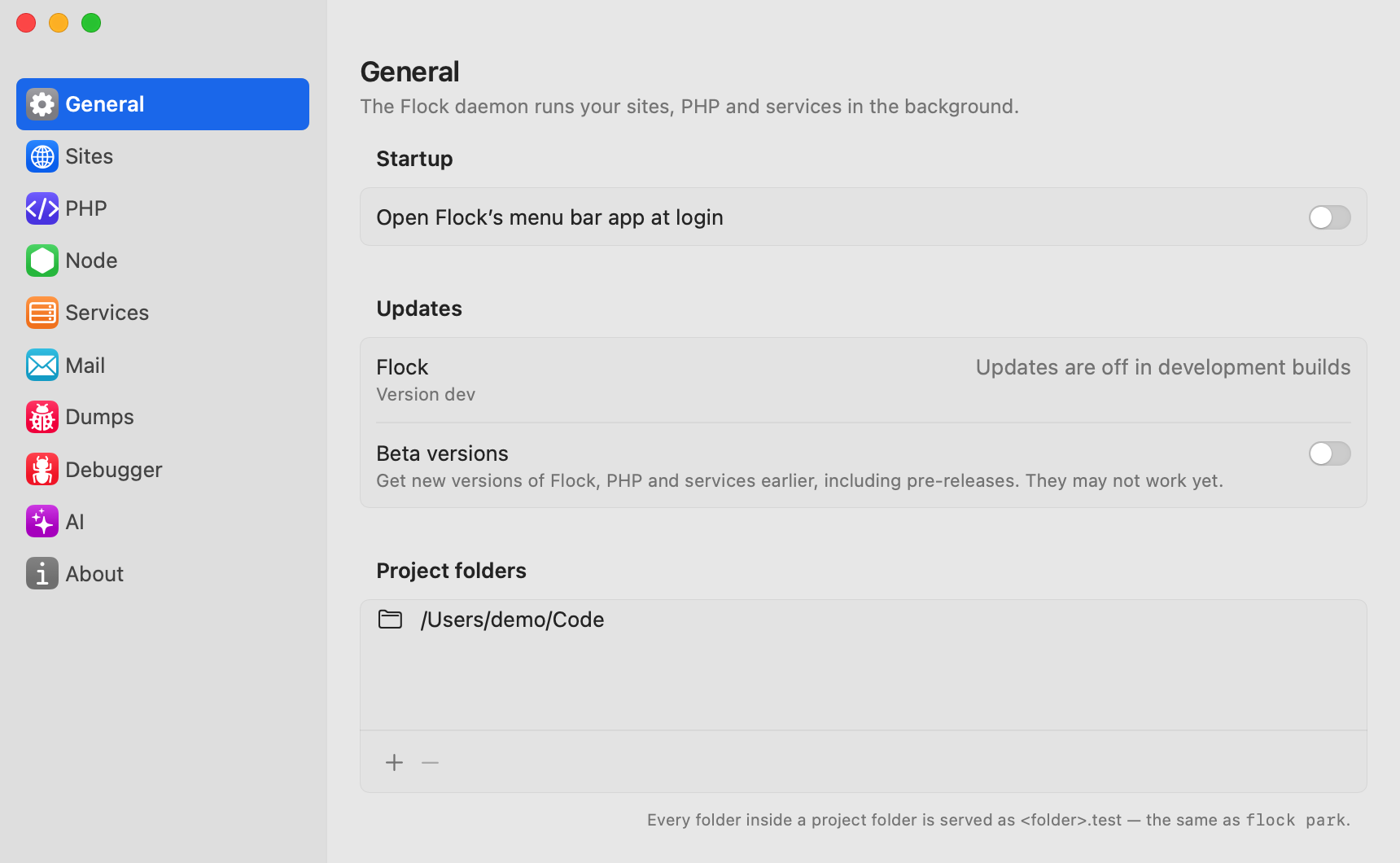
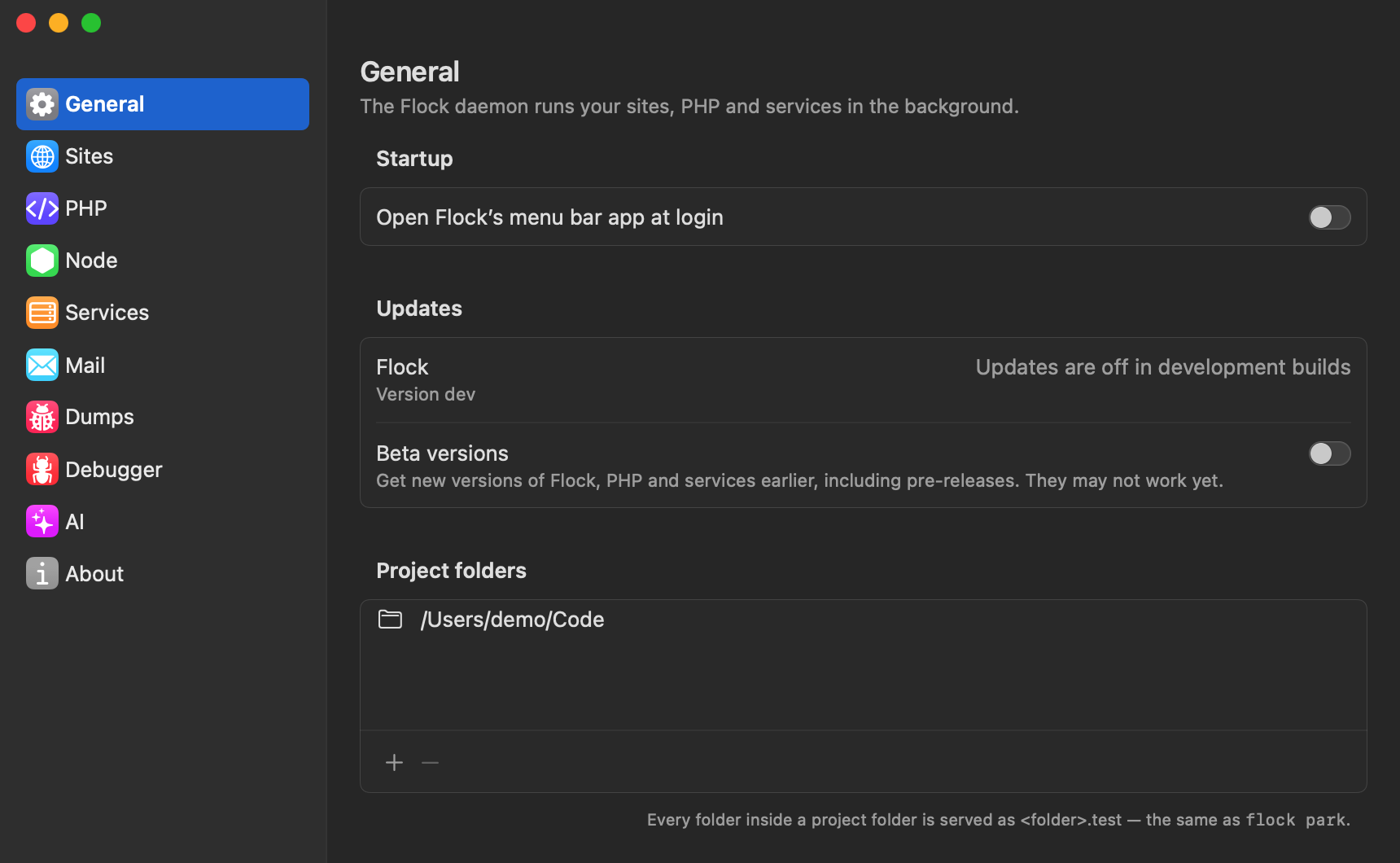
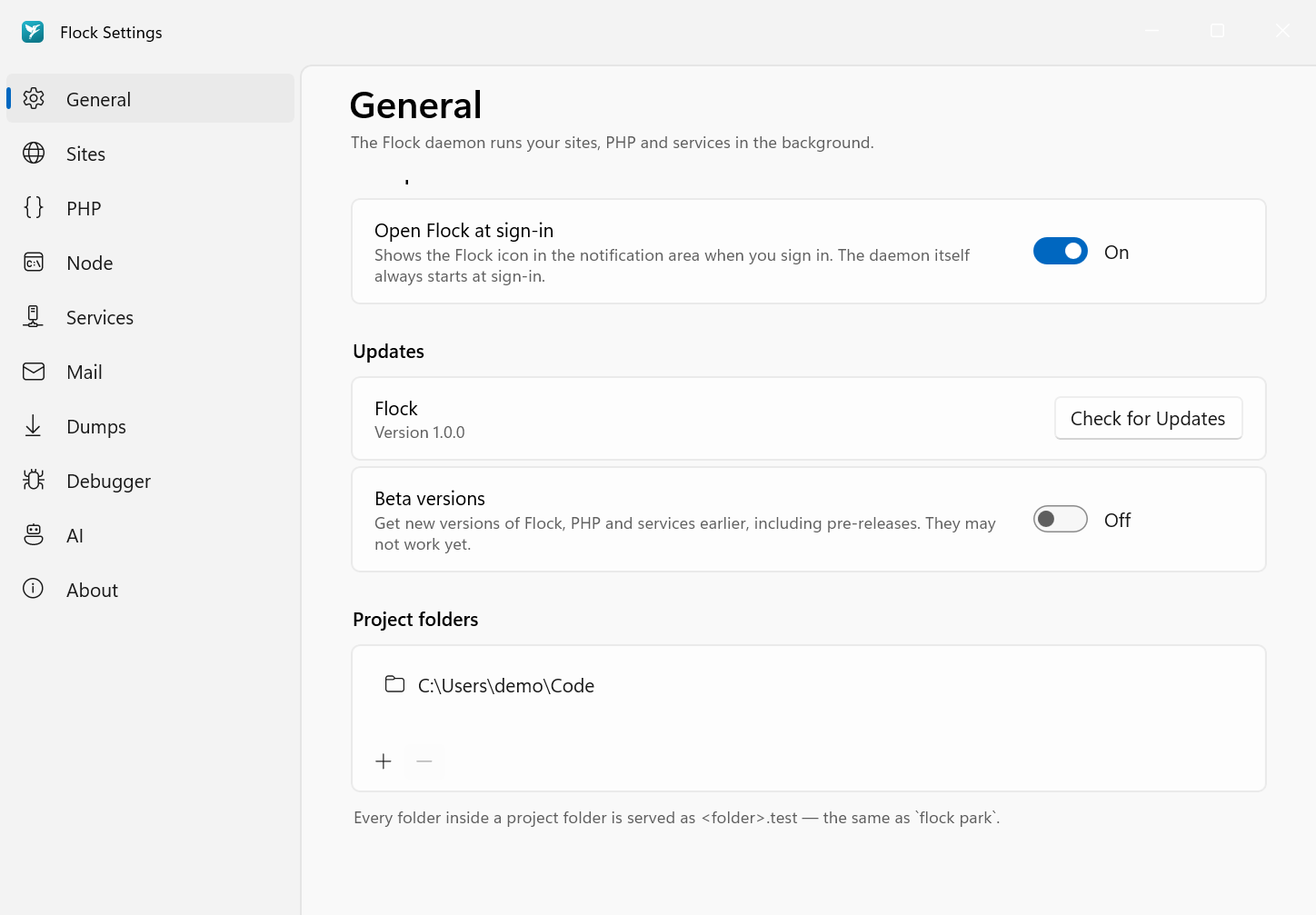
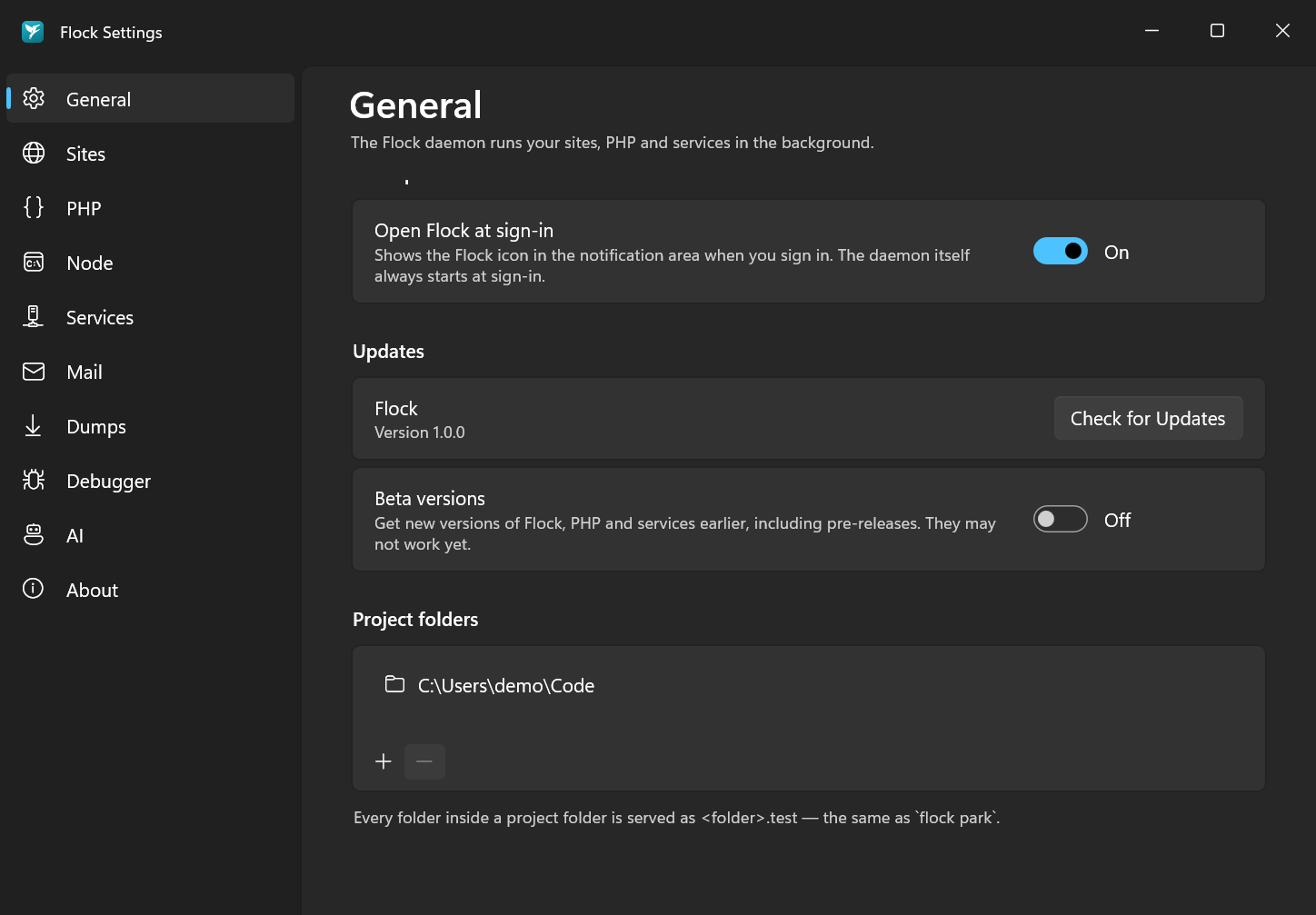
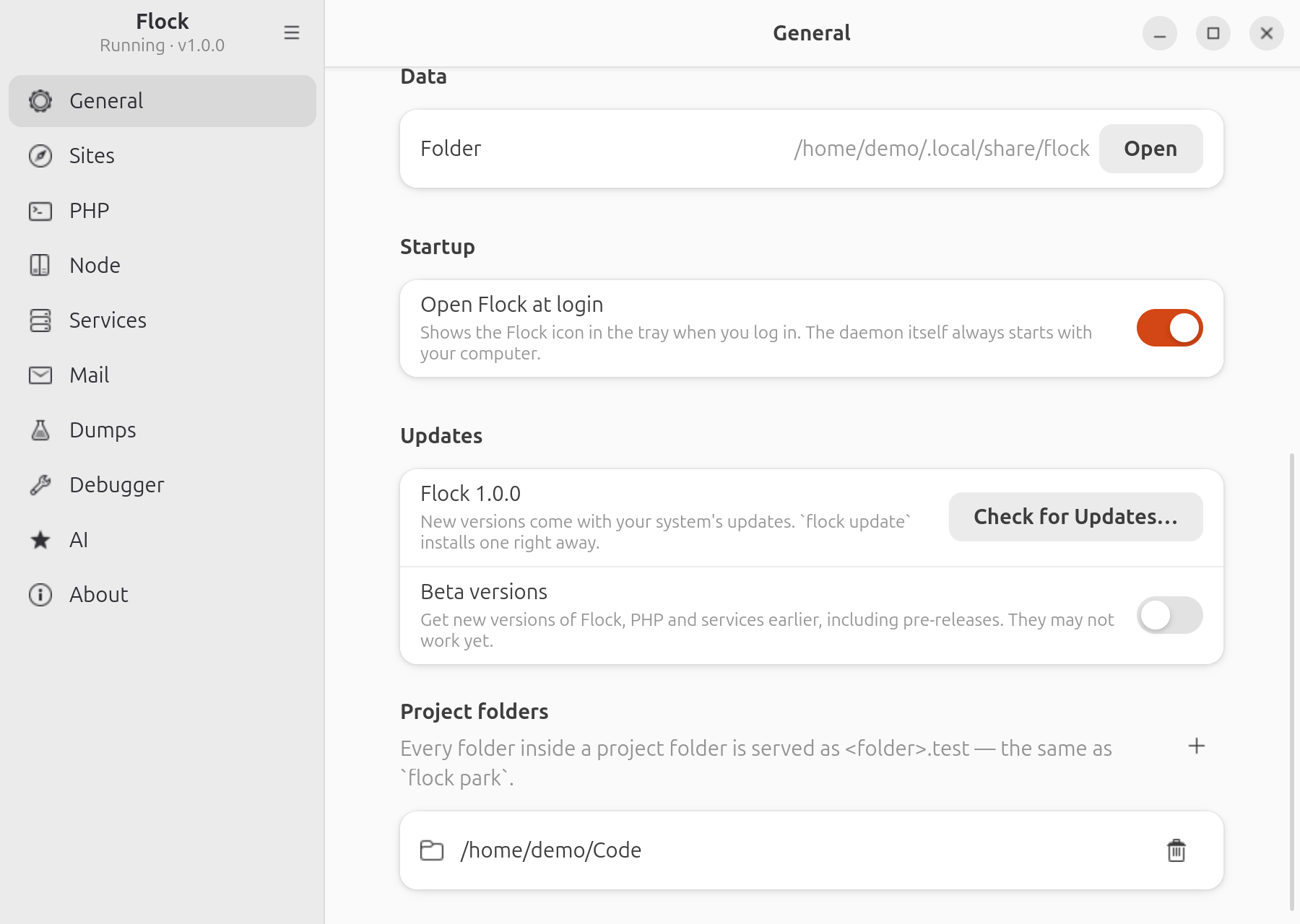
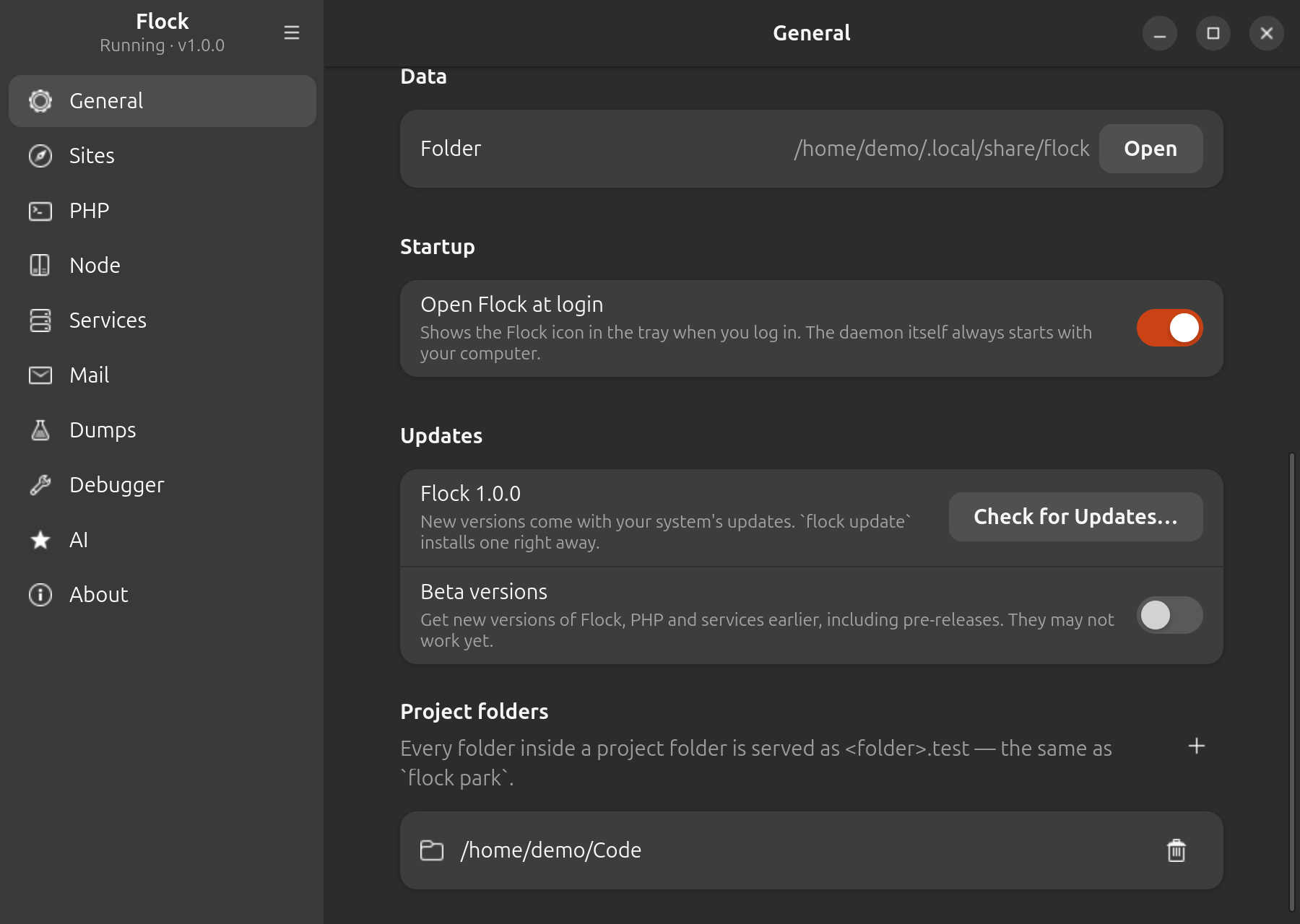
To stop serving a folder, select it, click − and confirm with Remove.
cd ~/Code
flock park
You can pass a path instead of cd-ing into it:
flock park ~/Work
To stop serving a parked folder:
flock unpark ~/Work
Linking a project
A linked site is a single project folder, wherever it lives. The site name defaults to the folder name.
In Settings → Sites, click Add Site… and choose the project folder. Then select the site to set its HTTPS in the Site section and its PHP version under Versions.
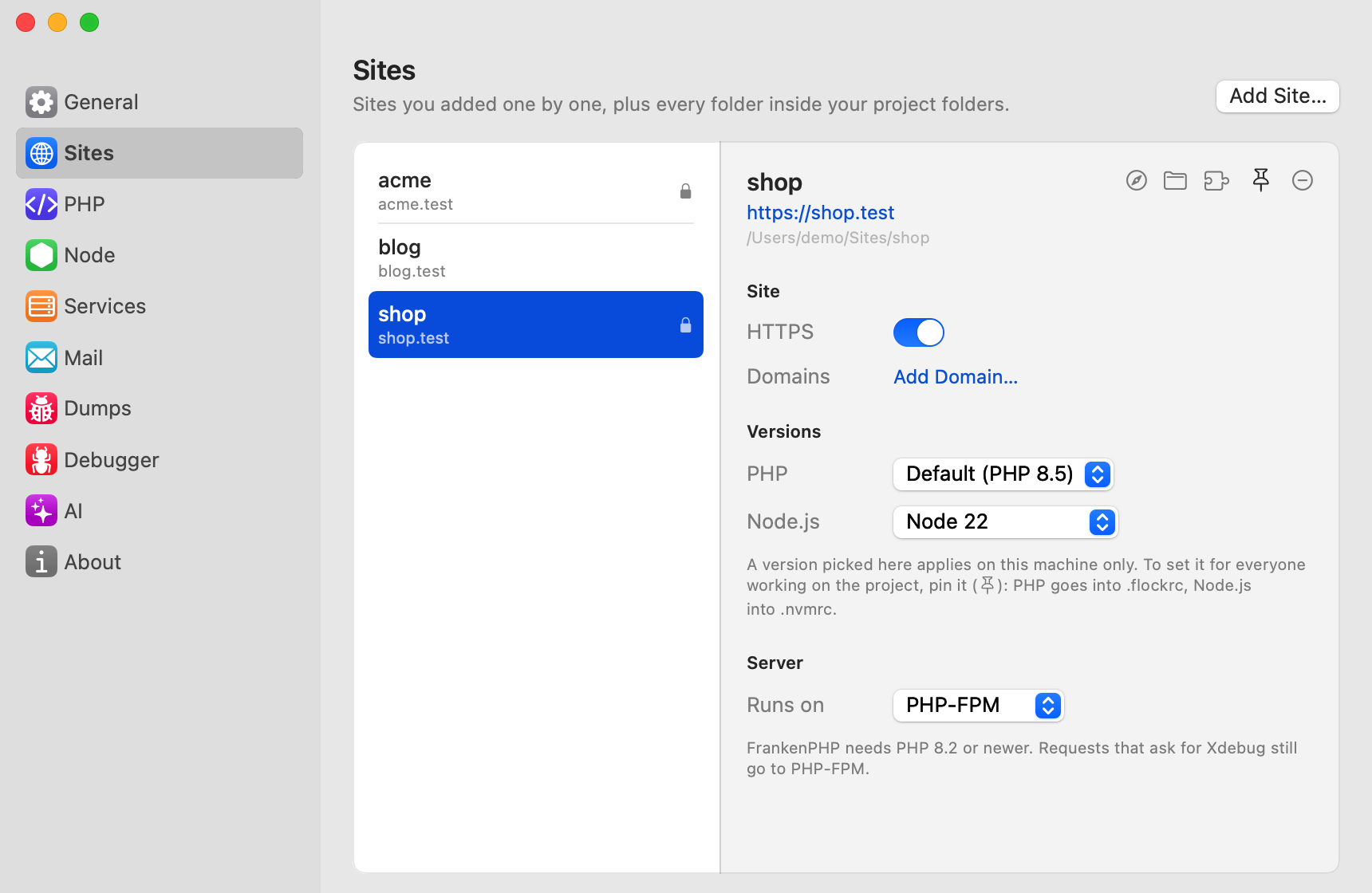
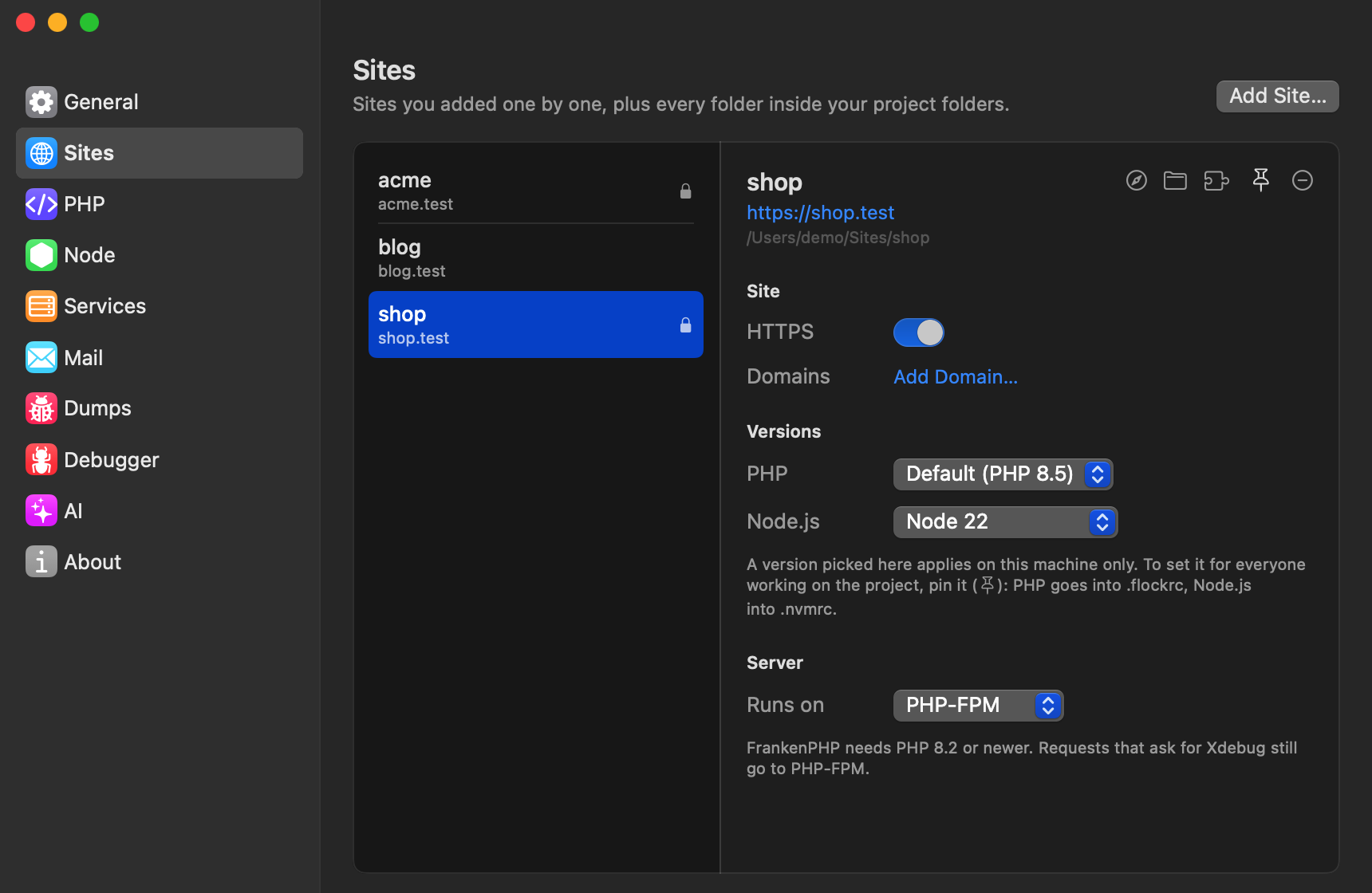
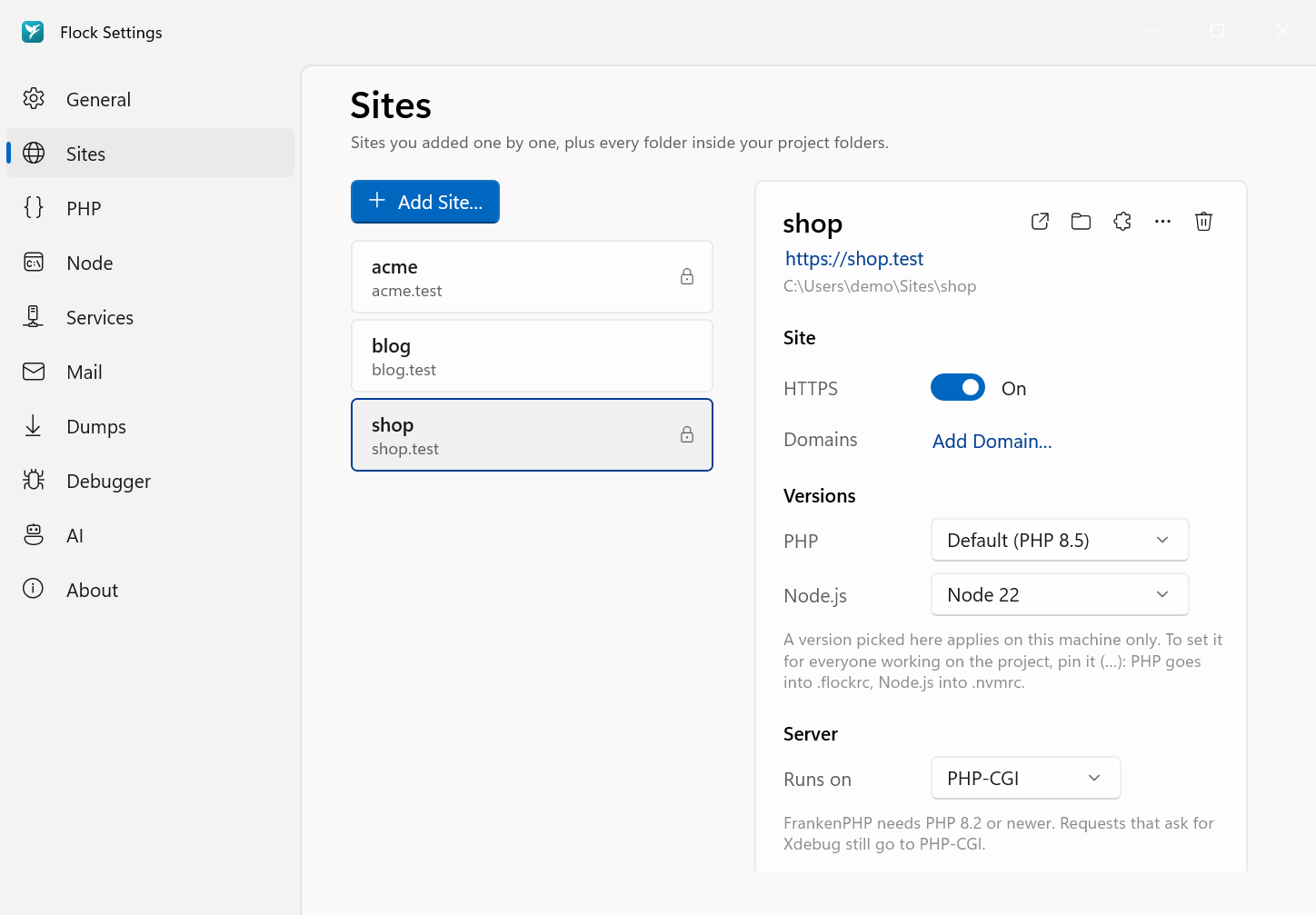
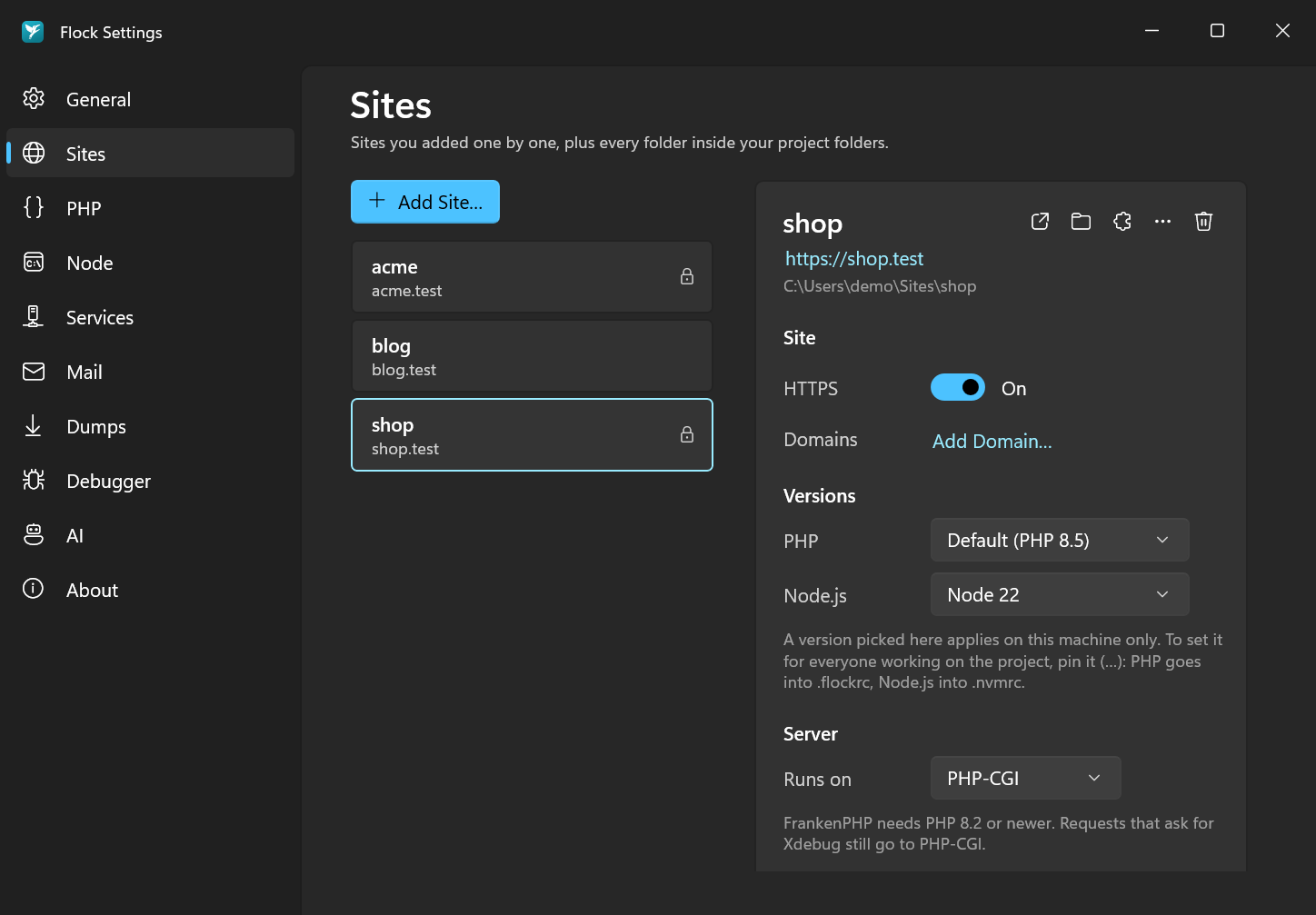
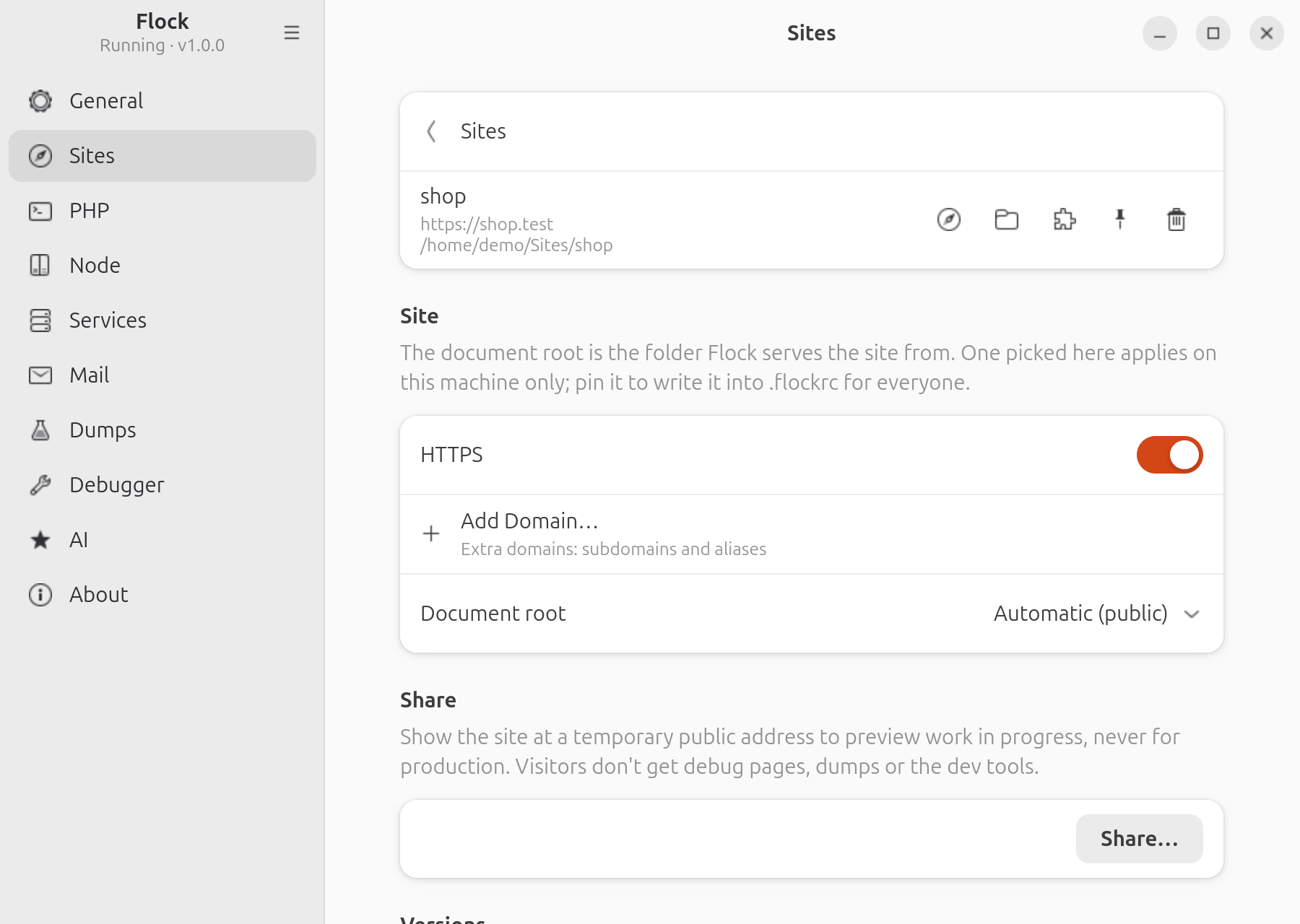
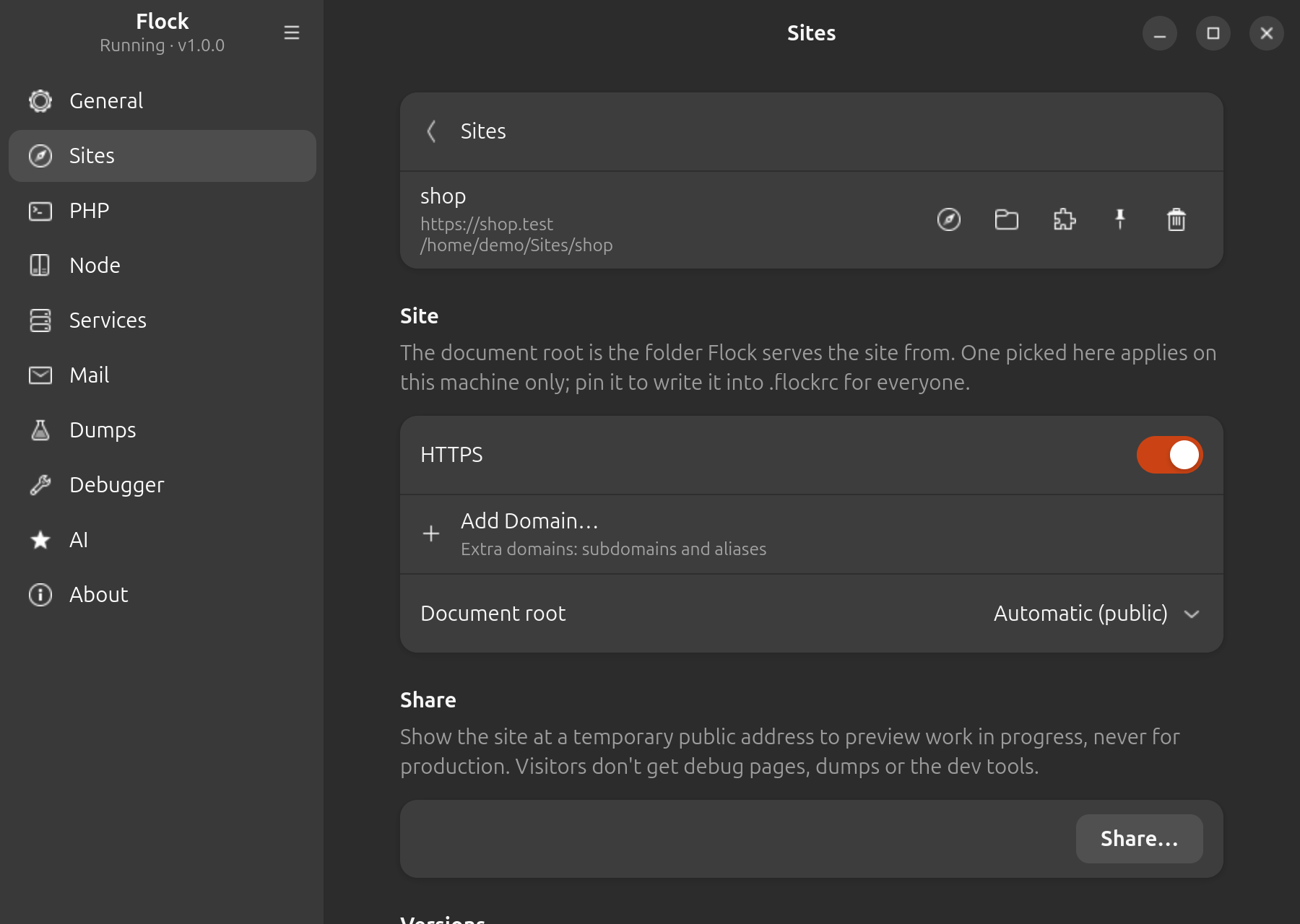
To remove a linked site, click its Remove site icon and confirm with Remove. Sites that come from a project folder have no remove button: they disappear when you remove the folder.
Link the current directory as a site:
cd ~/Code/acme
flock link
# linked ~/Code/acme → http://acme.test
Pass a name to use a different one, and use the flags to set it up in one go:
flock link shop --php 8.4 --secure
| Flag | Description |
|---|---|
--php <version> |
Use this PHP version for the site |
--secure |
Serve it over HTTPS right away |
Remove a link with flock unlink [name].
Proxying a local service
Some servers aren't projects Flock serves: an object store such as MinIO, a dashboard, a Docker container, or a Go or Python app. They run a server of their own on a port. A proxy passes a .test domain to that server, so it gets a name, and HTTPS, like a site. A Next.js, Nuxt or Vite app in your projects is a site of its own instead: Flock runs its dev server (see Node.js apps).
Click Add Proxy… in Settings → Sites, and give a name and the port (or host:port or URL). Proxies are listed under the sites, here and in the Flock panel, with what serves them (for example Node.js 22, when it's one of Flock's versions) or Not running; select one to turn on HTTPS, change its upstream, give it commands or remove it.
flock proxy softpack 3000
# proxied http://softpack.test → http://127.0.0.1:3000
A port means 127.0.0.1; give a host and port (localhost:5173) or a URL (https://127.0.0.1:8443) for anything else. Proxying the name again changes its upstream.
| Flag | Description |
|---|---|
--secure |
Serve it over HTTPS right away |
flock secure softpack and flock unsecure softpack work on proxies too, flock proxies lists them with what serves them (or not running), and flock unproxy softpack removes one.
Requests pass to the server with their Host header, so the app sees softpack.test, and WebSocket upgrades pass through too, so hot reload works. Some dev servers only answer the hosts they know: allow the domain in Vite's server.allowedHosts, or Next.js's allowedDevOrigins. Until the server answers, the domain shows a page saying so, which switches to the app once it runs.
A proxy's name can't be a linked site's: Flock refuses it. A folder of the same name in a project folder is served by the proxy instead, so flock proxy softpack 3000 works for ~/Code/softpack; flock unproxy softpack serves the folder again.
Starting the server with Flock
Flock doesn't start a proxy's server unless you give it the command that does. Then the proxy can be started and stopped from Flock, which runs the command in the folder you choose and shows its output. The command gets Flock's PHP and Node.js versions, as in your terminal, and PORT when the upstream is a port. Nothing starts by itself: a proxy's server runs from when you start it until you stop it, or Flock stops.
A command such as docker compose up -d starts the server in the background and exits. Give such a command the one that stops the server as well (docker compose stop): Flock then runs one to start and the other to stop.
Open Commands (optional) in the Add Proxy… dialog, or select a proxy in Settings → Sites and click Add Commands…. Give the Start command, its Folder and, for a server that runs in the background, the Stop command. Start and Stop then sit next to the proxy's state, with the command's output below.
cd ~/Code/admin
flock proxy admin 8000 --command "python manage.py runserver 8000"   # runs in the current folder, or --dir
flock proxy start admin
flock proxy stop admin

flock proxy s3 9000 --command "docker compose up -d" --stop-command "docker compose stop"
flock logs admin shows the command's output, and --command "" removes the command.
Custom Caddy directives
A PHP site can add its own Caddy directives, for example CORS headers. Put them in a file and name it with caddyfile: in the project's flock.yml:
caddyfile: flock.caddy
A relative path starts at the folder of the flock.yml. To use a file only on your machine, set caddyfile: in flock.local.yml instead: it replaces the one in flock.yml, and caddyfile: "" turns it off. Without caddyfile:, Flock serves the site as usual and ignores any Caddyfile the project has.
The file holds directives only, without a site address or the braces around them: Flock adds them to the site it serves, before PHP, and reloads them when the file changes. This file allows a separate frontend to call the site and answers CORS preflight requests:
@cors_preflight method OPTIONS

header {
    Access-Control-Allow-Origin "https://admin.example.test"
    Access-Control-Allow-Methods "GET, POST, PUT, PATCH, DELETE, OPTIONS"
    Access-Control-Allow-Headers "Content-Type, Authorization"
    Vary "Origin"
}

respond @cors_preflight 204
Site options such as tls and handle_errors aren't supported, and neither is import. If Flock can't use the file, it serves the site without it and says why in its warnings. The directives only apply to the site on your machine, so keep the production CORS setup in the app or the production web server.
Listing sites
Settings → Sites lists every linked and parked site with its domain and a lock when it's secured. Select one to see its PHP and Node versions, domains and server. Sites from a project folder carry a Project folder badge. The Sites section of the Flock panel lists them too: click one to open it in your browser.
flock sites
This lists every linked and parked site with its PHP version (its Node.js version for a Node.js app), URL and path, and every proxy with its URL and upstream.
Document root
For each site Flock serves public/ when it contains an index.php, which covers Laravel and most other frameworks. Otherwise it serves the project folder itself, so plain PHP projects and static sites work too.