

Node.js
Flock manages Node.js the same way as PHP. Versions are installed side by side, and node, npm and npx pick the right one for each project.
Installing versions
Flock installs the official Node.js builds from its signed package list, the newest release of each major. Node 16 and newer are supported.
Open Settings… from the Flock panel and go to Node. Each major shows its newest release and the npm version that comes with it. Click Install next to a line, or Update to … when a newer release is out. Update npm appears when a newer npm is available, and Check now looks for new releases.
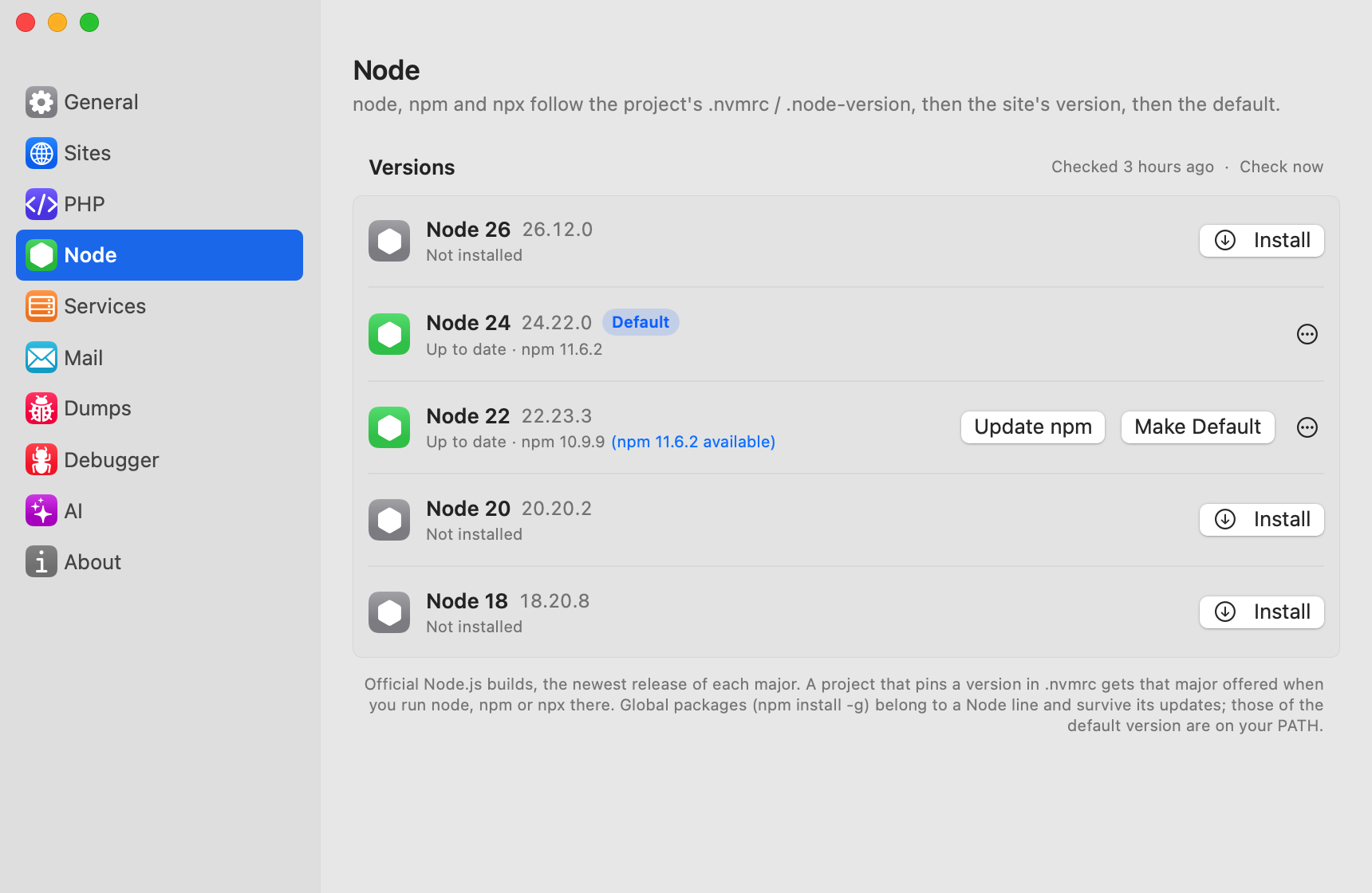
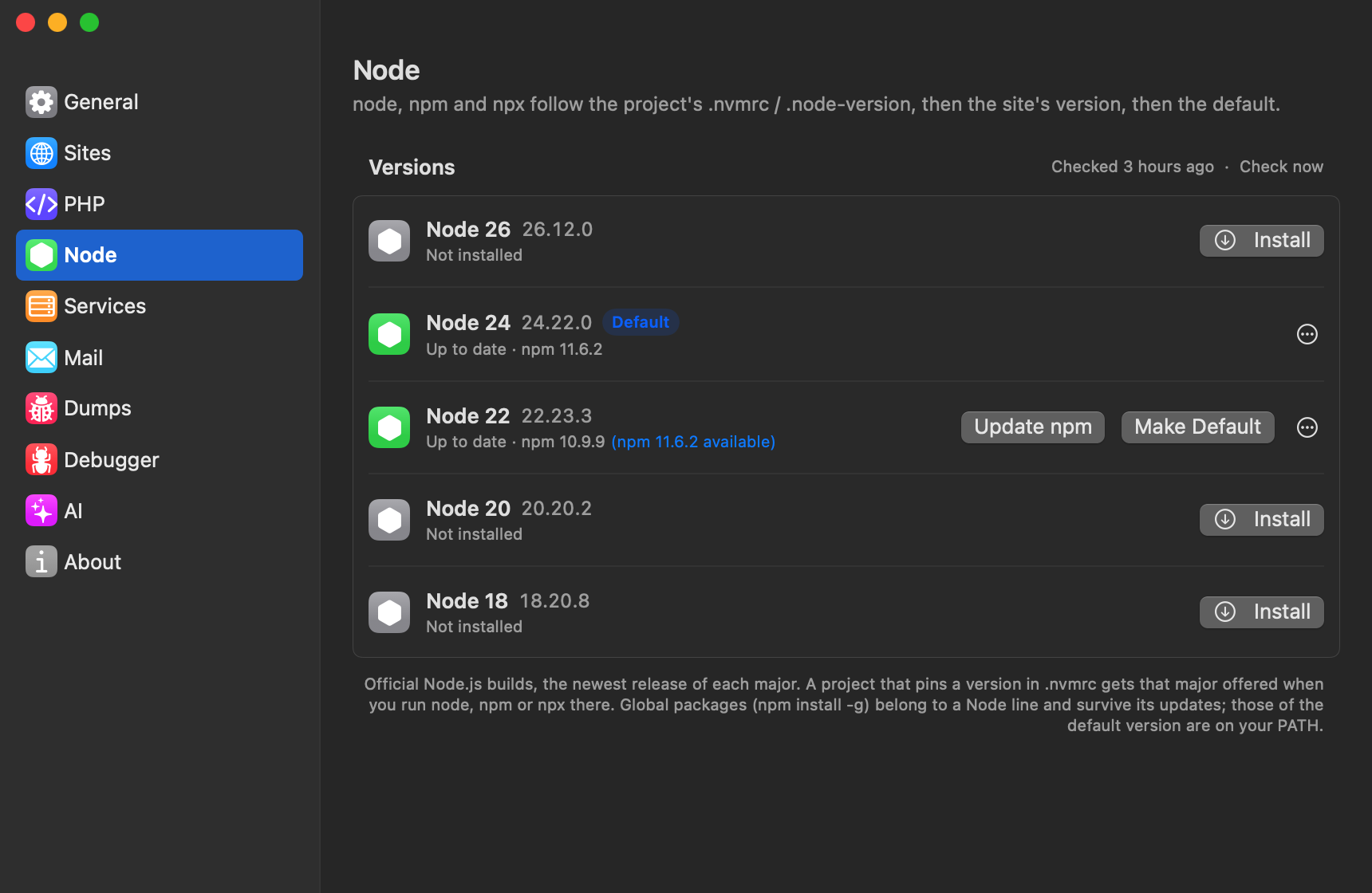
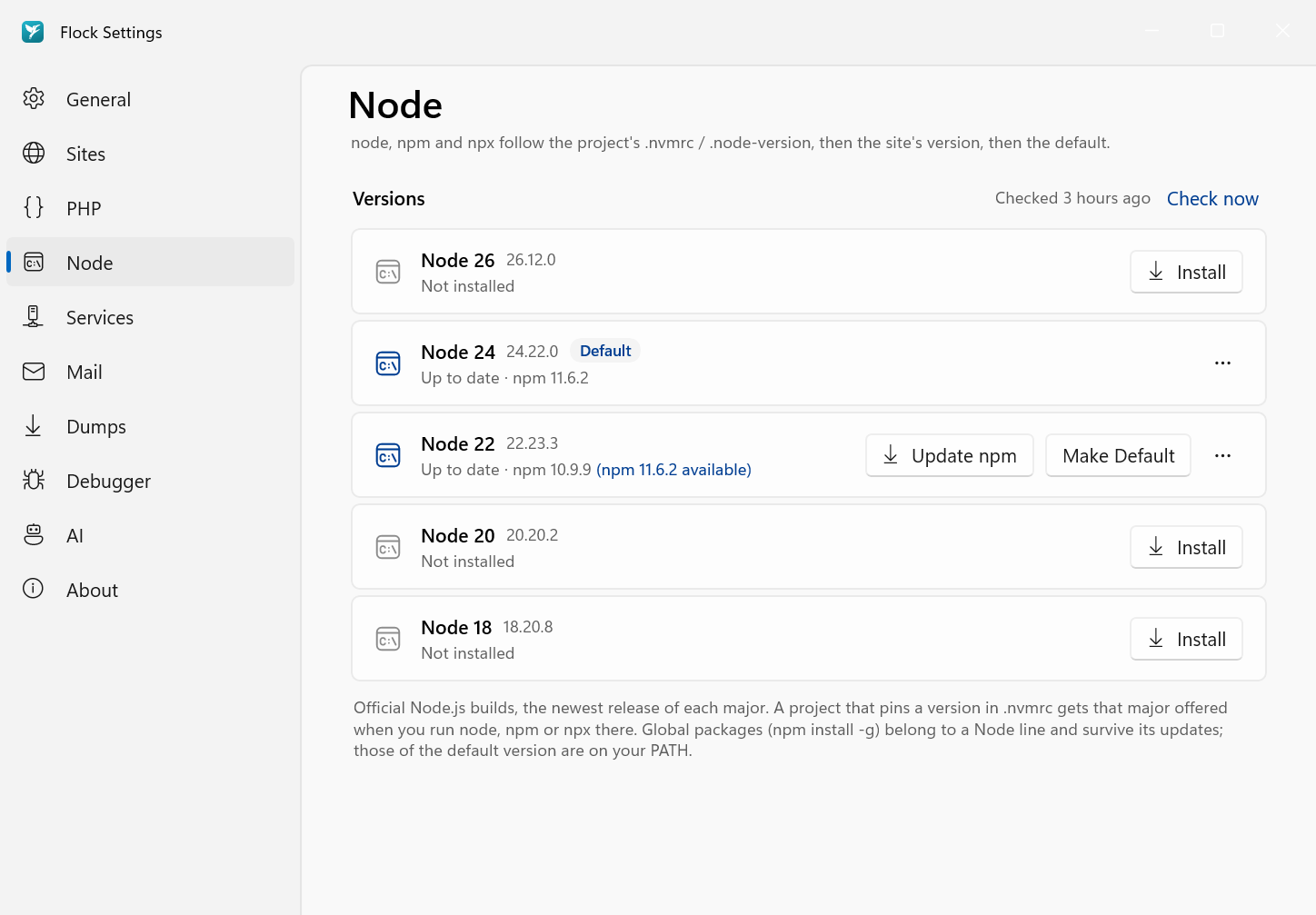
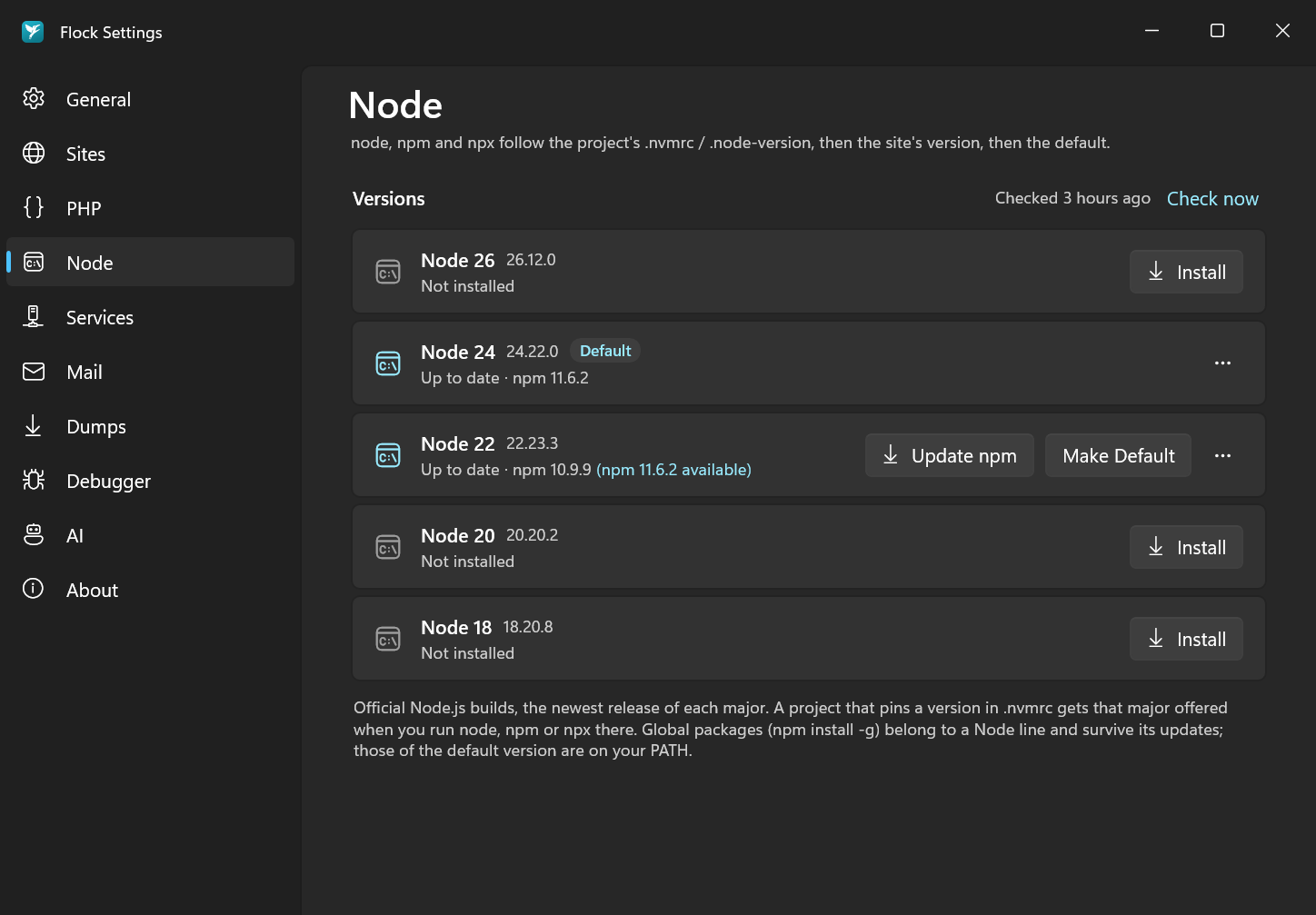


To remove a version, open its ⋯ menu and choose Uninstall….
flock node install 22        # the newest 22.x
flock node install 22.11     # also the newest 22.x
flock node list
If a project needs a Node version that isn't installed yet, node, npm and npx offer to install it when you run them in a terminal.
The default version
In Settings → Node, click Make Default next to the line you want.
flock node default 22
Per-project versions
Flock picks the Node version in this order:
- a version isolated for the site on your machine,
node=in the project's.flockrc,.nvmrcor.node-version,- the default.
Most projects already have an .nvmrc, so they work without any changes.
A project that pins an exact release (22.11.0 in .nvmrc) gets the newest release of that major, since Flock keeps one release per major; flock node install says so when it installs it.
Choose a version for a site in Settings → Sites to isolate it, or pin it to the project with Pin Node 22 to Project….
Isolate a version with flock isolate node 20. flock pin node 22 writes to whichever of the project files the project already uses, or creates an .nvmrc.
See Per-project versions.
Node.js apps
A Next.js, Nuxt, Vite, Astro or SvelteKit app is a site of its own, like a PHP project. A project with a package.json that has a dev script, and nothing of PHP's (no composer.json, artisan or index.php), is a Node.js app: in a project folder it's served as one right away. A Laravel app with Vite stays a PHP site.
Flock runs the app's dev server for you. The first visit to http://my-app.test starts npm run dev in the project with the project's Node.js version, and shows a page that switches to the app once it answers. The dev server gets a port of its own (as --port and PORT), the same one every time while it's free, so nothing in the project needs to name a port. After 30 minutes without visits it stops again, until the next one: a tab with the app open keeps it running, since hot reload keeps a connection open.
In Settings → Sites, a Node.js app's Type is Node.js. Change it there to serve a project the other way. Its Dev server section shows whether it runs, with Start, Stop and Restart, and the dev server's output below.
flock type node          # serve the current project as a Node.js app
flock type php blog      # or another site as a PHP site
flock logs my-app        # the dev server's output
If the dev server stops, the page says why, for example that node_modules is missing (run npm install in the project).
Flock tells Vite the app's domain and its subdomains, so Vite answers them; for an extra domain (an alias), add it to server.allowedHosts in the Vite config. Next.js's dev server only listens on your own computer, not the network, and may block its hot reload from a domain other than localhost; allow it in next.config with allowedDevOrigins: ['my-app.test', '*.my-app.test']. Server-side requests to other .test sites over HTTPS work too: Node.js trusts Flock's certificates.
A Node.js app's git worktrees each run a dev server of their own, at their own address (see Worktrees). Sharing one shows its dev server (see Sharing).
For a server that isn't a project of yours, such as MinIO, a Docker container or a Go or Python app, use a proxy instead.
Global packages
Packages installed with npm install -g belong to their Node line (for example 22) and survive updates within it. The global packages of your default version are on your PATH.