

Description
SnappBox helps you track and display delivery statuses inside WordPress. This plugin provides:
Step 1: Download the Plugin
Open your browser and go to:
https://snapp-box.com/wordpress-plugin
Click the “Download SnappBox Plugin for Free” button.
Fill out the displayed form (Business Name, Mobile Number, and Email) and click Submit.
After submitting, the plugin file will automatically be downloaded.
⚙️ Step 2: Install the Plugin in WordPress
Log in to your WordPress dashboard (wp-admin).
From the left menu, go to Plugins Add New.
Click Upload Plugin and select the downloaded zip file.
After installation, click Activate Plugin.
⚠️ Note: WooCommerce must already be installed and activated.
🔑 Step 3: Obtain and Register the Token (Easier Method)
After activating the plugin, a SnappBox option will appear in the WordPress menu. Open it.
Click the “Get Token” button.
On the opened page, enter your store name and phone number.
Once submitted, your API Token will be displayed.
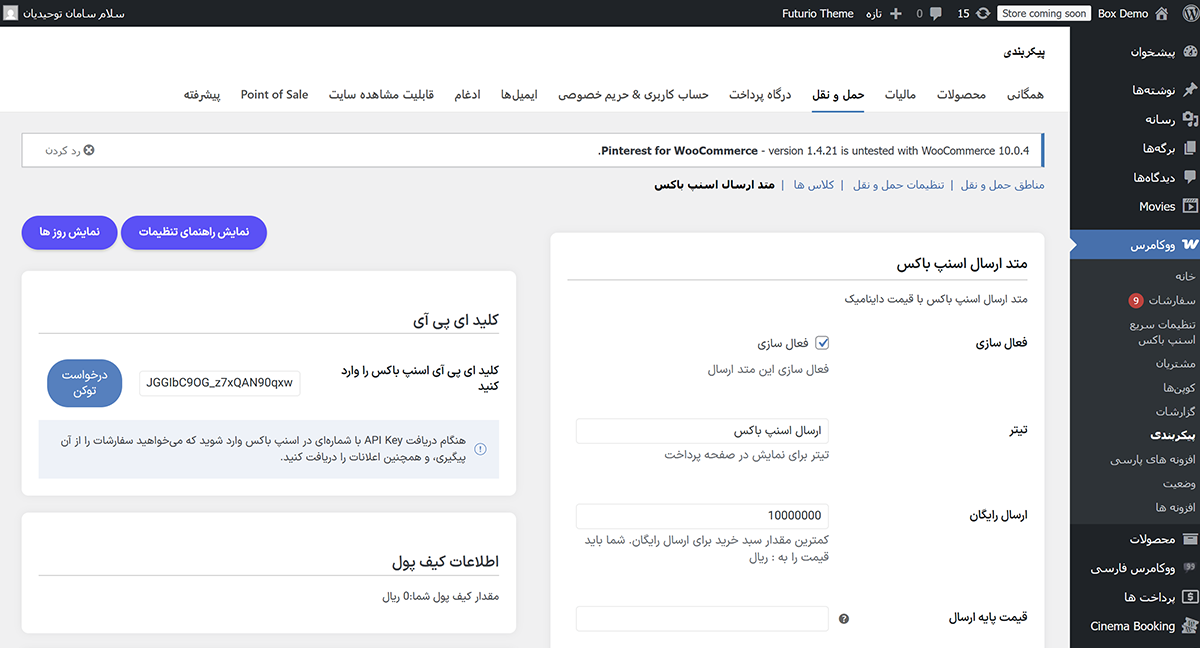
Copy this token and paste it into the relevant field at the top of the plugin settings page.
Click Save Settings.
🛠 Step 4: Plugin Basic Settings
-
Set Store Location
- Pin your store location on the map.
- Enter your full store address in the text field.
-
Store Information
- Enter your store name and phone number.
-
Enable SnappBox Shipping Method
- Check the enable box SnappBox will appear as a shipping option on the checkout page.
-
Select Cities and Regions
- Choose the city or region where you want to provide delivery service.
-
Shipping Payment Methods
- Cash on Delivery: Enable by ticking the checkbox.
- Flat Rate: Enter a fixed delivery fee (in Rials).
- Free Shipping: Define a minimum purchase amount for free shipping.
-
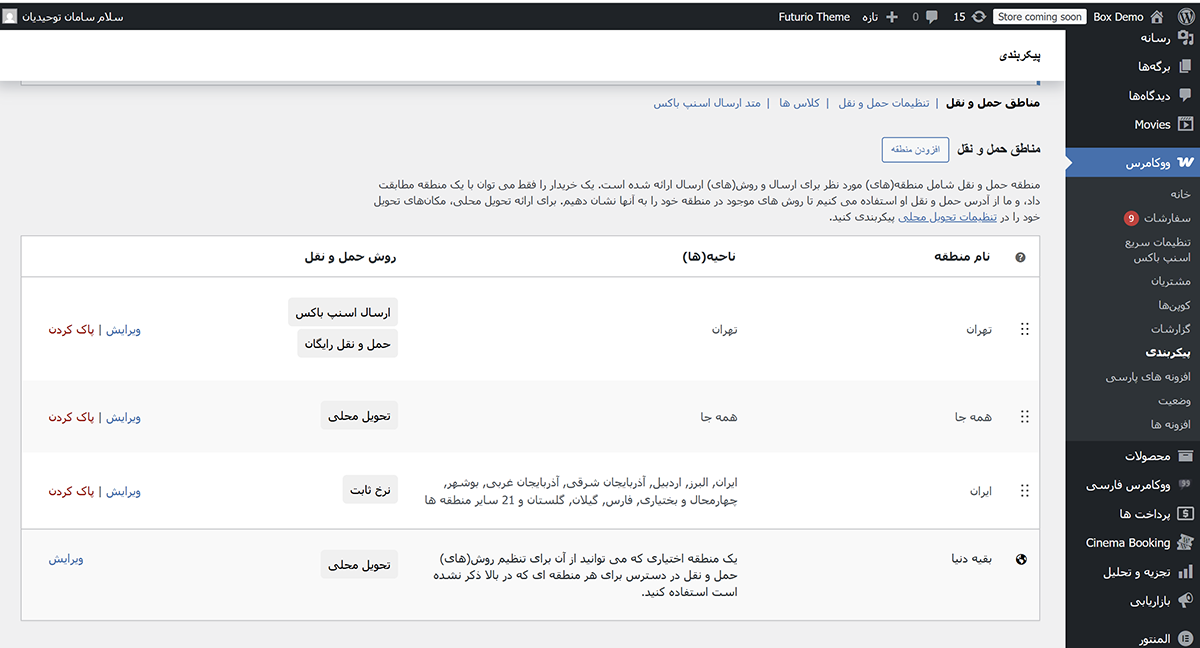
Connect to WooCommerce Shipping Zones
- Go to WooCommerce Settings Shipping Shipping Zones.
- Select or create a zone.
- Click Add Shipping Method SnappBox.
- Save the settings.
-
Use SnappBox Wallet
- If you have an organizational account, shipping costs can be deducted directly from your SnappBox wallet balance.
✅ Step 5: Test and Verify Functionality
Place a test order and choose SnappBox on the checkout page.
In WooCommerce Orders, open the order and make sure the SnappBox method is registered.
Track the delivery status from the WordPress panel or the SnappBox mobile app.
🎉 Now your store is ready to automatically and quickly deliver orders using the SnappBox fleet!
Source Code
This plugin includes minified JavaScript and CSS files for optimal performance. The source code for all compressed files is available within the plugin.
External Services
This plugin uses external resources like Mapbox RTL Text Plugin, Snapp Maps Style, and Snapp Box configuration files loaded from official URLs.
Build Tools
Uses standard build tools with minified assets for performance and transparency according to WordPress guidelines.
Screenshots


Reviews
There are no reviews for this plugin.
Contributors & Developers
“SnappBox” is open source software. The following people have contributed to this plugin.
Contributors

Translate “SnappBox” into your language.
Interested in development?
Browse the code, check out the SVN repository, or subscribe to the development log by RSS.