

Google Chrome is gaining ground on the Android platform over time thanks to the versatility it offers compared to other browsers. Great customization makes you stay ahead of others, security is another of the strengths and you can even get much more out of it than you think.
There are several tricks to turn it into much more than one of the many available browsers, since some people use other alternatives such as Firefox or Opera. Thanks to these four Google Chrome tricks on Android you will improve the application to another level.
Block automatic downloads
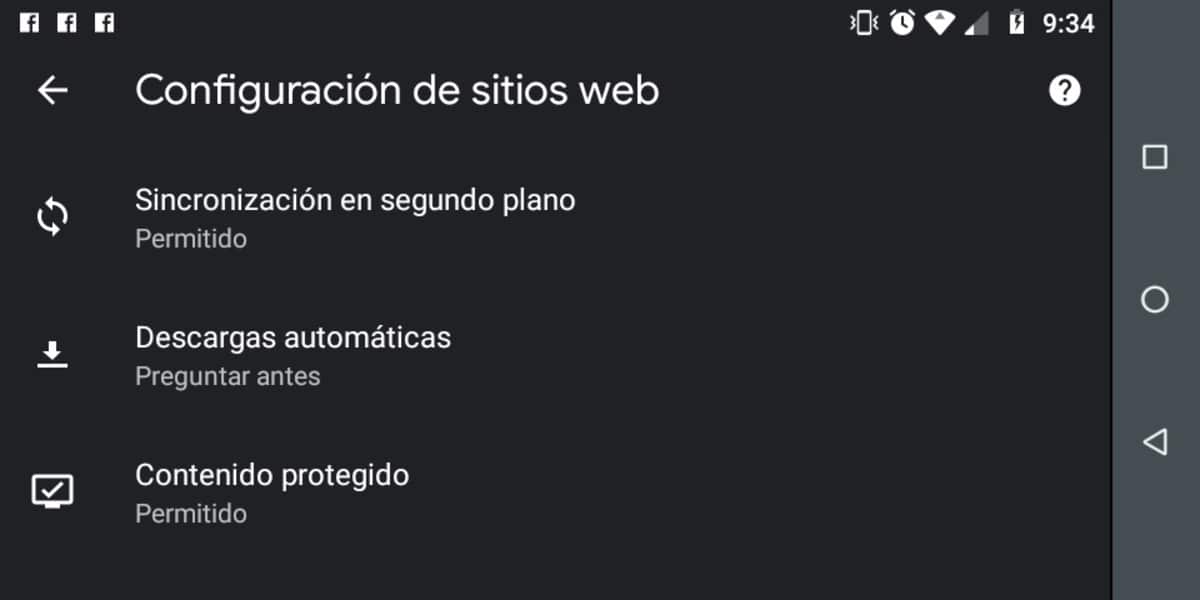
This option is usually disabled by default, although in some cases sometimes for one thing or another it becomes activated in the browser settings. Blocking automatic downloads will save us from things that are downloaded without our consent.
To disable automatic downloads go to the three vertical dots, Settings and now click on Website Settings. Search for "Automatic downloads" and deactivate it with "Ask before", this will save us from some malicious downloads or from unsafe sites.
Basic mode to save battery, data and improve the performance of Chrome
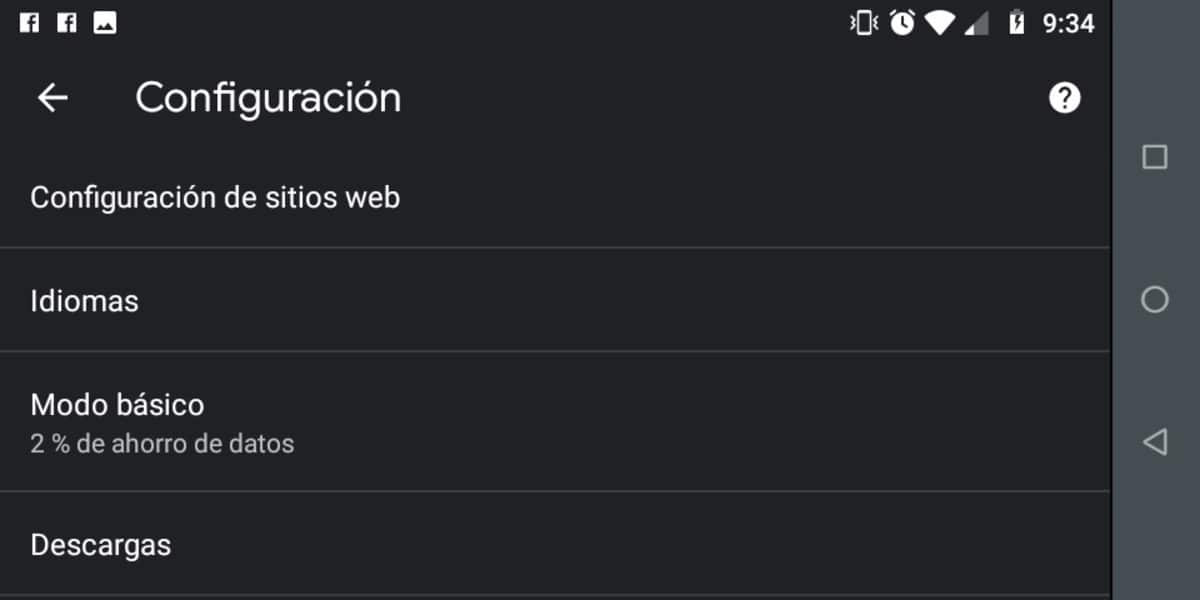
It is one of the configurations that go unnoticed as it is quite hidden, basic mode is one of those things you can try and you will always keep it activated. It reduces the consumption of data, the battery and all that adds a better performance of the browser.
To get to this option go back to the three vertical dots in the Google Chrome app, Configuration and «Basic mode», activate the same for this to come into play. Basic mode makes everything load faster by compressing images, as some pages upload heavy photos.
Choose where files are downloaded in Chrome
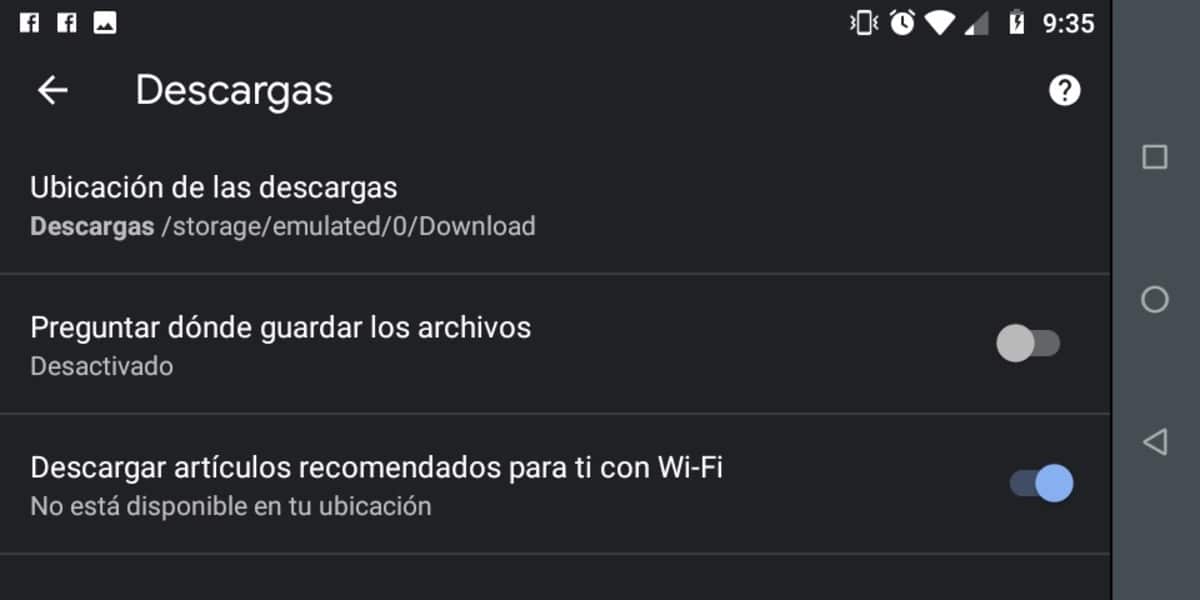
From downloading a lot of files in Google Chrome it is best to choose a destination site to organize images, documents, videos and audios in a folder on your phone. In this case, it is best to always have everything at hand and that happens by configuring the destination of the browser downloads.
To take the downloads to another site go to the three vertical points, look for Settings and now locate the Downloads tab. Give it a new root so that it can be downloaded from a site of your choice, or it will ask you for the site in each of the downloads.
Block annoying ads

Abusive ads are usually very annoying on some websitesTherefore, it is best to block them in case they usually open a popup or another window in the browser. The best in many cases is to eliminate abusive ads, since the pages exist thanks to advertising.
To block them go to the three vertical points, Go into Settings, now in Websites Settings goes to Ads. Once inside, activate the last option to block full-screen ads and those that Google Chrome creates in each of the moments.
