

Many users want to know if it is possible to control an Android mobile from the PCAs many of you already know, the answer to this question is yes. There are ways to control your smartphone from your computer, which can be incredibly helpful both at work and for personal use.
By being able to control the phone from the computer's large screen, we will have more comfort when writingThis offers improved photo and video viewing, and also eliminates the need to constantly pick up and put down your phone. It's also particularly useful for those who give presentations, provide remote technical support, or want to... play android games on pc controlling everything with keyboard and mouse.
If you want to know how to control a mobile phone from your PC, we'll look at all the options below. We'll review everything from complete solutions like TeamViewer or AirDroid, to the native Windows app for Android, and even more advanced tools like Vysor or Scrcpy, explaining... what each one offers, their advantages and limitations, and in what cases it is advisable to use them.
This is a process that It will be possible through various applicationsThere are some great options available for Android phones these days, which we'll discuss now. These apps will allow you to control your Android phone from your PC. The features you can perform vary between apps, but we'll explain everything in detail below. This way, you can choose the app that best suits your needs, whether you're looking for remote control or on-site control.

Before going into each tool, it is helpful to understand some basic concepts that are common to almost all of them:
- Screen mirroring: view the mobile screen in a computer window.
- Complete remote controlIn addition to viewing, we can tap, type, and operate the phone from the PC.
- USB or WiFi connectionSome apps only work via cable, others also wirelessly.
- USB debugging and developer options: a very common requirement for advanced tools such as Vysor or Scrcpy.
- Security and permissionsIn order to control the mobile phone, apps request sensitive permissions (accessibility, remote control, etc.).
With this in mind, let's now look at the main solutions for controlling your Android mobile phone from your PC.
TeamViewer

This is possibly the best-known app with which you can control an Android mobile from a PCMany of you may even use it, or have used it in the past, to access other computers. This is an app that has been on the market for many years, but it has clearly evolved, introducing more and more features geared towards... remote support for mobile devicesTherefore, it remains one of the best options we can use in this regard.
Furthermore, it's something that will work with virtually any brand of Android phoneThis is an important detail to keep in mind if you manage mobile phones from different manufacturers or want to help family and friends with very varied devices.
How TeamViewer works to control Android
In order to use it, you have to install both the app on Android and its app on your computer. The Android app is available for free in the Google Play Store. While the application for Windows, macOS, Linux, or Chrome OS It can be downloaded for free through their page website. The Android app is available at this link:


Once you've downloaded and installed the TeamViewer Host app on your Android device, you need to use your TeamViewer account details to register the device and have it readily available in the desktop app. This way, the TeamViewer dashboard will display a list of mobile devices associated with your account, allowing you to... Connect to any of them in a matter of seconds.
When using it, we have to grant the application the permissions it asks forThese permissions include accessibility and Android remote control permissions. They are essential for this app to function on Android, so you must grant them at all times; without them, you would only be able to see limited information about the device, but not fully control it. The first time you use it, you will usually see the message "The application will record or project all content displayed on the screen…", and you must accept to allow projection and control.
Key advantages of TeamViewer on Android
One of the advantages of this app is that It doesn't matter if the two devices are connected to different networks.We'll be able to use it remotely at any time, so if the phone is in a different location than the PC, it won't be a problem. This is precisely what many mirroring tools don't allow, as they depend on being on the same Wi-Fi network.
When using TeamViewer with Android mobiles we can:
- View and control the screen almost as if we had the phone in our hand.
- Transfer files between the device and the computer quickly.
- Make screenshots or record the session, useful for technical support or training.
- Chat with the user who has the mobile phone, if it is a remote assistance.
- Configure unattended access, for businesses or professional environments.
All this remote control is done through an encrypted connection, which is important when we're talking about security and privacyEspecially if you're connecting to your mobile device from outside your home network. For smooth remote access, it's best to keep TeamViewer Host running in the background on your mobile device.
Steps to control an Android mobile phone with TeamViewer
To use it, the steps we need to follow are the following:
- Once we have installed and run the desktop application on the PC for the first time, we must enter our user account details.
- In the mobile app (TeamViewer Host), we log in with the same account to register the device.
- On the computer, we'll see the phone in the list of devices. To connect, we press twice on the device and we head to our smartphone then.
- On our smartphone, the message will be displayed "The application will record or display all content that appears on the screen..." We then click Allow to continue.
- Next we go to the computer and we begin to interact or perform actions on the mobile phone as if we had it right in front of us.
The first time you connect, you need to be close to each other because you have to grant screen access permission. Then, if you keep TeamViewer running in the background on Android, you can remotely control your phone from your PC, even if both devices are thousands of miles apart. So it's a good option if you wanted to... control your mobile phone remotelyIt is one of the few apps that give us this possibility without needing to be on the same network.
Your Windows Phone (Mobile Link)

This second option is Designed for users with Samsung mobile phonesAlthough it also works with other Android devices, albeit with some limitations, the app has changed its name to Mobile Link on Windows, but the idea remains the same: to deeply connect your PC to an Android phone.
Samsung and Microsoft have long enjoyed close collaboration, resulting in an enhanced integration that allows users to link their PC to a Microsoft mobile device and perform various actions. This application, called Your Phone (Mobile Link), has been receiving frequent updates.
What does Mobile Link with Android allow you to do?
The app allows us to connect the mobile phone to the PC without cables, provided both are connected to the same WiFi network and linked to the same Microsoft account. Once connected, we can perform various actions from the PC using the Your Phone/Mobile Link app:
- View and reply to SMS and messages from some apps.
- Access recent photos from the phone directly in Windows.
- Send and receive calls using the PC's microphone and speakers.
- Consult and manage mobile notifications without touching the smartphone.
- On compatible Samsung phones, Open Android apps in windows within Windows.
- Synchronize the clipboard In some models, you can paste what you copied from your mobile phone onto your PC, and vice versa.
This makes it quite simple to control the phone from your computer, especially if what you're looking for is Daily integration between Android and Windows without having to resort to external solutions.
Limitations and points to consider
It doesn't give us as many options as TeamViewer When it comes to remotely controlling your mobile phone on any network, Mobile Link requires the phone to be reasonably close to the PC and connected to the same network or via Bluetooth. However, for users with phones from the Korean brand, or with other compatible Android devices, this could be a very interesting feature.
Furthermore, it's an application that's constantly updated, so there are more and more actions you can perform from your PC. It's a very convenient solution if you want to:
- Reduce distractions avoiding constantly picking up your mobile phone.
- Have your conversations, photos, and notifications integrated into Windows.
- Enjoy fairly smooth handling without complicated settings.
However, if you're looking for a complete remote control with remote technical support, TeamViewer or AirDroid will be more powerful alternatives.
Vysor

Vysor is another well-known name in this fieldAnother application that will allow us to control the mobile phone from a PC in a really simple way, displaying the phone's screen in a window and allowing us to use the mouse and keyboard as if they were the finger and physical keyboard of the mobile phone.
However, this application will ask us enable USB debugging To use it, you'll need to enable USB debugging, just like with other technical solutions such as Scrcpy. This is something to keep in mind when using it on Android, because many users don't have USB debugging enabled on their phones. You'll have to do this first before using the app.
Vysor Download and Requirements
Let's download the application on Android, available for free on the Google Play Store, and then we downloaded the application for Windows, macOS, or LinuxIt is also available as a browser extension on some platforms, although the desktop version is usually the most stable.
Next, we connect the mobile phone to the computer and run the application. There is also a paid version This will give us more options in its operation. The free version of the app offers low video quality, although it may be sufficient for some specific actions. If we want better quality and more usage options (such as a stable wireless connection, higher bitrate, or advanced recording), then we'll have to pay for a subscription or the full application.
How to use Vysor step by step
The basic operation of Vysor is simple:
- Install the Vysor app or extension on your computer.
- Install Vysor on Android from Google Play.
- Activate the USB debugging on the mobile device from the developer options.
- Connect your mobile phone to your computer using a USB cable and accept the debugging permission.
- Run the Vysor app on your computer and click on View when your device appears.
In a few seconds you'll have a window displaying your smartphone screen. computer cursor acts as fingerAnd to type, simply use your PC keyboard. You can also take screenshots, and even record the screen if you have the paid version.
Advantages and disadvantages of Vysor
Vysor works in a similar way to others like TeamViewer Regarding viewing and controlling the screen, you won't have any problems in that regard. The app provides the main functions for controlling your phone from your PC: viewing the screen, interacting with the system, using apps, writing long texts, etc. It's a good alternative if you're looking for something relatively simple but with advanced options available for a fee.
However, the fact that you have to pay for better video quality and ad removal is something that discourages many users from using this application on their computers if they only intend to use it occasionally. Furthermore, it requires a constant installation. USB debugging enabled, something that some users prefer not to leave enabled for security reasons.
scrcpy
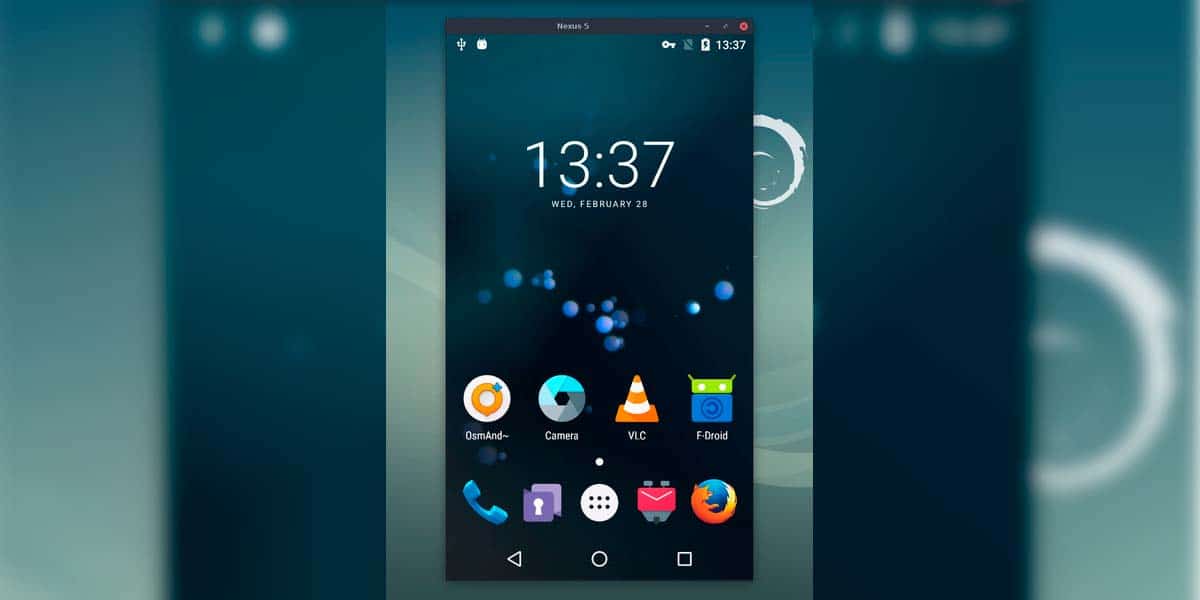
We'll finish with another well-known application for controlling your mobile phone from a PC. This tool has been gaining popularity among Android users. It's best known for being an app that we can use it for freeIn addition, it has no in-app purchases. Therefore, you don't have to pay anything to use it on your phone and PC, which is very attractive if you want a powerful solution without subscriptions.
Both the Android app and the Windows (and other systems) app that allows us to control the device are available at GitHubScrcpy doesn't actually install anything on your phone; it runs as a temporary server launched from your PC. The tool is also available for other operating systems, such as macOS and Linux, and can be downloaded or installed from the same link or using package managers.
Main advantages of Scrcpy
One of the keys to this app is that It will work both wired and wirelessSo users will be able to choose their preferred method for controlling their phone from their computer. The functionality will be identical in both cases in terms of screen control, although some setup will be required depending on the chosen method.
Among its strengths compared to other solutions are:
- No app installation required For permanent installations on mobile devices, simply use ADB.
- Low latency and good image quality, ideal for fluid use.
- Is completely open source and free.
- Allows screen recording directly from the PC.
- Allows send files or APKs dragging them onto the window.
- You have numerous advanced options via command line (limit resolution, bitrate, rotation, etc.).

Use with USB cable
If you want to use the wired version, we will have to activate it in first USB debugging on our Android phoneJust like with Vysor. This requires enabling the system's developer options:
- Go to Settings > About phone.
- Press several times on Build Number until the mobile confirms that developer options have been activated.
- Go back, search Developer Options and activate the option USB debugging.
Once this is done, we connect the mobile phone to the PC with a USB cable and, when prompted, we accept the USB debugging authorization for that computer. Then you just need to run Scrcpy from the PC (either by opening the scrcpy.exe file in Windows or using the scrcpy command in the macOS or Linux terminal). In a few seconds, a window will appear with the mobile screen fully functional.
Wireless use with Scrcpy
To use it wirelessly, both the phone and the PC must be connected to the same WiFi networkSo it's not something we'll be able to use over long distances like TeamViewer, but it does allow you to move around the house or office without depending on the USB cable.
Additionally, we'll need to download ADB beforehand, as we'll be using it to configure our mobile device with the PC. The general steps to activate the wireless connection are:
- First, connect your mobile phone to your computer via USB and make sure USB debugging is working.
- Obtain the mobile IP address on the WiFi network from Settings > About phone or in the WiFi section.
- On your PC, open a console and run the command
adb tcpip 5555to enable ADB over the network. - Disconnect the USB cable.
- Connect to your mobile device from the console with
adb connect IP-del-movil:5555. - Run
scrcpynormally to use the newly created wireless connection.
The process may seem more technical than with other apps, but in return we get a very lightweight tool, ad-free, free, and with one of the best performers that you will find to control Android from your PC.
However, it's an app that requires some basic knowledge of ADB and command-line usage to get the most out of it, so it might not be the best option for some users on the operating system if they're looking for something extremely simple from the start.
Other popular tools for controlling Android from a PC
In addition to the options above, there are other well-known applications that allow remotely control Android from your PC or at least mirror your screen with basic control. Adding these options to your list helps you choose the most suitable solution based on your needs: personal use, professional use, remote support, gaming, etc.

AirDroid Personal
When we talk about the best and most efficient remote control app for Android In the end-user market, AirDroid Personal is one of the most frequently mentioned names. It's a very complete software that offers an intuitive way to remotely manage your Android phone from a PC, both with a desktop client and from a web browser.
Among its most interesting features are:
- Screen remote control from the mobile phone from the PC with mouse and keyboard.
- File Transfer in both directions, even entire folders.
- Remote management of messages, photos, music and videos.
- Possibility of using the AirDroid website to access the mobile phone without installing anything on the computer.
- Extra features such as device location, remote camera or backup.
The best thing about AirDroid is that no matter what Android phone you're using, all it takes is a few clicks to control it directly from your computer. And it doesn't require root access or any deep modifications, so setup is user-friendly even for those with little experience.
AirDroid Business
If your goal is to manage multiple enterprise Android devicesAirDroid also offers a solution geared towards the professional environment called AirDroid Business. This platform focuses on:
- Remote access and control for technical support for fleets of mobile phones or tablets.
- centralized administration of apps and updates.
- Application of security politics and kiosk mode to lock functions.
- Tracking and geofencing of mobile devices.
- Remote management of files and content corporations.
It is an option designed for IT administrators and companies that need to control dozens or hundreds of Android devices, something that goes beyond home use, but fits into a demanding professional scenario.
ApowerMirror
Another very popular tool for control a cell phone from the PC It's ApowerMirror. It focuses specifically on screen mirroring with good image quality, allowing you to display your mobile phone on your computer and control it with your mouse and keyboard.
ApowerMirror allows you to:
- Mirroring your mobile screen on your PC and also on Compatible Smart TV.
- Play audio in real time alongside the image.
- Make screenshots directly on the computer.
- Record your mobile screen for tutorials, games, or demonstrations.
- Reflect multiple devices simultaneouslySomething useful for presentations or training sessions.
The main drawback is that unlocking its full potential requires paying for a license, and relying on the quality of the WiFi network can affect video smoothness when the signal is weak.
Other specific solutions
In addition to all of the above, there are more specialized tools that, while not always offering total control of the mobile device, do allow Integrate Android and PC in a very productive way:
- AnyDesk: an alternative to TeamViewer that also allows remote control of some mobile phones (especially Samsung) but requires manufacturer add-ons.
- KDE ConnectOriginally designed for Linux, today it allows you to synchronize clipboards, notifications, files and even use your mobile phone as a trackpad, although it does not always offer direct control of the screen.
- Samsung DeX: turns certain Samsung mobiles into a complete desktop environment by connecting them to a screen or using DeX mode in Windows, ideal for those who want to use the phone almost like a PC.
Tips for choosing the best tool for your case
With so many options available for control an Android phone from your PCIt's normal to have doubts about which option is best in each situation. Some key questions you should ask yourself before deciding are:
- Do I need remote control from outside my network? If the answer is yes, tools like TeamViewer or AirDroid (in their remote modes) make more sense than Scrcpy or Vysor over WiFi.
- Am I looking for simplicity or power? Windows Mobile Link or AirDroid are more user-friendly. Scrcpy offers better performance, but requires using the command line.
- Is it for a single personal mobile phone or for multiple devices? For personal use, any of the above options will work. For company fleets, AirDroid Business or MDM solutions will be more suitable.
- Am I going to play games or stream multimedia content? In that case, Scrcpy, paid Vysor, or some AirDroid variants can offer you better image quality and lower latency.
- What operating system do I use on my PC? Almost all of the solutions mentioned work on Windows, and many also work on macOS and Linux, but it's best to check first.

A practical approach might be to combine several tools: use Mobile link or AirDroid for everyday notifications, messages, and files, and resort to Scrcpy or Vysor when you need to control the screen with maximum fluidity or record content directly from your PC.
As you can see, there isn't just one way to control your Android phone from your PC, but rather a range of options to suit almost any need. Understanding what each app offers and its limitations will help you make the most of the connection between your phone and your computer, allowing you to work, play games, or provide support much more easily.