

![[NEW] Duplicator DB Optimizer: Clean Your WordPress Database Before It Becomes a Problem](https://duplicator.com/wp-content/uploads/2026/06/Announcement-DB-Optimizer.jpg)

9 Best WordPress Database Plugins for Easy Data Management
 Joella Dunn
Joella Dunn
Joella Dunn
 John Turner
John Turner
John Turner
Your WordPress database has no automatic protection. No built-in cleanup. No health monitoring. No way to restore it if something goes wrong tonight, unless you set that up yourself.
That gap is why WordPress database plugins exist. But “database plugin” covers a lot of ground. Backup tools, cleanup tools, search and replace utilities, form data managers, and table builders all touch the database, but they solve completely different problems.
I tested and found the best WordPress database plugins across five categories: backup and recovery, cleanup and optimization, search and replace, data collection, and data display.
If your database is unprotected right now, start with number one.
Here are the key takeaways:
- Best all-around database plugin: Duplicator: handles backups, migrations, disaster recovery, and includes DB Optimizer for health monitoring in one place
- Best for database health monitoring: DB Optimizer: scores your database 0 to 100 and shows reclaimable space before deleting anything
- Best free cleanup option: WP-Optimize: removes revisions, transients, and spam with one click, plus image compression and caching included
- Best for search and replace: Search & Replace Everything: dry-run preview before any changes are written, with image and media replacement built in
- Best for displaying structured data: TablePress for simple tables; wpDataTables if you need charts, filtering, or live database queries
Table of Contents
- Do You Need a Database Plugin for WordPress?
- What Types of WordPress Database Plugins Exist?
- 9 Best WordPress Database Plugins
- 1. Duplicator: Best for Backup, Migration, and Disaster Recovery
- 2. DB Optimizer: Best for Database Health Monitoring and Cleanup
- 3. Search & Replace Everything: Best for Database-Wide Find and Replace
- 4. DB Reset Pro: Best for Full Database Resets in Development Environments
- 5. WP-Optimize: Best Free Database Cleanup Option
- 6. WPForms: Best for Collecting and Managing Form Data
- 7. TablePress: Best for Displaying Data in Tables
- 8. SearchWP: Best for Custom Site Search Indexing
- 9. wpDataTables: Best for Complex Data Visualization
- 1. Duplicator: Best for Backup, Migration, and Disaster Recovery
- FAQs About WordPress Database Plugins
- Back Up Your Database Before Optimizing It
Do You Need a Database Plugin for WordPress?
WordPress gives you almost nothing for database management out of the box. There is no backup scheduler, cleanup tool, or health monitor. No way to run a search and replace across your content without going into phpMyAdmin and writing SQL.
The default WordPress installation creates your database and then largely ignores it. Every plugin you install may add its own tables and option rows. Every post you publish generates revision records. Every cache that expires leaves a transient row behind.
Over months and years, this accumulates. A WordPress database with two years of activity and no maintenance can be three to five times larger than it needs to be.
A database plugin fills that gap, but the right one depends on what you are actually trying to solve. The sections below are grouped by use case so you can go straight to the category you need.
What Types of WordPress Database Plugins Exist?
Not all database plugins do the same thing, and installing the wrong category wastes time. Here is the short version:
- Backup and recovery plugins protect your database against corruption, server failures, and bad updates. Without one, a single failed plugin update can take your site offline with no clean recovery path.
- Cleanup and optimization plugins remove accumulated data that slows your site down: post revisions, expired transients, spam comments, orphaned metadata, and fragmented table overhead.
- Search and replace plugins let you update URLs, fix broken references, or change strings across the entire database without touching phpMyAdmin.
- Data collection plugins (forms-based) store structured user submissions in a queryable database format — useful for directories, listings, and custom applications.
- Data display plugins pull data from the database and render it as tables, charts, or searchable views on the front end.
You may need more than one category. Most sites need at least a backup plugin and a cleanup tool.
9 Best WordPress Database Plugins
With the right database plugin, you can take total control over your WordPress site’s database. The top plugins make database admin easy for both experts and beginners.
So, let’s take a look at some of the best options!
- Duplicator: backup, migration, cloning, and disaster recovery with one-click restore
- DB Optimizer: database health scoring, cleanup, and table optimization with a preview before anything is deleted
- Search & Replace Everything: find and replace text, images, and media across your entire database
- DB Reset Pro: full database reset in under 10 seconds for development and staging environments
- WP-Optimize: database cleanup, image compression, and page caching in one free plugin
- WPForms: drag-and-drop form builder that stores and manages user-submitted data in WordPress
- TablePress: build and display responsive data tables in posts and pages without coding
- SearchWP: replaces the default WordPress search with a custom index that covers custom fields, PDFs, and more
- wpDataTables: create responsive tables and interactive charts from Excel, CSV, MySQL queries, and more
1. Duplicator: Best for Backup, Migration, and Disaster Recovery
Best for: Anyone who needs reliable automated database backups with a real recovery path when things go wrong.

Duplicator is one of the most best options for backing up and migrating WordPress sites. It creates a complete snapshot of your site that can be downloaded and installed on another server.
Setting up automated database backups takes a few minutes. Once configured, Duplicator runs on your chosen schedule and sends backups directly to cloud storage like Duplicator Cloud, Google Drive, Dropbox, OneDrive, and Amazon S3.

I tested restoring from a cloud-stored backup without re-uploading the package to the server first. It worked perfectly. That matters when a database emergency happens at the worst possible time and you need the fastest path back to a working site.

For migrations, the standalone installer moves a site to a blank server without needing WordPress pre-installed on the destination. I’ve tested this on websites up to several hundred gigabytes without issues.

What We Liked About Duplicator
- Create full site backups
- Customize backups to only include the database, media library, or other data
- Automatic backup scheduling
- One-click backup restores
- Drag-and-drop migrations
- Storage to FTP, Dropbox, Google Drive, Amazon S3, and more
- Custom Duplicator Cloud storage
- Supports multisite networks
- Supports large sites and WooCommerce stores
What We Didn’t Like About Duplicator
- You’ll need to upgrade to the premium version for features like cloud storage and drag-and-drop migrations.
Why We Chose Duplicator
Duplicator is the best plugin to back up, clone, migrate, and restore a WordPress database. The automatic scheduling and guided restoration process make it a great choice for beginners.
Alternatives: UpdraftPlus, All-in-One WP Migration, and WP Database Backup can also back up your WordPress database.
2. DB Optimizer: Best for Database Health Monitoring and Cleanup
Best for: WordPress site owners who want to monitor database health on an ongoing basis and clean up safely without guessing at what gets removed.

DB Optimizer is a database health and cleanup tool that scores your database condition before you run a single delete operation. Most cleanup plugins ask you to trust them. This one shows its work first.

The health score runs from 0 to 100 and breaks down across five categories: post revisions, expired transients, autoload data, table overhead, and trash.
Each category shows the item count and the exact amount of reclaimable disk space before cleanup runs. I found this especially useful on older sites where years of plugin installs had left behind data I didn’t know existed.

You can also optimize and repair individual database tables if you need to. Any table can be repaired, and DB Optimizer highlights the ones that need optimization.

I also liked that it integrates directly with Duplicator to create a backup before any cleanup runs, so there is always a restore point if something looks wrong after the fact.

What We Liked About DB Optimizer
- Live health score from 0 to 100 with color-coded grades
- Item counts and reclaimable space shown before any deletion runs
- Cleans post revisions, expired transients, spam, autoload data, and trash
- Retention period setting protects recent data from accidental removal
- Table optimization runs after cleanup in the same workflow
- Integrates with Duplicator Pro for pre-cleanup backups
What We Didn’t Like About DB Optimizer
- No free version
Why We Chose DB Optimizer
DB Optimizer is the best option for ongoing database health maintenance. The health score removes guesswork from the process, and the preview before deletion means you always know what is being removed and why. It is the tool I recommend for anyone who wants to keep their database clean without running blind.
3. Search & Replace Everything: Best for Database-Wide Find and Replace
Best for: Anyone who needs to update URLs, replace images, or swap out text strings across the entire database after a migration, domain change, or rebrand.

Search & Replace Everything handles text replacement, image swaps, and media file replacements across your entire WordPress database. It supports serialized data, table-specific scoping, and a dry-run preview, making it the tool I reach for when URLs need updating across thousands of records.
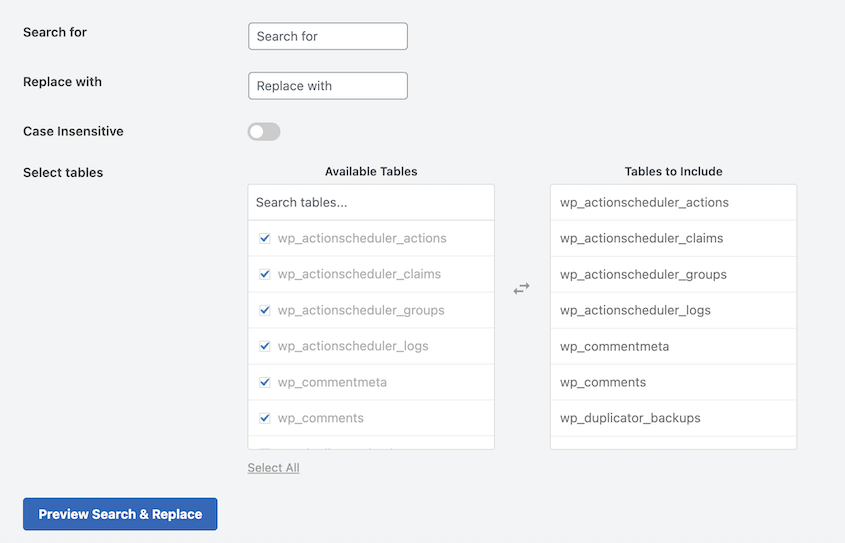
The image and media replacement capability sets it apart from older search and replace plugins. You can swap an image directly from the media library and the plugin regenerates thumbnails automatically.

What We Liked About Search & Replace Everything
- Dry-run preview shows affected rows before any changes are written
- Replace images directly from the media library with automatic thumbnail regeneration
- Replace media files of any format across the entire site
- Table selection scopes replacements to specific tables only
- Handles serialized data correctly, which is critical for accurate migrations
- Free for core functionality
What We Didn’t Like
- The undo feature is Pro only — all free-tier operations are final, so a backup before running is not optional
Why We Chose Search & Replace Everything
It handles all the basic tasks that other search and replace plugins offer, but adds image search and replace, as well as unused media cleanup.
4. DB Reset Pro: Best for Full Database Resets in Development Environments
Best for: Developers who need to wipe a development or staging database quickly between test cycles without reinstalling WordPress.

DB Reset Pro resets a WordPress database to factory defaults in under 10 seconds. It drops all tables with your WordPress prefix, recreates them from scratch, and preserves your admin password, media files, and installed plugins.

What We Liked About DB Reset Pro
- Full database reset completes in a few seconds
- Admin password preserved so you can log in immediately after reset
- Transaction support means the operation either fully succeeds or fully rolls back
- Selective plugin reactivation configurable via wp-config.php
- Media files in wp-content/uploads are untouched
- Multisite compatible
- Free
What We Didn’t Like
- Full reset only — no selective content deletion, no partial table resets
Why We Chose DB Reset Pro
DB Reset Pro is free and does exactly one thing without any setup. For developers who need a clean database between test runs, there is no faster way to get there.
5. WP-Optimize: Best Free Database Cleanup Option
Best for: Anyone who wants a free, no-frills cleanup tool that does the basics safely without requiring a paid upgrade.

WP-Optimize is another WordPress database plugin that focuses on cleaning up the database, compressing images, and minifying code. It provides simple tools to clean up bloated tables, improve database performance, and free up valuable disk space.
With WP-Optimize, it’s easy to remove unnecessary post revisions, comments, and transient data. Even beginners can use it to keep their databases lean and reduce the load on their servers.

What We Liked About WP-Optimize
- Easy one-click database optimization
- On-demand and scheduled optimization
- Optimizes database tables, trashed posts, post revisions, unapproved comments, and more
- Compresses images
- Page caching
- CSS, JavaScript, and HTML minification
What We Didn’t Like About WP-Optimize
- Doesn’t integrate with page caching plugins or CDNs
- No file optimization other than minification
Why We Chose WP-Optimize
Overall, WP-Optimize is a powerful tool for cleaning up unnecessary data, optimizing images, and managing caches for optimal website performance.
6. WPForms: Best for Collecting and Managing Form Data
Best for: Site owners who need to collect structured user data and access it directly from WordPress.

WPForms allows you to create custom contact forms and collect user-submitted data right within your WordPress site. With its user-friendly drag-and-drop builder, you can quickly build forms tailored to your needs without any coding.

Choose from pre-made templates or build your custom forms from scratch. Add text fields, checkboxes, multiple-choice questions, file uploads, and more.
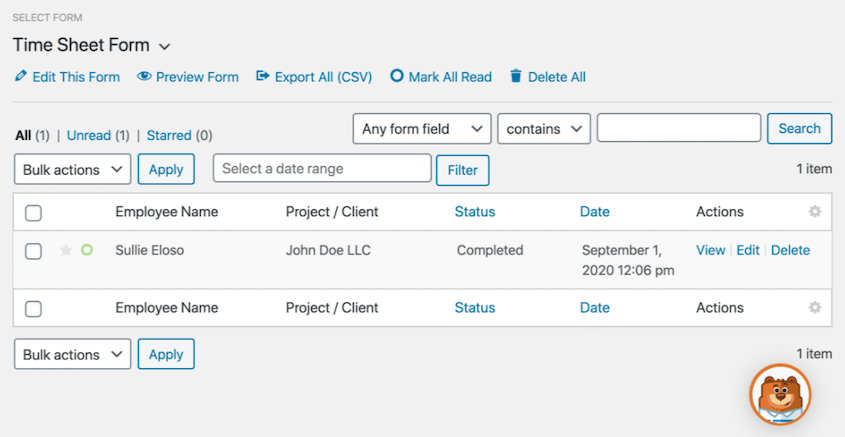
All submitted form entries will be saved in your database. But with WPForms, you can immediately view this data in your WordPress dashboard. You won’t have to search through your database for the right information.
What We Liked About WPForms
- Drag and drop form builder
- Create custom forms
- Collect user-submitted data
- View/manage form entries
- Great selection of templates to start from
- Entry notifications
What We Didn’t Like About WPForms
- Entry management requires a paid plan
Why We Chose WPForms
WPForms provides all the tools you need to create online forms. Plus, you can easily view and edit form data without leaving your dashboard.
7. TablePress: Best for Displaying Data in Tables
Best for: Site owners who need to display structured data (pricing tables, comparison charts, schedules, product specs) without writing HTML or CSS.

TablePress allows you to build and manage tables of data. This can help you show price comparisons or directories.

TablePress supports any type of data including images, links, and math formulas. If you already have data as an Excel, CSV, HMTL, or JSON file, you can upload it into the table.
Plus, your visitors can interact with these tables. They’ll find the information they need with live sorting, pagination, and searching.
What We Liked About TablePress
- Makes creating tables easy
- No coding required
- Responsive design looks great on all devices
- Ability to import/export CSV files
- Sorting, pagination, and searching
What We Didn’t Like About TablePress
- Can’t drag and drop to reorder columns
- Additional features like style customization require a premium plan
Why We Chose TablePress
TablePress is our top choice for displaying tables and structured data in WordPress.
8. SearchWP: Best for Custom Site Search Indexing
Best for: Sites where the default WordPress search returns irrelevant or incomplete results like WooCommerce stores, knowledge bases, document libraries, or any site with custom post types.

SearchWP is a powerful WordPress search plugin that enhances the default WordPress search functionality. It gives your users fast and accurate search results on your website.
When you install SearchWP, it creates a custom WordPress database. Here, it stores a search index.
As a result, you’ll get a lot of details about how visitors are searching your website. You’ll figure out ways to improve your content and start ranking better in search results.

What We Liked About Search WP
- Dramatically improves default WordPress search
- Indexes PDFs, custom fields, and other data that’s ignored by WordPress search
- Search shortcodes
- Keyword stemming
- Search statistics
What We Didn’t Like About SearchWP
- No free version
Why We Chose Search WP
For anyone looking to upgrade their default WordPress search, SearchWP is a great option.
9. wpDataTables: Best for Complex Data Visualization
Best for: Site owners who need to visualize large or complex datasets (financial data, survey results, analytics reports) with charts and conditional formatting, not just plain tables.

wpDataTables is a WordPress plugin for creating responsive data tables and charts. You can start from scratch or import data from Excel, CSV, XML, JSON, or PHP files.
The premium version makes it easy to set up tables for pricing plans, schedules, and product comparisons. All you’ll need to do is select a pre-designed template.

What We Liked About wpDataTables
- Custom tables or pre-designed templates
- Import Excel, CSV, SML, JSON, or PHP files
- Responsive charts
- Create tables for front-end editing
- Allow users to see only their data
- Generates queries to MySQL database
What We Didn’t Like About wpDataTables
- Free version doesn’t have free templates or filtering
Why We Chose wpDataTables
wpDataTables allows you to create tables and charts without knowing any code. It can also connect your data with multiple WordPress databases.
FAQs About WordPress Database Plugins
What is the best WordPress database plugin?
Duplicator is the best WordPress database plugin for most site owners. It handles automated backups, one-click restores, disaster recovery, and — through DB Optimizer, included in Pro and Elite plans — ongoing database health monitoring. For cleanup specifically, DB Optimizer is the strongest standalone option, showing reclaimable space by category before anything is deleted.
Can I create a database in WordPress?
You can create a new database through your web host. In cPanel, you’ll be able to add a new MySQL database and user.

Where is the DB in WordPress?
The WordPress database is the backend data storage that stores and organizes all your site’s data, content, and settings. Physically, the DB is located on the web server, hosted either on the same server as WordPress or potentially on a separate database server. You can access the database through phpMyAdmin, which is a database management tool commonly provided by web hosts.
How do I import a database into WordPress?
To import a database in WordPress, make sure to create a backup of it with Duplicator Pro. Then, go to the site where you want to install the database. Drag and drop the backup into the Import Backups page.

Will a database cleanup plugin delete my content?
Cleanup plugins remove data that has no functional value on a live site: expired transients, spam comments, old post revisions, and fragmented overhead space. Your published posts, pages, users, settings, and media are not touched. That said, always take a backup before running any cleanup operation. DB Optimizer integrates directly with Duplicator Pro to create one before cleanup runs.
How often should I clean up my WordPress database?
Monthly is a reasonable baseline for most sites. High-volume publishing sites, active WooCommerce stores, and sites with heavy plugin usage benefit from cleanup every two weeks. DB Optimizer’s health score removes the guesswork: check it once a month and run cleanup when the score drops below 80. If the score stays green, leave it.
Back Up Your Database Before Optimizing It
Before you install a cleanup plugin, run a search and replace, or make any structural change to your database, create a backup first. One thing going wrong without a restore point is all it takes to lose your site.
More than 1.5 million WordPress professionals use Duplicator to keep their sites protected. The disaster recovery URL restores the site even when the database is completely inaccessible — no other plugin does that.
Plus, it includes DB Optimizer for free on Duplicator Pro and Elite plans. You’ll be able to consistently protect your database with automatic backups and routine cleanings.
While you’re here, I think you’ll like these extra WordPress guides:
- How to Optimize Your WordPress Database
- Here Are the WordPress Database Repair Steps I Took Myself (No Developer Needed)
- WordPress Database Maintenance: What to Do Weekly, Monthly, and Quarterly
- How to Back Up a WordPress Database
- How to Restore a Website With Only a Database Backup


