The Dokkio team has rearranged the dashboard on the home screen to put a greater emphasis on tagging and organizing.
The “All Tags” and “Tag Dropdown” (which defaults to Category tags) tiles are now presented at the top of the dashboard, while the “Sources” and “All Files” tiles are presented at the bottom, shown below:
Dokkio tags are a powerful way to automatically organize your files and content by category or context, and the goal of this change is to ensure users find, interact with, and utilize this feature.
Dokkio Sidebar 3.1.1 now maintains a “stickier” connection to your Dokkio account, in response to user feedback about Sidebar’s “silent logout” behavior.
When Sidebar is enabled but not connected to your Dokkio account, a small alert appears in your browser window, asking you to login. You may encounter this alert when you next use your browser. Once logged in, the connection remains for up to 30 days after your last interaction. You can explicitly logout via the Dokkio toolbar icon, or temporarily disable Sidebar using the Chrome “Manage Extensions” (puzzle piece) icon. Sidebar 3.1.1 is live in the Chrome Store now, and your Sidebar will automatically upgrade.
The Dokkio team has been hard at work improving and adding features to the Sidebar in response to user feedback. Here’s a look at the latest:
One-click to edit: Docs and Sheets can now be opened in their native environment with a simple hover-and-click action.
File management: Rename a file. If you have connected hundreds of files from Box, Dropbox, Drive, or even local files, saving you time in searching for those files and making that quick update.
Organization: Add tags (and sense!) to any of the above without navigating to another page or even knowing where the file resides.
Expanded Tag Suggestions: In addition to comparing the active web page to your existing Dokkio tags, the Sidebar compares it to suggested tags and shows them in the “About This Page” panel. It’s easy to accept (or reject) those suggested tags for that particular page and for expanded auto-tagging, too!
If you haven’t tried the Dokkio Sidebar yet, check out our Google Chrome Store page and click “Add to Chrome.” If you want to dig a little deeper first, see screenshots and read reviews on our Product Hunt page.
Sidebar 3.0.2 is now the active version in the Chrome Store.
So, what’s new? The search tab of the Sidebar floating panel now includes a checkbox that allows users to set the behavior of the search panel.
Why? Users sometimes collapse the Sidebar to get it out of the way, and then forget to manually re-expand it. With this update, users can close the Sidebar and it will still be there when they search next.
The Sidebar is automatically re-opened whenever a MultiSearch that yields Dokkio results is carried out (e.g. as a side-effect of a Google search or Dropbox search). To change this behavior, uncheck the box.
We are excited to announce Dokkio Sidebar version 3.0, with major new capabilities and a fresh design.
Dokkio Sidebar now fully integrates the power of Dokkio into Chrome – to search, organize, and link to your files, whether you’re browsing the web, doing a Google search, working on email, or authoring in tools like Google Docs, Microsoft 365 or Notion.
Sidebar’s new, tabbed interface puts these capabilities just one click away:
The About tab shows how each web page or file you browse relates to your work (as reflected in your Dokkio tags). There’s a new, streamlined flow to add tags to the page and clip it or screenshot it to add it to your Dokkio knowledge base.
The Search tab lets you search the content of all the files connected to Dokkio, without leaving your current web page. And if you conduct a search in Google Drive or Dropbox or One Drive, or even a Google web search, Dokkio automatically does a parallel MultiSearch across all your files. So Dokkio will find what you’re looking for, even if you’re searching in the wrong place!
The Recent tab shows the Dokkio-connected files that have recently changed. It updates in real time, so you can monitor as files are shared with you or edited by collaborators, and hover over the file list to see previews – again, without leaving your current web page.The Tags tab allows you to easily see the tags that Dokkio is using to organize your files. You can easily create new tags, and even add new ways to organize – “by Project” or “by Department”, for example.
The Sources tab shows the content that’s currently connected to Dokkio, and lets you easily connect more!
We’ve also made Sidebar less intrusive, but more responsive. It’s now easy to close Sidebar’s floating panel to get it out of the way, and when you do, the Sidebar mini-tile wiggles when you browse to a new page where Sidebar has relevant content or search results.
If you already have Sidebar installed, the latest version will have already updated automatically! Otherwise, navigate to the Google Chrome Store via the link below to install it for free. Download Dokkio Sidebar. We are very excited about these new enhancements, and, as always, are eager to hear your feedback. If you have any additional feature requests, feedback, or if you would like a demo of Dokkio Sidebar in action, please do not hesitate to email [email protected].
You may notice the sequence of the items in the Dokkio application’s dark grey left panel (“Global Navigation”) has been changed. The “All Files”, “Sources”, and (for those who have asked us to enable it) “Duplicate Files” items are still there; they have just been relocated to the bottom of the panel.
If you have Starred content (offering a one-click short cut), it now appears first, after the “Home” item, and the items that feature Dokkio tagging (by Category, by Project, etc.) follow.
For new users to Dokkio, this tends to provide a better initial introduction to the product, and for experienced users, it puts the more heavily used items “up top”. It also paves the way for more extensive enhancements to Dokkio that we’ll roll out in the next few weeks… stay tuned!
We are excited to announce a big new enhancement to our Dokkio Sidebar browser extension – Dokkio MultiSearch.Sidebar, Dokkio’s Google Chrome extension, now notices when you search in Dropbox, Gmail, Google Drive, or OneDrive – and then runs a parallel search across ALL your content sources connected to Dokkio.What does this mean? Imagine you’re looking for a “Tesla” related file in your Dropbox account. Dropbox may give you some results, but what if the “Tesla” file you’re looking for wasn’t in Dropbox like you thought? Maybe it was shared in Slack, attached to an email in Gmail, or stored in Google Drive. You might even be signed into the wrong Dropbox account!Sidebar’s Multi-Search feature eliminates guesswork and wasted time by detecting what you’re looking for and searching across all your sources – so you can find what you’re looking for instantly.The best part? You don’t have to leave your current page – Sidebar works while you’re browsing any of your storage platforms on the web, or even conducting a Google search!Here’s a quick video on how it works!So far, Multi-Search enhances searches in OneDrive, Gmail, Google Drive, Dropbox, Box, Google web search, and HubSpot – and we plan to keep expanding that list.If you’re unfamiliar with Sidebar, it’s our super-charged Chrome extension that offers you following benefit:
When reading or writing an email or doc, Sidebar offers relevant files and info to embed or attach while you’re writing blogs, emails, or just reading an email on your computer.
When editing or reviewing a Google Doc or Notion page, Sidebar lets you easily search and link files, or look up business data
When doing web research, Sidebar analyzes each page and shows how it relates to companies, people, or topicsof interest
And now:
While searching in popular web apps, Sidebar lets you focus on what you’re seeking, and not where it lives
If you’ve already got Sidebar, great! It will update with our new feature automatically. If not, you can download it HERE to stop the guesswork and time wasting.Have any feedback on Sidebar, MultiSearch or Dokkio in general? Let us know in the comments or email [email protected]!As always, happy organizing!
Now that it’s been a week since our successful Product Hunt launch, we’d like to do a post thanking everyone for all the support and upvotes that helped us become #2 Product Hunt launch of the day on April 13, 2022!
This was, obviously, our very first launch and we couldn’t be more thrilled and excited about how many people support us and our project – a free file organization app to help you organize your cloud files and your local files!
To all our new users, welcome! If you have any questions, you can always contact [email protected] or head on over to our subreddit and join us in discussions there.
To all our old users, thank you for sticking by us! We couldn’t have made this happen without you. Thank you for continuing to learn and grow with us, and we’re super excited about everything that’s to come in the future so we can make file organization even easier!
Transferring files from one program to another is a HUGE pain. So if you’re wanting to transfer files without the headache and having to send things through your Gmail and cluttering up your workspace, this is for you.
How to transfer files easily from Windows to Mac and back:
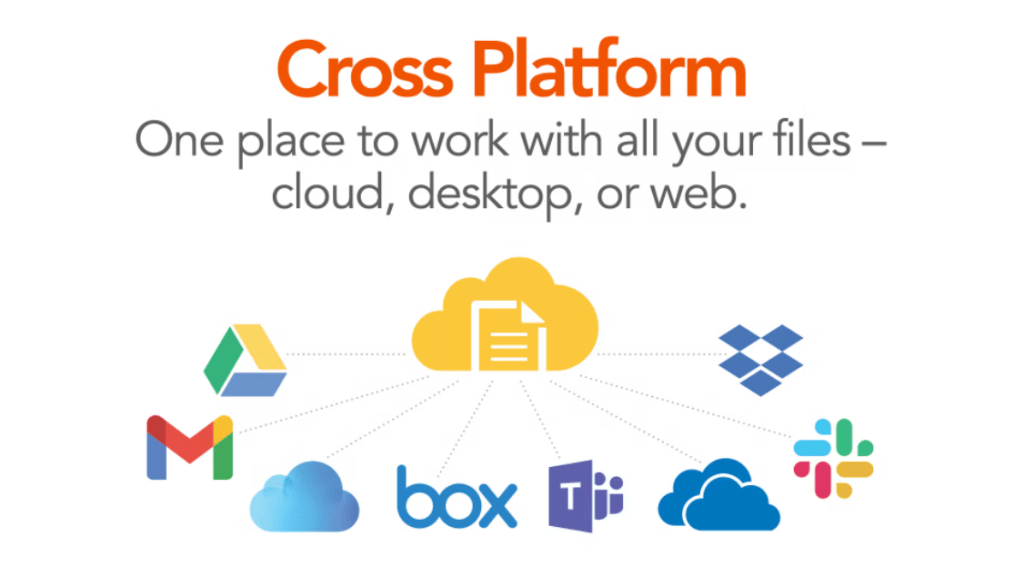
Download Dokkio. Dokkio is a file-sorting app that lets you sync all your clouds together – this basically means your OneDrive, Box, Dropbox, Google Drive, Microsoft Teams and local files can all live together in one place.
Sync all your clouds and local files.
Profit. Since your files are now all connected, as soon as you log into Dokkio on any computer anywhere, you’ll have access to ALL your files regardless of whether they’re on a Windows or Mac computer back home or at work. This will save you TONS of time, trust me. I use this in my daily life.
So if you’re looking for a file manager to organize your google drive files, an app for your document organization, or even just how to organize your Gmail, this is the app for you. Set up the organization categories once, and never again – Dokkio will categorize the rest while you sleep, eat, or vacation.
You can search “Google Drive vs Dropbox vs OneDrive vs Box” forever until your fingers bleed, but it won’t solve the root problem: you need file storage, but it’s almost impossible to keep all your files stored in only one cloud.
For better or worse, there’s always going to be a teacher, a friend, someone in your life who sends you a file via a Cloud platform that you don’t use – or maybe you have to use different platforms for work, personal, and social life. It all depends.
That’s why you need am app that’s able to combine all of these Cloud drives together. In addition to being able to sync your local files as well.
Dokkio is free, easy to use, and can sync all of your Cloud drives in under 5 minutes. After that, you’ll never have to hunt around in different Clouds trying to figure out where you put which file.
Plus, there’s a Dokkio Sidebar Chrome extension that allows you to highlight text anywhere in your browser – and Sidebar will pull up a relevant file that you may have in your Dokkio app. No need to even open another tab.
Dokkio can organize any file, anytime – even while you’re sleeping. This includes the definitely legal Google Drive movies you’ve got stored in your Google Docs, the backup files you have stored elsewhere, PDFs, videos, images – you name it.
Dokkio also makes link sharing in Google Drive and all your Cloud drives easy – simply search for a file within the Dokkio app, click share, and you’re done. You can also create shared folders where your team can automatically see whatever you place in the new folder.
Dokkio can identify the difference between your photos and your Google Drive resume templates – the difference between a drawing and a real life image, even. All of it is done through Dokkio’s powerful AI that can automatically recognize the difference.
The best part is Dokkio is totally safe, secure, encrypted, and GDPR compliant. That means it’s safe to use for your tax documents, business, and any file you need password protected.
As of the moment, you can get unlimited storage for your Google Drive and Cloud Drive files within Dokkio, since the PRO plan is currently free. If you wanna stick to the free plan, you get FREE storage of 120,000 Cloud files. Which is a number of files most people don’t even reach.
There’s really no reason not to use Dokkio unless you enjoy searching through thousands of files everyday and not being able to find something immediately for work – we all have our little pleasures.
But if you’re tired of file sorting and reorganizing your files over and over again, Dokkio is here to help.




 dokkio