
The Payments tab in User Registration & Membership gives you a complete view of all transactions made on your site. From here, you can track payments for memberships and registration forms, filter transactions by different criteria, review individual payment details, and manually add records for missed payments when needed.
To access the Payments section from your WordPress Dashboard,
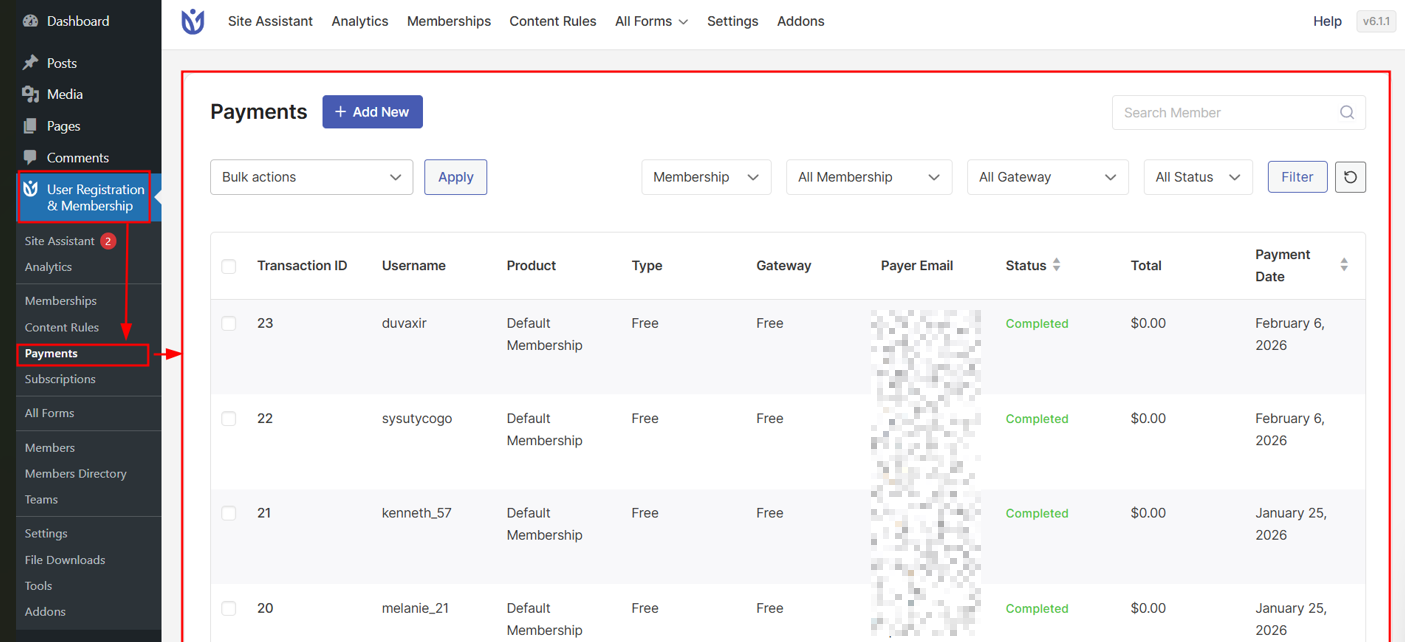
Go to User Registration & Membership → Payments
Payments Table #
When you open the Payments page, you will see a table listing all recorded transactions on your site.

Each row in the table includes:
- Transaction ID
- Username
- Product (Membership plan or form)
- Type (Free or Paid)
- Gateway
- Payer Email
- Status (Completed, Pending, Failed, or Refunded)
- Total Amount
- Payment Date
Search Payments #
At the top of the Payments table, you will find a search bar that allows you to quickly locate transactions associated with a specific member.

You can search for payments using details such as:
- Username
- Email address
This is useful when you need to find a specific transaction without applying multiple filters.
Sorting Payments #
You can sort payments directly from the table by clicking on the column headers.
Sortable columns include:
- Payment Date
- Payment Status

Clicking the up-down arrow along the column header toggles between ascending and descending order, helping you quickly analyze payments by date, amount, or status.
Payment Filters #
The Payments page includes powerful filters to help you narrow down transactions based on your needs.
Module Filter
You can filter payments by the module they belong to:
- Membership
- Forms

Membership Filters
When Membership is selected, the following filters are available:
- Membership Plan
- All memberships
- Individual membership plans
- Gateway
- All gateways
- PayPal
- Stripe
- Stripe (Credit Card)
- Mollie
- Authorize.net
- Payment Status
- All statuses
- Pending
- Completed
- Failed
- Refunded
After selecting your filters, click Filter to apply them or Reset to clear all selections
Forms Filters
When Forms is selected, you can filter payments based on:
- Form
- All forms
- Individual registration forms
- Gateway
- Payment Status
This makes it easy to review payments collected through specific registration forms.
Managing Payments #
The Payments section lets you review, update, and manage individual transactions on your site. Each payment can be edited, updated, or removed as needed.
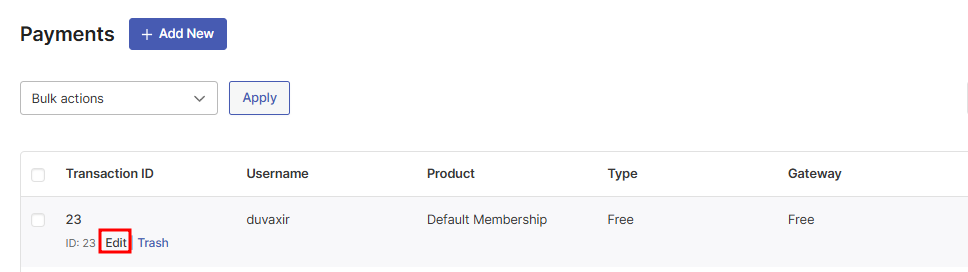
You can edit a payment by clicking the Edit option under the Transaction ID in the Payments table. The Edit Payment screen provides a detailed breakdown and management options.
Edit Payment Screen #
The Edit Payment screen lets you review transaction details, update the payment status, and add internal notes.

Payment Details
The section is read-only and lets you verify the payment details recorded for the transaction, including the purchased membership plan and tax breakdown.

This section shows:
- Item name
- Price
- Quantity
- Subtotal
- Order total
- Tax amount
- Payment date
Payment Gateway Information
This section provides technical details about the transaction, including the payment gateway used and the environment.

Here you can view:
- Payment gateway used
- Environment (Live or Test)
- Subscription ID (if applicable)
Member Actions
This panel displays the username and email address of the member associated with the payment, allowing quick identification of the payer.

From the sidebar, you can:
- Edit Member – Open the member’s profile to view or update their account details
- Delete Payment – Permanently remove the payment record from your site
This quick access helps administrators review member information and manage payments without leaving the payment screen.
Status
The Status field lets you review the current state of the transaction.
Available statuses include:
- Pending – Payment has been initiated but not completed
- Completed – Payment was successfully processed
- Failed – Payment attempt was unsuccessful
- Refunded – Payment was refunded to the member
Created At
Shows the date and time when the payment record was created.
Clicking the calendar icon opens a date and time selector, allowing you to manually adjust the creation timestamp. This is useful when recording payments that occurred in the past.
Notes
The Notes section allows administrators to add internal comments related to the payment.
Notes are visible only to admins and can be used for:
- Recording manual adjustments
- Adding context for refunds or failed payments
- Leaving internal references for future review
Editing Payment Status of a Transaction #
To change a payment’s status:
- Open the payment from the Payments table.
- Locate the Status panel on the right.
- Select the appropriate status.
- Click Update to save changes.

Updating the status helps keep transaction records accurate for reporting and audits.
Modifying Creation Date #
You can update the Created At date and time for a payment when needed.
To modify the creation date:
- Open the payment record.
- Click the calendar icon next to the Created At field.
- Select the desired date and time.
- Click Update to save the changes.

This is useful when:
- Logging payments that occurred earlier
- Correcting incorrect timestamps
- Recording offline or delayed transactions
Deleting a Payment #
To delete a payment:
- Open the payment from the Payments table.
- Click Delete Payment from the Member Actions panel.
- Confirm the deletion.
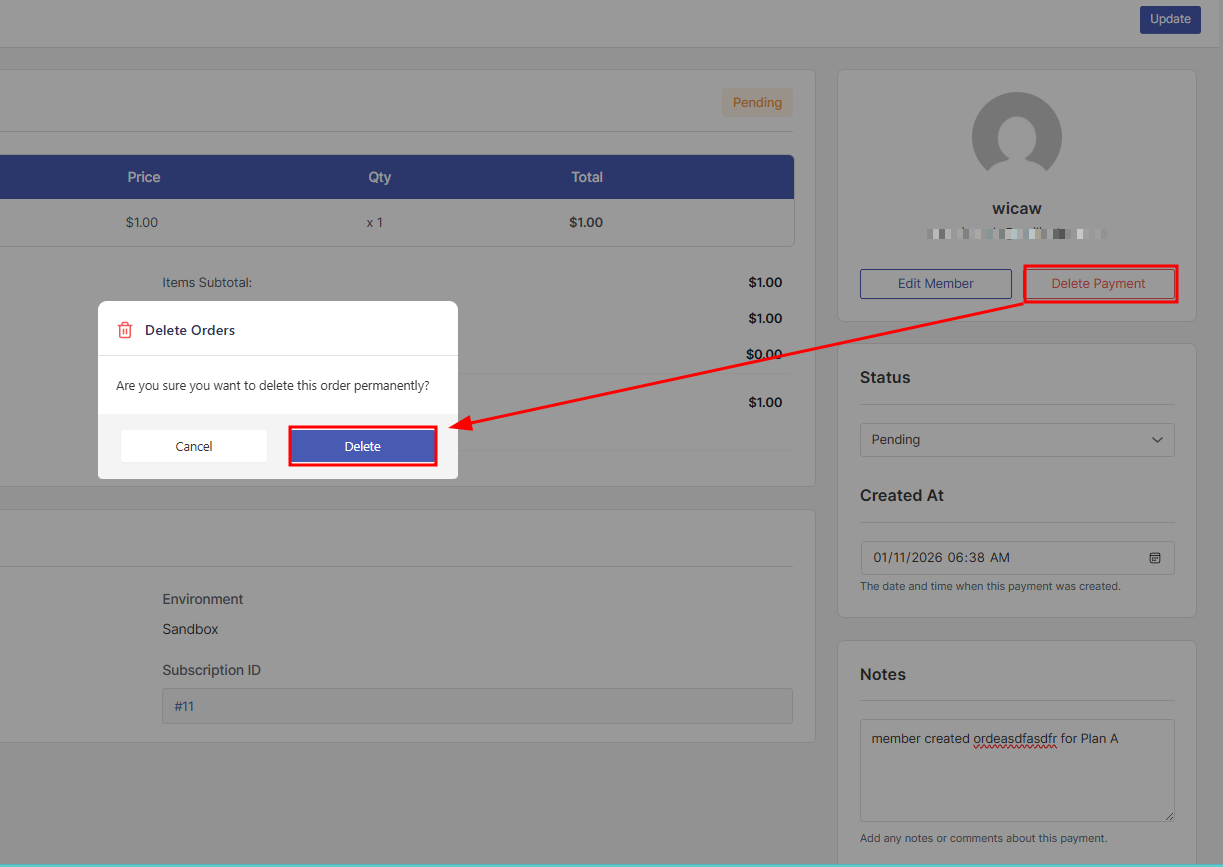
Deleted payments are permanently removed and cannot be restored.
Recording a Payment Transaction Manually #
You can manually record a payment transaction to account for missed, offline, or external payments.
To add a manual payment:
- Go to User Registration & Membership → Payments.
- Click Add New.

This will open up the Add New Payment screeen.

- Select the member.
- Review the associated membership plan.
- Enter the amount, payment method, payment date, and transaction status.
- (Optional) Add internal notes for reference.
- Click Add Payment to save the record.
Important:
Manually added payments are recorded for tracking purposes only. They do not renew subscriptions, extend billing cycles, or assign new membership plans.
Adding a Note #
You can add or update notes for a payment at any time:
- Open the payment record.
- Enter your comments in the Notes field.
- Click Update to save the note.

Notes are useful for internal documentation and do not affect the payment or membership status.


