
The My Account Settings section allows you to configure how the My Account dashboard behaves and appears for logged-in users.
From this section, you can control:
- The layout of the My Account dashboard
- Profile behavior and account deletion options
- Automatic logout for inactive users
- URL endpoints used for account actions
You can access these settings from:
Dashboard → User Registration & Membership → Settings → My Account
The My Account settings include the following sections:
- General – Configure layout and account behavior settings
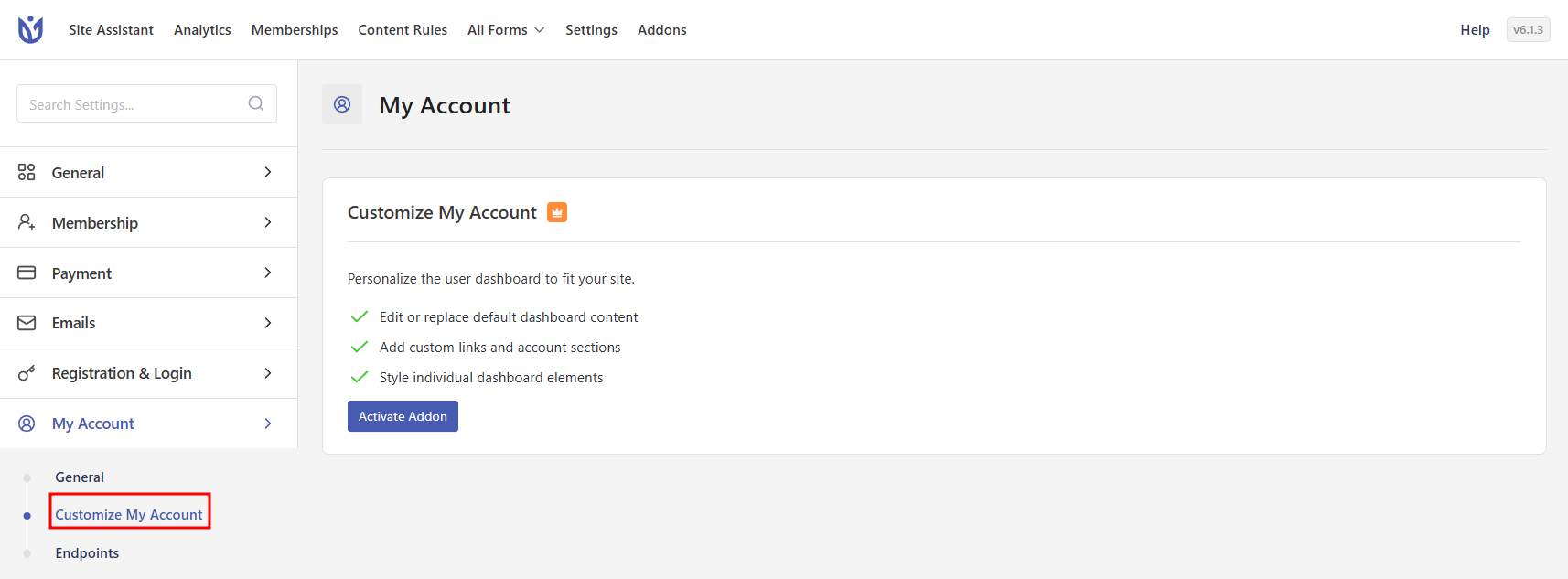
- Customize My Account (Pro) – Customize the dashboard structure and sections
- Endpoints – Configure URL endpoints for account actions
My Account Page #
The My Account page itself is assigned from the General Page Settings.
Go to:
User Registration & Membership → Settings → General → Pages → My Account Page
This page should contain the shortcode:
[user_registration_my_account]
All My Account settings apply to the page selected here.
General #
The General tab controls how the My Account dashboard behaves and how users interact with it.

Layout #
Choose the layout of the My Account dashboard. Available options include:
- Horizontal Layout: Navigation appears at the top, and account content is displayed below it.
- Vertical Layout: Navigation appears on the left side, while the account content appears on the right.
Ajax Submission on Edit Profile #
Enable this option to allow profile updates without refreshing the page.
When enabled, profile changes are submitted using Ajax, providing a smoother user experience.
Disable Profile Picture #
Enable this option to remove the profile picture section from the My Account page.
This can be useful if you prefer a simpler account interface or do not want users uploading profile images.
Delete Account Action #
This setting controls how user account deletion should be handled.

Available options include:
- Disable: Users cannot delete their account from the My Account page.
- Direct Delete: The account is deleted immediately when the user selects the delete option.
- Prompt Password Popup Before Delete Account: Users must enter their password before the account is deleted. This helps prevent accidental deletion and adds an extra security layer.
Auto Logout After Inactivity #
This option allows you to automatically log users out if they remain inactive for a certain period of time.

Available options include:
- 5 minutes
- 10 minutes
- 15 minutes
- 20 minutes
- 30 minutes
- 60 minutes
- None
If None is selected, users will remain logged in until they manually log out or their session expires.
Customize My Account (Pro) #
The Customize My Account section allows you to personalize the structure and layout of the My Account dashboard.
Using this feature, you can control how different sections of the account page appear for users.
This is a Pro feature.
For full instructions on customizing the My Account dashboard, refer to the dedicated documentation:
Customize My Account Documentation
Endpoints #
Endpoints allow the plugin to handle specific actions on the My Account page by appending a unique URL segment to the page URL.

For example:
yourwebsite.com/my-account/edit-profile
The endpoint edit-profile triggers the profile editing section.
You can customize the following endpoints:
Edit Profile #
Controls the URL used when users access the edit profile section.
Default:
edit-profile
Change Password #
Controls the URL used when users access the change password section.
Default:
edit-password
User Logout #
Controls the URL used when users log out of their accounts.
Default:
user-logout
Important #
Endpoints are appended to the My Account page URL.
Example:
yourwebsite.com/my-account/edit-profile
Make sure each endpoint value is unique. If left blank, the endpoint will be disabled.
Saving Changes #
After updating any settings, click Save Changes to apply them.
Your changes will immediately affect the behavior of the My Account page.


