# Published Folders
Published folders allow you to share a local folder through your Universal website. Any file within the published folder is accessible via a web request. This is helpful for storing images or other files that you want to provide via your Universal Dashboard.
## Publishing a Folder
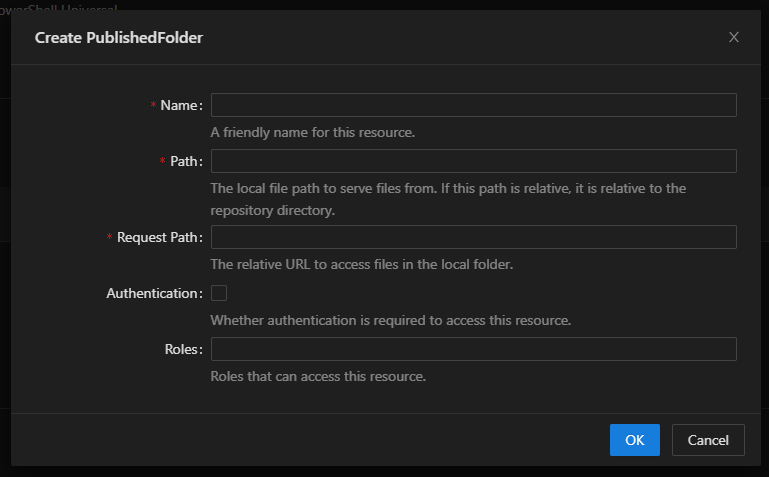
From the `Platform/ Published Folders` page, you can click Add Published Folder. Enter the local path as well as the request path. The local path is the folder that you wish to publish. The request path is the path that the end user requests to download the files from the folder.
You can turn on authentication and authorization for the folder.
Published Folders Dialog
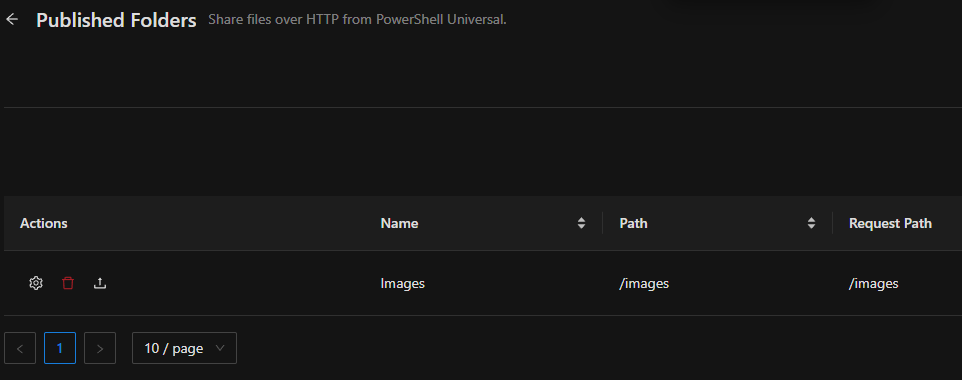
Once the folder is published, it appears in the published folders table.
Puiblished Folders Table
## Download Files
You can download files that are found in the published folder by visiting the request path. To continue the example above, I could visit the following URL to download the logo.png file:
```http
http://localhost:5000/images/logo.png
```
Notice that unauthenticated requests cannot access the file.
```powershell
PS C:\src\universal\src> invoke-webrequest http://localhost:5000/images/logo.png
Invoke-WebRequest: Response status code does not indicate success: 401 (Unauthorized).
```
## Default Documents
Default documents allow you to load files when a user specifies the folder but not the document within a folder. This is handy when a user visits a URL such as `/docs` but does not specify `/docs/index.html`. Instead of returning a 404, you can return the `index.html` when the user specifies `/docs`.
To configure default documents, set the `-DefaultDocument` parameter on `New-PSUPublishedFolder`.
```powershell
New-PSUPublishedFolder -Path C:\website -RequestPath /docs -DefaultDocument @("index.hml")
```
## Impersonation
{% hint style="warning" %}
Impersonation only works when using [Windows authentication](https://docs.powershelluniversal.com/api/security#authenticating-with-windows-authentication).
{% endhint %}
By default, when PSU accesses files to serve them to users, it does so using the same service account as the process. To access files as the user that is downloading the file, turn on impersonation.
```powershell
New-PSUPublishedFolder -Path C:\website -RequestPath /docs -DefaultDocument @("index.hml") -Impersonation
```
## API
* [New-PSUPublishedFolder](https://github.com/ironmansoftware/universal-docs/blob/v5/cmdlets/New-PSUPublishedFolder.txt)