# Jobs
Jobs are the result of running a script. Jobs are retained based on the script and server level settings.
## Viewing Jobs
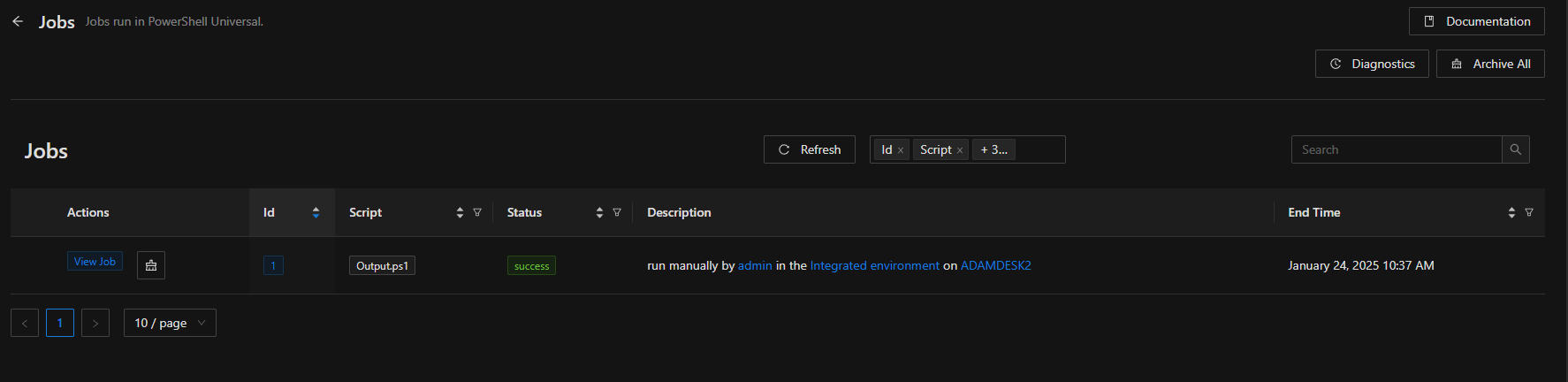
Jobs can be viewed by clicking the Automation / Jobs page. Click the View button to navigate to the job. Jobs in progress can also been cancelled.
Job List
### View Job Output
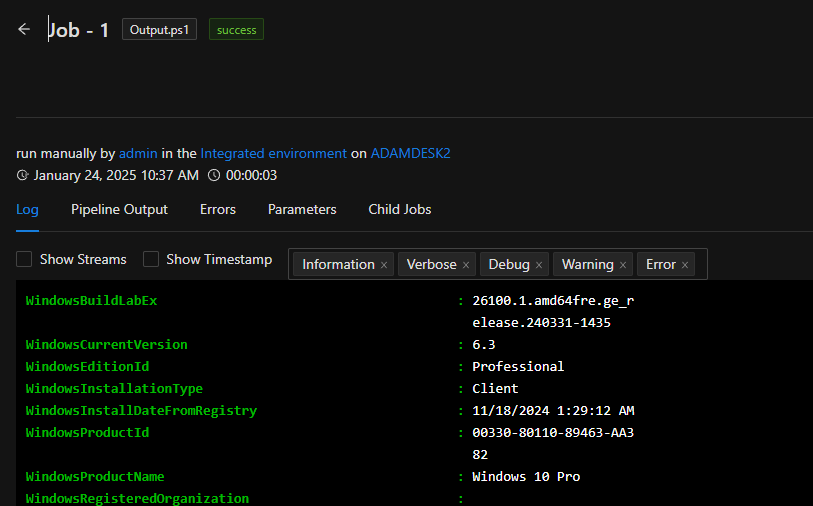
Standard PowerShell streams such as information, host, error, warning and verbose are shown within the output pane.
Job Stream Output
### View Job Pipeline Output
{% hint style="info" %}
Storing large amounts of pipeline output can negatively affect performance. You can discard pipeline output by setting the Discard Pipeline setting on scripts.
{% endhint %}
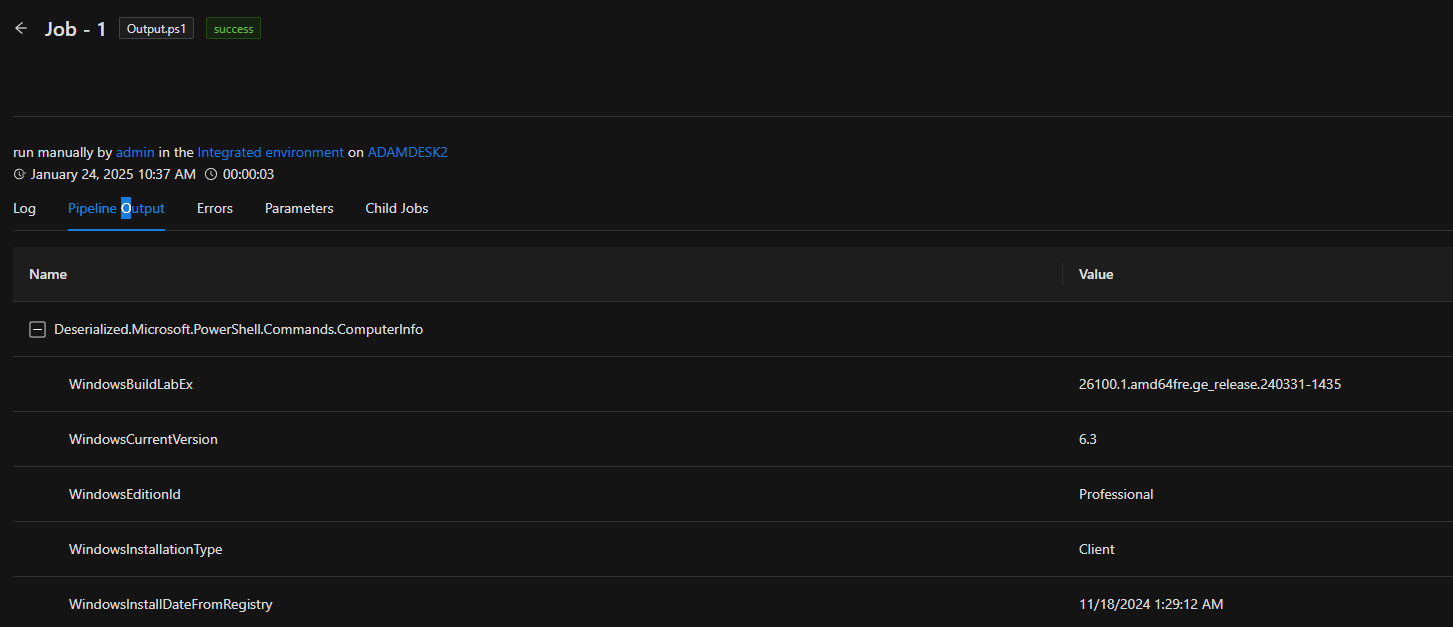
Pipeline output for jobs is also stored within PowerShell Universal. Any object that is written to the pipeline is stored as CliXml and available for view within the Pipeline Output tab.
You can expand the tree view to see the objects and properties from the pipeline.
Job Pipeline Output
### Viewing Errors
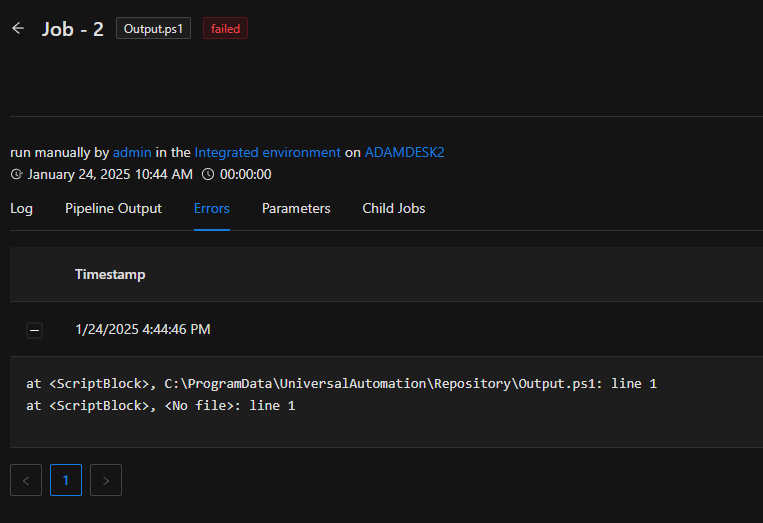
Any errors written to the error stream will be available on the Error tab within the job page.
Job Error Output
## Status
Jobs will return various statuses depending on configuration and the result of the execution. Settings that can affect job status include:
* ErrorActionPreference
* WarningActionPreference
The following table describes how PowerShell Universal treats statuses.
| Status | Description | Suppress |
| ------------------- | --------------------------------------------------- | ----------------------------------------------- |
| Error | A script had a non-terminating error. | Set ErrorActionPreference to SilentlyContinue |
| Warning | A script had a warning. | Set WarningActionPreference to SilentlyContinue |
| Failed | A script had a terminating error. | Handle the terminating error or catch it. |
| Waiting on Feedback | A script is waiting on feedback, such as Read-Host. | Avoid user callbacks such as read-host. |
| Running | The script is currently running. | N\A |
| Queued | The script is currently queued to run. | N\A |
## Feedback
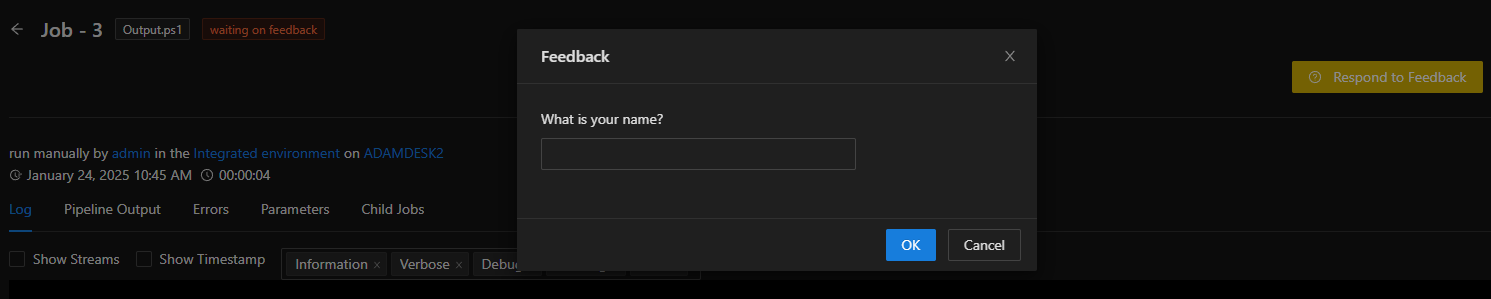
Some jobs will require feedback. Any script that contains a `Read-Host` call will wait until there is user interaction with that job. The job will be in a Waiting for Feedback state, and you can respond to that feedback by click the Response to Feedback button on the job page.
Job Waiting on Feedback
To accept a `SecureString` with a password input field, you can use the `-AsSecureString` parameter of `Read-Host`.
## Invoking Jobs from PowerShell
You can use `Invoke-PSUScript` to invoke jobs from the command line. You will need a valid [App Token](https://docs.powershelluniversal.com/security/security#app-tokens) to do so. Parameters are defined using dynamic parameters on the `Invoke-PSUScript` cmdlet.
```powershell
Invoke-PSUScript -Script 'Script1.ps1' -RequiredParameter 'Hello'
```
### Call Scripts from Scripts
You can also call UA scripts from UA scripts. When running a job in UA, you don't need to define an app token or the computer name manually. These will be defined for you. You can just call `Invoke-PSUScript` within your script to start another script. Both jobs will be shown in the UI. If you want to wait for the script to finish, use `Wait-PSUJob`.
### Waiting for a Script to Finished
You can use the `Wait-PSUJob` cmdlet to wait for a job to finish. Pipe the return value of `Invoke-PSUScript` to `Wait-UAJob` to wait for the job to complete. `Wait-PSUJob` will wait indefinitely unless the `-Timeout` parameter is specified.
```powershell
Invoke-PSUScript -Script 'Script1.ps1' -RequiredParameter 'Hello' | Wait-PSUJob
```
### Return Pipeline Data
You can use the `Get-PSUJobPipelineOutput` cmdlet to return the pipeline output that was produced by a job. This pipeline output will be deserialized objects that were written to the pipeline during the job. You can access this data from where you have access to the PowerShell Universal Management API.
```powershell
Get-PSUJobPipelineOutput -JobId 10
```
### Returning the last job's output
It may be required to return the output from a script's last job run. In order to do this, you will need to use a combination of cmdlets to retrieve the script, the last job's ID and then return the pipeline or host output.
```powershell
$Job = Get-PSUScript -Name 'Script.ps1' | Get-PSUJob -OrderDirection Descending -First 1
Get-PSUJobPipelineOutput -Job $Job
Get-PSUJobOutput -Job $Job
```
### Returns the last job's output as an object
By default, `Get-PSUJobOutput` will return the output as a string. To return the output as an object with information about the output, use `-AsObject`.
```powershell
$Job = Get-PSUScript -Name 'Script.ps1' | Get-PSUJob -OrderDirection Descending -First 1
Get-PSUJobOutput -Job $Job -AsObject
```
### Invoke a Script and Wait for Output
You can use the `-Wait` parameter of `Invoke-PSUScript` to achieve this.
```powershell
$Output = Invoke-PSUScript -Script 'Script1.ps1' -RequiredParameter 'Hello' -Wait
```
Additionally, the following example invokes a script, stores the job object in a `$job` variable, waits for the job to complete and then returns the pipeline and host output.
```powershell
Invoke-PSUScript -Script 'Script1.ps1' -RequiredParameter 'Hello' | Tee-Object -Variable job | Wait-PSUJob
$Output = Get-PSUJobPipelineOutput -Job $Job
Get-PSUJobOutput -Job $Job
```
### Integrated Mode
The integrated mode allows calling these cmdlets from within PowerShell Universal without an App Token or Computer Name. It uses the internal RPC channel to communicate.
You can set the `-Integrated` parameter to switch to integrated mode. This parameter does not work outside of PowerShell Universal.
```powershell
Invoke-PSUScript -Script 'Script.ps1' -Integrated
```
The following cmdlets support integrated mode.
* Get-PSUScript
* Invoke-PSUScript
* Get-PSUJob
* Get-PSUJobOutput
* Get-PSUJobPipelineOutput
* Get-PSUJobFeedback
* Set-PSUJobFeedback
* Wait-PSUJob
## Invoking Jobs with REST
You can call jobs over REST using the management API for PowerShell Universal. You will need a valid app token to invoke jobs.
### Call Scripts with REST
To call a script, you call an HTTP POST to the script endpoint with the ID of the script you wish to execute.
```powershell
Invoke-RestMethod http://localhost:5000/api/v1/script/7 -Method POST -Body "" -Headers @{ Authorization = "Bearer appToken" } -ContentType 'application/json'
```
### Providing Parameters
You can provide parameters to the job via a query string. Parameters will be provided to your script as strings.
```powershell
$Parameters = @{
Uri = "http://localhost:5000/api/v1/script/path/PNP.ps1?Server=tester&Domain=test"
Method = "POST"
Headers = @{Authorization = "Bearer $Apptoken"}
ContentType = 'application/json'
Body = '{}'
}
Invoke-RestMethod @Parameters
```
### Setting the Environment
You can set the environment by pass in the environment property to the job context. The property must be the name of an environment defined within your PSU instance.
```powershell
$JobContext = @{
Environment = "PowerShell 7"
} | ConvertTo-Json
Invoke-RestMethod http://localhost:5000/api/v1/script/7 -Method POST -Body $JobContext -Headers @{ Authorization = "Bearer appToken" } -ContentType 'application/json'
```
### Setting the Run As account
You can set the run as account by passing in the name of a PSCredential variable to the Credential property.
```powershell
$JobContext = @{
Credential = "MyUser"
} | ConvertTo-Json
Invoke-RestMethod http://localhost:5000/api/v1/script/7 -Method POST -Body $JobContext -Headers @{ Authorization = "Bearer appToken" } -ContentType 'application/json'
```
## Invoke Jobs from Apps
You can use the same cmdlets that you use in other PowerShell scripts to run scripts in apps. You may want a more interactive experience when doing so. Below are some examples of how to achieve that using the app framework.
### Displaying Output
You can use the `Invoke-PSUScript` and the `Get-PSUJobOutput` cmdlets to create a UI element that updates as the script runs. Assume you have a script like the one below. It simply writes to the Information stream every 100 milliseconds 100 times.
```powershell
1..100 | % {
Write-Output "Hello $_"
Start-Sleep -Milliseconds 100
}
```
Within your app, you can start the script based on some user interaction and then update an element as the script is running. The below example creates a button and a `pre` tag element to serve as the destination for the script's output. When the user clicks the button, it will start the job and wait for it to finish. Within the loop, it retrieves the script's output and then updates the `pre` element with the output content.
Finally, it retrieves an updated status of the job and waits 100 milliseconds before running again.
```powershell
New-UDApp -Content {
New-UDButton -Text "Run Script" -OnClick {
$Job = Invoke-PSUScript -Name "AppExample.ps1" -Integrated
while($Job.Status -eq 'Queued' -or $Job.Status -eq 'Running')
{
$Output = Get-PSUJobOutput -Job $Job
Set-UDElement -Id 'output' -Content {
$Output | ForEach-Object {
$_ + [Environment]::NewLine
}
}
$Job = Get-PSUJob -Id $Job.Id
Start-Sleep -Milliseconds 100
}
} -ShowLoading
New-UDElement -Tag 'pre' -Id 'output'
}
```
### Displaying Progress
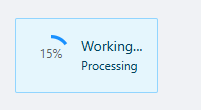
The app framework's PowerShell host will automatically interface with features of PowerShell, like `Write-Progress`.
If you use the `-Wait` parameter of `Invoke-PSUScript` , it will automatically display the script's progress in a dialog in your app. Assume we have a script defined as below. This script writes progress every 100 milliseconds.
```powershell
1..100 | % {
Write-Progress -Activity "Working..." -PercentComplete $_
Start-Sleep -Milliseconds 100
}
```
Within our app, we can simply call the script with the `-Wait` parameter. When the user clicks the button, the progress will be displayed in the app.
```powershell
New-UDApp -Content {
New-UDButton -Text "Run Script" -OnClick {
Invoke-PSUScript -Name "AppExample.ps1" -Integrated -Wait
} -ShowLoading
}
```
### Requesting Input
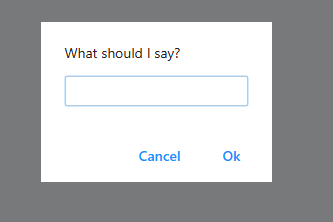
The app framework's PowerShell host will automatically interface with features of PowerShell, like `Read-Host`.
If you use the `-Wait` parameter of `Invoke-PSUScript` , it will automatically prompt the user for input when encountering the `Read-Host` command. Assume we have a script that requests user input using `Read-Host`.
```powershell
Read-Host -Prompt "What should I say?"
```
In your app, simply call the script with the `-Wait` parameter.
```powershell
New-UDApp -Content {
New-UDButton -Text "Run Script" -OnClick {
Invoke-PSUScript -Name "AppExample.ps1" -Integrated -Wait
} -ShowLoading
}
```
The user will then be prompted as the script runs.
## Variables Defined in Jobs
Variables defined in jobs can be found on the [variables page](https://docs.powershelluniversal.com/platform/variables#scripts).
## Job Run ID
The default behavior for PowerShell Universal is to track jobs based on an autoincrementing int64-based ID. Every time a new job is run, the job is one higher in ID than the last. Because of this behavior, it is easy to guess other job IDs and can potentially lead to a security risk.
In order to avoid this issue, you can enable the `JobRunID` experimental feature. Although internally the system still creates jobs with ascending numeric IDs, you cannot access jobs based on those IDs. Instead, a new field called `RunID` is used. `RunID` utilizes a `GUID` rather than an ID for look ups. This greatly reduces the ability for an attacker to guess a job ID.
You will need to enable this feature to use it.
```powershell
Set-PSUSetting -JobRunId
```
## API
* [Invoke-PSUScript](https://github.com/ironmansoftware/universal-docs/blob/v5/cmdlets/Invoke-PSUScript.txt)
* [Get-PSUJob](https://github.com/ironmansoftware/universal-docs/blob/v5/cmdlets/Get-PSUJob.txt)
* [Get-PSUJobFeedback](https://github.com/ironmansoftware/universal-docs/blob/v5/cmdlets/Get-PSUJobFeedback.txt)
* [Get-PSUJobOutput](https://github.com/ironmansoftware/universal-docs/blob/v5/cmdlets/Get-PSUJobOutput.txt)
* [Get-PSUJobPipelineOutput](https://github.com/ironmansoftware/universal-docs/blob/v5/cmdlets/Get-PSUJobPipelineOutput.txt)
* [Wait-PSUJob](https://github.com/ironmansoftware/universal-docs/blob/v5/cmdlets/Wait-PSUJob.txt)