---
title: Copilot Basics
sidebar_position: 7
description: Learn the basics of OpenBB Copilot interface and functionality
keywords:
- OpenBB Copilot
- copilot basics
- AI assistant
- interface
- prompt library
---
import HeadTitle from '@site/src/components/General/HeadTitle.tsx';
The OpenBB Copilot is an AI-powered companion seamlessly integrated into the OpenBB Workspace, designed to enhance and accelerate your financial analysis workflow.
This sophisticated assistant understands natural language queries, retrieves data from multiple sources, performs complex analysis, and generates actionable insights.
Built for financial professionals, the Copilot transforms your workflow by accelerating analysis and providing context-aware insights based on your specific datasets and workspace configuration.
## Structure
The Copilot interface is designed for intuitive interaction with a clean three-section layout:
- **Header:** At the top, you'll find controls to manage your conversation. You can see which chat you're in, start a new one, clear the history, expand to full-screen mode, or hide the agent entirely.
- **Body:** The main chat window where your conversation takes place. It displays the Copilot's answers, its step-by-step reasoning, and any output like charts, tables, or code. The chat automatically scrolls, keeping everything in chronological order. Hover over a message to see its timestamp.
- **Footer:** Here, you can manage the data and widgets the Copilot uses as context for its answers. You can also add your own custom AI agents or open your prompt library.
## Full screen AI-chat
You can resize the AI panel by dragging the border.
In side-panel mode, it provides quick access for simple queries while maintaining your primary workspace view.
When expanded to full-screen mode, you gain maximum real estate for complex conversations, detailed reasoning steps, and large artifacts like comprehensive charts or extensive data tables.
This flexibility allows seamless transitions between quick consultations and deep analytical sessions without losing context or interrupting your workflow.
You can also hide the AI agent entirely if you want to work solely with the dashboard.
## Prompt library
The integrated prompt library serves as a productivity multiplier by storing and organizing your most valuable queries. You can save complex prompts and even tag widgets, to ensure the right context is utilized for the right prompt.
## Model
The OpenBB Copilot is specifically optimized for financial analysis and data interpretation tasks, leveraging the latest models from OpenAI.
For enterprise deployments, OpenBB provides seamless integration with your organization's Azure OpenAI.
This ensures compliance with internal security and data sovereignty policies.
If you would like full control over your agent capabilities, here's [our open source repository](https://github.com/OpenBB-finance/agents-for-openbb) with examples of AI custom agents that you can build and integrate into the OpenBB Workspace.
---
---
title: Context Management
sidebar_position: 8
description: Understanding how OpenBB Copilot manages and prioritizes context
keywords:
- context management
- explicit context
- dashboard context
- global retrieval
- conversation history
---
import HeadTitle from '@site/src/components/General/HeadTitle.tsx';
The Copilot employs a sophisticated context understanding system that prioritizes and processes multiple information sources simultaneously.
This hierarchical approach ensures that the most relevant and specific data takes precedence when generating responses, while still maintaining awareness of broader workspace context and conversation history.
## Priority
The agent prioritizes context in the following order:
| Priority | Context Type | Description |
|---|---|---|
| 1 | Explicit | Widgets, skills, or MCP tools mentioned explicitly. |
| 2 | Skill | Skills added under AI Library. |
| 3 | MCP tool | Active MCP tools connected to the Copilot. |
| 4 | Attached files | Files uploaded directly to the Copilot. |
| 5 | Dashboard | All widgets currently on your dashboard (in all tabs). |
| 6 | Conversation | The history of your current conversation. |
| 7 | Global | All widgets available within the OpenBB Workspace, if Global Data is enabled. |
| 8 | Web search | Retrieve information from the web, if Web Search is enabled. |
## Context Types
### Explicit Context
Explicit context represents the highest priority information source, allowing you to precisely direct the Copilot's attention to specific datasets. This mechanism is particularly powerful for ensuring accuracy when working with multiple similar datasets or when you need analysis focused on a specific dataset.
When you add any of the following explicit context types (widgets, skills, or MCP tools), Copilot prioritizes them above all other available information. After sending the prompt, the context remains active.
#### 1. Skills
When tagging a skill with the syntax `/skill:skill-name`, you are adding it explicitly to context.
#### 2. MCP Tools
Similar to skills, MCP tools can be added to context using the `/` command. This displays a list of all available tools, allowing you to select exactly which one to trigger.
#### 3. Widgets
Click the "Add to context" button on any widget to create a direct reference that Copilot prioritizes. Alternatively, use the "@" symbol followed by a widget name for a quick tag reference. Once the prompt is sent, the widget is removed from context.
### Skills
Skills added under AI Library are prioritized next. Skills are reusable instruction sets that extend what the OpenBB Copilot can do. This is particularly useful when you want to create custom workflows. Even if you don't explicitly tag a skill, the Copilot will try to match one of the available skills to your request when relevant.
To see all available skills, navigate to the "Skills" tab under AI Library. An example skill called `openbb-html-report` is included by default. To add your own custom skill, see the [Skills](/workspace/analysts/ai-features/skills) page.
### MCP Tools
Active MCP tools connected to OpenBB Workspace are the next priority level. For more details, see the MCP tools documentation [here](/workspace/analysts/ai-features/mcp-tools).
Depending on your use case, MCP tools offer a powerful way to connect to third-party data providers or specialized financial tools using a standardized protocol. This eliminates the need for custom development inside OpenBB Workspace.
To use MCP tools, first configure your servers (see [MCP Tools configuration](/workspace/analysts/ai-features/mcp-tools#configure-your-mcp-servers)), then select the desired tools.
When enabled, Copilot gains access to all active MCP tools. You can also explicitly call a specific MCP tool to guarantee it’s invoked.
### Attached Files
The attachment system enables the Copilot to process documents and datasets that aren't part of your current workspace widgets. Supported file types include PDF, Excel, CSV, and various other document formats.
The Copilot automatically extracts and indexes content from attached files, making them searchable and referenceable throughout your conversation. This capability is essential for performing ad-hoc analysis or incorporating external datasets and documents into your workflow.
Please note that for PDF files, text must be selectable as Optical Character Recognition (OCR) is not supported. However, you can integrate your own agent that performs OCR.
### Dashboard Context
The dashboard context provides the Copilot with comprehensive awareness of your currently active dashboard. All widgets on your active dashboard become automatically available as data sources, allowing the Copilot to understand the broader context of your work session. It also has access to each widget's metadata and the currently selected parameters.
### Conversation History
Conversational context enables natural, iterative analysis by maintaining awareness of your entire dialogue history within the current session.
The Copilot tracks your explicit questions and its responses. This memory allows for follow-up queries, refinement of analysis parameters, and building upon previous insights without needing to re-establish context.
The Copilot understands references to "the previous chart", "that analysis", or "the data we discussed" and can seamlessly continue complex analytical workflows across multiple conversation turns.
### Global Data (ON/OFF flag)
The Global Data provides the Copilot with access to the entire OpenBB Workspace widget library, extending far beyond your current dashboard widgets.
When your current dashboard doesn't contain the specific data or analysis tool needed to answer a query, the Copilot can automatically identify and utilize the appropriate widgets from the entire widget library, effectively expanding your analytical capabilities on-demand without manual widget selection.
This is only possible due to the metadata associated with each widget and is why it's important to invest time in specifying the metadata carefully.
### Web Search (ON/OFF flag)
The web search capability enables the Copilot to access real-time information from across the internet when:
- The available workspace data is insufficient to fully answer your query.
- You ask to look for information on the web.
This feature automatically activates as a fallback mechanism, ensuring comprehensive responses even when dealing with breaking news, recent market developments, or information not available in your current workspace widgets.
---
---
title: Data Handling
sidebar_position: 9
description: How OpenBB Copilot processes structured and unstructured data
keywords:
- data handling
- structured data
- unstructured data
- AgGrid
- Plotly
- document processing
---
import HeadTitle from '@site/src/components/General/HeadTitle.tsx';
## Widget interaction
Dynamic parameter modification represents one of the OpenBB's Copilot most powerful capabilities.
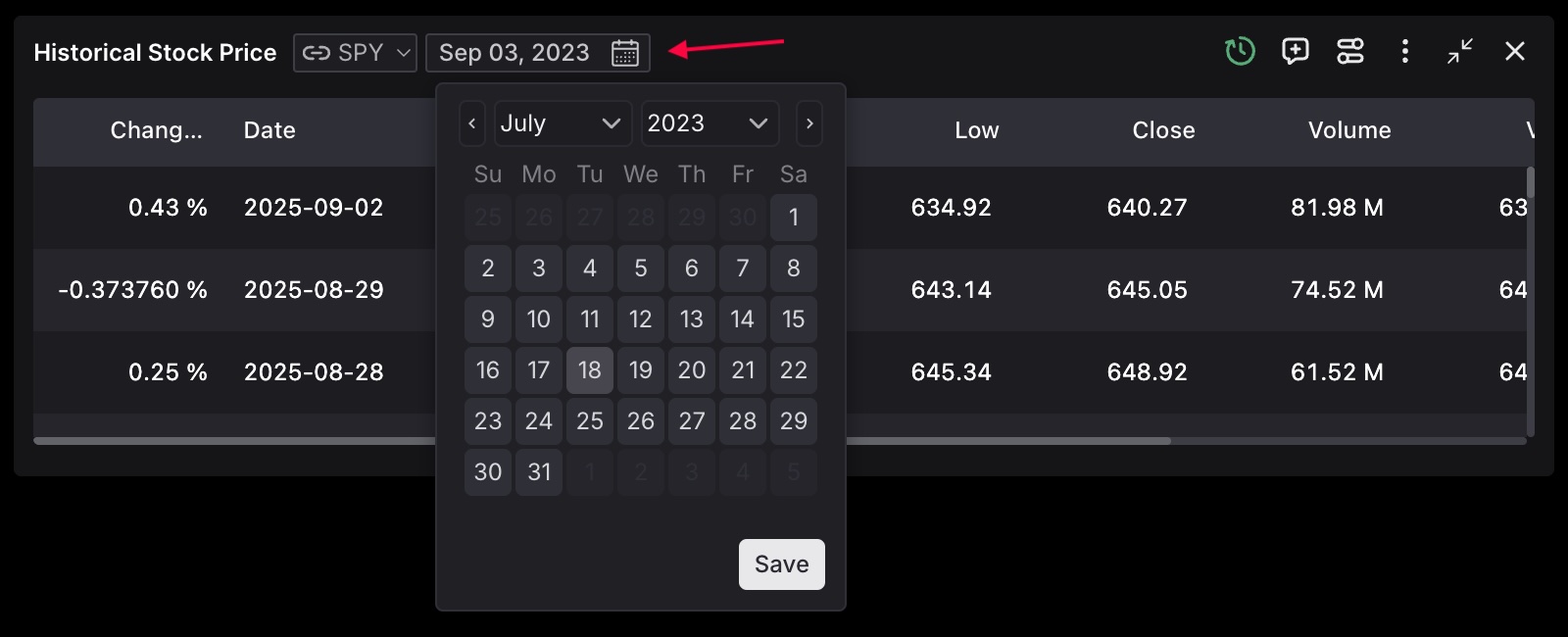
The system understands the parameter schemas of each widget and can intelligently modify settings like date ranges, asset symbols, calculation periods, and analysis parameters to match your specific requirements.
This eliminates the need for manual widget configuration and enables the Copilot to perform iterative analysis with different parameters automatically, such as comparing the same analysis across different time periods or asset classes within a single conversation.
## Structured data
The Copilot excels at processing and analyzing structured financial datasets through multiple specialized capabilities:
- **Table widgets:** A natural language to SQL translation tool allows you to query tabular data from your widgets using plain English. Once your data is loaded in a tabular format, `text2sql` converts your questions into SQL queries under the hood and retrieves specific information from these tables. This allows you to explore and analyze your data through simple natural language questions.
- **Plotly widgets:** Full-featured charting engine that not only generates interactive visualizations but also allows developers to provide the underlying data. The Copilot can extract specific data points, and create derivative analyses from existing visualizations. The AI agent will have better results in case the Plotly widget has raw data associated with it.
## Unstructured data
The Copilot's unstructured data processing capabilities enable comprehensive analysis of diverse document types and media:
- **Document Processing (MD/PDF):** Advanced text extraction and comprehension. The system maintains document structure understanding, preserving context around tables and hierarchical information. This utilizes a sophisticated retrieval system that chunks large documents intelligently, maintains semantic relationships, and provides precise citations. The system can cross-reference information across multiple documents and identify contradictions or supporting evidence.
- **Web search:**: When the user provides a URL to the AI agent, it converts the web page to markdown for it to be parsed by the model - as done above.
- **Image Analysis:** Image processing capabilities for charts, screenshots, financial diagrams, and infographics. The Copilot can extract data from visual representations, understand chart types, and incorporate visual information into broader analytical workflows.
---
---
title: Output Formats
sidebar_position: 12
description: Understanding OpenBB Copilot's output formats and capabilities
keywords:
- output formats
- citations
- create widgets
- user feedback
---
import HeadTitle from '@site/src/components/General/HeadTitle.tsx';
The Copilot's output system delivers comprehensive, contextual responses that synthesize all available information into actionable insights. Each response is structured to provide immediate answers while supporting deeper investigation, combining direct responses with supporting evidence, data visualizations, and clear pathways for follow-up analysis.
## Citations
Comprehensive citation system ensures full traceability and verification of all information sources used in responses. The citation system provides different levels of detail based on source type:
- **Widget citations:** Direct links to widgets with parameters selected. Smart linking enables "Scroll to widget" functionality for existing dashboard widgets. If the widget doesn't exist in the dashboard or has modified parameters the linking will provide a "Add widget to dashboard" options to facilitate workspace workflow.
- **Document citations:** Precise page and section references for PDF documents with automatic highlighting of relevant content areas.
- **Web citations:** Full URL references when web pages are utilized.
## Create widgets from AI output
The widget creation system enables seamless integration of Copilot-generated content into your workspace environment.
This capability transforms temporary conversational outputs into permanent analytical assets that can be referenced, shared, and incorporated into ongoing workflows.
The system supports multiple artifact types including formatted text summaries, interactive data tables with sorting and filtering capabilities, and fully functional charts with preserved interactivity.
- Text widget:
- Table widget:
- Chart widget:
## User feedback loop
The thumbs up and down buttons in the agent output allow the user to provide feedback in terms of their experience with the copilot. That data can be utilized to create a flywheel that allows developers to understand how the AI agent can be improved.
While the thumbs up does not prompt the user for any additional details.
The thumbs down asks for clarification of what went wrong.
---
---
title: Step-by-Step Reasoning
sidebar_position: 11
description: Understanding the transparent reasoning process of OpenBB Copilot
keywords:
- step-by-step reasoning
- planning
- querying widgets
- intermediate artifacts
- transparency
---
import HeadTitle from '@site/src/components/General/HeadTitle.tsx';
Transparency and auditability are fundamental to the OpenBB's Copilot design, with comprehensive step-by-step reasoning displayed for every analysis.
This detailed process visibility enables users to understand the logical flow, verify data sources, identify potential biases, and ensure compliance with analytical standards.
The reasoning display serves both educational and quality assurance purposes, building user confidence while maintaining the ability to audit and reproduce analytical processes.
## Planning
The planning phase demonstrates the Copilot's tactical thinking by decomposing complex analytical requests into logical, sequential sub-tasks. This planning process considers data dependencies, optimal execution order, and resource requirements.
The displayed plan serves as a roadmap that users can review before execution, ensuring alignment with analytical objectives and providing clear expectations for the upcoming analysis workflow.
## Querying widgets
Widget query transparency provides complete visibility into data retrieval operations, including the specific widget accessed, all parameters used, and data source information.
This documentation enables users to understand exactly what data was retrieved, verify parameter settings, and reproduce the analysis independently. The system also displays any parameter modifications made automatically, ensuring full awareness of how the Copilot adapted widget configurations to meet query requirements.
## Intermediate result artifact
Intermediate artifacts provide crucial visibility into the Copilot's analytical methodology by displaying generated code, SQL queries, calculation formulas, and other technical implementations.
These artifacts serve multiple purposes: enabling technical review and validation, supporting learning and knowledge transfer, facilitating debugging and optimization, and ensuring compliance with analytical standards.
Users can examine and reuse these artifacts, treating them as valuable analytical assets beyond their immediate application.
## Artifact generated
Final artifacts represent the culmination of the analytical process, displayed with complete context about their creation methodology. The step-by-step reasoning (status updates) maintain full provenance information, including data sources, transformation steps, and parameter settings used in their generation.
The system preserves the relationship between artifacts and their creation process, enabling users to understand not just what was created, but how and why, supporting both immediate use and future reference or modification.
---
---
title: Generative UI
sidebar_position: 13
description: Understanding the Generative UI capabilities in OpenBB Copilot
keywords:
- generative ui
- widgets
- dynamic creation
- widget parameters
- dashboard manipulation
---
import HeadTitle from '@site/src/components/General/HeadTitle.tsx';
When Generative UI is enabled, the copilot can manipulate widgets directly on your dashboard.
## Update widget parameters
The copilot understands the parameter schemas of each widget and, based on your prompt, can automatically update the parameters across widgets on the dashboard.
## Add widgets from Global Data
If Global Data is enabled and you ask for information that the copilot finds in the widget library, the matching widget is automatically added to your dashboard.
## Add markdown note widget
The copilot can also add text content as a markdown note widget directly on your dashboard.
## Add and edit navigation bar
The copilot can add navigation bars to your dashboard, allowing you to organize widgets into separate tabs for a cleaner and more structured layout.
Beyond adding new tabs, you can also use this feature to edit existing tab names within the navigation bar.
As shown in the examples above, all of these actions can be performed across multiple widgets, navigation bars, or parameters at once. For example, you can ask the copilot to add multiple navigation tabs, each containing a different set of widgets, saving you from making one change at a time.
## Create widgets on the fly
The copilot can take its own outputs, such as tables, charts, or markdown notes, and turn them directly into widgets on your dashboard. Instead of copying results manually, the Generative UI feature adds the copilot's response as a fully interactive widget that lives alongside the rest of your data.
---
---
title: MCP Tools
sidebar_position: 11
description: Model Context Protocol (MCP) tools integration in OpenBB Copilot
keywords:
- MCP
- Model Context Protocol
- tools
- integration
- external tools
---
import HeadTitle from '@site/src/components/General/HeadTitle.tsx';
Model Context Protocol (MCP) integration enables seamless connection to third-party data providers, analytical services, and specialized financial tools without requiring custom development within the OpenBB Workspace.
We use the [use-mcp library](https://github.com/modelcontextprotocol/use-mcp) and support both MCP and SSE protocols, but not STDIO. If you need STDIO support, we recommend exploring solutions like [supergateway](https://github.com/supercorp-ai/supergateway).
### Configure your MCP Servers
To configure your MCP servers, open the MCP server menu from the copilot settings.
From here, click "Manage MCP servers" in the top right to add, edit, or delete MCP servers.
This opens the MCP Servers tab under AI Library, where you can view all available ones and their active or inactive status.
To add a new MCP server, click on the "Add server" button on the top right.
This opens the MCP server configuration dialog. Fill in the details, such as the server name and URL.
If your chosen MCP server requires authentication, similar to the one from Financial Modelling Prep below, click the "Add Custom Header" button in the bottom left and enter the key-value pair.
Once you click "Add", you return to the MCP Servers tab where you can see each server's active status. Click on a connected server to view its discovered tools, and expand any tool to read its description.
### Select MCP Server tools
With the MCP Tools dialog open, you can enable or disable specific MCP tools for Copilot access.
Once an MCP Server is successfully connected, you can:
1. **Select all or none**: toggles every tool from a specific MCP server at once. This is the quickest way to include or exclude an entire server from Copilot's context.
2. **Enable or disable individual tools**: gives you granular control over which tools from a server are available to Copilot.
Enabling all tools does not guarantee Copilot will use every one. It simply makes them available. This granular control helps keep Copilot's context focused on what is most relevant to your needs.
### MCP in action
When you submit a query to Copilot with MCP tools enabled, it can utilize one or more tools based on your prompt, including sequential tool usage when necessary.
For example, accessing OpenBB documentation requires two tools from the same MCP Server. Copilot automatically determines and executes this sequence on your behalf.
### Matching widget to MCP tools
In the reasoning step shown above, you can see when each MCP tool was called. You can also configure a widget with matching metadata. This links the widget to its corresponding MCP tool.
Once a matching widget is set up, a citation marked with an asterisk (\*) appears whenever the MCP tool is used.
Click “Add matching widget to dashboard” to add the widget to your current dashboard with the same parameters applied by Copilot.
---
---
title: Skills
sidebar_position: 14
description: Create and invoke custom AI skills from the OpenBB Copilot chat interface
keywords:
- skills
- custom skills
- AI skills
- skill commands
- reusable prompts
- copilot skills
---
import HeadTitle from '@site/src/components/General/HeadTitle.tsx';
Skills are reusable instruction sets that tell the Copilot how to perform a specific task. Instead of typing the same detailed prompt every time, you can create a skill once and invoke it directly from the chat with a simple command.
For example, the `/openbb-html-report` skill, included by default, generates a full HTML report using data from your dashboard. Inside the skill, you can define report types, suggested structures, writing style, formatting rules, and any other guidelines for the Copilot to follow.
## Creating a skill
To create a new skill, open the Skills tab under AI Library and select the "Add Skill" button in the top right corner. Give your skill a name, a description, and the instructions the Copilot should follow when invoked.
## Using a skill
The Copilot automatically tries to identify a relevant skill before proceeding with a task. Simply mentioning the skill name in your prompt will very likely trigger it.
If you want to force a specific skill, you can type `/skill:skill-name` to tag it directly. This ensures the Copilot invokes that exact skill.
## Viewing all available Skills
You can type `/` in the chat to see the full list of available Skills and MCP tools. You can also hover over it to see the skill description.
---
---
title: Apps
sidebar_position: 4
description: Discover and use OpenBB Apps - pre-configured dashboard templates with integrated AI agents and custom prompts for optimized analytical workflows.
keywords:
- OpenBB Apps
- Dashboard Templates
- AI Agents
- Custom Prompts
- Workflow Optimization
- Financial Analysis
- Portfolio Management
- Market Research
---
import HeadTitle from '@site/src/components/General/HeadTitle.tsx';
# Apps
Apps in OpenBB Workspace are pre-configured dashboard templates that combine widgets, pre-selected AI agents, and custom prompts to create optimized analytical workflows. Unlike individual dashboards that you build from scratch, Apps provide instant access to complete analytical environments designed for specific use cases.
## What are Apps?
Apps function as analytical templates that combine three core components: widgets, prompts, and pre-selected agents.
### Widgets
Apps include curated sets of widgets that are specifically optimized for their analytical workflow. These widgets come with parameter synchronization, automatically linking shared parameters to maintain analytical coherence across all components. The layout design positions and sizes widgets optimally for data visualization and workflow efficiency.
### Prompts
An App can include a custom library of pre-written prompts tailored to its analytical focus. These prompts provide app-aware AI instructions and enable more effective interactions with the specialized agent. E.g.:
- "Please analyze my current portfolio holdings. What are the top 5 positions by weight? Are there any concentration risks I should be aware of?"
- "What are the strongest correlations between my portfolio holdings? Which positions might provide good diversification benefits?"
- "What is my current sector exposure compared to market benchmarks? What are the risks and opportunities in my current allocation?"
These prompts are specifically crafted for the App's analytical context, enabling consistent analysis approaches and more targeted AI assistance.
### Agents
Apps can advertise a particular AI agent that is optimized for its analytical domain. When you click on an App with a specified agent ID, OpenBB Workspace automatically selects the corresponding AI agent.
## How Apps Differ from Dashboards
While dashboards are blank canvases that you customize entirely yourself, Apps provide structured starting points:
| **Apps** | **Dashboards** |
|----------|----------------|
| Pre-configured templates with specific analytical purpose | Blank canvas for custom configuration |
| Widgets with pre-linked parameters | Manual parameter configuration required |
| Come with curated prompt libraries | Start with no predefined prompts |
| Designed by domain experts for specific workflows | General-purpose analytical workspace |
Once you click on an App, it gets immediately rendered as a dashboard that you can also customize.
## Apps Gallery
To see Apps examples that you can do, check [our solutions page](https://openbb.co/solutions).
Here's an example of a Portfolio Risk Management dashboard (converted from an App).
---
---
title: Dashboards Overview
sidebar_position: 0
description: Learn how to create, manage, and share interactive dashboards in OpenBB Workspace
keywords:
- dashboards
- data visualization
- financial analysis
- widgets
- collaboration
- reporting
---
import HeadTitle from '@site/src/components/General/HeadTitle.tsx';
# Dashboards
Dashboards are the interactive environments where you bring financial data to life in OpenBB Workspace. They let you organize multiple widgets into cohesive analytical views, combining visualization and analysis in a flexible layout tailored to your needs.
## What are Dashboards?
Dashboards provide a canvas where you arrange and organize multiple data widgets into cohesive analytical views. They enable you to create custom layouts for different analysis workflows, monitor real-time market data and indicators, share insights with team members, and generate professional reports for documentation and presentations.
The flexible layout system allows you to drag and drop widgets exactly where you need them, resizing and arranging components to emphasize important data and create visual hierarchies that match your analytical priorities. Dashboards refresh automatically so that your analysis always reflects current data conditions. Collaboration is built into the application through dashboard sharing capabilities. Team members can view shared dashboards and create their own copies for further customization while preserving the original configuration.
## Dashboard Folders
Organize your analytical workspace by creating folders in the left sidebar to group related dashboards together. This organizational structure helps maintain clarity and efficiency as your collection of dashboards grows.
To create a new folder, click the "+" icon in the sidebar and select "New Folder". Name your folder descriptively to reflect its contents, such as "Portfolio Analysis", "Market Research", or "Daily Reports". You can then drag and drop existing dashboards into these folders or use the "Move to" option from the dashboard's ellipsis menu.
Folders can be nested to create hierarchical organization structures that match your workflow. For example, you might have a main "Research" folder with subfolders for different sectors or asset classes. This flexibility allows you to maintain a clean, navigable workspace even with dozens or hundreds of dashboards.
## Dashboard Management
Access the management options through the ellipsis menu next to each dashboard in the sidebar:
- **Rename** - Customize dashboard names for better organization
- **Move to** - Organize dashboards into folders for structured workflows
- **Duplicate** - Create copies with all widgets and settings intact
- **Open in new window** - Expand across multiple monitors
- **Share** - Collaborate with team members
- **Delete** - Remove unused dashboards
- **Refresh data** - Update all widget data immediately
## Dashboard Actions
Right-clicking anywhere on the dashboard canvas provides quick access to essential functions:
- **Add widget** - Quickly add a new widget to your dashboard
- **Add data** - Import new data sources directly from the dashboard
- **Refresh data** - Update all widget data with the latest information
- **Refresh backends** - Reload backend connections and configurations (good for development purposes)
- **Export apps.json** - Export your dashboard configuration as an `apps.json`
- **Disable grouping** - Toggle widget grouping functionality
## Creating Your First Dashboard
1. Click the "+" button in the sidebar to create a new dashboard
2. Give your dashboard a descriptive name
3. Add widgets by clicking the "Add Widget" button (or right clicking and selecting "Add Widget")
4. Arrange widgets by dragging them to desired positions
5. Resize widgets to create your optimal layout
6. Add a navigation bar widget so you can separate widgets based on different categories
7. Save your dashboard to preserve your configuration
---
---
title: Excel Add-in Installation
sidebar_position: 14
description: This page presents the general requirements and the steps to install the OpenBB Add-in for Excel. The OpenBB Add-in for Excel is available on Windows, Mac, and Excel on the web. It can be installed by an administrator or by individual users.
keywords:
- Microsoft Excel
- Add-in
---
import HeadTitle from '@site/src/components/General/HeadTitle.tsx';
## Requirements
- The OpenBB Add-in for Excel is available on the following platforms: Windows (Microsoft 365), Mac (Microsoft 365), Excel on the web.
- Access to OpenBB Workspace. If you don't have access you can sign up [here](https://my.openbb.co/app/pro).
## Installation
The OpenBB Add-in for Excel is available on the [Microsoft AppSource](https://appsource.microsoft.com/product/office/wa200006381?tab=overview). It can be installed by an administrator or by individual users.
### Individual user
1. Open Microsoft Excel.
2. Go to **Home** tab.
3. Click in the **Add-ins** button and then **More add-ins**.
4. In the **Office Add-ins** dialog box **STORE** tab, search for **OpenBB** and select the add-in.
5. Click **Add**.
### Administrator
1. Go to Microsoft 365 admin center.
2. Click **Settings** > **Integrated apps**.
3. Click **Get apps**.
4. Search for **OpenBB** and select the add-in.
5. Click **Get in now**.
6. Go through the deployment wizard to complete the installation.
---
---
title: Excel Add-in Overview
sidebar_position: 4
description: The OpenBB Add-in for Excel is a powerful integration that enables direct access to financial data within Microsoft Excel. This seamless integration allows you to create sophisticated financial models and perform comprehensive analysis without leaving your spreadsheet environment.
keywords:
- excel add-in
- financial data integration
- dynamic widgets
- excel formulas
- dashboard export
- financial modeling
---
import HeadTitle from '@site/src/components/General/HeadTitle.tsx';
The OpenBB Add-in for Excel enables enterprise users to access all available data from their OpenBB Workspace through interactive widgets.
## OpenBB Widgets
Enterprise users with access to the OpenBB Add-in for Excel can utilize the **Excel formula** option in their widget settings to access widget data directly in Excel.
### Dynamic Widgets with Implicit Parameters
When accessing the **Excel formula** dropdown, users will see the following interface:
The interface displays the widget name, backend information, and the corresponding Excel formula. For example:
```excel
=OBB.WIDGET("DTCC Trades","swap_rate_levels_custom_obb",{"currency","USD";"swap_type","OIS";"period","1y"})
```
Note: The formula is displayed with indentation for better readability, but when copied to the clipboard, it will be formatted as a single line for Excel compatibility.
Here's how it appears in Excel:
### Dynamic Widgets with Explicit Parameters
Users can enable an alternative mode by selecting the "with explicit parameters" checkbox. This mode separates the parameters from the formula, creating a more flexible widget-like experience in Excel.
Implementation example:
Note: The formula and parameters are initially set to cell A1, but users can modify the formula parameters to reference different cell ranges based on their specific needs.
## Dashboard to Excel Export
Users can export entire dashboard data to Excel using the left sidebar export functionality.
Three export options are available:
The first worksheet of the exported Excel file contains comprehensive dashboard information:
This includes:
- Widget metadata
- Parameter configurations
- Dashboard name
- Export timestamp
### Static Data Export
When exporting in static data mode, a progress dialog appears to indicate the export status:
Each OpenBB widget is exported to a separate worksheet, containing both the parameters used and the corresponding data:
### Dynamic Export
For dynamic exports (both implicit and explicit parameter modes), the exported Excel file will utilize the OpenBB Add-in formulas as described in the previous sections.
---
---
title: OBB.GET
sidebar_position: 15
description: Extract and slice specific data from Excel ranges using labels or indices
keywords:
- Microsoft Excel
- Add-in
- Advanced
- Slice data
- Data slicer
- Get specific fields
- Data extraction
- Excel ranges
---
import HeadTitle from '@site/src/components/General/HeadTitle.tsx';
The `OBB.GET` function is a powerful data extraction tool that allows you to precisely slice and extract specific portions of data from any array or range in Excel. It's particularly useful when working with data returned by other OpenBB functions, enabling you to focus on exactly the information you need.
## Key Features
- Extract specific rows, columns, or both from any data range
- Use either labels (like dates or column names) or numeric indices
- Support for single values, ranges, and arrays
- Negative indexing for accessing data from the end
- Flexible input formats for dates and text
## Syntax
```excel
=OBB.GET(array, [rows], [columns])
```
### Parameters
| Parameter | Type | Description | Required | Examples |
|-----------|------|-------------|----------|----------|
| array | Any | The source data range to slice. This can be any array, including results from other OBB functions. | Yes | `A1:D3`, `OBB.WIDGET(...)` |
| rows | Any | Row selection using labels or indices. Can be a single value, range, or array. | No | `"2023/09/30"`, `2`, `{1,3}`, `-1` |
| columns | Any | Column selection using labels or indices. Can be a single value, range, or array. | No | `"revenue"`, `3`, `{"A","C"}` |
### Return Value
Returns a subset of the input array based on the specified row and column selections. The return type matches the input data type.
## Examples
Suppose you have the following financial data in cells A1:D3:
| period_ending | revenue | cost_of_revenue | gross_profit |
|---------------|--------------------|--------------------|--------------------|
| 2023/09/30 | 383 285 000 000.00 | 214 137 000 000.00 | 169 148 000 000.00 |
| 2022/09/24 | 394 328 000 000.00 | 223 546 000 000.00 | 170 782 000 000.00 |
| 2021/09/25 | 365 817 000 000.00 | 212 981 000 000.00 | 152 836 000 000.00 |
### Common Use Cases
1. **Get a Single Row by Date**
```excel
=OBB.GET(A1:D3, "2023/09/30")
```
Returns the entire row for September 30, 2023.
2. **Get a Single Column by Name**
```excel
=OBB.GET(A1:D3, , "revenue")
```
Returns all revenue values.
3. **Get a Single Cell by Index**
```excel
=OBB.GET(A1:D3, 2, 3)
```
Returns the value at row 2, column 3 (cost_of_revenue for 2022/09/24).
4. **Get Multiple Rows and Columns**
```excel
=OBB.GET(A1:D3, {"2023/09/30", "2021/09/25"}, {"cost_of_revenue", "gross_profit"})
```
Returns a 2x2 array with cost_of_revenue and gross_profit for 2023 and 2021.
5. **Using Negative Indices**
```excel
=OBB.GET(A1:D3, -1, -2)
```
Returns the last row and second-to-last column (gross_profit for 2021/09/25).
### Advanced Usage
1. **Using Cell References for Selections**
```excel
=OBB.GET(A1:D3, E1:E2, F1:F2)
```
Where E1:E2 contains dates and F1:F2 contains column names.
2. **Combining with Other OBB Functions**
```excel
=OBB.GET(OBB.WIDGET("My backend", "income_statement", {"ticker","AAPL";"year","2023"}), "2023/09/30", "revenue")
```
Directly extracts revenue from the income statement widget result.
## Best Practices
1. **Date Formats**
- Use `YYYY/MM/DD` format for date labels
- Use Excel's DATE function: `DATE(2023,9,30)`
- Ensure dates match exactly with the data
2. **Column Names**
- Use exact column names as they appear in the data
- Case-sensitive matching
- Include underscores and spaces exactly as in the data
3. **Performance**
- For large datasets, prefer using indices over labels
- Use cell references for repeated selections
- Avoid unnecessary array operations
## Troubleshooting
| Issue | Solution |
|-------|----------|
| #N/A error | Verify that the row/column labels exist in the data |
| #VALUE! error | Check that the array parameter is valid |
| Empty result | Confirm that the selection criteria match the data format |
| Date not found | Ensure date format matches exactly (YYYY/MM/DD) |
## Notes
- When using date labels, ensure consistent date formatting across your workbook
- Column names are case-sensitive
- The function preserves the original data types of the selected cells
- Empty or invalid selections will return appropriate error values
- For best performance with large datasets, consider using numeric indices instead of labels
---
---
title: OBB.WIDGET
sidebar_position: 16
description: This page provides an overview of the basics of the OpenBB add-in for Microsoft Excel. It covers the basic usage of the add-in and the available functions.
keywords:
- Microsoft Excel
- Add-in
- Basics
- Examples
- Functions
---
import HeadTitle from '@site/src/components/General/HeadTitle.tsx';
This is the most important formula that is available, as it allows you to access any dataset available from the OpenBB workspace.
:::info
- Make sure your backend's CORS settings allow requests coming from [https://excel.openbb.co](https://excel.openbb.co).
- Requests via HTTP will be blocked by Excel. So if you are using the Add-in for Excel on Mac or Office on the web with Safari browser you need to run your backend via HTTPS.
:::
It has the following format:
```excel
=OBB.WIDGET(, or , )
```
Where parameters, shows up as `{"param1","value1";"param2","value2"; ...}`.
Here are a few examples:
```excel
=OBB.WIDGET("DTCC Trades","swap_rate_levels_custom_obb",{"currency","USD";"swap_type","OIS";"period","1y"})
```
```excel
=OBB.WIDGET("DTCC Trades","Swap Trades",{"currency","USD";"date","2025-04-15";"cleared_only","true";"include_starting","false"})
```
```excel
=OBB.WIDGET("OpenBB Platform","economy_pce_fred_obb",{"category","personal_income";"provider","fred"})
```
```excel
=OBB.WIDGET("Custom Backend","Portugal CPI since 2000")
```
### Explicit parameters
The easiest way to pass optional parameters is to write them into cells and reference them in the function.
For example,
```excel
=OBB.WIDGET("DTCC Trades","swap_rate_levels_custom_obb",{"currency","USD";"swap_type","OIS";"period","1y"})
```
can be rewritten as:
```excel
=OBB.WIDGET("DTCC Trades","swap_rate_levels_custom_obb",A1:B3)
```
where:
- A1 contains "currency" and B1 "USD"
- A2 contains "swap_type" and B2 "OIS"
- A3 contains "period" and B3 "1y"
---
---
title: Troubleshooting
sidebar_position: 17
description: Common issues and solutions for the OpenBB Add-in for Excel, including error handling, installation problems, and connection troubleshooting.
keywords:
- Microsoft Excel
- Excel Add-in
- Troubleshooting
- Error Handling
- Permission Error
- Connection Issues
- Duplicate Ribbon
- Excel Help
- OpenBB Support
---
import HeadTitle from "@site/src/components/General/HeadTitle.tsx";
If you face specific issues while using the add-in and the solutions provided here don't resolve them, don't hesitate to reach out to us for further assistance. You can contact us through [support@openbb.finance](mailto:support@openbb.finance).
### #VALUE! Error
If you encounter a '#VALUE!' error when running an OBB function, first verify that you are using the correct syntax. Either [OBB.WIDGET](obb-widget) or [OBB.GET](obb-get).
- If you have just opened your workbook and see this error, try recalculating the cell - this is a known issue with Excel add-ins that sometimes requires a refresh.
### Add-in Not Available
If the OBB functions are not appearing after installation, try these troubleshooting steps:
- Verify that the OpenBB Add-in appears in your Excel ribbon
- If not visible, go to **Insert** > **Get Add-ins** > **My Add-ins**, hover over the OpenBB add-in, click '...', remove it, and reinstall
- If the issue persists, restart your computer or [clear the Office cache](https://learn.microsoft.com/en-us/office/dev/add-ins/testing/clear-cache)
### Permission Error
If you see the message "You don't have permission to use this add-in. Contact your system administrator to request access", try these solutions:
- Confirm that your account has the necessary permissions to use the add-in
- If permissions are correct, try restarting your computer or [clearing the Office cache](https://learn.microsoft.com/en-us/office/dev/add-ins/testing/clear-cache)
### Duplicate Ribbon Tab
If you notice duplicate 'OpenBB' tabs in the ribbon after editing a workbook in both browser and desktop versions, this is a known Excel issue. While there's no permanent fix, you can resolve it using these workarounds:
- **Windows users**: Go to File > Info > Inspect Workbook > Check 'Task Pane Add-ins' > Click 'OK'. This will remove the duplicate add-in reference created by Excel in the browser
- **Mac users**:
1. Rename your file from .xlsx to .zip
2. Use WinZip for Mac to unzip the file (the default unzip tool won't work for this)
3. Delete the webextension1.xml file from the webextensions folder
4. Rename the file back to .xlsx
### Connection Issues
If you're unable to retrieve data through OBB.WIDGET from your backend, check these common issues:
- Ensure your backend server is running and accessible from your network
- For Mac or Safari users: Verify that your backend is using HTTPS with a valid SSL certificate
---
---
title: AI-generated Widgets
sidebar_position: 5
description: Learn how to use AI agent outputs as widgets in your OpenBB dashboard
keywords:
- AI
- Widgets
- Dashboard
- Agent Outputs
- Persistence
---
import HeadTitle from '@site/src/components/General/HeadTitle.tsx';
OpenBB's AI agents can generate various types of outputs such as text, tables, and charts. These outputs can be saved as widgets in your dashboard for future reference and analysis.
To save an AI agent's output as a widget:
1. Run your desired AI analysis command
2. When the output is displayed, look for the "Create widget from X" button
3. Click the button to add the output to your dashboard
4. Edit the name and description that have been selected based on AI
5. Making it persistent
The widget will be only accessible for this session. To ensure your AI-generated widgets persist across sessions:
1. Open the widget settings by clicking the gear icon on the widget
2. Edit the widget metadata: Name, description, category, subcategory and source
3. Save the changes
The widget will now persist in your dashboard and can be accessed in future sessions.
---
---
title: Core Widgets
sidebar_position: 2
description: Essential widgets that form the foundation of every OpenBB dashboard - navigation, notes, data integration, and productivity tools.
keywords:
- core widgets
- dashboard essentials
- navigation widgets
- note widgets
- API integration
- RSS feeds
- productivity tools
- data connectors
---
import HeadTitle from '@site/src/components/General/HeadTitle.tsx';
OpenBB's core widgets form the foundation of your financial analysis workspace. These essential components enable you to organize information, capture insights, and integrate external data sources within a unified interface, creating a powerful environment for financial analysis and decision-making.
## Navigation Bar
The Navigation Bar serves as your dashboard's command center, providing tab-based organization for complex information. This powerful tool enables you to:
- Create and manage multiple tabs for different analysis contexts
- Organize information into logical sections
- Separate research from analysis
- Track different market sectors
- Monitor various portfolios
## Note Widget
The Note widget transforms your dashboard into a dynamic research canvas, enabling you to capture and organize your insights effectively. This versatile tool allows you to:
- Document real-time insights during market analysis
- Record key findings and observations
- Store and organize prompts for AI-powered analysis
- Create a searchable knowledge base of your research
## Website and Iframe Widget
The Website widget brings external data sources directly into your dashboard, creating a unified research environment. This powerful integration enables you to:
- Access and interact with external websites without leaving OpenBB
- Compare data from multiple sources side by side
- Create a comprehensive research workspace
- Maintain context while analyzing multiple data sources
> **Note:** Some websites may restrict embedding. OpenBB automatically checks and only displays websites that permit embedding.
## RSS and Atom Feeds Widget
The RSS Feeds widget serves as your personal news aggregator within OpenBB, keeping you informed with market-moving information. This widget supports both RSS and Atom feed formats. This essential tool provides:
- Curated financial news from top sources
- Customizable news feed preferences
- Real-time market updates
- Integrated news analysis within your research workflow
- Support for both RSS (e.g. https://feeds.bloomberg.com/markets/news.rss) and Atom feed formats (e.g. https://karpathy.bearblog.dev/feed/)
## Clock Widget
The Clock widget helps you track global market hours and coordinate across time zones, essential for international trading and analysis. This tool is particularly valuable for:
- Monitoring market open/close times across different regions
- Coordinating with international teams
- Planning trades across multiple time zones
- Staying aware of global market events
---
---
title: Interacting With Data
sidebar_position: 3
description: Learn how to work with tables and charts in OpenBB Workspace, including parameter selection and synchronization across widgets.
keywords:
- data interaction
- table widgets
- chart widgets
- parameter linking
- AgGrid
- Plotly
- TradingView
- data visualization
---
import HeadTitle from '@site/src/components/General/HeadTitle.tsx';
OpenBB Workspace provides powerful tools for analysts to explore and visualize financial data through interactive tables and charts.
## Working With Parameters
Parameters are the foundation of interactive analysis in OpenBB Workspace, allowing you to customize what data your widgets display.
Input parameters let you focus your analysis by setting date ranges, selecting specific tickers, or applying filters that narrow down the dataset to exactly what you need.
### Grouping Widgets Through Parameter Linking
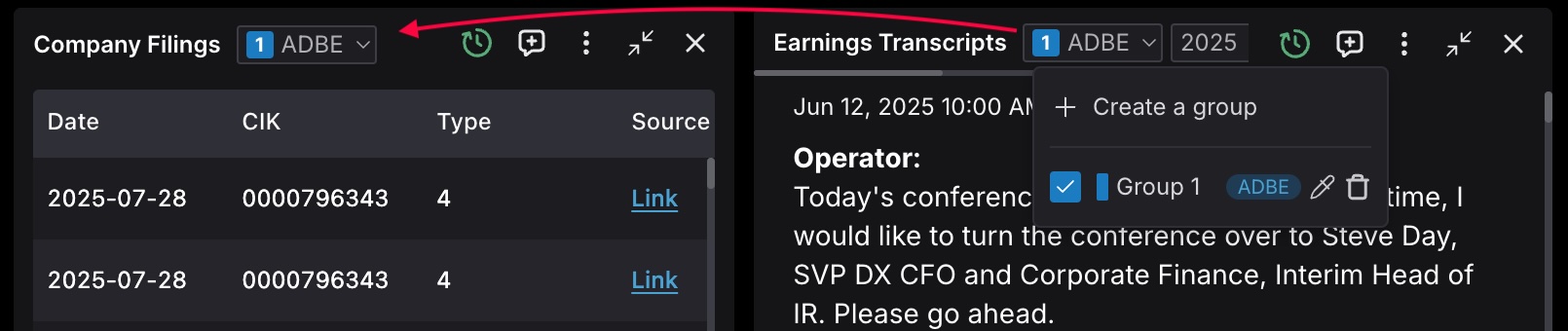
A powerful feature of parameters is their ability to be linked across multiple widgets. When widgets share parameter names and options, changing a value in one widget automatically updates all linked widgets, creating a cohesive analytical experience.
For example, when you change a ticker symbol or date range in one widget, all widgets in the same group that use that parameter will update automatically. This synchronization ensures your entire analysis remains focused on the same context without manual intervention.
This capability transforms your dashboard from a collection of isolated visualizations into an intelligent, responsive workspace where your analytical focus drives all data presentation.
## Interactive Tables
Interactive tables provide powerful data manipulation capabilities for detailed financial analysis. These tables have professional-grade features that allow you to explore and analyze large datasets.
### Key Features
- **Column Management**: Resize and reorder to focus on relevant data
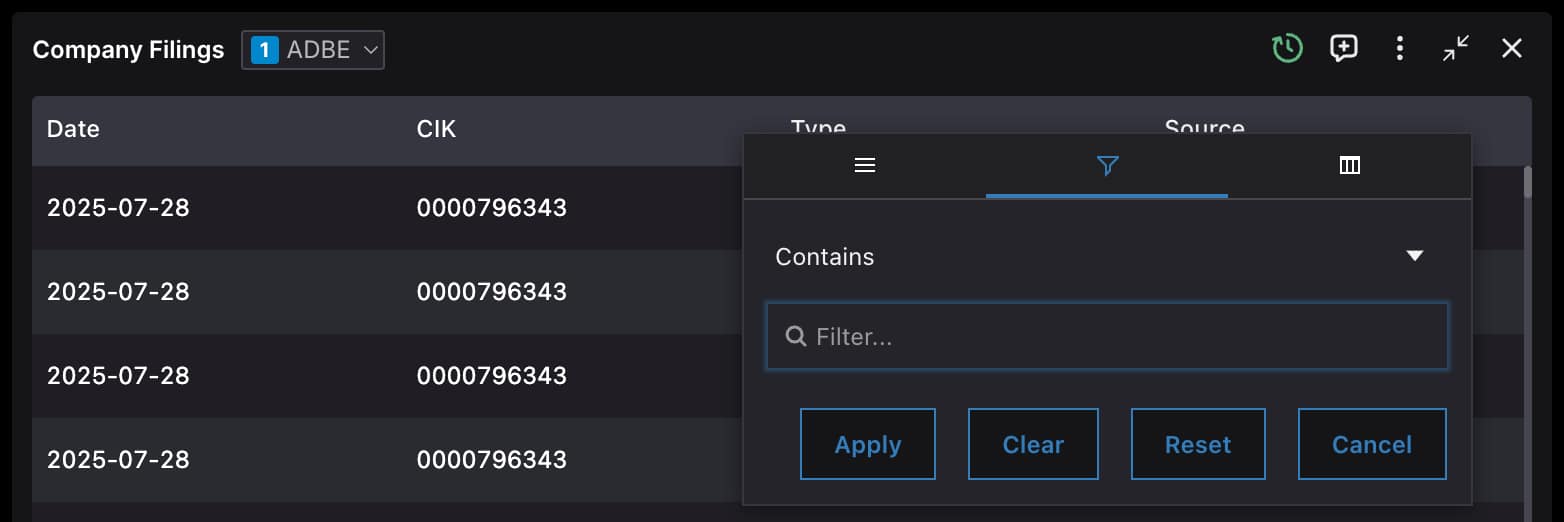
- **Sorting and filtering**: Click column headers to sort and filter data
- **Data Selection**: Select specific data points or ranges to generate visualizations
- **Sparklines**: Visualize trends directly within table cells using line, area, and bar sparklines
- **Hover Cards**: Access additional context and detailed information on specific data points
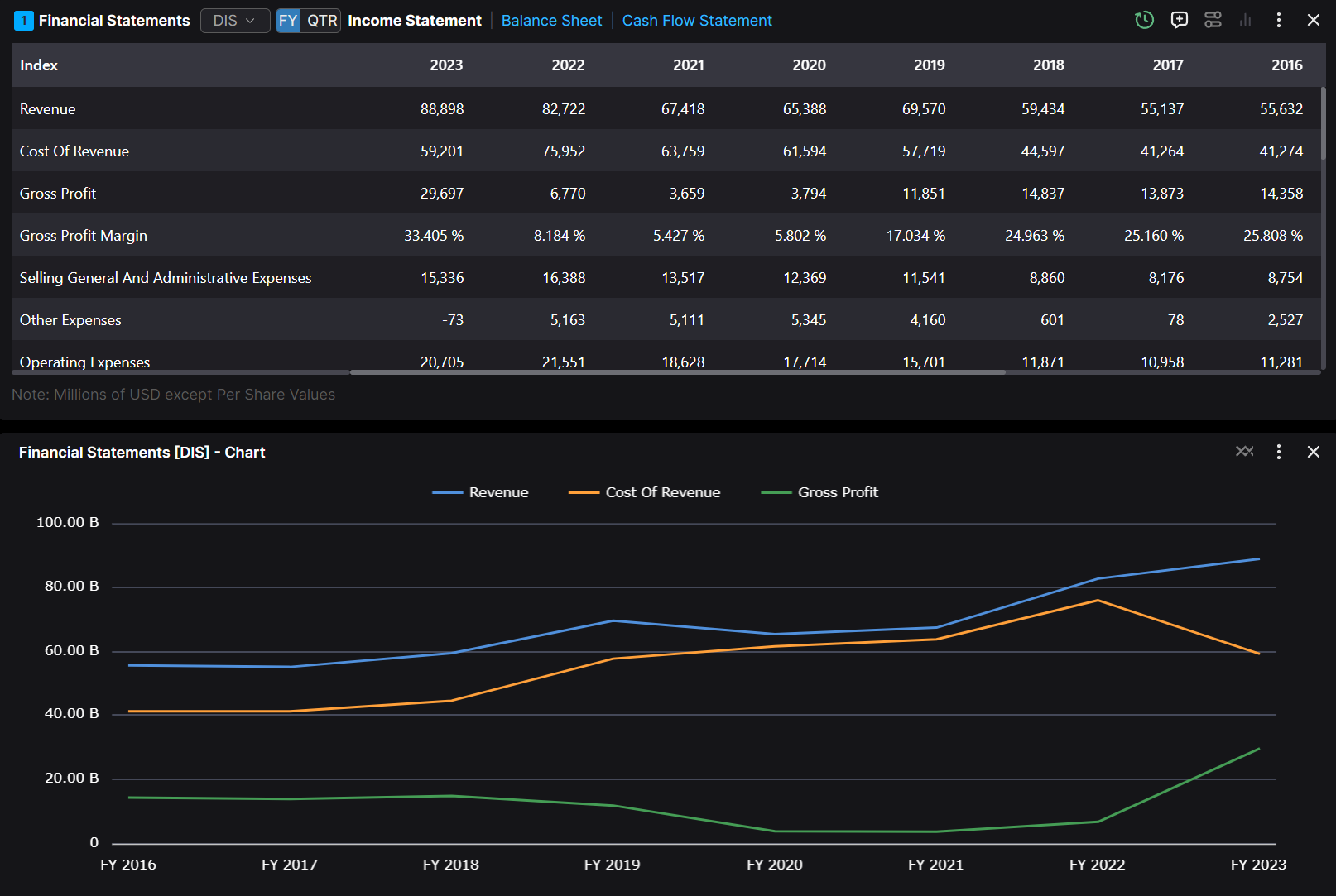
- **Chart-view Mode**: Transform the entire table into a dynamic chart with a single click
### Table to Chart Conversion
The widget interface supports conversion between table and chart views, enabling you to switch between detailed data exploration and visual trend analysis as needed.
1. **Selection-based Charting**: Select desired data points, choose a chart type, and generate visualizations instantly
2. **Chart-view Mode**: Access the "Chart-view" icon to transform the entire table into a dynamic chart
### Chart Customization
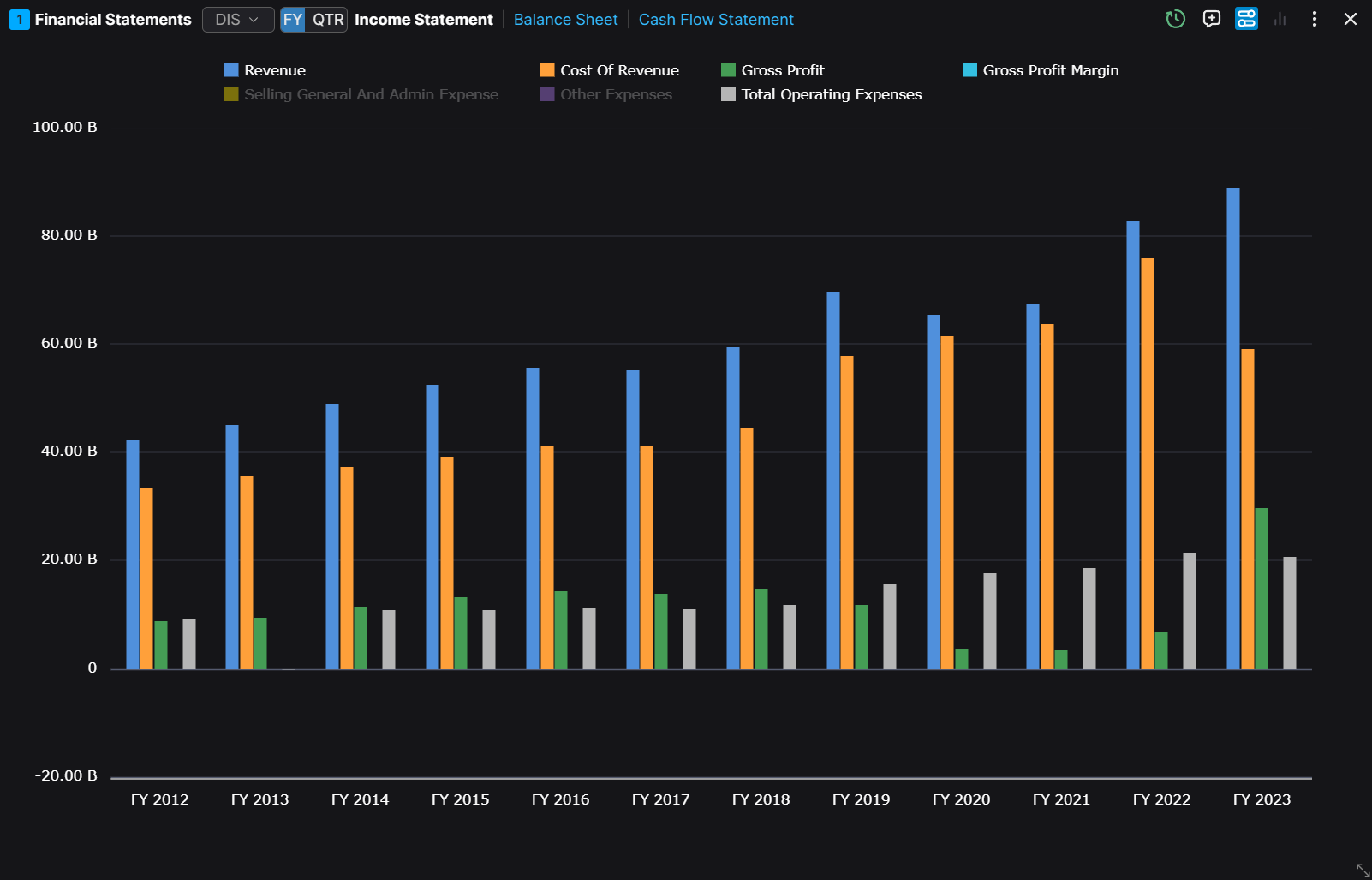
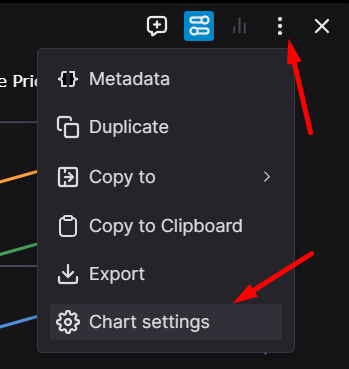
You can change the chart settings by clicking on the three dots and then the `Chart Settings` in the dropdown menu.
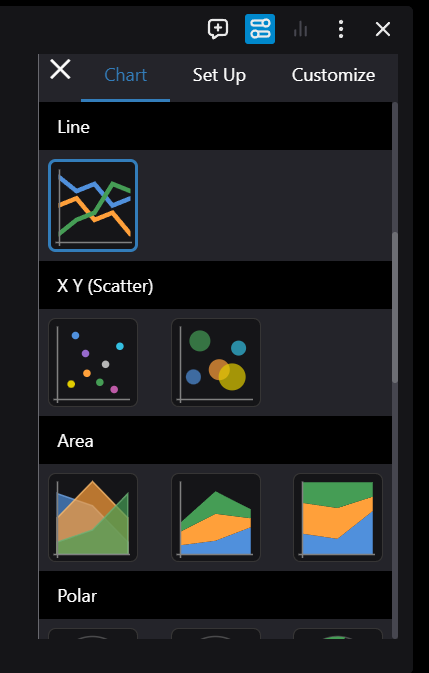
Here you can change the chart type, the chart settings, and some other settings in each tab.
The customization interface provides three main configuration areas:
- **Visual Customization**: Modify chart appearance, including titles, colors, and styling elements.
- **Data Series Management**: Control the visibility and configuration of data series.
- **Chart Type Selection**: Choose from various chart types to best represent your data.
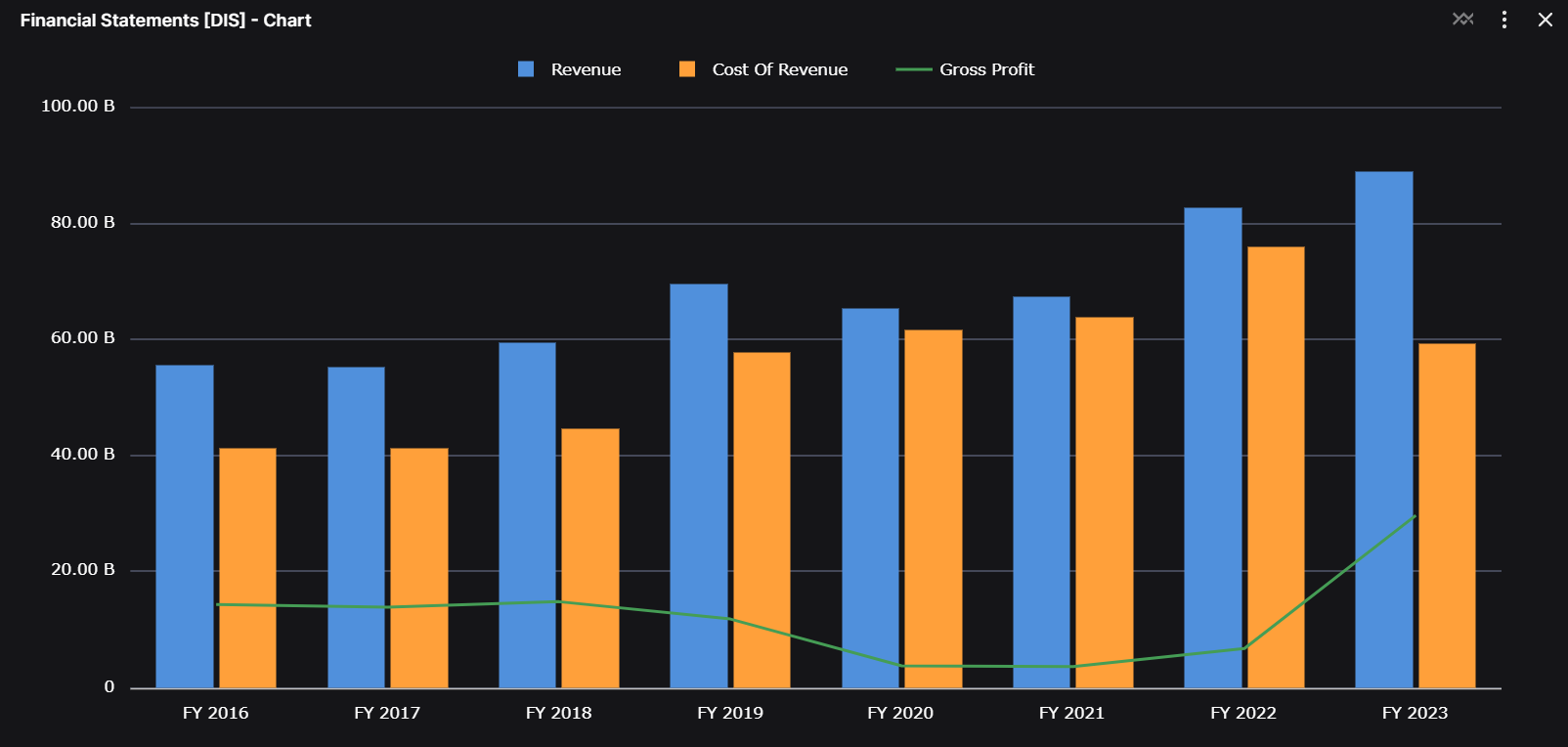
Example of a customized chart with multiple visualization types:
The final example demonstrates how to combine different chart types for enhanced data visualization.
## Plotly Charts
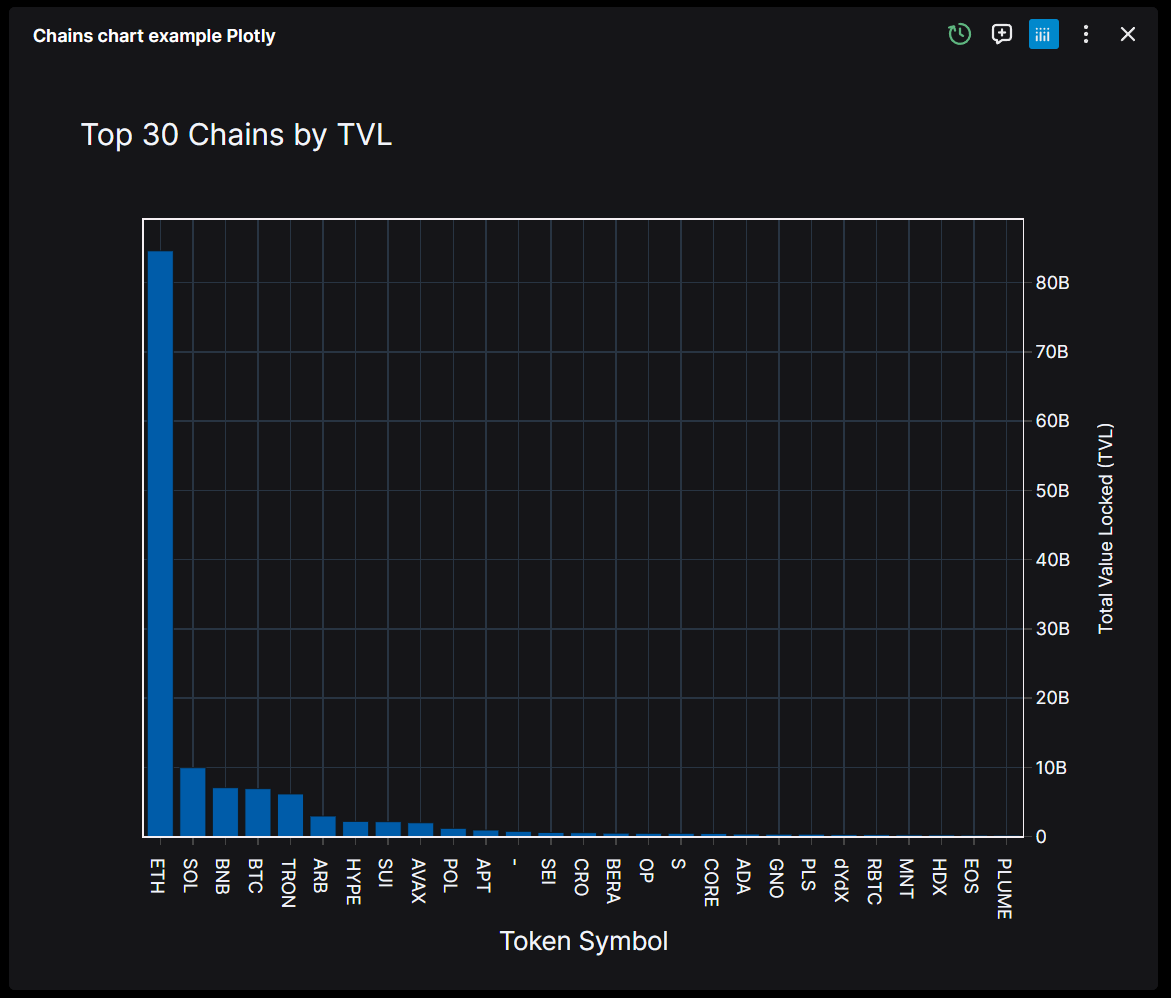
Plotly charts give your developers complete freedom to create the right visualization for your data, whether you need a simple line chart or a complex 3D plot. The integration is straightforward, with charts automatically adapting to your workspace theme in both light and dark modes.
As a user you will find everything you need for in-depth analysis: interactive toolbars with drawing tools and annotations.
### Raw Data Toggle
The raw data toggle is particularly useful for AI-assisted analysis. With a simple switch in the top-right corner, you can move between the visual representation and the underlying dataset. This gives the AI copilot direct access to the numbers behind the chart while keeping your dashboard clean and focused on insights.
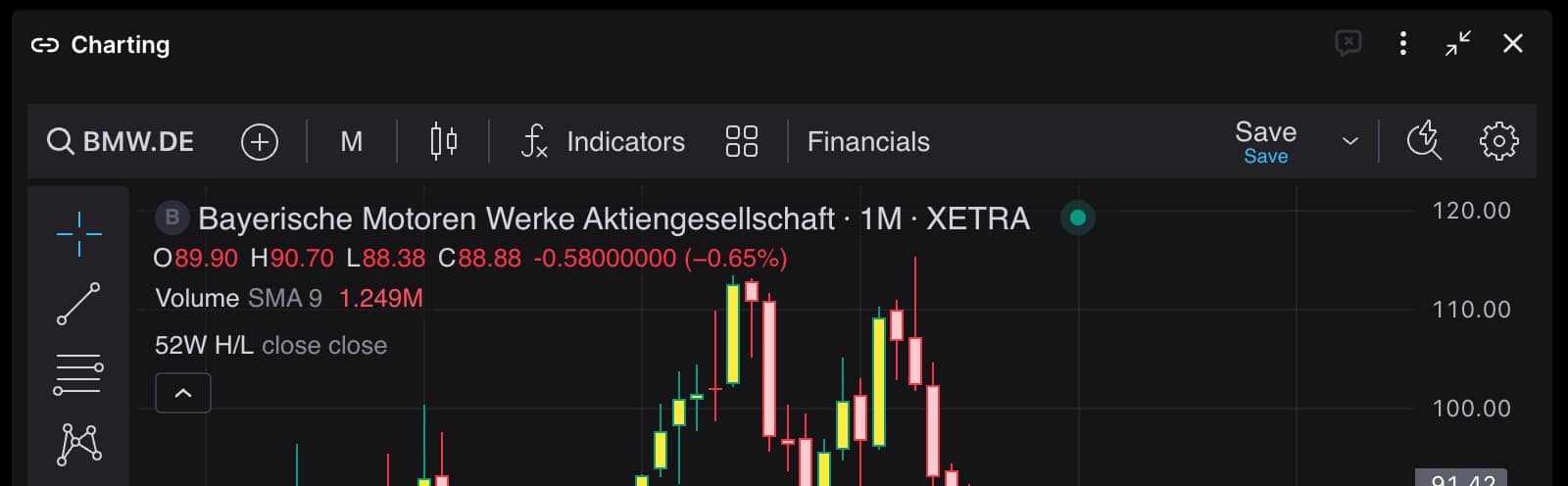
## TradingView Charts
TradingView charts bring professional trading visualization tools directly into your workspace, using the same interface that traders around the world rely on for their analysis.
You get the full TradingView experience: real-time and historical market data, technical indicators, and all the drawing tools you need for your analysis. Whether you're drawing trend lines, applying Fibonacci retracement levels, or highlighting chart patterns, everything works just like it does in the native TradingView platform. The ability to switch between timeframes makes it easy to zoom in on short-term movements or step back for a broader market view.
---
---
title: Overview
sidebar_position: 1
description: Understanding widgets - the building blocks of OpenBB Workspace dashboards that transform raw data into actionable insights.
keywords:
- widgets
- data visualization
- dashboard components
- financial widgets
- widget metadata
- widget parameters
---
import HeadTitle from '@site/src/components/General/HeadTitle.tsx';
Widgets are the fundamental building blocks of OpenBB Workspace, transforming raw financial data into interactive, visual components that drive your analysis. Each widget is a self-contained unit that combines data, visualization, and interactivity into a powerful analytical tool.
## What is a Widget?
A widget is more than just a chart or table – it's a data container designed to answer a specific analytical question.
## Anatomy of a Widget
Every widget in OpenBB Workspace consists of four essential components that work together:
### 1. Data Source
The foundation of every widget – where the information comes from. This could be: data feeds, databases, custom data from your organization, static files you've uploaded and more.
### 2. Metadata Layer
The information that makes widgets discoverable and usable:
- **Title**: Clear identification of what the widget shows
- **Description**: Context about the data and its purpose
- **Category**: Logical grouping (e.g., Equity, Fixed Income, Macro)
- **Sub-category**: Further classification for better navigation
- **Source**: Attribution and data provenance
### 3. Visual Presentation
How the data comes to life on your dashboard:
- **Tables**: For detailed, sortable and filterable data exploration
- **Charts**: For visual analysis and trend/pattern recognition
- **PDFs**: For reports and static documents
- **Custom Views**: Tailored to specific data types
### 4. Parameters
Interactive elements that customize what data your widget displays. Input parameters allow you to focus your analysis by setting date ranges, selecting specific tickers, or applying filters that narrow down the dataset to exactly what you need.
Parameters that are linked via the grouping mechanism create synchronization across multiple widgets on your dashboard. When you change a ticker symbol or date range in one widget, all widgets in the group sharing that parameter will update automatically. This creates a cohesive experience where your dashboard responds automatically to your actions.
### 5. Widget Controls
Widget controls are specific to each widget type. They provide specialized functionality that matches the data and visualization format. These widget-specific controls give you powerful ways to interact with and manipulate your data directly within each widget.
#### Universal controls
Universal controls available across most widget types include refresh settings for managing data update frequency, export options for saving data in formats like CSV, JSON, and Excel, and view toggles that let you switch between visual representations and raw data tables.
#### Table widgets
Table widgets powered offer advanced data manipulation capabilities including column sorting, filtering, and grouping functions that let you slice and dice your data without leaving the widget. You can create custom filters, sort by multiple columns, and group data by categories to uncover patterns and insights within large datasets.
Table widgets also generate Excel Add-in formulas automatically, allowing you to pull the same data directly into spreadsheets for hybrid analysis workflows.
#### Chart widgets
Chart widgets, particularly those using TradingView integration, provide sophisticated analytical tools including technical indicator overlays, and timeframe adjustments. Plotly charts allow to render any figure that is supported by Plotly.
## How Widgets Work
Widgets operate on a simple yet powerful principle: they connect to data sources, apply your configurations, and render the results in real-time. Here's their data flow:
1. **Request**: Widget queries the data source with your parameters
2. **Processing**: Data sources prepare the data
3. **Delivery**: Formatted data returns to the widget
4. **Rendering**: Widget displays the information visually
5. **Interaction**: You can interact with the data in the widget
Beyond this data flow, widgets exhibit two powerful features that transform them from simple displays into intelligent analytical tools.
**Parameter linking** creates synchronization across your dashboard. When widgets share parameter names, changing a ticker symbol or date range in one widget automatically updates all linked widgets.
**AI-readable metadata** exposes the widget metadata to AI agents so that they can interpret and act upon it. Unlike screen scraping, AI agents understand the underlying data source, parameter structure, and query methods for each widget. This understanding allows agents to dynamically request data with different parameters to answer your specific questions, accessing source datasets behind each widget rather than only the information that is currently displayed.
### Controlling AI Visibility
Widgets support an optional `ai` configuration flag that controls whether a widget is exposed to AI agents.
- When `ai` is set to `true`, the widget’s metadata and parameters can be accessed by AI agents to dynamically request and analyze data.
- When `ai` is set to `false`, the widget will not be made available to AI workflows. This is useful for restricting access to sensitive, experimental, or internal-only widgets.
Example configuration:
```json
{
"paramName": "symbol",
"type": "endpoint",
"label": "Select Symbol",
"optionsEndpoint": "/stock_search_options",
"ai": false
}
```
This flag allows developers and analysts to explicitly control which widgets participate in AI-driven workflows within OpenBB Workspace.
## Your Widget Library
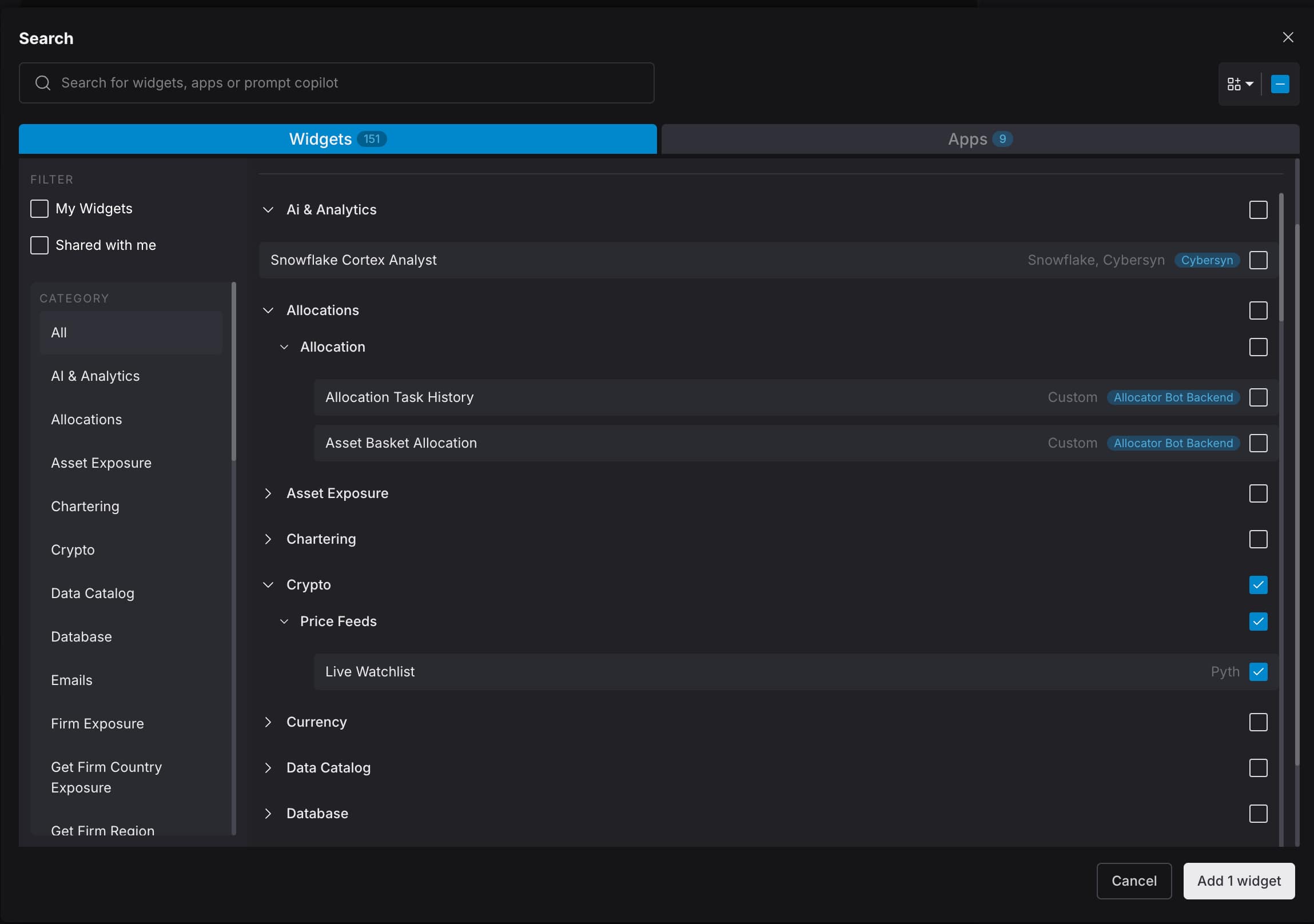
OpenBB Workspace enables you to build a scalable library of widgets, instantly searchable and logically categorized to match your analytical workflow. This library centralizes your financial data visualizations, making them easily discoverable through search and category navigation.
Bring up the Widget Library search interface by either:
- Clicking the search field in the top left of the Workspace UI
- Pressing `Cmd+K` (Mac) or `Ctrl+K` (Windows) keyboard shortcut
- Clicking the plus `+` icon in the bottom right of any dashboard
- Clicking the "Add Widget" button on any dashboard
Widgets are grouped in ways that reflect real-world analytical workflows. Whether analyzing portfolios, tracking macro trends, or researching equities, relevant widgets are organized for quick access.
Example: Searching for an equity widget, for example, gives you immediate access to price data, fundamentals, options chains, and analyst estimates. For portfolio analysis, position tracking, performance attribution, and risk metrics are grouped together.
By organizing widgets through consistent metadata and categories, OpenBB Workspace reduces the time spent searching for data, allowing you to focus on analysis. The system supports new data sources and custom integrations while maintaining a clear structure that keeps thousands of widgets manageable and accessible.
---
---
title: Sandbox Widgets
sidebar_position: 6
description: Explore the pre-built sandbox widgets available when you first log into OpenBB Workspace.
keywords:
- sandbox widgets
- demo widgets
- demonstration
- application showcase
- getting started
---
import HeadTitle from '@site/src/components/General/HeadTitle.tsx';
When you first log into OpenBB Workspace on [`pro.openbb.co`](https://pro.openbb.co), you'll find a collection of pre-built widgets already available in your workspace. These sandbox widgets showcase what OpenBB can do as an analytical application.
To view them, navigate to the Apps tab and select OpenBB Sandbox.
Once you open the app, you can see all the sandbox widgets provided by OpenBB.
#### Purpose
These widgets provide immediate examples of OpenBB's analytical capabilities without requiring any setup or configuration. They demonstrate the application's potential through realistic financial data scenarios and interactive functionality, giving you a clear understanding of what's possible within the workspace.
#### What they demonstrate
The sandbox widgets highlight OpenBB's core strengths in financial analysis, data visualization, and workflow integration. They showcase different widget types, parameter linking, AI agent integration, and the overall experience you can expect when building your own dashboards.
#### Keep in mind
These widgets are for demonstration purposes only. They illustrate the application's capabilities and provide inspiration for your own workflows, but they are not intended as production tools for financial analysis or decision-making.
The real value of OpenBB Workspace comes from connecting your own data sources, building custom widgets tailored to your specific needs, and creating dashboards that reflect your research methodology and investment process.
---
---
title: Static Files
sidebar_position: 4
description: Upload and integrate your own files into OpenBB Workspace - transform spreadsheets, PDFs, and images into interactive dashboard widgets.
keywords:
- file upload
- static files
- custom data
- spreadsheet widgets
- PDF widgets
- image widgets
- proprietary data
- file integration
---
import HeadTitle from '@site/src/components/General/HeadTitle.tsx';
OpenBB provides an intuitive way to import data through file uploads. This feature supports a wide range of file formats, allowing you to integrate both structured and unstructured data into your analysis workflow.
## File Upload Process
The file upload interface is straightforward. You can either drag and drop them onto the dashboard or select files individually in the Add Data pop-up window. This flexibility supports importing multiple files simultaneously, regardless of their format.
To ensure optimal performance for all application users, OpenBB maintains a 25MB file size limit.
### Metadata Management
Upon uploading your files, OpenBB automatically generates initial metadata for the widget, including the name and description. You might want to adjust these fields to better reflect the nuances of your data. Note that Enterprise customers can customize this automatic metadata generation feature.
### Accessing Uploaded Data
Once you've uploaded and configured your data, you can access the resulting widget through two primary methods:
1. The Search feature, which provides quick access to all your widgets
2. The Data Connector page, which offers a comprehensive view of your data sources
## Supported File Types
OpenBB supports two main categories of data files, each with specific use cases and visualization capabilities.
### Structured Data
Structured data files, including XLSX, JSON, and CSV formats, are ideal for quantitative analysis and data processing. Currently, XLSX files are limited to single-sheet imports. The system automatically converts these files into interactive widgets that display your data in a clear, organized format.
### Unstructured Data
OpenBB supports three types of unstructured data, each serving different analytical needs:
- Images (PNG and JPG): Perfect for visual analysis and documentation
- PDF Documents: Ideal for research papers, reports, and documentation
- Text Files (like TXT and DOCX): Suitable for notes, research, and qualitative analysis
Note that scanned images are better handled when uploaded as images (PNG or JPG) rather than PDFs.
---
---
title: Agent Skills
sidebar_position: 2
description: Full documentation for OpenBB App Builder - building custom OpenBB Workspace applications through a structured pipeline.
keywords:
- Agent Skills
- App Builder
- Custom Applications
- Widget Configuration
- FastAPI Backend
- Dashboard Design
---
import HeadTitle from '@site/src/components/General/HeadTitle.tsx';
import GitHubMarkdown from '@site/src/components/General/GitHubMarkdown.tsx';
If you are building with an agent you can install the **openbb-app-builder skill** with:
```bash
npx skills add https://github.com/openbb-finance/backends-for-openbb --skill openbb-app-builder
```
More information [here](https://skills.sh/openbb-finance/backends-for-openbb/openbb-app-builder).
The raw SKILL folder can be found [here](https://github.com/OpenBB-finance/backends-for-openbb/tree/66c16c8ee59aacdb562bfd9abb262d542dbe685e/.claude/skills/openbb-app-builder).
---
# Skill
---
---
title: Agents Integration
sidebar_position: 7
description: How to integrate your own AI agent service with OpenBB Workspace
keywords:
- AI
- Agents
- Integration
- SSE
- agents.json
- QueryRequest
---
import HeadTitle from '@site/src/components/General/HeadTitle.tsx';
Integrate your own AI agent service with OpenBB Workspace using a simple HTTP contract. Your service accepts POST requests, streams responses back to Workspace and can access dashboard data when enabled.
## Architecture
- `/agents.json`: the metadata endpoint. Returns agent metadata and capabilities (name, description, image, URL of the query endpoint, features that the agent implements).
- `/query`: the query endpoint. Receives a `QueryRequest` and streams responses via Server‑Sent Events (SSE).
Recommended stack: FastAPI with `EventSourceResponse` from `sse_starlette` and OpenBB AI SDK (`openbb-ai`), although any framework that supports streaming SSEs in response to a POST request should work.
See this repository to [get started](https://github.com/OpenBB-finance/agents-for-openbb).
## Adding an Agent in Workspace
1. Deploy your service (locally or remote).
2. In Workspace, click on the copilot and on the plus or pencil icon.
3. Enter your base URL; Workspace fetches `/agents.json` and uses `/query` for conversations.
Ensure CORS settings are correct and SSE are configured on your service.
## Example
Simplistic example that allows users to communicate with an agent that can optimize the user prompt. The code is open source [and available here](https://github.com/OpenBB-finance/agents-for-openbb/tree/main/20-financial-prompt-optimizer).
This agent does nothing else - it doesn't parse data added to context, doesn't pass data in the dashboard, doesn't share step-by-step reasoning or citations, doesn't create artifacts, etc. We will dive on each of these features in the AI features tab.
```python
from typing import AsyncGenerator
import openai
from fastapi import FastAPI
from fastapi.middleware.cors import CORSMiddleware
from fastapi.responses import JSONResponse
from sse_starlette.sse import EventSourceResponse
from openbb_ai.models import MessageChunkSSE, QueryRequest
from openbb_ai import message_chunk
from openai.types.chat import (
ChatCompletionMessageParam,
ChatCompletionUserMessageParam,
ChatCompletionAssistantMessageParam,
ChatCompletionSystemMessageParam,
)
app = FastAPI()
app.add_middleware(
CORSMiddleware,
allow_origins=["*"],
allow_credentials=True,
allow_methods=["*"],
allow_headers=["*"],
)
@app.get("/agents.json")
def get_copilot_description():
"""Agent descriptor for the OpenBB Workspace."""
return JSONResponse(
content={
"financial_prompt_optimizer": {
"name": "Financial Prompt Optimizer",
"description": "Optimizes a user's prompt for finance: clearer, more specific, and actionable.",
"image": "https://github.com/OpenBB-finance/copilot-for-terminal-pro/assets/14093308/7da2a512-93b9-478d-90bc-b8c3dd0cabcf",
"endpoints": {"query": "http://localhost:7777/v1/query"},
"features": {
"streaming": True,
"widget-dashboard-select": False,
"widget-dashboard-search": False,
},
}
}
)
@app.post("/v1/query")
async def query(request: QueryRequest) -> EventSourceResponse:
"""Stream a concise optimized prompt and rationale."""
openai_messages: list[ChatCompletionMessageParam] = [
ChatCompletionSystemMessageParam(
role="system",
content=(
"You are a concise Financial Prompt Optimizer.\n"
"Rewrite the user's prompt to be clearer, more specific, and immediately actionable for financial analysis.\n"
"Always return exactly the improved prompt:\n"
"Optimized Prompt: \n"
),
)
]
for message in request.messages:
if message.role == "human":
openai_messages.append(
ChatCompletionUserMessageParam(role="user", content=message.content)
)
elif message.role == "ai" and isinstance(message.content, str):
openai_messages.append(
ChatCompletionAssistantMessageParam(
role="assistant", content=message.content
)
)
async def execution_loop() -> AsyncGenerator[MessageChunkSSE, None]:
client = openai.AsyncOpenAI()
async for event in await client.chat.completions.create(
model="gpt-4o",
messages=openai_messages,
stream=True,
):
if chunk := event.choices[0].delta.content:
yield message_chunk(chunk)
return EventSourceResponse(
content=(
event.model_dump(exclude_none=True) async for event in execution_loop()
),
media_type="text/event-stream",
)
if __name__ == "__main__":
import uvicorn
uvicorn.run("main:app", host="0.0.0.0", port=7777, reload=True)
```
---
---
title: Citations for documents
sidebar_position: 5
description: Add document-specific citations with PDF text highlighting for source attribution
keywords:
- citations
- documents
- PDF
- highlighting
- pdfplumber
---
import HeadTitle from '@site/src/components/General/HeadTitle.tsx';
Extract and cite specific content from PDF documents with precise text highlighting. Use `pdfplumber` to get text positions and create visual citations in Workspace.
Reference implementation [in this GitHub repository](https://github.com/OpenBB-finance/agents-for-openbb/tree/main/vanilla-agent-pdf-citations).
## Architecture
This pattern extends widget citations by adding document-level text extraction and positioning. Extract PDF content with character-level precision for accurate highlighting.
`agents.json` configuration:
```python
return JSONResponse(content={
"vanilla_agent_pdf_citations": {
"name": "Vanilla Agent PDF Citations",
"description": "A vanilla agent that handles PDF data with citation support.",
"endpoints": {"query": "http://localhost:7777/v1/query"},
"features": {
"streaming": True,
"widget-dashboard-select": True,
"widget-dashboard-search": False,
},
}
})
```
### Query flow
- Extract PDF content when widget data contains PDF format
- Use `pdfplumber` to get text with character positions
- Store text positions for citation highlighting
- Create multiple citation types:
- Basic widget citation for data source
- Highlighted citation for specific text passages
- Stream citations with bounding boxes for visual highlighting
### OpenBB AI SDK
- `CitationHighlightBoundingBox`: Precise text highlighting with coordinates
- `PdfDataFormat`: Identifies PDF content in widget data
- `quote_bounding_boxes`: Attach visual highlights to citations
- Text position tracking: `x0`, `top`, `x1`, `bottom` for accurate placement
## Core logic
Extract PDF text with positions for precise highlighting:
```python
import pdfplumber
from openbb_ai import cite, citations
from openbb_ai.models import CitationHighlightBoundingBox
def extract_pdf_with_positions(pdf_bytes: bytes) -> Tuple[str, List[Dict[str, Any]]]:
"""Extract text and positions from PDF."""
document_text = ""
text_positions = []
with pdfplumber.open(io.BytesIO(pdf_bytes)) as pdf:
for page_num, page in enumerate(pdf.pages, 1):
# Extract character-level data for positioning
if page.chars:
# Group characters into lines
lines = {}
for char in page.chars:
y = round(char['top'])
if y not in lines:
lines[y] = {'chars': [], 'x0': char['x0'], 'x1': char['x1']}
lines[y]['chars'].append(char['text'])
lines[y]['x0'] = min(lines[y]['x0'], char['x0'])
lines[y]['x1'] = max(lines[y]['x1'], char['x1'])
# Get first meaningful line for citation
sorted_lines = sorted(lines.items())
for y_pos, line_data in sorted_lines[:5]:
line_text = ''.join(line_data['chars']).strip()
if line_text and len(line_text) > 10:
text_positions.append({
'text': line_text,
'page': page_num,
'x0': line_data['x0'],
'top': y_pos,
'x1': line_data['x1'],
'bottom': y_pos + 12
})
break
# Extract full text for context
page_text = page.extract_text()
if page_text:
document_text += page_text + "\\n\\n"
return document_text, text_positions
```
Create citations with line/word level highlighting in the PDF:
```python
async def handle_widget_data(data: list[DataContent | DataFileReferences]):
"""Process widget data and create PDF citations."""
widget_text, pdf_text_positions = await handle_widget_data(message.data)
context_str += widget_text
# Create citations for widget data
for widget_data_request in message.input_arguments["data_sources"]:
widget = matching_widgets[0]
# Basic widget citation
basic_citation = cite(
widget=widget,
input_arguments=widget_data_request["input_args"],
)
citations_list.append(basic_citation)
# PDF citation with highlighting
if pdf_text_positions and len(pdf_text_positions) > 0:
first_line = pdf_text_positions[0]
pdf_citation = cite(
widget=widget,
input_arguments=widget_data_request["input_args"],
extra_details={
"Page": first_line['page'],
"Reference": "First sentence of document"
}
)
# Add precise text highlighting
pdf_citation.quote_bounding_boxes = [[
CitationHighlightBoundingBox(
text=first_line['text'][:100],
page=first_line['page'],
x0=first_line['x0'],
top=first_line['top'],
x1=first_line['x1'],
bottom=first_line['bottom']
)
]]
citations_list.append(pdf_citation)
```
---
---
title: Create charts
sidebar_position: 6
description: Stream inline charts as part of your agent’s response
keywords:
- charts
- visualization
- artifacts
- SSE
---
import HeadTitle from '@site/src/components/General/HeadTitle.tsx';
Stream visualizations (line, bar, scatter, pie, donut) with `chart(...)`. Charts appear below the message that emitted them.
Reference implementation in [this GitHub repository](https://github.com/OpenBB-finance/agents-for-openbb/tree/main/33-vanilla-agent-charts/vanilla_agent_charts/main.py).
## Architecture
Emit chart artifacts so visualizations render below the answer. The example shows multiple chart types in one response.
`agents.json` configuration with `widget-dashboard-select` feature enabled:
```python
return JSONResponse(content={
"vanilla_agent_charts": {
"endpoints": {"query": "http://localhost:7777/v1/query"},
"features": {
"widget-dashboard-select": False,
"widget-dashboard-search": False,
},
}
})
```
### Query flow
- Process user request and prepare data for visualization
- Stream explanatory text with `message_chunk()`
- Create chart data as list of dictionaries
- Choose appropriate chart type based on data characteristics:
- **Line/Bar/Scatter**: Use `x_key` and `y_keys` for XY data
- **Pie/Donut**: Use `angle_key` for values, `callout_label_key` for labels
- Emit `chart()` artifacts with proper configuration
- Charts render interactively below streamed content
### OpenBB AI SDK
- `chart(type, data, x_key, y_keys, name, description)`: Creates `MessageArtifactSSE` for chart display
- Chart types: `"line"`, `"bar"`, `"scatter"`, `"pie"`, `"donut"`
- Chart parameters handled by specific models:
- `LineChartParameters`, `BarChartParameters`, `ScatterChartParameters`
- `PieChartParameters`, `DonutChartParameters`
- `message_chunk(text)`: Streams explanatory text around charts
- Charts support interactive features like zoom, hover, and data export
## Core logic
```python
from openbb_ai import message_chunk, chart
from openbb_ai.models import QueryRequest
import datetime
async def query(request: QueryRequest) -> EventSourceResponse:
async def execution_loop():
# Stream introduction
yield message_chunk("Let me create some visualizations to illustrate the data trends.\n\n").model_dump()
# Prepare time series data
price_data = [
{"date": "2024-01-01", "price": 150.0, "volume": 1200000},
{"date": "2024-01-02", "price": 152.5, "volume": 1350000},
{"date": "2024-01-03", "price": 148.2, "volume": 1100000},
{"date": "2024-01-04", "price": 155.8, "volume": 1450000},
]
# Create line chart for price trend
yield chart(
type="line",
data=price_data,
x_key="date",
y_keys=["price"],
name="Stock Price Trend",
description="Daily stock price movement over time"
).model_dump()
yield message_chunk("\n\nThe line chart shows an overall upward trend. Now let's look at volume distribution:\n\n").model_dump()
# Create bar chart for volume
yield chart(
type="bar",
data=price_data,
x_key="date",
y_keys=["volume"],
name="Trading Volume",
description="Daily trading volume by date"
).model_dump()
# Portfolio allocation pie chart
portfolio_data = [
{"asset": "Stocks", "allocation": 60},
{"asset": "Bonds", "allocation": 25},
{"asset": "Cash", "allocation": 10},
{"asset": "Real Estate", "allocation": 5}
]
yield message_chunk("\n\nHere's the portfolio allocation breakdown:\n\n").model_dump()
yield chart(
type="pie",
data=portfolio_data,
angle_key="allocation",
callout_label_key="asset",
name="Portfolio Allocation",
description="Investment portfolio distribution by asset class"
).model_dump()
return EventSourceResponse(execution_loop(), media_type="text/event-stream")
```
---
---
title: Create HTML artifacts
sidebar_position: 7
description: Stream inline HTML artifacts as part of your agent's response
keywords:
- html
- artifacts
- visualization
- custom rendering
- SSE
- widgets
---
import HeadTitle from '@site/src/components/General/HeadTitle.tsx';
Stream custom HTML content with `html_artifact(...)`. HTML artifacts are rendered inline in the chat and can be converted to dashboard widgets by users.
Reference implementation in [this GitHub repository](https://github.com/OpenBB-finance/agents-for-openbb/tree/main/39-vanilla-agent-html-artifacts).
## Architecture
Emit HTML artifacts so custom visualizations render below the answer. HTML content is sanitized with DOMPurify before rendering for security.
`agents.json` configuration:
```python
return JSONResponse(content={
"vanilla_agent_html": {
"name": "HTML Artifacts Agent",
"description": "An example agent that produces HTML artifacts rendered inline in the chat.",
"endpoints": {"query": "/v1/query"},
"features": {
"streaming": True,
"widget-dashboard-select": False,
"widget-dashboard-search": False,
},
}
})
```
### Query flow
- Process user request and prepare HTML content
- Stream explanatory text with `message_chunk()`
- Create HTML content as a string (inline styles supported)
- Emit `html_artifact()` events with proper configuration
- HTML renders inline below streamed content
- Users can click widget icon to add artifacts to dashboard
### SSE event format
HTML artifacts are sent as SSE events with the following structure:
```python
{
"event": "copilotMessageArtifact",
"data": {
"type": "html",
"uuid": "unique-id",
"name": "artifact_name",
"description": "A description of the artifact",
"content": "
Your HTML content here
"
}
}
```
## Core logic
```python
import json
import uuid
from typing import AsyncGenerator
from openbb_ai import message_chunk
from openbb_ai.models import QueryRequest
from sse_starlette.sse import EventSourceResponse
def html_artifact(content: str, name: str, description: str) -> dict:
"""
Create an HTML artifact SSE event.
Args:
content: The HTML content to render
name: A unique name for the artifact
description: A description of the artifact
Returns:
SSE event dict with type="html" artifact
"""
return {
"event": "copilotMessageArtifact",
"data": json.dumps({
"type": "html",
"uuid": str(uuid.uuid4()),
"name": name,
"description": description,
"content": content,
}),
}
# Example HTML template
DASHBOARD_CARD_HTML = """
Portfolio Summary
$124.5K
Total Value
+12.3%
Today's Change
"""
@app.post("/v1/query")
async def query(request: QueryRequest) -> EventSourceResponse:
async def execution_loop() -> AsyncGenerator[dict, None]:
client = openai.AsyncOpenAI()
# Stream the LLM response
async for event in await client.chat.completions.create(
model="gpt-4o",
messages=openai_messages,
stream=True,
):
if chunk := event.choices[0].delta.content:
yield message_chunk(chunk).model_dump()
# Emit HTML artifact
yield message_chunk("\n\nHere's a portfolio dashboard card:\n\n").model_dump()
yield html_artifact(
content=DASHBOARD_CARD_HTML,
name="portfolio_dashboard",
description="A portfolio summary dashboard card",
)
yield message_chunk(
"\n\nYou can click the widget icon to add this to your dashboard!"
).model_dump()
return EventSourceResponse(
content=execution_loop(),
media_type="text/event-stream",
)
```
## Example templates
### Metric cards
```html
Revenue
$2.4M
↑ 14.2%
Users
48.2K
↑ 8.1%
```
### Alert box
```html
!
Market Alert
Unusual trading volume detected in AAPL. Volume is 3.2x higher than the 20-day average.
```
## Security considerations
The frontend sanitizes all HTML with DOMPurify before rendering. Keep the following in mind:
| Element/Attribute | Status |
|-------------------|--------|
| `