
One tool for video conferences is Google Meet. Because of its excellent audio and video quality, it is the best option for online meetings. This platform for remote meetings is compatible with G Suite applications, including Gmail and Calendar.
For Google Meet integration with Timetics, follow the video.
Configure Google API
Enable Google Calendar API by following the steps given below.
1) First of all, go to this link: https://console.cloud.google.com.
2) Now, you have to create a new project for adding a Google Calendar API key in Timetics. Click on “Select a project” dropdown.

3) From “Select a project” popup, create a new project.

4) Add a project name and click on the Create button.

5) Search for “Google Calendar API” in the search bar.

6) Choose Google Calendar API.

7) Now, select a project that you already created.

8) Enable this API by clicking on the Enable button.

9) After enabling the Google Calendar API, you will be redirected to the API/Service details page. From that page, go to Credentials from the left-hand menu. From the Credentials page, you will see a reminder to configure the consent screen.

10) Click on the ‘Configure consent screen‘ button. This will take you to the Overview menu. From here, click on the ‘Get Started‘ button to begin configuring OAuth.

11) Now add the app information, such as the App Name and User Support Email, then click the Next button.

12) Select the External user type as the audience, then click the Next button.

13) Add a Contact Email, then click the Next button.

14) Check the required policy agreements, then click Continue and finally click on the Create button.

15) Now the app is created. Click on the Publish App button.

16) Go to the Clients menu and click on the Create Client button.

17) Select the Application Type and choose Web Application from the dropdown menu.

18) Now add the Client Name and the Authorized Redirect URI, then click the Create button.

19) You will get Authorized URL from your Website Dashboard->Timetics->Settings->Integrations.

20) As soon as you click on the Create button, a popup will appear with your client ID and client Secret code.

21) You will copy the client ID and client secret key from there and enter it into your website settings. After adding the Client ID and Secret key, click on the save button and the “Connect” button will appear.

Now, you have to connect the App to sync your data from your website to Google Calendar.
- Go to WordPress dashboard-> Timetics->Settings ->Integrations. Click on the Connect button from Google Calendar.

- Choose a Gmail account you used to create app credentials.

- If you see the warning called “Google hasn’t verified this app“, click on the show advanced link and click on Go to ….com(unsafe).

- From the next screen, click on the Continue button

- And that’s it. Now you can see the integration from Dashboard-> Timetics->Settings ->Integrations. The integration is successfully connected

How to show a booking on the Calendar
Once you’ve completed the Google Calendar integration and key setup, all new bookings—both from customers and manually added by team members—will automatically appear on the Timetics calendar.

Follow the documentation for step-by-step instructions on booking a meeting.
Client’s Google Calendar
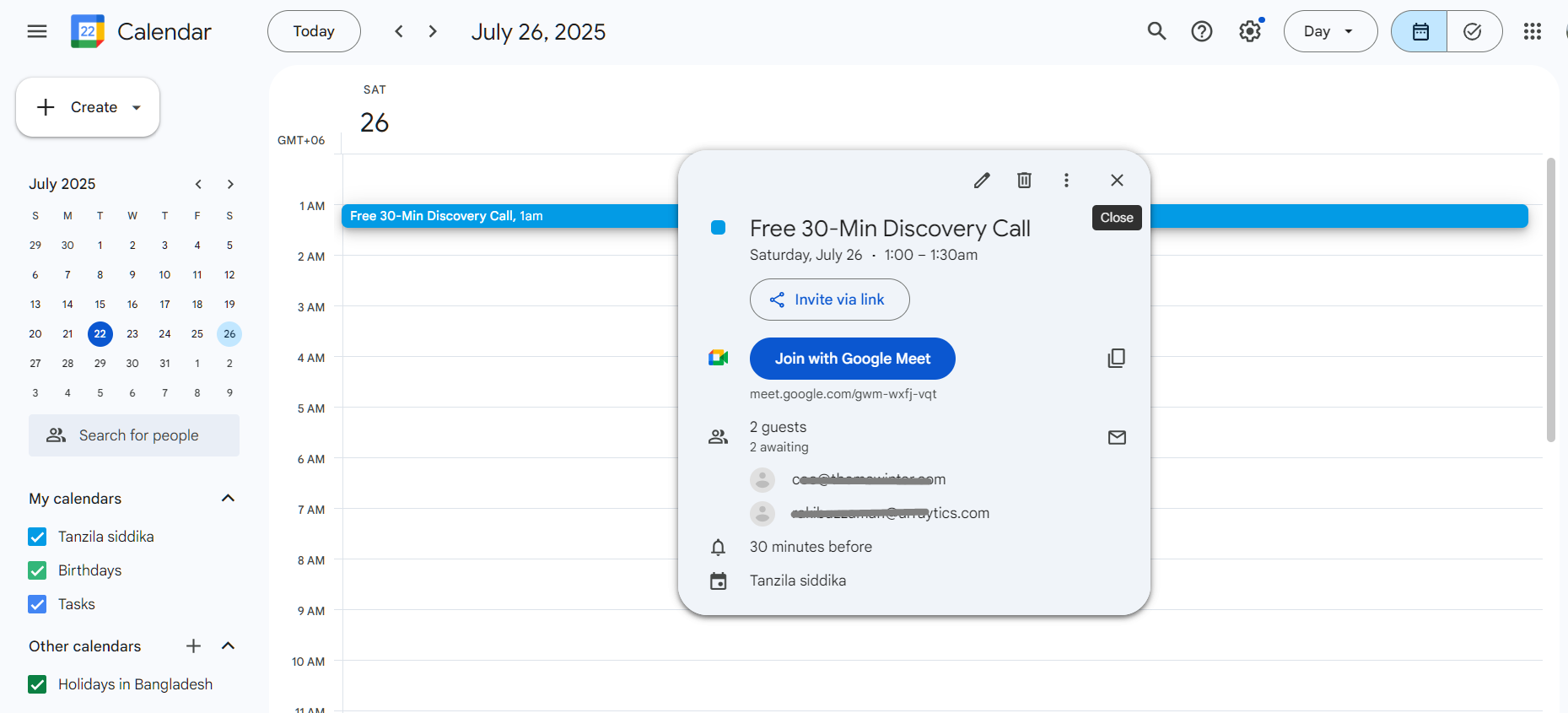
After completing the booking, the client will receive a confirmation email. This email includes an option to add the booking to their Google Calendar.
- If the client chooses to add it, the event will be automatically synced to their calendar.
- If they don’t, the event will not be added to their Google Calendar.

Admin’s Google Calendar
The booking will also be automatically synced to the admin’s connected Google Calendar for real-time visibility.
How to Enable Google Calendar 2-Way Sync
Timetics allows you to sync your schedule between the Timetics Calendar and Google Calendar in both directions (2-way sync). This feature ensures that any events or bookings created on either side are always up to date — helping you avoid double bookings and saving time.
Note: Only Admins and Team Members can use the 2-way sync feature. Clients cannot access or use this functionality.
How Does 2-Way Sync Work?
- If an admin or team member manually books a schedule from the Timetics dashboard, it will automatically appear in their connected Google Calendar.
- If a schedule is added directly to Google Calendar, it will also be reflected in the Timetics calendar.
- Any changes made from either side—Timetics or Google Calendar—will be updated in real time across both platforms.


This ensures complete synchronization between your internal Timetics workspace and your personal Google Calendar.