
This field type requires the Genesis Custom Blocks Pro plugin which is available through a Genesis Pro subscription.
The Classic Text field creates a text editor option for the block suitable for formatted blocks of text. You can include bold, italics, code, and strikethrough text as well as links and inline images in the familiar classic style.

Click image to enlarge
- Field Label: The field label will be displayed next to the field when adding it the block to the post or page.
- Field Name: The field name should auto-fill based on the field label, but can be customized. This will be used in the PHP as part of the block template.
- Field Type: Choose the Classic Text field type.
- Help Text: Enter instructions to describe the data needed in the field. (optional).
- Default Value: The default value for this field when adding the block.
PHP API Controls
- name
- label
- control
- type
- order
- help
- default
Template Usage
To display the Classic Text field in your template, use the field name you provided.
There are two ways you can do this.
- Template Editor: Using the built-in template editor is the easiest way to create the required block template. The template editor accepts HTML markup, field names (enclosed in 2 brackets), and CSS only.
Here’s an example of HTML you can use in the template editor:
<div>
     <h2>Pet's Story</h2>
     <p>{{pets-story}}</p>
</div>- PHP Template: If you need to use logic, loop syntax, define variables, or use PHP, you can create the template manually using the PHP templating method instead.
For example:
<?php block_field( 'pets-story' ); ?>Example template file /blocks/block-example.php
<?php
// Example Classic Text Field
?>

<h2>Pet's Story</h2>
 <p><?php block_field( 'pets-story' ); ?></p>
Block Usage
To use the block with the Classic Text field on your site, locate it in the blocks menu.

Click image to enlarge
It will then display within your post or page editor.
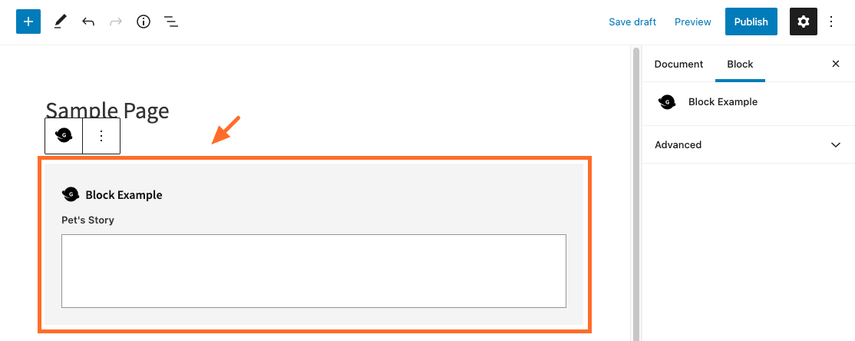
And on the front end of your site.

Click image to enlarge