
How to Hide a Page in WordPress: 7 Easy & Secure Methods


Has there ever been a time when you published a WordPress page only to immediately wish that it remained hidden or not published? There are numerous reasons that you may want to hide or make a page not visible (e.g., it could be a thank-you page, a resource for specific clients, or a landing page that is being completed, or the content of the page is only for logged-in users).
Regardless of what type of page you want to hide, knowing how to do it on WordPress can seem like a task, especially when you don’t want to delete the page and potentially risk your search engine optimization.
The main concern with hiding or not displaying pages is the fact that a lot of website owners delete pages too quickly or leave pages active for their visitors to see, which may confuse visitors, cause the page to be viewed by the wrong people, and diminish their search rankings. Even worse, some methods of hiding pages will provide users with restricted access to view them, but will still show the page to Google.
That is the reason for this guide.
This tutorial will teach you how to hide a page in WordPress and give you 7 different methods to choose from, some of which use WordPress’ built-in visibility settings. In contrast, others are SEO safe using plugins, Rank Math, user roles, and temporary methods of hiding pages.
Each method has a step-by-step process for implementing it, allowing you to choose the best option for your situation based on security, visibility, and SEO needs without having to worry about wrecking your site.
What Does “Hiding a Page in WordPress” Mean?
When hiding a page in WordPress, it does not mean that you are deleting or even unpublishing the content (in all cases). Instead, hiding a page refers to being able to see it and is often based on who is accessing the page, where it will be located, and if it will be indexed. There are different methods of hiding a page that can meet different needs.
Most of the time, when someone looks for information on how to hide a page in WordPress, the visitor usually needs help resolving one of the following issues:
- Preventing people who visit the website from being able to view a certain site/page.
- Removing a specific page, such as the Home page or Contact Page, from navigation menus.
- Making sure search engines do not have the ability to index the website or the specific page.
- Restricting login users and/or specific user roles from seeing a specific page
- Temporarily hiding content from the website without breaking the URLs.
In a nutshell, when you hide a page, you control how other people see your content, but you do not delete it from your site.
Different Types of Page Hiding in WordPress
There are several types of page hiding. Here’s what you should know when choosing an appropriate solution for your project’s needs:
- Pages can be hidden from all types of visitors (unless authenticated).
- Hidden from search engines.
- Hidden from navigation menus: Pages that are not listed on navigation menus will still be indexed by search engines, so visitors can still locate them via direct link.
- Pages can also be temporarily hidden (i.e., unpublished or in “draft” mode) until they are ready to be published again.
Why Simply Deleting a Page Is Often a Bad Idea?
It is common for new WordPress users to remove a page, the result of which is:
- Broken internal links
- Loss of new-to-indexed value
- Resulting in 404 errors for bookmarked URLs
- Negative user experiences
Knowing how to hide a page in WordPress allows the creator of a page to maintain full control of the content without suffering unnecessary SEO consequences.
Takeaway: Hiding a page in WordPress is not one action, it’s a strategy. The best method depends on whether your priority is privacy, SEO, user roles, or temporary visibility.
How to Hide a Page in WordPress
When you’re learning how to hide a page in WordPress, the first thing to understand is that there isn’t one “correct” way of doing it; rather there are many different methods for hiding pages based on whether you want to limit access to users, remove them from public view, block search engine results, or just hide your content temporarily without having to delete it.
In the sections below, you’ll find tips and procedures to accomplish all types of hiding pages, including the simplest and most basic options that WordPress has built into the platform.
Method 1: Hide a Page Using WordPress Visibility Settings
One of the simplest ways for beginner websites to hide pages within WordPress is to use the Visibility setting provided by WordPress. The Visibility settings can be used immediately without any additional plugins.
When Should You Use the Visibility Settings?
You may want to consider using Visibility settings if you:
- Want a page to be hidden from readers publicly
- Have created the content specifically for administrator or editor use only
- Need a straightforward and uncomplicated method of hiding a page without attempting any optimization of search engine results.
Steps
- Log in to Your WordPress Dashboard.

- Go to Pages → All Pages.

- Hover over the page You want to hide, then click Edit.

- In the right-hand sidebar, locate Visibility.

- Choose from the following visibility settings:

- Private – Only Admins and Editors Can See This Page.
- Password Protected – The Visitors must enter a password in order to view this page.
- Click on Save to save changes.


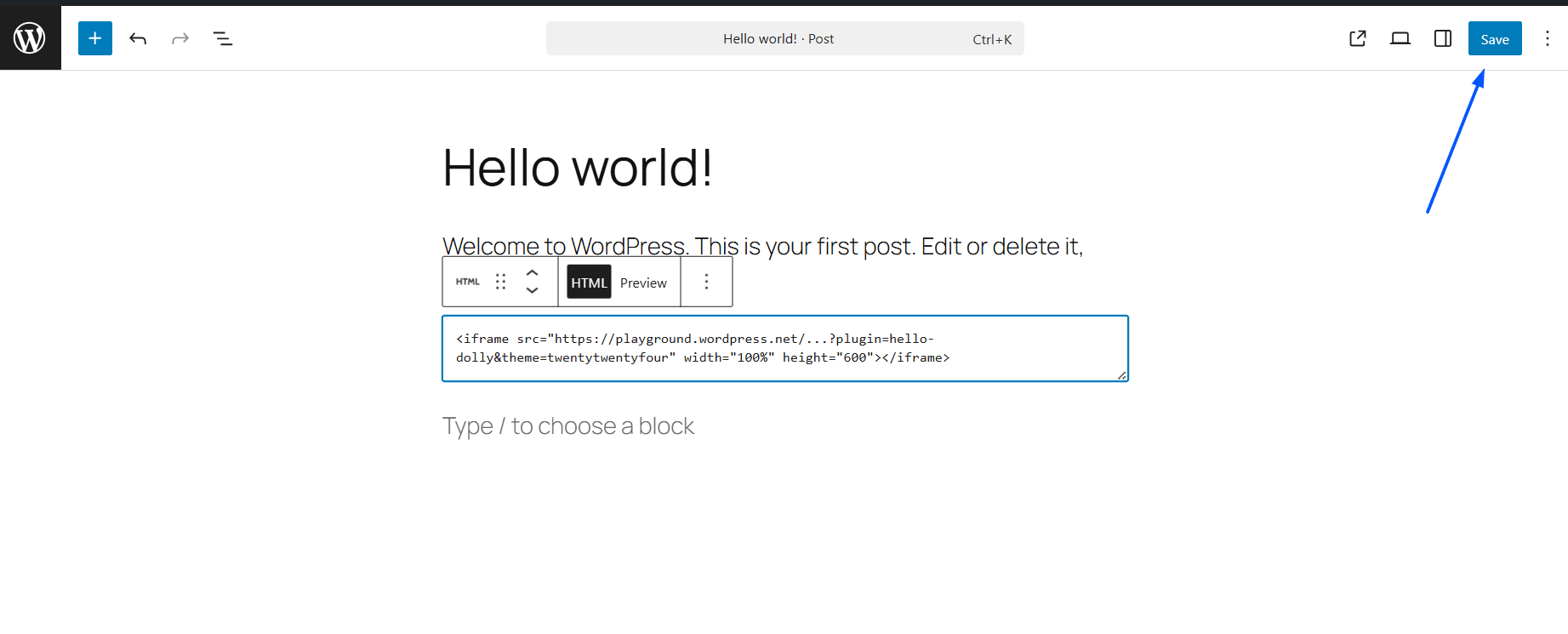
Once you save your changes, this page will no longer be visible to the public.
Visibility Options Explained
To comprehend the methods of concealment available for Pages within WordPress, use
- Private Page –
- All visitors cannot access the Page.
- The Page is only accessible to users who have logged into the site and have appropriate permissions.
- Search Engines will not index your Page.
- Password-Protected Page –
- Can only be accessed (viewed) with a password.
- It may still be indexed by Search Engines unless you do not include the Page in your SEO settings.
- It is useful for providing access to information only to a limited audience.
SEO Note
If SEO is a concern, visibility settings alone may not be enough. While private pages are typically not indexed, password-protected pages can still appear in search results. In later sections, you’ll learn how to combine this method with SEO tools for better control.
Method 2: Hide a Page from Search Engines Using Rank Math (SEO-Safe Method)
Blocking users is not an option if you plan on hiding a WordPress page from search visibility. Instead, you can prevent search engines like Google from indexing the page even if you are allowing direct URL access.
This is a good method if you want to maintain the integrity of your site’s SEO and eliminate the risk of indexing.
When Should You Use Rank Math to Hide a Page?
You should use this method to hide pages if:
- Hiding Pages in Google Search Results
- Allowing Users Access via the URL
- SEO is more important than full restriction of access
- You’re running ads, funnels, or private campaigns
Common examples include:
- Thank You Pages
- PPC Landing Pages
- Thin or Duplicate Content Pages
- Test or Staged Content
Steps
- Install and activate the Rank Math SEO plugin.

- Open the page you want to hide.

- In WordPress Editor, scroll down to the Rank Math SEO panel. Click on the Advanced tab.

- Enable the No Index option.

- Click on Save.


And you are done. Rank Math will automatically add a noindex meta tag to the page.
What Exactly Does “Noindex” Do?
By using the noindex directive, you’re indicating to search engines:
“This page can be crawled, but please don’t include this page in your search results.”
This is Google’s recommended SEO-friendly method for removing a page from WordPress without incurring any penalties or crawling issues.
According to Google’s official documentation, noindex is the preferred method for preventing pages from appearing in search results.
Method 3: Hide a Page by Removing It from WordPress Menus
At times, you may want a webpage unpublished rather than totally blocked from users. You can do this by taking that page off your WordPress menu but leaving it “live” in the database. This is a great way to provide visitors with access only to your desired page via a direct link.
When Should You Use This Method?
This method is most effective when:
- You would like to continue publishing the page.
- You are looking for a simpler/more organized navigation.
- The user should not find the page through traditional search engines.
- Search engine ranking for the page is not the main area of focus.
Some common uses:
- “Thank you” pages
- Landing pages for email campaigns
- Pages that provide a time-sensitive offer
- Pages that generate leads or facilitate sales.
Steps
- Go to WordPress Dashboard, then Appearance, then Menus.

- Select the menu where the page appears.

- Locate the page you want to hide. Click Remove, which is next to the page title.

- Click the Save Menu.


Once it is removed, the page will no longer appear in your site’s navigation.
Method 4: Hide a Page Using robots.txt (Advanced Method)
To control how search engines crawl your website without removing access from users, you can use a robots.txt file. While it won’t remove pages from view of users altogether, robots.txt tells search engine bots not to crawl pages and/or areas of your WordPress website.
As such, it should be used carefully.
When to Use a robots.txt File to Block Indexing of Your Website
You can decide to use this method if:
- You want to prevent Search Engines from crawling the page in question.
- The page contains only low-value or utility content
- You have a good working knowledge of basic SEO principles
- You have established a crawl budget for a large website
Some of the most common pages that are hidden via Robots.txt Files are:
- Admin Pages
- System-related Pages
- Autocomplete Pages
- User-specific Pages
- Filtered URLs
- Parameter-based URLs
Steps
- Access your site via FTP or File Manager (through hosting).

- Locate the robots.txt file in the root directory. If it does not exist, create one.
- In this file, add a disallow line to indicate the page you want to hide.
- After making your changes, save them and upload the file back to the server.

You may also use a third-party SEO plugin such as Rank Math to edit the robots.txt file from within the WordPress dashboard, which can be less intimidating for newbies.
Crucial SEO Advisory (Read Thoroughly)
This is where many people get confused when learning how to hide a page in WordPress.
A page is blocked in a robots.txt file:
- Will not guarantee that the page will be available via search results
- Does not remove any existing indexing of a blocked page
- Blocks the crawling of the page by search engine bots
The URL may still be indexed if an external link points to it; however, the indexed URL will contain no content.
Method 5: Hide a Page Using WordPress Plugins
WordPress plugins are great tools for people who want increased control over the way they hide pages in WordPress without having to edit any code. Page visibility rules (i.e. Visibility rules, role-based visibility, location-based visibility) can all be applied to pages using these types of plugins.
When Should You Use a Plugin to Hide a Page?
Plugins are a good solution if:
- You need more control over your visibility settings.
- You prefer not to edit theme files or robots.txt.
- You have users/roles that you want to manage.
- You want to create consistent and repeatable hiding rules across multiple sites.
Two reliable plugins for hiding WordPress Pages are identified below.
WP Hide Post (Simple & Lightweight)
WP Hide Post allows you to hide your posts/pages on your site while still maintaining them as ‘published’.
Using WP Hide Post, you can remove pages from these locations on your site:
- Homepage
- Search Results
- Category/Archive pages
- Recent Posts widget
How It Works
- Install and activate the WP Hide Post plugin on your website.

- Open the page you want to hide.
- Scroll down to see the WP Hide Post settings.
- Choose how you would like to hide the page.

- Save the changes to that page.


Now your page will be hidden in all of the locations that you have selected.
Method 6: Hide a Page for Logged-in Users Only
You may sometimes want to prevent all users from viewing certain pages, such as a membership area, client portal, internal resources, or premium content but still allow a logged-in user to view these pages. This is a common feature for membership-based websites.
This will help you restrict access, rather than deleting the page or preventing it from being indexed by search engines, and is essential to understanding how to hide your pages from some users, while providing them access through your WordPress site.
When Should You Use This Method?
Utilize this method when:
- The content is intended solely for individuals who have logged into a user account
- You are providing restricted (gated) or high-value content
- You oversee user accounts or memberships on your website
- You desire to safeguard sensitive (private) data
A few examples would include:
- Member or customer dashboards
- Training materials that can only be accessed by members
- Company proprietary internal pages
- Files/pages that allow for download by registered members only.
Option 1: Use WordPress Password Protection (Quick Method)
WordPress has a feature that allows you to restrict access to your pages with the use of passwords.
Steps
- Go to the page you would like to password-protect/hide.
- In the sidebar on the right-hand side of the screen, click on the Visibility tab.
- Select Password Protected and put in your desired strong password.
- Save and update your Page.
Users who have the password will be the only ones who will have access to that Page.
Limitations
- The way that passwords can be shared undermines the security.
- No role-based Access.
- Unless you’ve set your Page to noindex, it could still show up in Search Engine Results.
Option 2: Limit Access with User Role Plugins (Best Choice)
To have even greater control over who views what you create, use the Members plugin. With this plugin, you can restrict your pages to be viewed only by logged-in users with specific user roles assigned.
Steps
- Install and activate the Members plugin.

- Assign or create user roles for your users.

- Edit the page that you want to hide.
- Create the rules that designate who can view the page based on their role.
- Make sure to Save Changes.


Unregistered users or users who do not have the proper role assigned will be prompted to log in, or they will receive an access denied screen.
Method 7: Hide a Page Temporarily in WordPress
WordPress has several ways to quickly and easily hide a page temporarily, without compromising your SEO or affecting the site structure for the long term. Temporarily hide it while your content is still being worked on, or awaiting approval for future use.
It is possible to make a page visible again as soon as you’re ready.
Option 1: Hide Page by Changing to Draft Status
The easiest way to temporarily hide a page in WordPress is to go to Draft status rather than leave it as Published.
When to Use Draft Pages
- If your content is not complete or is currently being revised.
- If you want to immediately take the page out of public view.
- If the SEO visibility of the page is not a top priority in a short period of time.
Steps
- Go to WordPress Dashboard → Pages → All Pages.
- Find the page you want to hide and click the Edit button on the far right.

- Find the Status section on the right-hand side and change Published to Draft.

- Finally, click the Save button to save your changes.


Once saved, the page:
- A page using Draft Status will no longer be visible to visitors.
- It will return a 404 error when accessing the page.
- The page is also completely removed from public access.
Option 2: Use Maintenance or Coming Soon Mode to Conceal Your Pages
Utilizing a Maintenance or Coming Soon mode plugin to conceal your site is an option for when you would like to remove multiple pages, or even the entire site, on a temporary basis.
When Should You Use Maintenance Mode?
- You are in the process of redesigning your website.
- You are launching a brand new area of your website.
- You are in the process of conducting technical updates on your website.
- You are migrating your site’s content.
Commonly Used Maintenance and Coming Soon Plugins
These plugins enable you to:
- Display a temporary landing page
- Conceal individual pages or the entire website
- Exclude logged-in users who are designated as Admins
- Retain your SEO rankings with appropriate HTTP status code responses.
Conclusion: How to Hide a Page in WordPress
Making a WordPress page invisible does not necessarily have to be complex. Given the options that are installed and provided on WordPress, making an invisible page on the site can be quite easy. Whether you want to limit access to content, work on an SEO solution, or even if you are trying to temporarily hide the page from users, WordPress can solve this problem.
Here’s a brief overview of the best approaches that we concluded:
- For SEO-friendly hiding: The use of the “No Index” feature within Rank Math will help hide the page from search engines’ indexes while simultaneously ensuring that the page can be accessed by the user.
- For purposes of privacy and user control, use plugins such as WP Hide Post or User Role Editor, which enable you to restrict access to the page according to user roles or login status.
- Temporary Hide: Use Draft mode to temporarily hide a page’s content without deleting it. Install a “Maintenance Mode” plugin to make it even easier to temporarily disable pages.
- For simple solutions, WordPress features “Visibility Settings” that allow you to simply click “Private” or “Password Protected” so that only certain users or admins have access to that page.
Which one works best for you depends on what you need. Whether you are running a blog, a business, or a members’ area, the techniques described below will allow you to efficiently manage the accessibility of the pages.
SEO Tip: It can be beneficial to integrate techniques to ensure greater security and controllability. For instance, using Noindex settings in conjunction with removing the menu option ensures that your webpage is masked from the search engines and users, thereby maximizing user privacy and usability.
Finally, being aware of the process of hiding a page in WordPress gives you the power to create a professional and friendly site while keeping secret or semi-finished info.
A proper approach will make it easy for you to deal with your WordPress page management, whether testing new content, restricted access, or private pages, without any effect on your website’s performance.
By learning these techniques, not only will you conceal a page, but you will, in fact, be in complete control of what users and search engines see when viewing your site.
FINAL NOTE: Just a friendly reminder to always test your code after implementing the above-mentioned techniques, especially when implementing a combination of techniques such as “Noindex” with “Drafts” and/or “Maintenance Mode” to make sure that everything “works as expected”. Keeping your site clean and secure has never been easier!
Frequently Asked Questions (FAQs)
Q1. What is the process for hiding a WordPress page without permanently deleting it?
Using the page editor, change the visibility of the page to either Private or Password Protected. This restricts access only to those who are Administrators or have entered the Password.
Q2. How do I keep search engines from displaying a page in their search results?
Utilizing an SEO plugin, such as Rank Math, you can indicate to search engines that they should not index a page (setting the page to “noindex”). By applying this option, you will allow visitors of the specific URL to view the content of the page but prevent search engine spiders from recognizing that content.
Q3. What are the steps involved in deleting a WordPress page from my website’s menu?
To remove a page from the WordPress Menu, go to the Appearance Menu and locate the Menu you wish to edit. Next, locate the page you want to delete and click Remove. After you remove the page from the menu, it will still exist on your site; it just won’t be part of the Menu System.
Q4. Do I have the option to restrict access to a WordPress page so that only those who have a login account can view?
Yes! You may accomplish this using plugins, members, or user role editors; many of those plugins have the ability to limit the display of pages based on roles assigned to the users who are logged in.
Q5. How do I temporarily disable a WordPress page?
To temporarily disable a WordPress page, you may set the page back to a draft status, or you may use a Maintenance Mode plug-in that allows you to disable all webpages or just certain pages of your Site.
Ekta Lamba
Ekta Lamba is a content writer at DevDiggers covering WordPress, WooCommerce, web development, and emerging tech. From fixing plugin errors to breaking down ChatGPT model updates, she writes guides that make technical topics approachable for developers and store owners alike. If it involves WordPress or the web, there is a good chance she has written about it.
Join thousands of readers getting smarter every week.
Leave a Reply