


Placing SQL MCP Server between your AI agent and your SQL database lets your agent interact with data through a controlled API surface instead of direct database access. Built on Data API builder (DAB), SQL MCP Server brings DAB features to agentic solutions, including caching, telemetry, authentication, and entity-based abstraction. That abstraction helps your agent operate within your organization’s guardrails, follow your application model, and avoid depending directly on the physical database schema.
More than just an MCP server
SQL MCP Server is powered by Data API builder (DAB), which also supports REST and GraphQL from the same configuration. This means a single DAB configuration can expose MCP, REST, and GraphQL endpoints at the same time, allowing one runtime to support agents and traditional applications without duplicating API logic.Reference: SQL MCP Server | Microsoft Learn
Without a container
The standard deployment model for SQL MCP Server is a container. That works well for many distributed solutions, but not every environment has a container strategy in place. Some teams standardize on Azure App Service, virtual machines, or other application hosting models.
For those scenarios, SQL MCP Server can run without a container. This walkthrough shows how to host SQL MCP Server on Azure App Service using a code-based deployment model, while keeping the same DAB configuration that exposes MCP, REST, and GraphQL.
Container overhead
In many scenarios, container orchestration can increase solution complexity. Running SQL MCP Server on Azure App Service removes that requirement while preserving the same DAB configuration model. You still expose MCP, REST, and GraphQL from a single runtime, but deploy using a familiar code-based App Service workflow instead of building, publishing, and managing container images.Reference: Deployment options for Data API builder | Microsoft Learn
Command-line
It starts with the cross-platform Data API builder CLI. The CLI enables the local developer loop and lets SQL MCP Server run on any machine with .NET, without requiring Docker or Kubernetes.
The command dab start starts the runtime, reads your configuration, and hosts the MCP endpoint. The same model works locally, in a virtual machine, or in Azure App Service, giving you a simple path to run SQL MCP Server without a container.
Reference: Data API builder CLI reference | Microsoft Learn
Azure App Service
Azure App Service is a natural fit for hosting SQL MCP Server as an MCP endpoint. It is designed for web apps and APIs, with built-in support for TLS, custom domains, scaling, monitoring, and Microsoft Entra authentication.
For SQL MCP Server, this means your MCP endpoint can run like a standard production HTTPS API. You can scale out with more instances, scale up with a larger SKU, and use the same operational controls as other App Service workloads.
App Service also gives you a clean authentication model. By protecting the endpoint with Microsoft Entra ID, you can avoid shared API keys and align access with the identity patterns used by agent platforms such as Azure AI Foundry.
Reference: Configure App Service authentication for MCP servers | Microsoft Learn
Walkthrough
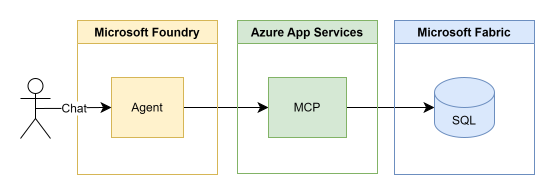
This walkthrough shows how to run SQL MCP Server on Azure App Service without containers. Starting from a clean environment, you will install Data API builder (DAB), connect to your SQL database, configure authentication, run SQL MCP Server locally, and then publish it to Azure App Service.
By the end, you will have one DAB configuration exposing MCP, REST, and GraphQL endpoints from a cloud-hosted App Service endpoint.
Prerequisites
Before starting, you need a SQL data source, a local development environment, and access to Azure resources. This walkthrough assumes you are familiar with basic Azure concepts and command-line tooling.
You will need:
- A SQL database, such as a Fabric SQL database or Azure SQL
- Access to Microsoft Entra ID to register an application and configure authentication
- .NET installed locally, with the
dotnetCLI available - A terminal, such as PowerShell
- Visual Studio Code or another editor for updating configuration files
- An Azure subscription with permission to create and configure Azure App Service
Install & initialize Data API builder
Starting with the local developer loop, install the Data API builder CLI and create the initial configuration file. This file drives SQL MCP Server and defines the runtime that exposes MCP, REST, and GraphQL from your SQL database.
Using the dotnet CLI, install DAB:
dotnet tool install microsoft.dataapibuilder --prerelease -gReference: Install the DAB CLI | Microsoft Learn
Prerelease timeline
Using the CLI with the--prerelease flag installs the latest Data API builder prerelease. This walkthrough uses the prerelease version to reflect the latest MCP capabilities and configuration model.Using the DAB CLI, initialize your configuration:
dab init --database-type mssql --host-mode Development --connection-string "@env('SQL_CONNECTION_STRING')"After initialization, you will see a dab-config.json file. This file defines the data source, runtime settings, entities, permissions, and endpoint behavior. From this point forward, SQL MCP Server runs from this configuration.
Reference: Initialize a config with the DAB CLI | Microsoft Learn
Add a table entity
With the initial configuration created, add a table entity that DAB can expose through REST, GraphQL, and MCP. An entity maps a database object, such as a table, view, or stored procedure, to an API surface with defined permissions.
dab add products --source dbo.products --permissions "authenticated:*"This updates dab-config.json with a new products entity. The entity points to dbo.products and defines which roles can access it.
The resulting configuration includes an entities section similar to this:
"entities": {
  "products": {
    "source": {
      "object": "dbo.products",
      "type": "table"
    },
    "permissions": [
      {
        "role": "authenticated",
        "actions": [ "*" ]
      }
    ]
  }
}
This is the first place where DAB’s abstraction layer becomes concrete. The agent will not talk to the table directly. It will talk to the products entity, using the actions and permissions defined in configuration.
Configure authentication and database access
Next, configure authentication through Microsoft Entra ID and connect SQL MCP Server to your SQL database. This keeps endpoint access under platform authentication while keeping the database connection out of your configuration file.
Register an application in Microsoft Entra ID and create a service principal. Grant that identity the appropriate permissions in your SQL database, then construct a connection string that uses that identity. Store the value as an environment variable so it is not embedded in dab-config.json.
Using the DAB CLI, configure your authentication provider:
dab configure --runtime.host.authentication.provider AppServiceReference: Configure runtime and data source with the DAB CLI | Microsoft Learn
This command updates your configuration file to include the App Service authentication provider under the runtime host settings:
"runtime": {
  "host": {
    "authentication": {
      "provider": "AppService"
    }
  }
}
Security best practice
Keep using an environment-based connection string so credentials are not stored in the configuration file. Combined with Microsoft Entra authentication, this creates a clean separation between configuration, endpoint identity, and database access.Choose the MCP transport
SQL MCP Server can run in HTTP mode or STDIO mode. Use HTTP mode when you need a hosted endpoint, such as Azure App Service. Use STDIO mode when a local tool, such as Visual Studio Code, launches SQL MCP Server as a local process.
| Mode | Use when | Authentication provider |
|---|---|---|
| HTTP | Hosting in App Service or connecting remote clients | AppService |
| STDIO | Running from local tools such as Visual Studio Code | Simulator |
For this walkthrough, HTTP mode is the primary path because the goal is to host SQL MCP Server on Azure App Service.
Start SQL MCP Server locally
With the configuration in place, start SQL MCP Server from the project folder.
Using the DAB CLI, start SQL MCP Server in HTTP mode:
dab startThis starts the server in HTTP mode and exposes the MCP endpoint at /mcp, along with REST and GraphQL endpoints.
Reference: Start the runtime with the DAB CLI | Microsoft Learn
For local agent scenarios, you can also run in STDIO mode. Before starting the server, switch the authentication provider to Simulator:
dab configure --runtime.host.authentication.provider Simulator
dab start --mcp-stdio role:anonymous
Local agents
STDIO mode is useful for tools like VS Code agent integrations where the MCP server runs as a local process instead of an HTTP endpoint.Before returning to HTTP mode, switch the authentication provider back to AppService:
dab configure --runtime.host.authentication.provider AppServiceAt this point, SQL MCP Server is running locally and ready for endpoint testing.
Test the local endpoints
With SQL MCP Server running locally, test the endpoints exposed by your DAB configuration. This confirms the runtime can read the configuration, connect to SQL, and expose your entities through the enabled endpoint types.
Start with REST by opening the generated Swagger or OpenAPI page and running a simple request against the products entity.
Next, test GraphQL by running a simple query against the same entity. The result should match the data exposed through REST because both endpoints are generated from the same DAB configuration.
Finally, confirm the MCP endpoint is available at /mcp.
http://localhost:<port>/mcpMCP in the browser
The/mcp endpoint may show an error-looking response in the browser. That is expected. MCP endpoints are designed for MCP clients, not direct browser navigation.At this point, the local runtime is working and ready to be published to Azure App Service.
Deploy SQL MCP Server to Azure App Service
With the local runtime working, publish SQL MCP Server to Azure App Service using a code-based deployment. This avoids building and managing a container image while keeping the same dab-config.json file you tested locally.
Using Azure CLI, create the App Service resources:
az group create --name <resource-group> --location <location>

az appservice plan create `
  --name <plan-name> `
  --resource-group <resource-group> `
  --sku B1 `
  --is-linux

az webapp create `
  --name <app-name> `
  --resource-group <resource-group> `
  --plan <plan-name> `
  --runtime "DOTNETCORE:8.0"
Configure the SQL connection string as an App Service setting:
az webapp config appsettings set `
  --name <app-name> `
  --resource-group <resource-group> `
  --settings SQL_CONNECTION_STRING="<connection-string>"
Configure the startup command so App Service starts DAB:
az webapp config set `
  --name <app-name> `
  --resource-group <resource-group> `
  --startup-file "dab start"
Then publish the project to App Service using your preferred code deployment path, such as Visual Studio Code, GitHub Actions, or Zip Deploy. The important detail for this walkthrough is that the App Service is configured for code deployment, not container deployment.
Test the App Service endpoint
After publishing, open the App Service URL and confirm the app is running.
https://<app-name>.azurewebsites.netThen confirm the health endpoint
https://<app-name>.azurewebsites.net/healthMCP error response
Going to the raw/mcp endpoint will show an error-looking response in the browser. That is expected. MCP endpoints are designed for MCP clients, not direct browser navigation. The important signal is that App Service routes the request to the running DAB app rather than returning an App Service startup or deployment error.If App Service authentication is enabled, sign in with Microsoft Entra ID before calling protected endpoints. This confirms the hosted endpoint is running through App Service, using platform authentication, and reading its database connection from App Service configuration.
Next, test REST and GraphQL using the same entities you tested locally. Because the deployed app uses the same dab-config.json, the endpoint behavior should match your local runtime.
SQL MCP Server is now running on Azure App Service without a container.
Next steps
At this point, SQL MCP Server is running on Azure App Service without a container. From here, connect your MCP client or agent platform to the hosted /mcp endpoint, then test the same read and write operations you tested locally.
Reference: Deploy SQL MCP Server from the sample repo
Want GitHub Copilot’s help?
Copy the following prompt into VS Code with GitHub Copilot (or your favorite agentic coding tool) and submit the prompt to your model.
Prerequisites for the prompt user:
- Azure subscription with permission to create: Resource group, Azure SQL logical server, Azure SQL database, App Service plan, Azure App Service, Microsoft Entra app registration
- Local tools: Visual Studio Code, GitHub Copilot agent mode, Azure CLI, .NET SDK, PowerShell, Git, ZIP support
- Azure sign-in: User must be signed in with
az loginand have the intended subscription selected withaz account set - Microsoft Entra permissions: Permission to create app registrations, Permission to create service principals, Permission to create client secrets, Permission to assign or grant database access
- SQL permissions: Ability to configure Microsoft Entra admin on the SQL server, Ability to create database users, Ability to grant
db_datareaderanddb_datawriter - Network access: Ability to add the current client IP to the SQL firewall, Ability to allow App Service to reach Azure SQL
Not a simulation.
Users should expect Copilot to create real Azure resources. They should review resource names, subscription, region, and cost settings before running the prompt.Agent prompt
You are GitHub Copilot running in agent mode with terminal access. Build, configure, deploy, and verify a complete SQL MCP Server on Azure App Service without containers.
Goal
Create a complete working sample from an empty local folder that deploys SQL MCP Server on Azure App Service using Data API builder. Use a new Azure Resource Group. Use the lowest practical App Service cost tier. Use the Azure SQL Database free offer when available. The final solution must expose MCP, REST, and GraphQL from one dab-config.json file and must not use Docker, Azure Container Apps, Azure Container Registry, Kubernetes, or any container image.
Orchestration
Use to-do lists, handoffs, and subagents when work can be run in parallel. Work hard to minimize context consumption over large, long operations.
Before starting, create a concise execution plan with phases, dependencies, and validation checkpoints.
Maintain a visible task list and update it as each phase completes.
Use separate subagents or isolated workstreams for independent tasks, such as documentation review, Azure CLI command validation, DAB configuration, SQL schema creation, App Service deployment, and endpoint testing.
Do not pass full logs, full files, or large command outputs between steps unless required. Summarize findings and preserve only the values needed for the next step.
Store generated names, resource IDs, endpoint URLs, and important decisions in a small state file, such as
deployment-state.json, so later steps do not rely on chat history.For long-running Azure operations, poll status with concise output. Do not repeatedly dump full JSON unless troubleshooting requires it.
When a step fails, diagnose the smallest failing unit first, capture the exact error, and continue only after confirming the fix.
Prefer deterministic scripts over one-off terminal commands when a step may need to be rerun.
Do not report completion until the final validation checklist passes.
Important constraints
1. Use Azure CLI or Azure Developer CLI where appropriate. 2. Prefer Azure CLI for explicit, auditable commands. 3. Create a new Resource Group. 4. Use Azure SQL Database free offer if available in this subscription and region. 5. Assume the Azure SQL Database free offer may require Azure portal creation. 6. Before creating a paid SQL database, check whether the free offer can be created through the current Azure CLI. If it cannot, stop and output the exact portal instruction for creating the free database manually. Do not treat this as a failure. Treat it as the expected safe path when the free offer is portal-only. 7. Do not silently create a paid SQL database unless explicitly confirmed. 8. Use the lowest cost App Service plan that supports the required runtime and startup command. Prefer Free F1 if it supports this scenario. If F1 does not support the required runtime or startup command reliably, use Basic B1 and clearly explain why. 9. Deploy as code to Azure App Service. Do not deploy a container. 10. Install Data API builder using dotnet tool install microsoft.dataapibuilder –prerelease. 11. Use a local .NET tool manifest for DAB in the deployed App Service content. 12. Create a working SQL table named dbo.products. 13. Add the DAB entity named products. 14. Enable MCP, REST, and GraphQL. 15. Use AppService authentication provider for HTTP mode. 16. Use Simulator authentication provider only for STDIO local testing. 17. Store the SQL connection string in an environment variable or App Service setting named SQL_CONNECTION_STRING. 18. Do not hardcode secrets into dab-config.json. 19. Explicitly verify that dab-config.json uses @env(‘SQL_CONNECTION_STRING’) before deployment. 20. Do not print full connection strings, client secrets, SQL admin passwords, or access tokens. When logging values, redact secrets and show only resource names, server names, database names, and endpoint URLs. 21. Produce all final files and a README.md. 22. Verify local endpoints before deployment. 23. Verify Azure endpoints after deployment. 24. Include cleanup commands at the end. 25. Configure App Service CORS only if testing from a browser-based MCP or agent client requires it. Do not use wildcard CORS unless clearly marked as temporary demo configuration. 26. Do not report success until App Service logs show DAB started successfully, and REST, GraphQL, and MCP paths are reachable.
Reference documentation
Use these Microsoft Learn and sample repository references while implementing. Prefer these sources over guessing command syntax or behavior.
SQL MCP Server: https://learn.microsoft.com/en-us/azure/data-api-builder/mcp/
Data API builder deployment options: https://learn.microsoft.com/en-us/azure/data-api-builder/deployment/
Data API builder CLI reference: https://learn.microsoft.com/en-us/azure/data-api-builder/command-line/
Install the DAB CLI: https://learn.microsoft.com/en-us/azure/data-api-builder/command-line/install
Initialize a DAB config: https://learn.microsoft.com/en-us/azure/data-api-builder/command-line/dab-init
Configure DAB runtime and data source: https://learn.microsoft.com/en-us/azure/data-api-builder/command-line/dab-configure
Azure App Service authentication for MCP servers: https://learn.microsoft.com/en-us/azure/app-service/configure-authentication-mcp
Azure App Service ZIP deployment: https://learn.microsoft.com/en-us/azure/app-service/deploy-zip
Azure SQL Database free offer: https://learn.microsoft.com/en-us/azure/azure-sql/database/free-offer
Azure sample repository: https://github.com/Azure-Samples/SQL-MCP-NoContainer
Setup walkthrough: https://github.com/Azure-Samples/SQL-MCP-NoContainer/blob/main/How-to-setup-DAB.md
Run MCP walkthrough: https://github.com/Azure-Samples/SQL-MCP-NoContainer/blob/main/How-to-Run-MCP.md
Assumptions
Use PowerShell syntax for commands unless the current shell is not PowerShell. If the terminal is bash, translate commands safely.
When uncertain about syntax or behavior, consult the reference documentation above first, then inspect local CLI help such as az –help, az webapp –help, and dab –help.
Use these default names unless a conflict requires unique suffixes:
Resource group prefix: rg-sql-mcp-appservice Location: eastus SQL logical server prefix: sqlmcp SQL database name: sqldb-sqlmcp-free SQL admin login: sqlmcpadmin Product table: dbo.products App Service plan prefix: asp-sql-mcp Web app prefix: app-sql-mcp Project folder: sql-mcp-appservice
Use a random short suffix for globally unique Azure resources.
Required local project output
Create a local folder with at least:
README.md dab-config.json schema.sql seed.sql deploy.ps1 test-local.ps1 test-azure.ps1 cleanup.ps1 startup.sh for Linux App Service if Linux is used startup.cmd for Windows App Service if Windows is used .config/dotnet-tools.json package or deployment files required for App Service code deployment
Implementation steps
Step 1: Inspect prerequisites
Check whether these are installed:
az dotnet PowerShell zip support DAB CLI sqlcmd or another Microsoft-supported SQL execution tool Python, only as ZIP fallback
If Azure CLI is not logged in, run az login.
Show the active subscription:
az account show
Ask for no interactive decisions unless absolutely required. If multiple subscriptions exist, use the active subscription and document it.
Step 2: Create names and variables
Generate a unique suffix.
Set variables for:
RESOURCE_GROUP LOCATION SQL_SERVER SQL_DB SQL_ADMIN_USER SQL_ADMIN_PASSWORD APP_SERVICE_PLAN WEB_APP SQL_CONNECTION_STRING
Generate a strong SQL admin password locally. Do not print the full password. Store it in script variables only.
Step 3: Create Azure Resource Group
Create a new Resource Group:
az group create –name $RESOURCE_GROUP –location $LOCATION
Step 4: Create Azure SQL Database using the free offer if possible
First, investigate current Azure CLI support for creating an Azure SQL Database free offer.
Use official az help and command discovery:
az sql db create –help az sql db list-editions -l $LOCATION -o table
Try to identify whether a free offer parameter exists. If a supported CLI parameter exists, use it.
If the Azure SQL Database free offer cannot be applied through CLI in this environment, stop before creating a paid database and output this required portal instruction:
“Create the Azure SQL Database from the Azure portal using Start free / Free offer applied, in the Resource Group named <RESOURCE_GROUP>, with database name <SQL_DB>. Choose the behavior that auto-pauses the database when the free monthly limit is reached. After creating the database, rerun this prompt or continue from Step 5.”
Do not create a paid SQL database as a fallback unless explicitly told.
If a free SQL database can be created through CLI, create it. Requirements:
Serverless General Purpose Free offer applied Auto-pause when free limit reached, where configurable Maximum size within free offer limits Lowest cost settings
Step 5: Create SQL logical server and configure access
If not already created by the free offer flow, create the SQL logical server.
Configure Microsoft Entra admin if possible using the current signed-in user. Also configure SQL admin credentials as fallback only for setup.
Add firewall access for the current client IP so setup scripts can connect.
If possible, also allow Azure services to access the server only if needed for App Service connectivity. Prefer the narrowest access compatible with the walkthrough.
Step 6: Create schema and seed data
Create schema.sql:
CREATE TABLE dbo.products ( ProductID int IDENTITY(1,1) NOT NULL CONSTRAINT PK_products PRIMARY KEY, Name nvarchar(100) NOT NULL, Category nvarchar(100) NOT NULL, Price decimal(10,2) NOT NULL, InStock bit NOT NULL CONSTRAINT DF_products_InStock DEFAULT (1), CreatedAt datetime2 NOT NULL CONSTRAINT DF_products_CreatedAt DEFAULT (sysutcdatetime()) );
Create seed.sql:
INSERT INTO dbo.products (Name, Category, Price, InStock) VALUES (N’Road Bike’, N’Cycling’, 1299.99, 1), (N’Mountain Bike’, N’Cycling’, 1499.99, 1), (N’Helmet’, N’Accessories’, 79.99, 1), (N’Water Bottle’, N’Accessories’, 12.99, 1), (N’Bike Light’, N’Accessories’, 24.99, 0);
Apply schema and seed using sqlcmd if available. If sqlcmd is missing, install it or use an available SQL execution method. Prefer a Microsoft-supported tool. Verify the table exists and rows are present.
Step 7: Create Microsoft Entra app registration and service principal for database access
Create an app registration and service principal for SQL MCP Server database access.
Capture:
APPLICATION_CLIENT_ID TENANT_ID CLIENT_SECRET
Create a client secret. Do not print the full secret.
Grant the service principal access inside Azure SQL Database.
Use T-SQL similar to:
CREATE USER [<app-display-name-or-client-id>] FROM EXTERNAL PROVIDER; ALTER ROLE db_datareader ADD MEMBER [<principal-name>]; ALTER ROLE db_datawriter ADD MEMBER [<principal-name>];
If CREATE USER … FROM EXTERNAL PROVIDER fails, verify that the signed-in user is the Microsoft Entra admin for the SQL logical server. If not, set the Entra admin or provide the exact portal or CLI command required.
If direct EXTERNAL PROVIDER creation fails because Microsoft Entra admin is not configured or service principal resolution fails, diagnose the problem and provide the exact fix. Do not skip this silently.
For a simplified fallback suitable only for demo, allow SQL authentication using the SQL admin connection string, but label it clearly as a demo fallback and keep secrets out of dab-config.json.
Step 8: Install Data API builder locally and globally
Install DAB globally for local convenience:
dotnet tool install microsoft.dataapibuilder –prerelease -g
If already installed, update it:
dotnet tool update microsoft.dataapibuilder –prerelease -g
Verify:
dab –version
Inside the project folder, create a local tool manifest for deployment:
dotnet new tool-manifest dotnet tool install microsoft.dataapibuilder –prerelease
Verify the manifest exists:
.config/dotnet-tools.json
Step 9: Initialize DAB configuration
Create or move into the project folder.
Set local environment variable:
SQL_CONNECTION_STRING=<connection string>
Use Microsoft Entra service principal authentication where possible:
Server=tcp:<server>.database.windows.net,1433;Database=<database>;Authentication=Active Directory Service Principal;User Id=<client-id>;Password=<client-secret>;Encrypt=True;TrustServerCertificate=False;
Initialize:
dab init –database-type mssql –host-mode Development –connection-string “@env(‘SQL_CONNECTION_STRING’)”
Configure auth provider for HTTP mode:
dab configure –runtime.host.authentication.provider AppService
Add the products entity:
dab add products –source dbo.products –permissions “authenticated:*”
Inspect dab-config.json and ensure:
data-source.database-type is mssql data-source.connection-string is @env(‘SQL_CONNECTION_STRING’) runtime.rest.enabled is true runtime.graphql.enabled is true runtime.mcp.enabled is true runtime.host.authentication.provider is AppService entities.products exists products permissions include authenticated all actions
If MCP is not enabled by default, update the configuration to enable it.
Step 10: Test locally in HTTP mode
Start DAB:
dab start
Find the local port from output.
Test:
REST endpoint for products GraphQL endpoint MCP endpoint path /mcp
The /mcp path may show an error-looking response in a browser. That is expected because MCP endpoints are for MCP clients, not browser navigation. The test should confirm routing reaches the DAB app and is not a startup or binding failure.
Document exact local URLs in README.md.
Step 11: Test local STDIO mode
Switch auth provider:
dab configure –runtime.host.authentication.provider Simulator
Run:
dab start –mcp-stdio role:anonymous
Do not leave the config in Simulator mode for App Service deployment.
Switch back:
dab configure –runtime.host.authentication.provider AppService
Step 12: Create App Service resources
Create the lowest cost practical App Service plan.
Before creating the web app, inspect available runtimes:
az webapp list-runtimes –os windows az webapp list-runtimes –os linux
If creating a Windows App Service, use runtime DOTNET:8.
If creating a Linux App Service, use runtime DOTNETCORE:8.0.
Choose the runtime string that matches the selected operating system.
First attempt to use Free F1 if compatible with the selected OS and runtime. If using Linux and F1 is not supported or not practical for this startup scenario, use B1.
Create App Service Plan and Web App.
For Windows Free F1:
az appservice plan create ` –name $APP_SERVICE_PLAN ` –resource-group $RESOURCE_GROUP ` –location $LOCATION ` –sku F1
az webapp create ` –name $WEB_APP ` –resource-group $RESOURCE_GROUP ` –plan $APP_SERVICE_PLAN ` –runtime “DOTNET:8”
For Linux Basic B1 fallback:
az appservice plan create ` –name $APP_SERVICE_PLAN ` –resource-group $RESOURCE_GROUP ` –location $LOCATION ` –sku B1 ` –is-linux
az webapp create ` –name $WEB_APP ` –resource-group $RESOURCE_GROUP ` –plan $APP_SERVICE_PLAN ` –runtime “DOTNETCORE:8.0″
If the chosen runtime syntax fails, inspect available runtimes again and choose the lowest-cost working runtime. Document the choice.
Step 13: Configure App Service settings
Configure SQL_CONNECTION_STRING as an App Service app setting.
az webapp config appsettings set ` –name $WEB_APP ` –resource-group $RESOURCE_GROUP ` –settings SQL_CONNECTION_STRING=”<redacted-connection-string-value>”
Use the actual connection string in the command, but do not print it in logs or README.
Before deploying, explicitly verify that dab-config.json uses @env(‘SQL_CONNECTION_STRING’) and does not contain a literal local or Azure SQL connection string.
Step 14: Create startup scripts
Use a local .NET tool manifest for DAB in the deployed App Service content.
Create startup.sh for Linux App Service:
#!/bin/sh dotnet tool restore dotnet tool run dab start
Ensure startup.sh has Unix line endings.
If the environment supports chmod, run:
chmod +x startup.sh
Set Linux App Service startup command to:
startup.sh
Use:
az webapp config set ` –name $WEB_APP ` –resource-group $RESOURCE_GROUP ` –startup-file “startup.sh”
Create startup.cmd for Windows App Service:
dotnet tool restore dotnet tool run dab start
Set Windows App Service startup command to:
startup.cmd
Use:
az webapp config set ` –name $WEB_APP ` –resource-group $RESOURCE_GROUP ` –startup-file “startup.cmd”
Do not rely on a globally installed DAB tool inside App Service. The startup script must restore and run the local tool manifest.
Step 15: Package and deploy as code
Create a deployment package containing:
dab-config.json .config/dotnet-tools.json startup.sh if Linux is used startup.cmd if Windows is used README.md optional any project files required for dotnet tool restore
Use ZIP deploy.
If PowerShell Compress-Archive is available:
Compress-Archive -Path * -DestinationPath deploy.zip -Force
If native ZIP tooling is missing, use Python’s built-in zipfile module to create the deployment ZIP. Do not stop only because Compress-Archive or zip is unavailable.
Deploy:
az webapp deploy ` –resource-group $RESOURCE_GROUP ` –name $WEB_APP ` –src-path deploy.zip ` –type zip
Or use the current recommended Azure CLI ZIP deployment command if different. Verify against:
az webapp deploy –help
Step 16: Verify App Service startup
Enable application logging:
az webapp log config –name $WEB_APP –resource-group $RESOURCE_GROUP –application-logging filesystem –level information
Tail logs:
az webapp log tail –name $WEB_APP –resource-group $RESOURCE_GROUP
Open:
https://<web-app-name>.azurewebsites.net
Open health endpoint if supported:
https://<web-app-name>.azurewebsites.net/health
Open MCP endpoint:
https://<web-app-name>.azurewebsites.net/mcp
The /mcp endpoint may show an error-looking response in the browser. That is expected. Confirm the response is from the DAB app and not from App Service default page, deployment failure, or process startup failure.
If the app returns 503, inspect logs, verify dotnet tool restore ran, verify the startup script is included in the ZIP package, verify the startup command points to the correct script, and verify the correct App Service runtime string was used.
Do not report success until App Service logs show DAB started successfully, and REST, GraphQL, and MCP paths are reachable.
Step 17: Verify REST and GraphQL in Azure
Test REST:
https://<web-app-name>.azurewebsites.net/api/products
Test GraphQL:
https://<web-app-name>.azurewebsites.net/graphql
If App Service authentication is enabled and requests fail due to auth, document how to sign in or obtain a token.
Step 18: Configure App Service authentication with Microsoft Entra ID
Enable App Service authentication if not already enabled.
Use Microsoft Entra as identity provider.
Configure the hosted SQL MCP Server as a protected MCP endpoint according to Azure App Service MCP authentication guidance.
Ensure the authentication provider in dab-config.json remains:
“provider”: “AppService”
If dynamic client registration is not supported by the client, document the required preauthorization or client configuration step.
If testing from a browser-based MCP or agent client, configure App Service CORS for the required origin. Do not use wildcard CORS unless this is explicitly marked as a temporary demo setting.
Step 19: Produce VS Code MCP client example
Create .vscode/mcp.json or equivalent MCP client sample.
Include both HTTP and STDIO examples.
HTTP example should point to:
https://<web-app-name>.azurewebsites.net/mcp
STDIO example should use:
dotnet tool run dab start –mcp-stdio role:anonymous
Make clear that HTTP uses AppService authentication and STDIO uses Simulator authentication.
Step 20: Generate README.md
Create a polished README.md with:
Title: SQL MCP Server on Azure App Service without containers
Sections:
Overview Architecture What gets created Cost notes Prerequisites Setup Local run HTTP vs STDIO transport Deploy to Azure App Service Test endpoints MCP browser error note Troubleshooting Cleanup
Include the final resource names and URLs.
Include exact commands used.
Include a clear warning:
“The Azure SQL Database free offer has monthly limits. Keep the database in auto-pause when free limit reached mode to avoid charges. If the free offer could not be applied automatically, complete the portal step before running deployment.”
Include another clear warning:
“This prompt creates a complete demo-grade deployment with security-conscious defaults. Review identity, CORS, database permissions, SKU choices, and cost controls before using it for production.”
Step 21: Create cleanup script
Create cleanup.ps1:
az group delete –name $RESOURCE_GROUP –yes –no-wait
Also include optional local cleanup:
Remove generated deploy.zip Unset SQL_CONNECTION_STRING Remove local DAB tool only if the user requests it, not by default
Step 22: Final validation summary
At the end, output a compact summary:
Resource Group: SQL Server: SQL Database: App Service Plan: Web App: App URL: MCP endpoint: REST endpoint: GraphQL endpoint: Local config file: Cleanup command:
Also list any manual steps that could not be automated.
Do not stop early unless a required security or billing decision is blocked. Prefer completing the solution end to end with safe defaults.


0 comments
Be the first to start the discussion.