


- Master Command History: Use
Ctrl+Rto instantly find and reuse past commands, saving time and reducing typos. - Navigate Lines Like a Pro: Jump to the beginning (
Ctrl+A) or end (Ctrl+E) of a line to make edits without tedious arrow key mashing. - Manage Processes Efficiently: Stop runaway scripts with
Ctrl+Cor pause a task withCtrl+Zto regain control of your terminal. - Embrace Intelligent Completion: Let
Tabdo the heavy lifting by autocompleting commands, file paths, and flags, preventing errors and speeding up your workflow. - Edit with Precision: Delete entire parts of a command with
Ctrl+U(to the start) andCtrl+K(to the end), making corrections swift and clean.
Table of Contents
- 1. Ctrl+R – Reverse History Search
- 2. Ctrl+A and Ctrl+E – Line Beginning and End Navigation
- 3. Tab Completion – Intelligent Command and Filename Completion
- 4. Ctrl+L – Clear Screen Without Scrollback Loss
- 5. Ctrl+U and Ctrl+K – Delete to Beginning and End of Line
- 6. Ctrl+C and Ctrl+Z – Process Interrupt and Suspend
- 7. Alt+F and Alt+B – Word-Level Navigation
- 8. Ctrl+D – Exit Shell or EOF Marker
- 8 Key Linux Terminal Shortcuts Compared
In our experience, true command-line proficiency isn’t about memorizing every esoteric command. It’s about efficiency. For senior developers, engineering managers, and open-source maintainers, time is the most valuable resource. We’ve found that moving beyond basic commands and embracing keyboard-driven navigation saves countless seconds that add up to hours of reclaimed productivity.
This guide provides a practical cheat sheet for the most impactful Linux terminal shortcuts that will sharpen your workflow. We’ll cover everything from rapid history searching to intelligent command completion.
1. Ctrl+R – Reverse History Search

Of all the shortcuts, Ctrl+R is a fundamental tool. It starts an interactive “reverse-i-search,” letting you search backward through your command history.
Instead of scrolling with the up arrow, you type a fragment of a past command, and your shell finds the most recent match. This is perfect for recalling long, complex commands.
Why It’s Indispensable
This shortcut saves an incredible amount of time. For instance, teams practicing continuous documentation often reuse specific commands. A developer might frequently run a command to check for documentation drift. Instead of typing it out, Ctrl+R and drift will likely bring up the command immediately.
The same logic applies to other repetitive tasks:
- Git Operations: Finding a specific commit message pattern like
git commit -m "docs:. - Docker Management: Quickly retrieving past
docker buildordocker pushcommands. - Server Administration: Recalling
sshorscpcommands for different hosts.
Actionable Tips
- Expand Your History: By default, your shell might only store 1000 lines. Increase this by adding
export HISTSIZE=10000andexport HISTFILESIZE=10000to your~/.bashrcor~/.zshrc. - Navigate Search Results: Press
Ctrl+Ragain to cycle to the next older match. - Avoid Clutter: To prevent duplicates, add
export HISTCONTROL=ignoredupsto your shell config.
For more advanced shell techniques, a quality Bash script cheat sheet can provide a solid foundation.
2. Ctrl+A and Ctrl+E – Line Beginning and End Navigation

Moving your cursor efficiently is key. Ctrl+A (beginning of line) and Ctrl+E (end of line) are foundational for this.
Instead of tapping arrow keys, these commands instantly jump your cursor. This simple muscle memory, borrowed from the Emacs editor, dramatically speeds up command editing.
Why It’s Indispensable
This pair of shortcuts reduces friction. It allows you to act faster, making corrections without breaking your flow.
Consider these common scenarios:
- Git Workflows: Quickly jump to the end of a long
git commit -m "feat: ..."to add detail. Learning these basics is a great step before a more comprehensive guide to getting started with Git. - Script Execution: You type
npm run docs-buildbut need to add an environment variable.Ctrl+A, typeNODE_ENV=production, and hit Enter. - File System Operations: After typing
find . -type f -name "*.js", pressCtrl+Ato addsudoif you hit permission errors.
Actionable Tips
- Combine with Deletion: Use
Ctrl+AthenCtrl+K(kill to end of line) to delete the entire command. - Word-by-Word Movement: For more granular control, use
Alt+B(back one word) andAlt+F(forward one word). - Practice Makes Perfect: Make a conscious effort to use these shortcuts. The muscle memory will pay off significantly.
3. Tab Completion – Intelligent Command and Filename Completion
The Tab key is one of the most powerful time-saving shortcuts. It provides intelligent auto-completion for commands, filenames, paths, and arguments.
Modern shells like Bash and Zsh have sophisticated completion systems that can understand custom tools, reducing typing errors.
Why It’s Indispensable
Tab completion is fundamental to a fluid command-line experience. It helps you explore and execute commands faster. This efficiency extends to all areas of development:
- File Paths: Typing
cat config/mydoc.[TAB]could becomecat config/mydoc.yml. - Git Operations: Autocompleting branch names (
git checkout feat/[TAB]). - Flag Discovery: Seeing available npm scripts by typing
npm run [TAB][TAB].
Actionable Tips
- Install Enhanced Completions: Packages like
bash-completionfor Bash or the built-inzsh-completionsfor Zsh add support for hundreds of tools. - Create Custom Functions: For project-specific commands, you can write your own completion scripts.
- Enable Case-Insensitivity: Add
set completion-ignore-case onto your~/.inputrcfile. This lets you typecd downloadsand have it completeDownloads.
By properly setting up tab completion, you spend less time typing and more time working. For more ways to improve, explore the top CLI tips every developer should know.
4. Ctrl+L – Clear Screen Without Scrollback Loss
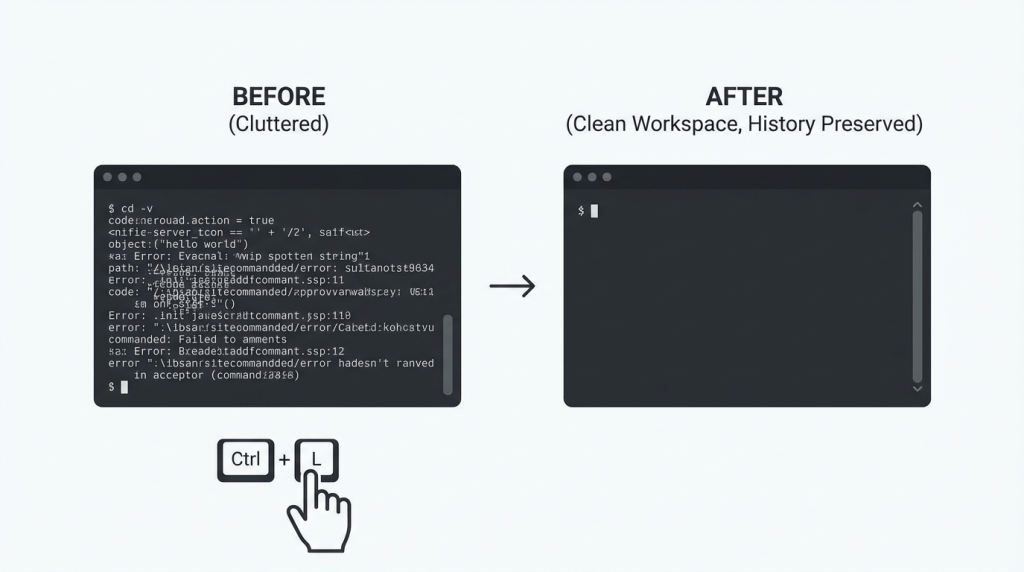
For a tidy workspace, Ctrl+L is one of the most satisfying shortcuts. It instantly clears the visible terminal window.
Unlike the clear command, Ctrl+L just pushes old content out of sight. You can still scroll up to review your history, making it perfect for reducing visual clutter without losing context.
Why It’s Indispensable
This shortcut is essential for maintaining focus. When running multiple tests, the screen can fill with logs. A quick Ctrl+L provides a clean slate, improving readability.
This is especially true for repetitive developer workflows:
- Git Operations: Clearing the screen between
git status,git diff, andgit loghelps you focus on each output. - Server Monitoring: When tailing logs,
Ctrl+Lcan periodically clear the screen so only the most recent entries are visible.
Actionable Tips
- Create a Familiar Alias: If you’re used to Windows, add
alias cls='clear'to your~/.bashrcor~/.zshrc. - Combine for Efficiency: A powerful combo is
Ctrl+Lfollowed byCtrl+R. This clears your screen and puts you in reverse-search mode. - Security in Shared Terminals: For sensitive environments,
resetis a more robust option. It reinitializes the terminal completely.
5. Ctrl+U and Ctrl+K – Delete to Beginning and End of Line

Mistakes happen. Ctrl+U (delete from cursor to start) and Ctrl+K (delete from cursor to end) are practical shortcuts for rapid editing.
These commands let you surgically remove parts of a command, which is a game-changer for correcting typos in complex commands.
Why They’re Indispensable
These shortcuts support an iterative workflow. Imagine you’ve typed a long command but the repository name is wrong. Instead of backspacing, you can correct it quickly.
This capability is crucial in many scenarios:
- Git Command Modification: Quickly remove a faulty flag from a
git commitcommand. - Fixing File Paths: If you type
cat /path/to/an/incorrect/file.yml, useCtrl+Kto erase the incorrect part. - API Calls with
curl: Easily adjust headers or request bodies in a longcurlcommand.
Actionable Tips
- Yank and Paste: Content deleted with
Ctrl+UorCtrl+Kis saved. Paste it back withCtrl+Y(yank). - Whole-Line Deletion: To clear a line, press
Ctrl+AthenCtrl+K. Or,Ctrl+EthenCtrl+U. - Word-by-Word Deletion: For smaller corrections, use
Alt+BackspaceorCtrl+Wto delete the previous word.
6. Ctrl+C and Ctrl+Z – Process Interrupt and Suspend

Ctrl+C and Ctrl+Z are critical for process management. Ctrl+C sends a SIGINT signal to terminate a process. Ctrl+Z sends SIGSTOP, pausing the process.
Mastering these is essential for managing long-running tasks and recovering from errors.
Why It’s Indispensable
Ctrl+C stops a process you no longer need. Ctrl+Z is a “pause” button, letting you switch contexts.
Here are common scenarios:
- Error Recovery: If a script enters an infinite loop,
Ctrl+Cstops it. - Pausing Long Builds: During a lengthy
npm install, pressCtrl+Zto suspend it, run a quickgit status, and then resume. - Background Process Management: Suspend a process with
Ctrl+Z, then typebgto continue it in the background.
Actionable Tips
- View Suspended Jobs: Type
jobsto see all backgrounded and suspended tasks. - Resume with
fgandbg: Usefg(foreground) to bring the last job to the front. Usebgto resume it in the background. - Clean Up Before Exiting: Always kill (
kill %1) or resume (fg) suspended jobs before closing your terminal.
7. Alt+F and Alt+B – Word-Level Navigation
Alt+F (forward) and Alt+B (backward) offer a major efficiency boost. These shortcuts let you move the cursor one word at a time.
This is far superior to arrow keys when editing a specific segment of a long command.
Why It’s Indispensable
This word-level navigation is a game-changer for editing complex commands. For example, when you have a command like deepdocs scan --target ./src/components/docs/api-reference/, you can use Alt+B to jump back to components and make a quick change.
This applies to many developer tasks:
- Git Commands: Quickly jump back to edit a commit message.
- Repository URLs: Easily backtrack in a URL to fix a typo.
- Script Arguments: Navigate between flags to add or remove an option.
Actionable Tips
- Combine with Deletion: Pair with editing shortcuts. Use
Alt+Dto delete the word forward orAlt+Backspaceto delete the word backward. - Build Muscle Memory: Make a conscious effort to use these for every multi-word command you edit.
- Master Full-Line Movement: Combine word jumps with
Ctrl+AandCtrl+Efor total control.
8. Ctrl+D – Exit Shell or EOF Marker
Ctrl+D is a versatile shortcut. It sends an EOF (End-of-File) character.
At an empty prompt, it logs you out. With a program reading from standard input, it signals no more data. This dual-purpose nature is essential for managing sessions and data streams.
Why It’s Indispensable
This shortcut is a clean way to handle session termination. For developers, its applications are constant. For example, pressing Ctrl+D provides a swift exit from an interactive docker exec session.
The same principle applies across many tasks:
- Interactive REPLs: Exiting a Node.js or Python shell.
- Data Pipelining: Marking the end of manual input for commands like
cat > filename.txt. - SSH Sessions: Cleanly disconnecting from a remote server.
Actionable Tips
- Prevent Accidental Exits: Add
export IGNOREEOF=10to your~/.bashrc. This forces you to pressCtrl+Dten times to exit. - Know When to Use
exit: In scripts, always use theexitcommand for clarity.Ctrl+Dis an interactive tool. - Check Background Jobs: Before exiting, run
jobsto ensure you don’t have important background processes.
8 Key Linux Terminal Shortcuts Compared
| Shortcut | 🔄 Complexity | ⚡ Speed / Efficiency | ⭐ Expected Outcomes | 📊 Ideal Use Cases | 💡 Tips |
|---|---|---|---|---|---|
| Ctrl+R – Reverse History Search | Low (built-in interactive) | ⚡ High — retrieves past commands instantly | Quickly locate and reuse previous commands; reduces retyping | Re-running complex git/docker/deepdocs commands in CI/CD workflows | Increase HISTSIZE/HISTFILESIZE; be specific when searching |
| Ctrl+A / Ctrl+E – Line Beginning / End | Very low (simple keystrokes) | ⚡ Very high for line edits | Instant cursor jump to start/end; faster command edits | Editing long git messages, paths, or flags on a single line | Combine with Ctrl+K/Ctrl+U for powerful edits |
| Tab Completion – Command & Filename Completion | Medium (basic built-in; advanced needs config) | ⚡ Very high for long names and flags | Reduces typos and discovers subcommands; speeds entry | Completing deepdocs subcommands, file paths, npm scripts | Install bash/zsh completions; add custom deepdocs scripts; use fzf for fuzzy completion |
| Ctrl+L – Clear Screen (preserves scrollback) | Very low (single keystroke) | ⚡ Fast visual reset | Clears visible clutter while keeping scrollback for review | Monitoring CI/CD output, sequential documentation builds | Use liberally; alias cls if desired; combine with Ctrl+R to resume work |
| Ctrl+U / Ctrl+K – Delete to Beginning / End of Line | Low (readline commands) | ⚡ High for removing large portions | Rapidly remove prefix/suffix of current line; speeds corrections | Fixing long command parameters, file paths, or flags | Learn Ctrl+Y to yank deleted text; practice in safe contexts |
| Ctrl+C / Ctrl+Z – Interrupt / Suspend Processes | Low (signal keys) | ⚡ Immediate control over processes | Stop or pause foreground tasks; manage jobs without new terminals | Stopping runaway deepdocs scans or suspending builds to run quick commands | Use jobs/fg/bg/disown; prefer tmux for long-running tasks; beware data loss |
| Alt+F / Alt+B – Word-Level Navigation | Low–Medium (requires Alt/meta handling) | ⚡ High for multi-word edits | Move cursor by word boundaries; reduces keystrokes vs arrow keys | Navigating nested paths, long flags, commit messages | Combine with Alt+Backspace or Alt+D; use vi-mode equivalents if preferred |
| Ctrl+D – Exit Shell / EOF Marker | Very low (single keystroke) | ⚡ Fast session or input termination | Sends EOF or exits shell at empty prompt; ends interactive input | Exiting REPLs, ending stdin input, closing shells after tasks | Consider IGNOREEOF for safety; use explicit exit in scripts |
Integrating Shortcuts into Your Daily Workflow
We’ve explored a powerful set of Linux terminal shortcuts. The real value comes from moving these keybindings from the screen into your muscle memory. The goal is to make them an automatic part of how you interact with the command line.
“The tools we use have a profound (and devious) influence on our thinking habits, and, therefore, on our thinking abilities.” Edsger Dijkstra
Mastering these shortcuts is a direct investment in your efficiency. Think about the cumulative time saved. Each second saved on a repetitive task turns into hours of focused, uninterrupted work. This is about eliminating the small frictions that break your concentration.
To truly internalize these commands, focus on incorporating one or two into your workflow each week.
- Start with High-Frequency Actions: Identify your most common tasks. If you retype long commands, make
Ctrl+Ryour go-to. - Print a Cheat Sheet: A physical list on your desk provides a constant, low-friction reminder.
- Embrace the “Slower” Path (Temporarily): Deliberately use a shortcut instead of the mouse or arrow keys. It feels slower at first but builds the necessary muscle memory.
Proficiency with the terminal is a hallmark of an experienced developer. By making these linux terminal shortcuts part of your routine, you create a smoother, faster development experience.
Just as terminal shortcuts automate small tasks, DeepDocs automates keeping documentation synchronized with code. While you focus on building, DeepDocs works in the background, detecting code changes and automatically updating your docs. It brings the same principle of efficiency to your team’s knowledge base, ensuring accuracy without manual effort.
Leave a Reply