How to Call REST API using VS Code

Sometimes you need a fast way to test your API call and responses, and for that VS code is the perfect tool to do that. For today’s demo, we will use a free API to test with.

https://catfact.ninja/fact

Keep in mind, this is a very very simple REST API. For more complicated REST API calls, make sure to refer to the documentation around the API itself to know the required and optional parameters.

To start, we will need to install a REST API extension in Visual Studio Code. To find extensions, navigate to the block-looking icon and search for “rest” in the search bar. When picking an extension, I recommend picking one with a lot of installs and high star reviews. For our demo, I’m going to install the first option – “REST client”.

Now that we have a REST extension, we can build a rest file to run our code in. To set up a file to run HTTP requests (aka REST API calls), we need to make a text file with the extension “.http” or “.rest”. To do this, create a new file in VS Code and save it as “api_demo.rest”. You can name it whatever you’d like, but the key here is to have .rest a the end.

Make sure the file extension is set to “No Extension” so that the .rest can change the text file to a rest file. Now that we are inside a rest enabled file, we can build out our API call. There are a few standard REST API call types such as GET and POST. For this API, we will use GET to get information. It’s typically as simple as it sounds, but definitely triple check documentation if you’re unsure what call to use.

Add the following code to your file: GET https://catfact.ninja/fact

The GET should be colored and there should be a small subscript that allows you to Send the Request.

Select Send Request, and boom! You’ve run your first REST API! The results will pop up on the right. Happy coding!

SQL Saturday Baton Rogue Recap

Thank you to everyone who came out and saw me present at the SQL Saturday in Baton Rogue! It was a blast to see smiling faces and not be the only one laughing at my jokes haha. HUGE thank you to the team of volunteers who made this event possible and to the sponsors for enabling such an amazing event.

My presentation of Power BI Meets Programmability had 58 people in attendance, the largest crowd of the whole weekend! Out of that came many great conversations about the potential shift in IT teams from separating reporting teams from application development to playing to each other’s strengths to deliver sustainable and scalable reporting to the end-users of your application. As promised, below is all the code used in the session. Thank you again to everyone who attended, and happy coding!

using System;
using Microsoft.AnalysisServices.Tabular;

namespace TOM_Testing_Live
{
        internal class Program
        {
        static void Main(string[] args)
        {
//-------------- Connect to PBI Premium Workspace ---------------- //

            // create the connect string - powerbi://api.powerbi.com/v1.0/myorg/WORKSPACE_NAME
            string workspaceConnection = "powerbi://api.powerbi.com/v1.0/myorg/Happy%20Coding";
            string connectString = $"DataSource={workspaceConnection};";

            // connect to the Power BI workspace referenced in connect string
            Server server = new Server();
            server.Connect(connectString);


//---------------- List out current state before we make changes -------------------//

            // enumerate through datasets in workspace to display their names
            foreach (Database database in server.Databases)
            {
                Console.WriteLine($"ID : {database.ID}, Name : {database.Name}, CompatibilityLevel: {database.CompatibilityLevel}, Last Updated : {database.LastSchemaUpdate}");
            }

            // enumerate through tables in one database (use the database ID from previous step)
            Model model = server.Databases["5d161e6b-697a-49b6-a3e6-7d19b940a8fd"].Model;

            //if you don't specify a database, it will only grab models from the first database in the list
            foreach (Table table in model.Tables)
            {
                Console.WriteLine($"Table : {table.Name} IsHidden? : {table.IsHidden}");
            }

            // Specify a single table in the dataset
            Table table_product = model.Tables["Product"];

            // List out the columns in the product table
            foreach (Column column in table_product.Columns)
            {
                Console.WriteLine($"Columns: {column.Name}");
            }

            // List out the measures in the product table
            foreach (Measure productmeasures in table_product.Measures)
            {
                Console.WriteLine($"Measures: {productmeasures.Name}");
            }

            // List of translations on the model
            foreach (Culture culture in model.Cultures)
            {
                Console.WriteLine($"Existing Culture: {culture.Name}");
            }

            // List out the hierarchies in the product table
            foreach (Hierarchy hierarchy in table_product.Hierarchies)
            {
                Console.WriteLine($"Hierarchies: {hierarchy.Name}, Lineage Tag = {hierarchy.LineageTag}");
            }

            // List out the levels in our category hierarchy
            if (table_product.Hierarchies.ContainsName("Category Hierarchy"))
                {
                Hierarchy hierarchy_category_ = table_product.Hierarchies["Category Hierarchy"];
                foreach (Level level_categoryhierarchy in hierarchy_category_.Levels)
                {
                    Console.WriteLine($"Category Hierarchy Level {level_categoryhierarchy.Ordinal}: {level_categoryhierarchy.Name} Lineage Tag: {level_categoryhierarchy.LineageTag} from {level_categoryhierarchy.Column.Name}");
                }
            }
            else
                {
                Console.WriteLine($"No Category Hierarchy");
                }


 //----------------Deleting columns and measures ----------------//
   /*         
           // Deleting a column if it exists
             if (table_product.Columns.ContainsName("Testing"))
             //this looks to see if there is a column already named "Testing"
             {
                 Console.WriteLine($"Column Exists");
                 table_product.Columns.Remove("Testing"); //if the column exists, this will remove it
                 Console.WriteLine($"Column Deleted");
             }
             else
             {
                 Console.WriteLine($"Column Does Not Exist");
             } 

             // Deleting a measure if it exists
             if (table_product.Measures.ContainsName("Test Measure"))
             //this looks to see if there is a measure already named "Test Measure"
             {
                  Console.WriteLine($"Measure Exists");
                  table_product.Measures.Remove("Test Measure"); //if the measure exists, this will remove it
                  Console.WriteLine($"Measure Deleted");
              }
              else
              {
                  Console.WriteLine($"Measure Does Not Exist");
              }

*/
//--------------- Adding columns and measures --------------------//            

              // Adding our column if it doesn't already exist
                if (table_product.Columns.ContainsName("Testing")) //this looks to see if there is a column already named "Testing"
                {
                    Console.WriteLine($"Column Exists");
                    //table_product.Columns.Remove("Testing"); //if the column exists, this will remove it
                    //Console.WriteLine($"Column Deleted");
                   // Column column_testing = new DataColumn() //this will add back the deleted column
                    //{
                  //      Name = "Testing",
                  //      DataType = DataType.String,
                  //      SourceColumn = "Product"
                  //  };
                  //  table_product.Columns.Add(column_testing);
                  //  Console.WriteLine($"Column Re-created!");
                }
                else
                {
                    Column column_testing = new DataColumn() //this will add the column
                    {
                        Name = "Testing",  //name your column for Power BI
                        DataType = DataType.String, //set the data type
                        SourceColumn = "Product" //this must match the name of the column your source 
                    };
                    table_product.Columns.Add(column_testing);
                    Console.WriteLine($"Column Created!");
                }

                //Get the partition sources for each table
                foreach (DataSource datasource in model.DataSources)
                {
                    Console.WriteLine($"Datasource : {datasource.Name}");

                };

                // Add a measure if it doesn't already exist in a specified table called product
                if (table_product.Measures.ContainsName("Test Measure"))
                {
                    Measure measure = table_product.Measures["Test Measure"];
                    measure.Expression = "\"Hello there\""; //you can update an existing measure using this script
                    Console.WriteLine($"Measure Exists");
                }
                else
                {
                    Measure measure = new Measure()
                    {
                        Name = "Test Measure",
                        Expression = "\"Hello World\"" //you can also use DAX here
                    };
                    table_product.Measures.Add(measure);
                    Console.WriteLine($"Measure Added");
                }


//------------------- Manipulating Hierarchies ---------------------//

            //Editing an existing hierarchy originally called Category Hierarchy
            Hierarchy hierarchy_category = table_product.Hierarchies["Category Hierarchy Rename"];
            {
                hierarchy_category.Name = "Category Hierarchy Rename"; //this renames the hierarchy, note the lineage tag will remain unchanged
                Console.WriteLine($"Category Hierarchy Renamed");
             }
            
            //Editing an existing hierarchy level 
              Level level_Category = hierarchy_category.Levels.FindByLineageTag("ca792793-d3c3-4b5d-9bee-2b46c01833bb");
              Level level_Subcategory = hierarchy_category.Levels.FindByLineageTag("4304e645-bb8f-4d7e-b25c-f629be2110d8");
              {
                  level_Category.Name = "Category";
                  level_Category.Ordinal = 0;
                  level_Subcategory.Name = "Subcategory";
                  level_Subcategory.Ordinal = 1;
                  Console.WriteLine($"Category Hierarchy Levels Renamed & Reordered");
              }

            //Adding a new level to the hierarchy if it doesn't already exist
              if (hierarchy_category.Levels.ContainsName("Model"))
              {
                  Console.WriteLine($"Hierarchy Level Exists");
              }
              else
              {
                  Level level_Model = new Level()
                  {
                      Name = "Model",
                      Ordinal = 2,
                      Column = table_product.Columns.Find("Model")
                  };
                  hierarchy_category.Levels.Add(level_Model);
                  Console.WriteLine($"Hierarchy Level Added");
              }
          
 
             //Add a new hierarchy if it doesn't already exist
               if (table_product.Hierarchies.ContainsName("New Hierarchy"))
               {
                   Console.WriteLine($"New Hierarchy Exists");
               }
               else
               {
                   Hierarchy hiearchy_new = new Hierarchy()
                   {
                       Name = "New Hierarchy",
                   };
                   table_product.Hierarchies.Add(hiearchy_new);
                   Console.WriteLine($"Hierarchy Added");
             //Creating levels to add to the new hierarchy
                   Level level_one = new Level()
                   {
                       Name = "Model",
                       Ordinal = 0,
                       Column = table_product.Columns.Find("Model")
                   };
                   Level level_two = new Level()
                   {
                       Name = "Product",
                       Ordinal = 1,
                       Column = table_product.Columns.Find("Product")
                   };
                   hiearchy_new.Levels.Add(level_one);
                   hiearchy_new.Levels.Add(level_two);
                   Console.WriteLine($"Levels added to new hiearchy");
               };

         
//-------------------------- Translations ------------------------------//

//Translations can be used to rename existing columns without rebuilding the model. This also updates any visuals that use that column.          

            // List of translations on the model
            foreach (Culture culture in model.Cultures)
            {
                Console.WriteLine($"Existing Culture: {culture.Name}");
            }
            // Let's get a list of the existing translations within the en_US culture
            Culture enUsCulture = model.Cultures.Find("en-US");

            foreach (ObjectTranslation objectTranslation in enUsCulture.ObjectTranslations)
            {
                Console.WriteLine($"Translated Object: {objectTranslation.Value}");
            }
            // Narrow down what column within this culture/language you would like to add the translation to
            MetadataObject dataColumn = table_product.Columns.Find("SKU"); //this needs to always be the original column name within the data model.
            ObjectTranslation proposedTranslation = enUsCulture.ObjectTranslations[dataColumn, TranslatedProperty.Caption];

            // Only one translation per entity per culture.
            if (proposedTranslation != null)
            {
               Console.WriteLine($"Translation Exists for this Culture & Column combo");
               enUsCulture.ObjectTranslations.Remove(proposedTranslation); //need to remove the existing translation to overwrite it
               ObjectTranslation overwriteTranslation = new ObjectTranslation()
               {
                   Object = dataColumn,
                   Property = TranslatedProperty.Caption,
                   Value = "Cool Stuff"
               };
               enUsCulture.ObjectTranslations.Add(overwriteTranslation);
            }
            else
            {
               ObjectTranslation newTranslation = new ObjectTranslation()
               {
                   Object = dataColumn,
                   Property = TranslatedProperty.Caption,
                   Value = "Total Rad"
               };
               enUsCulture.ObjectTranslations.Add(newTranslation);
            }             

           // List out the translations to see what they are now that we have run the script    
           foreach (ObjectTranslation objectTranslation in enUsCulture.ObjectTranslations)
           {
               Console.WriteLine($"Final Translated Object: {objectTranslation.Value}");
           }

//------------------- List out end state --------------------------------//

            // List out the columns in the product table one more time to make sure our column is added
            foreach (Column column in table_product.Columns)
            {
                Console.WriteLine($"Columns: {column.Name}");
            }         

            // List out the measures in the product table one more time to make sure our measure is added
            foreach (Measure productmeasures in table_product.Measures)
            {
                Console.WriteLine($"Measures: {productmeasures.Name}");
            }

            // List out the hierarchies in the product table
            foreach (Hierarchy hierarchy in table_product.Hierarchies)
            {
                Console.WriteLine($"Hierarchies: {hierarchy.Name}, Lineage Tag: {hierarchy.LineageTag}");
                foreach (Level level_hierarchy in hierarchy.Levels)
                {
                    Console.WriteLine($"Level {level_hierarchy.Ordinal}: {level_hierarchy.Name}, Lineage Tag: {level_hierarchy.LineageTag} from {level_hierarchy.Column.Name}");
                }
            }

//-------------- Refresh our version of the data model then push/save changes back to the model in the PBI service -------------//
            table_product.RequestRefresh(RefreshType.Full);
            model.RequestRefresh(RefreshType.Full);
            model.SaveChanges(); 
            //make sure this is the last line! Note, this line will not work unless your dataset has proper data source credentials connected in the service

            Console.WriteLine($"Script Complete!");


        }
    }
}

Power BI Adding Translations to Rename Columns – XMLA, TOM, C#

If you are new to using C# and the Tabular Object Model (TOM), please check out the previous blog post (https://dataonwheels.wordpress.com/2021/10/15/power-bi-meets-programmability-tom-xmla-and-c/) for both an introduction to the topic and detailed instructions on getting the demo stood up.

For the TOM and XMLA experts, imagine this. Your customer wants to dynamically rename columns without using the Power BI Desktop and would prefer all existing report visuals not get broken by the new name. Impossible? Not with TOM, XMLA, and translations within Power BI.

If you’ve ever tried to change a column name in a Power BI source, you’ve likely run into this error on any visuals that contained the renamed column. And when you hit that “See Details”, it will tell you the column that you simply renamed is no longer available for your visual.

So how do we get around that? Translations. Translations are typically used to translate report entities to other languages that will change depending on what language the end user has set on their browser. However, we can hijack this functionality to rename columns without having to impact the data model. It is a bit confusing on why this works, but imagine this: you build a Lego pyramid, but learn that one of the blocks needs to be changed from blue to green. Couple of options, you can take apart the entire pyramid (this would be akin to reopening the PBIX in Power BI Desktop and changing all of your visuals) OR you can take a green marker and color that blue brick green (adding a translation from blue to green).

If you don’t need to put this code into C#, the Tabular Editor is an excellent tool for adding translations to your data model (https://tabulareditor.com/creating-multilingual-power-bi-datasets/). However if you would like to programmatically update column names using C#, feel free to use the script below in your solution.

At a high level, here’s the hierarchy of entities used:
Workspace – Dataset – Data Model – Cultures – Object Translations
Workspace – Dataset – Data Model – Table – Column – Translated Properties

Note: There can only be one translated property per culture.

To add translations, we first need to set which culture this translation belongs in. For this example, we will use “en-US” because that is what default browser we want these names applied to. The code snippet below will list out all the cultures (aka website language codes) that are configured in this data model and list out all the translated objects (data columns in this case) that already exist.

After setting the culture/language, narrow down the column that this translation will be applied to and create a variable for the translation object. The translation object consists of two parts, the metadata object (column in this example) and the property of that metadata that we want to translate (caption in this example which is essentially display name).

Once we have these elements, we can check to see if this column already has a translation for this culture. If it does, this script will remove the old translation to allow for overwriting. If it does not, it will add the new translation to the culture within the data model.

And that’s it!

Here’s what it looks like in the service. Don’t forget to refresh your report page if you have it open for the new name to appear. There’s no need to refresh the dataset.

Full C# code:

using System;
using Microsoft.AnalysisServices.Tabular;


namespace PowerBI_TOM_Testing
{
    class Program
    {
        static void Main()
        {

            // create the connect string - powerbi://api.powerbi.com/v1.0/myorg/WORKSPACE_NAME
            string workspaceConnection = "powerbi://api.powerbi.com/v1.0/myorg/YOURWORKSPACE";
            string connectString = $"DataSource={workspaceConnection};";

            // connect to the Power BI workspace referenced in connect string
            Server server = new Server();
            server.Connect(connectString);
            // enumerate through datasets in workspace to display their names
            foreach (Database database in server.Databases)
            {
                Console.WriteLine($"ID : {database.ID}, Name : {database.Name}, CompatibilityLevel: database.CompatibilityLevel}, Last Updated : {database.LastSchemaUpdate}");
            }
            
            // enumerate through tables in one database (use the database ID from previous step)
            Model model = server.Databases["bb44a298-f82c-4ec3-a510-e9c1a9a28af2"].Model; 
            
            //if you don't specify a database, it will only grab models from the first database in the list
            foreach (Table table in model.Tables)
            {
                Console.WriteLine($"Table : {table.Name} IsHidden? : {table.IsHidden}");

            }
           
            // Specify a single table in the dataset
            Table table_product = model.Tables["Product"];


            // List out the columns in the product table
            foreach (Column column in table_product.Columns)
            {
                Console.WriteLine($"Columns: {column.Name}");
             }


            //Translations can be used to rename existing columns without rebuilding the model. This also updates any visuals that use that column. 
            // List of translations on the model
            foreach (Culture culture in model.Cultures)
            {
                Console.WriteLine($"Existing Culture: {culture.Name}"); 
            }

            // Let's get a list of the existing translations within the en_US culture
            Culture enUsCulture = model.Cultures.Find("en-US");
            
            foreach (ObjectTranslation objectTranslation in enUsCulture.ObjectTranslations) 
            {
                Console.WriteLine($"Translated Object: {objectTranslation.Value}");
            }
            // Narrow down what column within this culture/language you would like to add the translation to
            MetadataObject dataColumn = table_product.Columns.Find("Description"); //this needs to always be the original column name within the data model.
            ObjectTranslation proposedTranslation = enUsCulture.ObjectTranslations[dataColumn, TranslatedProperty.Caption];

            // Only one translation per entity per culture.
            if (proposedTranslation != null)
            {
                Console.WriteLine($"Translation Exists for this Culture & Column combo");
                enUsCulture.ObjectTranslations.Remove(proposedTranslation); //need to remove the existing translation to overwrite it
                ObjectTranslation overwriteTranslation = new ObjectTranslation()
                {
                    Object = dataColumn,
                    Property = TranslatedProperty.Caption,
                    Value = "Blue"
                };
                enUsCulture.ObjectTranslations.Add(overwriteTranslation);
            }
            else
            {
                ObjectTranslation newTranslation = new ObjectTranslation()
                {
                    Object = dataColumn,
                    Property = TranslatedProperty.Caption,
                    Value = "Blue"
                };
                enUsCulture.ObjectTranslations.Add(newTranslation);
            }


            // List out the translations to see what they are now that we have run the script    
            foreach (ObjectTranslation objectTranslation in enUsCulture.ObjectTranslations)
                {
                    Console.WriteLine($"Final Translated Object: {objectTranslation.Value}");
                }
            
model.SaveChanges(); //make sure this is the last line! 


        }
    }
}

Additional Resources:

https://www.kasperonbi.com/setting-up-translations-for-power-bi-premium/
https://tabulareditor.com/creating-multilingual-power-bi-datasets/
https://www.sqlbi.com/tools/ssas-tabular-translator/
https://docs.microsoft.com/en-us/analysis-services/tabular-models/translations-in-tabular-models-analysis-services?view=asallproducts-allversions
https://docs.microsoft.com/en-us/dotnet/api/microsoft.analysisservices.tabular.culture?view=analysisservices-dotnet
https://docs.microsoft.com/en-us/dotnet/api/microsoft.analysisservices.tabular.culture.objecttranslations?view=analysisservices-dotnet#Microsoft_AnalysisServices_Tabular_Culture_ObjectTranslations

I Wrote a Book – Hands-On SQL Server 2019 Analysis Services

While not the first time I have authored, this is the first book that I wrote as the sole author. Analysis Services is the product I built my career in business intelligence on and was happy to take on the project when I was approached by Packt.

I think one of my favorite questions is about how much research time did I put in for this book. The right answer is almost 20 years. I started working with Analysis Services when it was called OLAP Services and that was a long time ago. Until Power Pivot for Excel and tabular model technology was added to the mix, I worked in the multidimensional model. I was one of the few, or so it seems, that enjoyed working in the multidimensional database world including working with MDX (multidimensional expressions). However, I was very aware that tabular models with the Vertipaq engine were the model of the future. Analysis Services has continued to be a significant part of the BI landscape and this book give you the opportunity to try it out for yourself.

This book is designed for those who are most recently involved in business intelligence work but have been working more in the self-service or end user tools. Now you are ready to take your model to the next level and that is where Analysis Services comes into play. As part of Packt’s Hands On series, I focused on getting going with Analysis Services from install to reporting. Microsoft has developer editions of the software which allow you to do a complete walk through of everything in the book in a step by step fashion. You will start the process by getting the tools installed, downloading sample data, and building out a multidimensional model. Once you have that model built out, then we do build a similar model using tabular model technology. We follow that up by building reports and visualizations in both Excel and Power BI. No journey is complete without working through security and administration basics. If you want learn by doing, this is the book for you.

If you are interested in getting the book, you can order it from Amazon or Packt. From November 20, 2020 through December 20, 2020, you can get a 25% discount using the this code – 25STEVEN or by using this link directly.

I want to thank the technical editors that worked with me to make sure the content and the steps worked as expected – Alan Faulkner, Dan English, and Manikandan Kurup. Their attention to detail raised the quality of the book significantly and was greatly appreciated.

I have to also thank Tazeen Shaikh who was a great content editor to work with. When she joined the project, my confidence in the quality of the final product increased as well. She helped me sort out some of the formatting nuances and coordinated the needed changes to the book. Her work on the book with me was greatly appreciated. Finally, many thanks to Kirti Pisat who kept me on track in spite of COVID impacts throughout the writing of the book this year.

I hope you enjoy the book!

Power Testing ETL with Power BI – The Process

PowerTool_1This is a short blog series on using Power BI tools to support testing ETL processes. I have presented on this subject at few SQL Saturdays over the past few years and am finally succumbing to multiple request to turn it into a blog post. Realizing the amount of content is more than I typically would put into a single post, I will be putting together this short series to cover the material. The first post is this one. It will walk through the entire process at a high level. I will follow this post with a deeper look at Power Query’s role in the process. The third post will cover Power Pivot and building out test cases. Finally, we will wrap the series up with some visualization ideas for Excel and Power View. You can find all the posts as they come online here. Let’s get started.

The Problem Area

Why use Power BI to test ETL? While working as the architect on an ETL project for moving data from third party web service to an on-premise financial solution, we needed to put together a testing strategy that could be implemented by non-developers on the project. Our situation was that our project was “too small” to engage our QA team but the requirement for reusable testing needed to be fulfilled. Our project team consisted of a BI architect (that would be me), an ETL developer, and a business analyst (Chuck Whittemore).

NOTE: We are testing the data transformations and data load. This is not intended for auditing or performance. There are other tools for reviewing those including the built in reporting in SSIS and Pragmatic Works’ BI xPress tool. If you are tracking whether a package fails or succeeds, you should use either of these options not this process.

The Big Idea

The BA and I were discussing options for testing and we theorized that we could use a new add-in for Excel (Power Query, still in preview at imagethe time) with Power Pivot to build out tests. The key to success on this project is that we needed to be able to test with non-developer tools, no SQL Server Management Studio or SSIS could be involved in the testing. The primary reason for this is that he would be doing the testing. We also did not want to recreate every step in the ETL process the same way. So, time to put theory into practice. We determined that we would create test cases in Visual Studio then build out tests to match those cases in Excel using the Power BI add-ins. He would do the work in Excel and we, the developer and I, would provide technical support as needed.

The Recommended Tools

Before we dig into the process, I want to lay out the tools used for development and for testing. While this solution can use other tools, it is important to know what we used in practice to create our solution.

ETL Development Tools

imageThe ETL development was done using SQL Server Integration Services (SSIS). At the time, we needed to use Script tasks to consume the web service content. The financial system used a custom load process that we dumped formatted data into a file for the system to pick up and load.

In the examples, I use in the presentations and will lay out here, I will be using a text file to SQL Server implementation. While complex ETL problems are common and hard to test, this simplified version is easier to follow in examples. You should be able to apply the principles used here to test any solution.

Testing Tools

imageThe testing development for the referenced project consisted of Excel with Power Query and Power Pivot. Power Query was in preview at the time, so we had some of the performance issues and early bugs to work through. None of these issues, prevented us from completing the project.

The presentation solution relies on the latest version of Power Query (which changes every month) and Power Pivot in Excel 2013. Most of the examples are easy to follow, but you should be able to solve most transformation tests with the combination of Power Query and Power Pivot. Definitely do not discount the capabilities of Power Query and the fact that new functionality is being added each month.

Team Foundation Server/Visual Studio Online

imageBoth projects use the online version of TFS. If you are currently not using a source control and work tracking solution, I highly recommend you look at the online version of TFS. It will allow you up to 5 users free and give you ability to use source control, create test plans, create test cases, log bugs and track changes. These are key features necessary to complete a good solution that can be managed and tracked.

The Process

image

I am going to walk through my demo to build out the process steps. This will allow you to see examples. I will call out any thing of relevance related to the project here as well.

1. Business Rules

The first part of any project, especially in ETL, is to understand the business rules. If you are working with a data warehouse project, this may be fairly well documented in a dimensional model. In both of our cases here, we are moving data from one system to another. The transformations and business rules are primarily driven by the target system. Here are some examples of business rules in the media library sample project.

  • Author names are stored in separate columns – FirstName and LastName
  • If an author’s name include a middle name or initial or some variation, this combination should be stored in the first name column. For example, J.R.R. Tolkien would be stored as follows:
    — FirstName: J.R.R.
    — LastName: Tolkien
  • Copyright year should be stored as a 4 digit value
  • Page numbers should not exceed 1000

Every project has some type of business rules. It is hard to build out transformations and create test cases without these rules.

2. Source to Target Map

This is the single most important document for the tester. It tells the tester how the developer is getting from source to destination and what type of data massaging needs to be handled. Typically, people use some variation of the example created by the Kimball Group over the years.

3. Developing SSIS

The developer begins the process of creating the SSIS package. He will be using the Source to Target Map as his guide and will update that document to handle special cases in the data as needed. Ideally he is working in a development environment that will allow for test build outs as well.

4. Creating Test Plans and Test Cases

The tester creates test plans and test cases in TFS. These tests are based on business rules and the source to target map. Depending on both the complexity of the solution and the time to develop, some test cases could be did the table move the correct data field for field and row count. This method can be particularly useful when working with large tables or simple data flows. However, you should have a test case for every transformation that massages the data. This will insure that the data is being transformed as expected.

image

Keep in mind, this solution will support test cases for each field in a data load if required. The tester and architect should evaluate what is the appropriate amount of coverage to guarantee the highest level of quality in the data transform. As always, there is a diminishing rate of return if you “test everything” at the lowest level. It will be expensive in terms of cost of development when the chance for error is minimal. It will also take substantially longer to test everything. You need to understand and be able to articulate how the testing was accomplished and your level of confidence in the results.

5. Building the Tests

This is the most extensive part of the process besides the SSIS development. I will not go into all the details here, but will walk through the overall process and principles. I will provide detailed examples in the follow up posts as noted above.

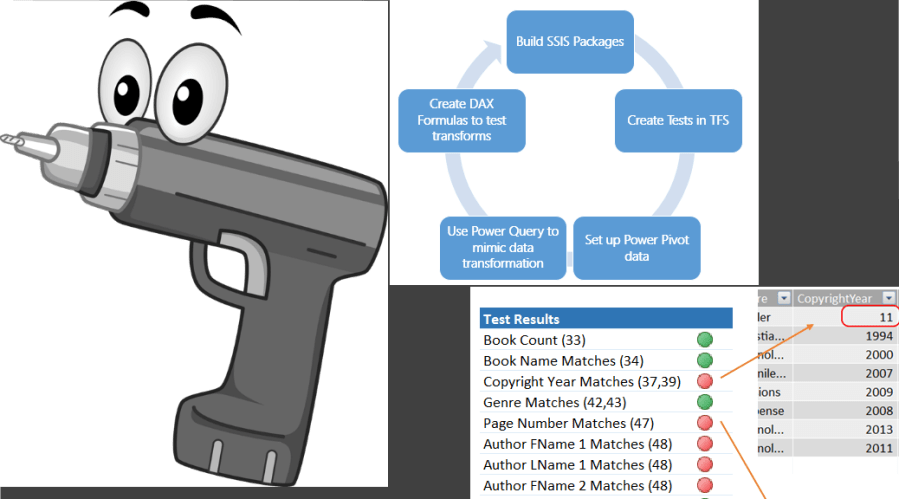
Let’s start with the end result. Chuck and I were able to determine that we could use DAX to create comparative formulas on data that could be brought into Power Pivot from both the source and the destination. Essentially, we wanted to use math to determine the results of the tests. So in our example, we use a formula like “if Source.CopyrightYear = Destination.CopyrightYear, then it passes, else it fails.” Depending on how you want to measure, pass could be 0 or 1. Then we add the values up to determine if data passed or failed the test. We can even tell you failure rates.

In order to get the data in a comparative state, we needed each table in the destination with a table that matched from the source. However, it is very common that sources and destinations are not one-for-one table matches. This is where Power Query comes in. Using Power Query in our example set we bring in the text file and massage or shape the data to look like the destination. Most importantly, we need to apply all business rules and transformations to the source. Once this is done, we do no massaging on the destination data. This allows us to compare what the ETL process did with what our tests say it should have done.

A key part of being able to compare is the ability to relate the two tables in Power Pivot. You need to be able to match natural keys or derived keys between the two sources. The relationship should be from the destination table to the source table. Without this relationship, you will not be able to build the calculations for the tests. Keep in mind the goal is to get our source to look like expected results. Any data in the destination should match the source in our scenario.

image

Once both tables are created and loaded into Power Pivot, we can complete the tests using DAX. In some cases, we create calculations on both tables to be compared. A classic example is row count. We count the number of rows in the source table and the destination table. Then we create a calculation on the destination to compare values. This meets the requirements of a row count test case (e.g. all data was successfully imported).

Another example of a test is to compare the content in a field from source to destination. This is where we use a lot of conditional logic to verify the contents of a field in a row is the same in both tables. Calculated columns (not measures) are used to create the comparison results. The conditional statement should result in a number. This is important in order to create a measure that sums up the results to determine if errors exist or not. If you choose success to be 1, then you will check your results against the row count to determine if there are errors. If you choose failure to be 1, then a nonzero count means you have errors. There is no right or wrong way to handle this, you would choose based on visualization techniques. Most of the time, using 1 for failures is fine. However, if you want to create KPIs, you will likely need success to be one so you have a good target to work with.

6. Testing the Initial Load

Once you have created the tests, you are ready to test the initial load. You will connect to both sources. Ideally, your source will not change so you can redo the test multiple times, but this will work regardless. Refresh the data which may require rerunning the Power Query query. Once you have refreshed the data you should be able to check the calculations in a simple pivot table to determine what tests have succeeded or failed. This is the beauty of this solution. Each subsequent execution of SSIS, you will be able to refresh your data and review your results to determine how successful the ETL is.

image      image     image

A side effect of this work is that the developer can review the test results in Excel and Power Pivot with you to more easily find the discrepancy in the data transform. In some cases, the tests are in error as well. It is important that the developer and tester work together to determine cause as well. A good team will be able to work through issues rather quickly.

7. Recording Bugs and Issues

You will need to go back to Visual Studio to change the pass/fail for each test. If a test fails you can log a bug for the developer and you that information to determine if it was fixed prior to a subsequent run. It is likely that multiple sprints will be required to complete the work so you can work with your team to determine the best ways to communicate what is ready. If you track the work in TFS, you will queries are available to help you see what work has been completed.

You can determine if the fix worked and then set the test results accordingly. This will help show progress on the project as well.

8. Visualizing the Results

You can visualize your results using KPIs, conditional formatting and even Power View. If you have a project that needs to be easily evaluated you can publish your results to SharePoint and use charts and graphs to show how accurate the process is so far.

image  image

We will dig into visualization options more in a following blog post.

Tracking Test History

No solution is perfect and that is true here as well. One of the most common questions is how do we see the historical results? This solution does not easily provide for that. I am looking at options, but for the moment the idea is that the history will be tracked through TFS. However, you could save the workbook after each iteration. This will give you some history, but you would want to make sure that you don’t refresh data on a historical workbook or the results would be overwritten.

Some final thoughts.

Power Query is not an ETL tool. It’s target destination is always the same – Power Pivot. While it’s ease of use makes it appear to be a tool to be used for ETL, it is not there yet. However, it is in its ease of use that we have a place to work with it here.

My plan is to have some deeper technical dives into parts of the solution in the future.