
C++Online Overview

Online Workshop Taster Sessions
Our new third track will host a variety of workshop taster sessions designed to provide attendees with a preview/overview of the post conference workshops and training sessions that are available to book for an additional fee.
Access to Workshop Previews is included in all main conference registrations, whereas the full post conference workshops require separate registrations (but your conference registration will be discounted from your booking price for the first workshop you purchase). Whether you purchase a workshop ahead of time (which includes free access to the main conference) or during the event, you'll still pay the same total price.
The format, length and scope of each taster session will vary - some sessions will include short snippets of the full workshop content, others will cover adjacent content so as not to give away too much for free, some will also be broader sessions where the instructor walks you through the structure and content of the full workshop session.






Online C++ Talks & Presentations
Get ready for an action-packed conference as we have 3 keynotes and 22 breakout sessions from experienced C++ speakers including Kevlin Henney, Dave Rowland, Roi Barkan, Amir Kirsh and more! From coroutines, software design, safety and algorithms, there is something for everyone and these sessions also cater to different levels of C++ experience from someone who is just starting out to a veteran in the software development industry.
All sessions will be accessible on-demand after they have concluded so you can watch them during or even after the conference at your own convenience.


Open Content
Open Content are presentations that have been submitted outside of the call for speakers and which are presented outside of the main conference program. Examples can include:
- Speakers presenting a lecture about a C++ topic thay are interested in
- Speakers presenting a demo/workshop of a C++ library they have made
- Speakers hosting a panel discussion about a C++ topic they are interested in.
All open content sessions will be added to the main schedule as and when they are confirmed and all sessions will take place in Gather Town!

Networking
Networking is a key part of any conference experience, and C++Online is no exception! The conference emphasizes user interaction, offering various ways to connect with attendees, speakers, volunteers, staff, and contributors via Discord and our virtual venue on Gather Town.
- Attendees can engage in spontaneous interactions through Gather Town’s proximity-based video chat—move closer to others to see and hear them, just like a physical conference!
- Explore the venue, ask speakers questions, and network with peers and experts. Huddle for group chats or walk and talk with friends.
- Join group conversation spaces for easier networking, with video chats for 1:1 or large group discussions, plus screen sharing.

Group Sessions
As well as networking, Gather Town can also be used to run Group Sessions. You can facilitate this by either:
- Joining a pre-scheduled or impromptu meetup, BoF, SiG or networking event in the virtual venue.
- Scheduling a session of your own in any of our available open content rooms
- Or if you want a less formal conversation, simply tell others where to meet you (through Discord) and find a suitable conversation space that will cater for the size of your group.
To book your own session, navigate to any of the open content rooms and use the booking form to submit and schedule your session. If you wish to book something ahead of time, please do so through the open content form

Social Events
We will also have some fun social events taking place in Gather Town. Some examples from last year included:
- Games & Tournaments: Dutch C++ ran a competitive and fun tetris tournament to unwind after the first day of the conference.
- Quizzes: CppIndia ran a lively and interactive pub quiz to start the final day of the event.
All social events will be added to the official C++Online schedule as and when they are confirmed. In addition, during the conference impromptu meetup spaces and group discussion areas will be available within the virtual venue for anyone who would like to run their own social event.

Online Posters
View our virtual interactive posters in the virtual venue! These posters are provided by a wide range of attendees who are presenting their latest c++ related work or project.
- Posters can include a variety of interactive elements including videos and web pages.
- All poster presenters will have slots in the schedule where they will be available to discuss their poster with attendees through interactive video chat and screen share.
- You can find out which poster sessions a poster presenter is attending by visiting their poster booth.

C++Online Lightning Talks - Deadline 27th February
Join our host Phil Nash as The C++Online Lightning talks comes to Zoom on Thursday 12th March at 19:30 UTC!
Lightning Talks are a series of short, informal, c++ and coding related presentations that have a strict five minute time limit. They are well worth attending as while they are often informative, they can also be funny!
Any attendees who are interested in contributing to the lightning talks should fill out our application form


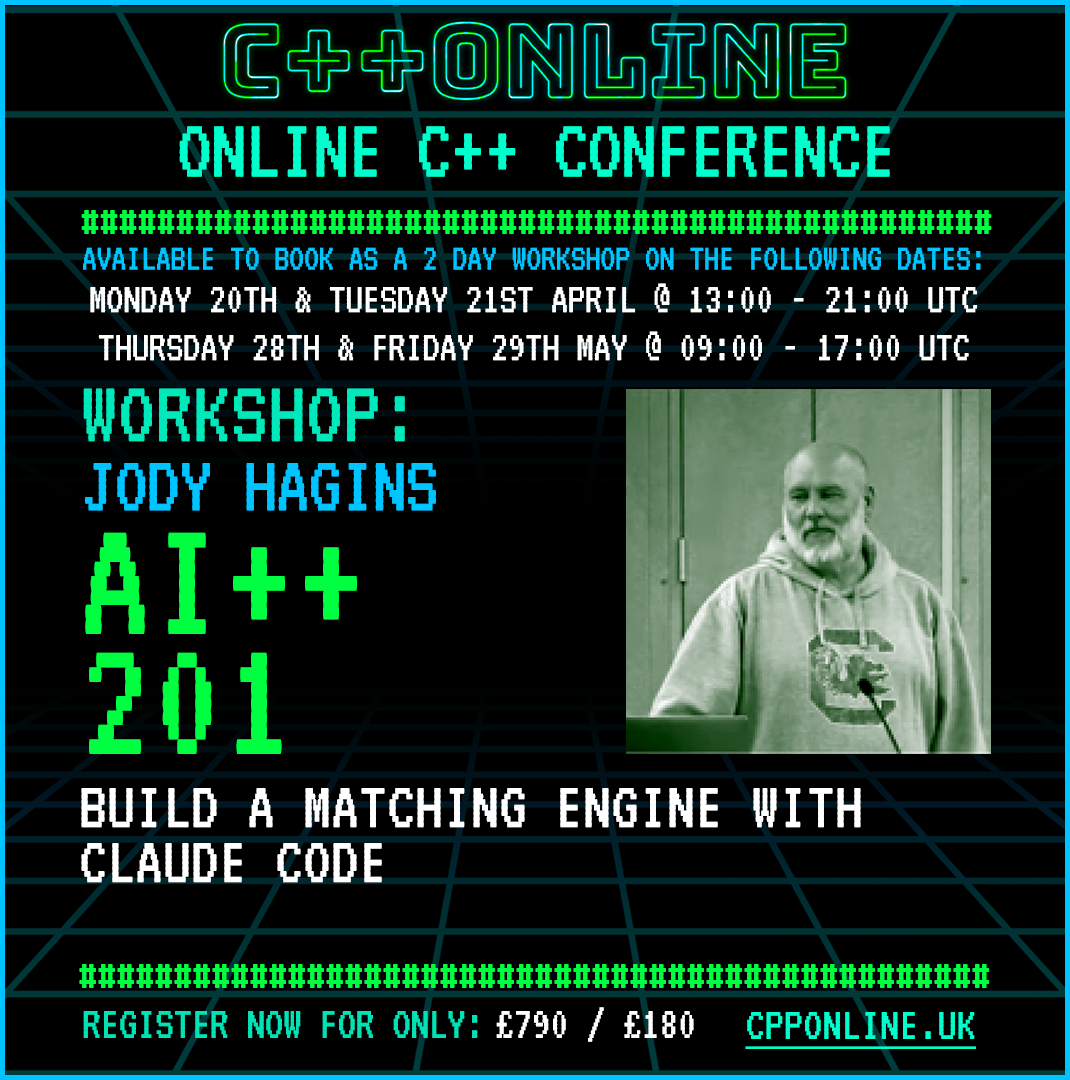

Online Post Conference Workshops (Separate Registration Required)
Our Post Conference Online Workshops offer attendees a rich lineup of immersive, interactive and 'hands-on' training with world-class C++ instructors. These sessions will take place shortly after the main conference and are designed to help you take your skills to the next level.
However, if you are unsure if a workshop is right for you then as part of the expanded three-track format at the main event, workshop taster/preview sessions will run throughout the conference programme. These allow anyone with a conference registration to get a preview/overview of the post session workshops before they purchase - anyone purchasing a workshop registration will also receive a discount equal to their conference registration for the first workshop they purchase

Discord
Discord is a free-to-use text and audio based discussion app that will be used as the support and communication system for the conference.
- Live Discussions - Use our selection of topic-based Discord channels to have live, relevant discussion with attendees
- Session Discussion Channels - We have a dedicated discussion channel for each session so you can ask questions before, during and after each talk.
- Announcements - Keep up to date with the latest news from C++Online.
- Instant Live Online Support - Get live support for any technical difficulties and questions from one of our helpful volunteers!
- Access information and resources relating to the other conference systems


Virtual Venue (Gather Town)
An exciting, online conference experience awaits you in our virtual venue.
- Access To Zoom Sessions - Enter the relevant track for the talk you wish to watch and press the X key to open the link to the Zoom session
- Interactive Group Video Chat - Chat to online attendees just as you would in a physical venue using the Proximity-based Video & Audio Chat
- The C++Online Quiz - Take part in our virtual puzzle game by hunting down pub quiz questions hidden in objects around our virtual venue. Finish top of the leaderboard by the end of the conference and you may win a prize!
- Easter Eggs / Secrets - Discover all the hidden secrets of the virtual venue
Please use Chrome or Firefox when accessing Gather Town (or the Gather Town app)
Gather Town Opens at 12:00 UTC on Wednesday 11th March

Conference Platform / Portal
A user friendly website created for ease of access to all of the conference elements as well to access the on demand recordings for all of the sessions.
- Access To Zoom Sessions - Links to the zoom sessions are served 30 minutes ahead of time and are accessed by clicking a track button on the main lobby page.
- Access To Virtual Venue - Use this page to enter the virtual venue (Where you can access all relevant aspects of the event too)
- Conference Schedule - Your full guide to what's happening at the conference!
- Online Help & Resources - Access helpful resources, guides and materials

C++Online 2026 Conference Schedule
Keep up to date with any changes or updates to the schedule.
- Personal Agenda - Build your own personal agenda which you can then follow at the event.
- Access To Slides - Access slides and other presentation material as and when they are uploaded by the speakers.
- Add To Google Calendar - If you have other commitments during the event, then you can add individual sessions to your Google Calendar and make sure you are free for the talks you want to see.


On Demand Access
All the main programme sessions will be available to watch on demand shortly at the end of each day.
- Discussion & Questions - If you have a question after watching a session on-demand, then use the session discussion channel in Discord to ask the speaker
- Exclusive Access - On-demand will ONLY be available to conference attendees and can ONLY be accesed through this website.
Recordings are accessed through the bottom right panel of the portal page which takes you to the recordings page.
Accessing The Virtual Venue
You can access the virtual venue at any point during the conference by clicking the button below. Please note that you will be unable to access Gather Town until the 26th February
When connecting for the first time, you will be prompted to provide your email address and to create an avatar.
If you need any help getting around the venue, then please check out our map or find one of our volunteers and they can assist you.
To create an avatar, choose from a large number of pre-generated avatars and then customize the colors/styles in order to find a close match to your own appearance, (or you can be a number of more interesting avatars).
You should also select your camera and microphone from the drop-down menus.
When finished, you will enter the venue, (there may be a short tutorial provided by Gather Town before you officially enter the venue).
Navigating The Venue
The Virtual Venue uses Keyboard Controls as the main input method:
- Use the arrow keys or W A S D keys to move your avatar around the map.
- Use the X key to interact with objects around the map
- Use the 'G' key to enter 'ghost mode' which allows you to move through other avatars if you become trapped
- The number keys (1,2,3,4 etc.) trigger emotes/reactions that can be seen by others around you.
- Holding the 'Z' key causes your avatar to do a fun dance!
The Venue is split into a number of 'spaces'. These are linked together by doorways, staircases, and other 'entrances'. Walking into the doorway will teleport you to the next location.
There are also a number of interactive objects to be found, particularly within sponsor booths, and in some of the 'secret' areas of the venue.
Video Chat Controls
Gather Town uses a proximity-based video chat system. As you approach other attendees/avatars, the user's webcam will slowly fade into view and their audio will also increase in volume as you gain proximity. We highly recommend keeping your webcam and microphone on while in the venue, as this provides the best experience for all.
You can turn off your webcam and microphone through the controls in the bottom right-hand corner (with the preview window of your webcam).
Tables and smaller rooms are 'private' conversation spaces, where the proximity effect is not present. When you enter a private conversation space, the outside area will slightly dim to denote this.
These spaces are designed for larger group chats of up to 25 participants (but we have spaces for groups of all sizes). This allows a group to chat without being interrupted as attendees move in and out of proximity. All users in a private space have a 'full' connection to each other.
Screen Shares also follow the same rules as video chats. The proximity effect applies in general spaces but not in private spaces.
Controls & Functionality

Sidebar
- Options Menu - Click on the button in the bottom left corner to open this menu. Mainly used to access settings and to sign out of Gather
- Your webcam feed - With a button to turn off and change your webcam.
- Menu >User/Video Preferences (Ctrl/⌘ P)
Turn On Quiet Mode (Ctrl/⌘ U)Reset Position
You can also add a text status in here which will appear under your name in the participants panel and change your name. - Microphone On/Off
- Emotes - Also triggered through number keys.
- ScreenShare - Starts a screen share of a screen or application window.
Command Bar & Avatar
- Raise Hand - Shows a hand icon over your avatar. Can be useful if you need to get a volunteer's attention
- Info Board - Announcements and pinned messages may get posted here.
- Events - Events may appear here
- Text Chat - Chat with other users through text-based chat. Select either Nearby, Everyone, or select a specific user from the list. Nearby messages are only seen by those in proximity, (the same proximity as your video/audio).
- Attendee List - Use this to view the list of active users, search for people and then find them in the venue. You can even 'walk to' another user (you will be automatically navigated to the user)
Idle Users
Idle users become invisible and do not transmit or receive audio. Users who are in talk sessions will not be interrupted by attendees in the venue unless they are active.
Additional Support
For more information, see the Gather Town guidance here: https://support.gather.town/help
Joining A Zoom Session
The tracks are displayed at the top of the main conference platform lobby. These update 30 minutes ahead of each session with the next speaker (in most cases).
To join a session:
- Click on the button for the track you want to join.
- You will then be prompted to open the session in the Zoom software. Press OK and the zoom app will open with the meeting.
- If you do not want to use the Zoom software, close the prompt and then click on the Join from your browser link on the Zoom webpage. Please note that some features are not available in the browser-only experience.
Disclaimer
All the Zoom Presentations Are Being Recorded
If you choose to participate in the session with either audio or video this will be recorded and may be used in the final videos that are released on YouTube. Turning on your webcam or microphone is a confirmation of your agreement to be recorded.
IF YOU DO NOT WISH TO BE RECORDED - Please keep your camera and microphone off.
ALL attendee Chat & Q&A messages are recorded for auditing purposes, but will not be included in the publicly available videos. The Chat is however available in the attendee-only recordings which will be shared on this website.
In Summary - Actively participating in the session through camera or microphone will act as your permission to be recorded and for the resulting recordings to be edited and released to the public.
Using Zoom
During a typical Zoom presentation, when a presenter chooses to share their screen, your zoom interface will enter full-screen mode and look something like the following:

- Screen Share - The presenter’s screen share which will typically show their slides.
- Speaker’s Webcam - This shows the speaker’s webcam which will initially appear at a small size. However, This can be resized to be bigger and moved to anywhere within the Zoom window or even to another screen if you are using more than one monitor.


- Chat - Please note that chat will be disabled for this event and will take place in Discord.
- Raise Hands - You can raise your hand to attract the speaker’s attention. Please note that it is at the speaker’s discretion if they choose to acknowledge your raised hand.
- Q&A - This will open up the Q&A panel where you will be able to submit questions to speakers which may be upvoted depending on whether the speaker has enabled upvoting in their Zoom session.
- The speaker may answer these questions live or through text
- Audio Settings - Here you can configure your microphone and speaker settings. However, you will not be able to speak in any of the sessions unless the speaker invites you to.
- If you need to mute the session at any point, click audio settings and then click Leave Computer Audio
- Screen Share Controls - Here you can zoom in to the screen share and exit full-screen mode.
- Leave Button - At the end of the meeting, you can press the leave button to leave the webinar. Then you would go back to using Remo while waiting for the next session.
If you exit full-screen mode, then your zoom layout will change to be something like this:

- The screenshare reduces in size and goes below the webcam feed. The webcam feed can also no longer be resized.
- When you open the chat panel, it now docks to the right of your Zoom webinar window
- You now have the option on the top left to switch between making the speaker’s webcam feed and the screen share bigger as well as go back to full-screen mode.
For more detailed information, please see the dedicated Zoom support articles: https://support.zoom.us/hc/articles/115004954946-Joining-and-participating-in-a-webinar-attendee-
Accessing The Discord Server
Please use this link to join the Discord Server https://discord.gg/GeyTfpEbqP
Please note that when you join the Discord server you will need to complete our verification process.
- Write !verify in the verification channel. Our verification bot will then send you a private message asking you for the email address that you used to register your ticket.
- Go to the top left corner of the Discord window and click on the icon on the top left with the number. It should look something like the below
- This will then load a private conversation with the verification bot. Now write the email address that you used to register to the conference and press enter.
- At this point the bot should now say that you are verified. If you are have any problems, please visit the troubleshooting channel on the Discord server.
If you do not verify, then you will not be able to access any channels on the Discord server and you may miss important announcements.
Once you have joined, please:
- Update your Nickname on Discord, (you can keep your username the same), to your real name as it appears on your ticket. This is to make it easier for everyone to identify users across the different platforms. You can also choose to display pronouns after your name - i.e Bob Jones (He/Him, They/Them etc) but this is entirely optional
- Visit the #welcome-and-rules and #code-of-conduct channel to familiarize yourself with the rules and code of conduct. Please note that the code of conduct applies across all of the different systems being used for this conference.
When you join the server, you will see something like this:

- Chat Panel - The transcript of messages for the chosen channel will appear here.
- Chat Bar - You can use the chat bar to send a message, post memes, or express yourself with some emojis
- You can attach images, videos, and any other files by clicking the "+" on the left side of the Chat Bar.
- If you need to reference a specific user, then you can do this by writing @username in your message.
- Servers & Direct Message - This is where you choose what Discord server you want to go to.
- Channels - These are where the channels for the ADC 2022 Conference server are listed. They keep conversations organized and give everyone plenty of room to talk.
- Users - This is where all users of the ADC 2022 Conference are listed.
If you need further information regarding how Discord work, then we would suggest having a look at the Getting Started articles offered by Discord. https://support.discord.com/hc/categories/115000217151
Help Desk & Technical Support
If you are unfortunate enough to encounter a technical problem when using Gather Town or Zoom, then it is recommended that you go to the help desk to get technical support. To do this:
- Please go to the #helpdesk channel in Discord and post your issue.
- One of our volunteers will then get in touch with you to try and resolve the issue.
- If a volunteer can't solve the issue, then depending on the problem, it may be examined by one of our technical team.