
How To Create And Use Python Packages?

Create And Use Python Packages

Python packages are a simple way to organize code into logical and reusable units. They are a collection of modules(Python files) organized into directories. You can think of them as folders that group related modules together.

The importance of Python packages lies in their ability to promote modularity and maintainability. By organizing code into packages, you can easily reuse functions and classes across multiple projects, avoid duplication, and reuse functions and classes across multiple projects, avoid duplication, and work with different Python data types more effectively.

Summary of the article(In this article you will learn):

  • How to Build Your Own Python Packages: We’ll break it down step by step, from creating folders to writing modules.
  • Importing Modules Like a Pro: You’ll earn the best ways to bring modules into your code, whether it’s grabbing a single function or loading an entire library with a custom alias.
  • Handling Tricky Situations: What if a module is missing? Or you need to reload a module without restarting your program? We’ll cover dynamic imports, error handling, and more.

By the end of this article you will know how create and use Python packages very well, so let’s get started right away!

Understanding basics of Python Packages

In this section, we will break down and understand the basics of Python packages. We’ll start by clarifying the difference between modules and packages, and then dive into the standard directory structure of a Python package, including the role of the __init__.py file. So, let’s start!

Modules vs. Packages

Modules – A module is simply a single Python file (e.g., string_utils.py) that contains functions, classes, or variables. For example, imagine you’re working on a project and want to reverse a string multiple times but don’t want to write the function again and again, to make this easy, you can create a module called strings_utils.py with a function to reverse a string in it. Let’s see how this will work:

				
					# string_utils.py
def reverse_string(text):
    return text[::-1]


Now instead of rewriting this function in another script, you can just simply import the strings_utils module to use in another script:

				
					from string_utils import reverse_string
print(reverse_string("Coding Zap"))  # Output: paZ gnidoC


Package : A package is a collection of multiple modules organized into a directory. Think of it as a folder that groups related modules together. For example, you might have a package called utilities that contains modules for math operations, string manipulations, and file handling. The key difference is that a package is a directory, while a module is a single file, like a string utility module to replace characters in a string.

Basic Example:

  • A module: math.py (contains functions like add(), subtract(), etc.)
  • A package: calculator/ (contains multiple modules like addition.py, subtraction.py, etc.)

Directory Structure

A Python package follows a specific directory structure. Here’s what a typical package looks like:

 directory structure

Let’s break this down:

  1. my_package/: This is the main package directory. The name of this directory is the name of your package.
  2. __init__.py: This file is what makes a directory a Python package. It can be empty, but it’s mostly used to initialize the package or specify what should be available when the package is imported. For example, you can use it to import key functions or classes from your modules so they’re easier to access.
  3. module1.py and module2.py: These are the modules (Python files) that contain your code. Each module can have functions, classes, or variables.
  4. subpackage/: Packages can also contain subpackages, which are just nested packages with their own __init__.py files and modules.

The Role of __init__.py

The __init__.py file is the heart of a Python package. It tells Python that a directory should be treated as a package.   When you import the package, Python automatically runs the code inside __init__.py. 

 It serves two main purposes:

  1. Package Initialization: When you import a package, Python automatically runs the code inside  __init__.py. This is where you can set up package-level variables or set up other necessary steps.
  2. Controlling Imports: You can use __init__.py module to define what gets imported when someone uses from my_package import *. For example, if you want to make a function from module1.py directly accessible, you can add this to __init__.py.

Using __init__.py to Simplify Imports

Let’s modify __init__.py like this:

				
					# my_package/__init__.py
from .module1 import my_function


Now, instead of doing:

				
					from my_package.module1 import my_function


You can import directly from the package:

				
					from my_package import my_function


How To Create Python Packages? Read Below

Now that you understand what Python packages are and how they’re structured, let’s dive into creating one from scratch. In this section, we’ll walk through the process step by step by using a math_tool package as an example. By the end, you’ll have a fully functional package ready to use in your projects.

Setting Up the Package Directory:

The first step in creating a Python package is setting up the directory structure. Here’s how to do it:

1. Create the Main Package Directory:

Open your terminal or file explorer and create a folder for your package. For our example, we’ll name it math_tool:

				
					bash
mkdir math_tool
cd math_tool


2. Add the __init__.py File:

Inside the math_tool folder, create an empty __init__.py file. This file tells Python that the directory is a package:

				
					bash
touch __init__.py


3. Create Submodules:

Now, create Python files (modules) for each type of functionality. For our math_tool package, we’ll create four modules: addition.py, subtraction.py, multiplication.py, and division.py:

				
					bash
touch addition.py subtraction.py multiplication.py division.py


At this point, your directory structure should look like this:

Output: 

Creating a Python Package Output

How To Import Modules in Python?

Now that you’ve created your Python package, the next step is learning how to import and use its modules in your scripts. In this section, we’ll explore different ways to import modules and their attributes, along with best practices to keep your code clean and efficient.

  • The import Statement

The import statement is the most basic way to import an entire module. Once imported, you can easily access its functions, classes, or variables using the module name as a prefix.

Example: Importing the addition module from the math_tool package and using its add function:

				
					import math_tool.addition


result = math_tool.addition.add(5, 3)
print(result)  # Output: 8


Here, math_tool.addition refers to the addition module inside the math_tool package.

  • The from…import Statement

If you only need specific functions or classes from a module, you can use the from…import statement. This allows you to import only what you need.

Example: Importing only the subtract function from the subtraction module:

				
					from math_tool.subtraction import subtract


result = subtract(10, 4)
print(result)  # Output: 6


Now, you can use subtract directly without referencing the module name.

  • Importing All Attributes

You can use the asterisk (*) to import all attributes (functions, classes, variables) from a module. However, this approach should be used cautiously because it can lead to namespace pollution and make it unclear where a specific function or class is coming from.

Example: Importing all functions from the multiplication module:

				
					from math_tool.multiplication import *


result = multiply(2, 6)
print(result)  # Output: 12


While this is convenient, it’s generally better to import only what you need to avoid confusion and potential conflicts.

  • Alias for Modules

If a module name is long or you want to avoid naming conflicts, you can assign an alias to the module using the as keyword. This makes your code more concise and easier to read.

Example: Importing the division module with an alias:

				
					import math_tool.division as div


result = div.divide(10, 2)
print(result)  # Output: 5.0


Here, div is the alias for math_tool.division, so you can use div.divide() instead of typing the full module name.

Putting It All Together

Let’s see how these import techniques work in practice. Suppose you want to use all the functions from the math_tool package in a single script:

				
					# Importing modules and functions
import math_tool.addition
from math_tool.subtraction import subtract
from math_tool.multiplication import multiply
import math_tool.division as div


# Using the functions
print(math_tool.addition.add(5, 3))  # Output: 8
print(subtract(10, 4))               # Output: 6
print(multiply(2, 6))                # Output: 12
print(div.divide(10, 2))             # Output: 5.0


By understanding these import techniques, you can write more cleaner and better code in general and make the most of your Python packages, use them in loops with enumerate for more control.

How To Import Module Search Path?

When you import a module or package in Python, the interpreter needs to know where to find it. Python uses a list of directories called the module search path to locate the requested module. In this section, we’ll explore how Python determines this search path and how you can modify it to import modules from custom locations.

Understanding sys.path

The sys.path list is an important part of Python’s module import system. It contains the directories Python searches when you try to import a module. Here’s how it works:

1. Default Directories:

  • The directory containing the script you’re running.
  • Directories listed in the PYTHONPATH environment variable (if set).
  • Standard library directories (where Python’s built-in modules are stored).
  • Site-packages directory (where third-party packages installed via pip are stored).

2. Viewing sys.path:

You can view the current search path by importing the sys module and printing sys.path:

				
					import sys
print(sys.path)


Modifying the Search Path

Sometimes, you may need to import a module or package that’s not in one of the default directories. In such cases, you can add the directory containing the module to sys.path. Here’s how:

Adding a Directory Temporarily:

You can append a directory to sys.path at runtime using the append() method. This change only lasts for the duration of your script.

Example: Suppose your math_tool package is located in /home/user/my_packages. You can add this directory to sys.path as follows:

				
					import sys
sys.path.append('/home/user/my_packages')


# Now you can import math_tool
import math_tool
from math_tool.addition import add


print(add(5, 3))  # Output: 8


Adding a Directory Permanently:

If you frequently need to import modules from a specific directory, you can add it to the PYTHONPATH environment variable. This ensures the directory is always included in sys.path.

  • On Linux/macOS: Add the following line to your .bashrc, .zshrc, or equivalent shell configuration file:
				
					export PYTHONPATH="/home/user/my_packages:$PYTHONPATH"


  • Then, reload the shell configuration:
				
					source ~/.bashrc


  • On Windows:
    Open the Environment Variables settings and add the directory to the PYTHONPATH variable.

Using Relative Paths:
If your module is in a subdirectory relative to your script, you can use a relative path. For example:

				
					import sys
import os


# Add the 'my_packages' directory located in the same folder as the script
sys.path.append(os.path.join(os.path.dirname(__file__), 'my_packages'))


# Now you can import math_tool
import math_tool


By understanding and modifying the module search path, you can import modules from custom locations and organize your projects in a much better way.

Reloading Modules

When working on a Python project, you might find yourself updating a module while the Python interpreter is still running. By default, Python doesn’t automatically reload modules, so changes made to a module won’t be reflected in your current session unless you restart the interpreter. However, restarting isn’t always practical, especially if you’re working in a long-running environment like a Jupyter notebook or an interactive session. This is where reloading modules come in handy.

The Need for Reloading

Here are some common scenarios where you might need to reload a module:

1. Interactive Development:

    • You’re testing a module in an interactive Python session or a Jupyter notebook and want to see the effects of your changes without restarting the session.

2. Debugging:

    • You’ve fixed a bug in a module and want to test the changes immediately.

3. Dynamic Updates:

    • Your application dynamically loads modules (e.g., plugins), and you want to reload them after updates.

In these cases, reloading the module allows you to apply changes without restarting the interpreter, saving time and effort.

Using importlib.reload()

Python provides the importlib.reload() function to reload a module that has already been imported. Here’s how to use it:

1. Import the Module:

First, import the module you want to reload. For example, let’s say you have a module called math_tool.addition:

				
					import math_tool.addition


2. Make Changes to the Module:

Update the math_tool/addition.py file with new functionality. For example, modify the add() function to include a print statement:

				
					# addition.py
def add(a, b):
    print("Adding two numbers...")
    return a + b


3. Reload the Module:

Use importlib.reload() to reload the module and apply the changes:

				
					import importlib
importlib.reload(math_tool.addition)


# Test the updated function
result = math_tool.addition.add(5, 3)
print(result)  # Output: Adding two numbers... 8


Key Points to Remember

  1. Reloading Only Affects the Specified Module:
    • If the module you’re reloading imports other modules, those modules won’t be reloaded automatically. You’ll need to reload them individually if they’ve also been updated.
  2. State May Not Be Preserved:
    • Reloading a module resets its state. Any variables, classes, or objects created from the module before the reload will still reference the old version of the module.
  3. Avoid Reloading in Production:
    • Reloading modules is primarily useful during development. In production environments, it’s better to restart the application to ensure consistency.

Example: Reloading a Package Module

Let’s say you’re working on the math_tool package and have updated the subtraction module. Here’s how you can reload it:

				
					# Import the module
import math_tool.subtraction


# Make changes to subtraction.py (e.g., add a print statement)
# subtraction.py:
# def subtract(a, b):
#     print("Subtracting two numbers...")
#     return a - b


# Reload the module
import importlib
importlib.reload(math_tool.subtraction)


# Test the updated function
result = math_tool.subtraction.subtract(10, 4)
print(result)  # Output: Subtracting two numbers... 6


Best Practices for Importing Modules

Writing clean and maintainable code is just as important as writing functional code, and when it comes to importing modules in Python, following best practices ensures that our code is readable and free from common pitfalls like circular imports. In this section, we’ll explore some of the most important best practices for importing modules.

1. Import Statements Placement

PEP 8, Python’s official style guide, recommends placing all import statements at the beginning of the file, right after any module-level comments or docstrings. This makes it easy to see all the dependencies at a glance by keeping all imports in one place.

Example:

				
					# my_script.py


# Module-level docstring
"""This script demonstrates best practices for importing modules."""


# Import statements
import os
import sys


from math import sqrt
from datetime import datetime


import numpy as np
import pandas as pd


from my_package import my_module


2. Grouping Imports

To further improve readability, PEP 8 recommends grouping imports into three categories, separated by a blank line:

  1. Standard Library Imports:
    These are Python’s built-in modules, such as os, sys, and math.
  2. Third-Party Imports:
    These are external libraries installed via pip, such as numpy, pandas, or requests.
  3. Local Application Imports:
    These are modules or packages from your own project.

Example:

				
					# Standard library imports
import os
import sys
from math import sqrt


# Third-party imports
import numpy as np
import pandas as pd


# Local application imports
from my_package import my_module
from .utils import helper_function


Why is this important?

  • It very clearly separates built-in, external, and internal dependencies.
  • It makes it easier to identify where a module comes from.

3. Avoiding Circular Imports

Circular imports occur when two or more modules depend on each other, either directly or indirectly. For example:

  • Module A imports Module B.
  • Module B imports Module A.

This creates a loop that can lead to errors like ImportError: cannot import name.

Why Circular Imports Are Problematic:

  • They can cause runtime errors or unexpected behavior.
  • They make your code harder to maintain and debug.

Strategies to Avoid Circular Imports:

1. Restructure Your Code:

  • Move shared functionality to a third module that both A and B can import.
  • Use dependency injection to pass objects or functions between modules instead of importing them directly.

2. Use Lazy Imports:

  • Import the module inside a function or method where it’s needed, rather than at the top of the file. This delays the import until it’s required.

3. Refactor Your Design:

  • Reorganize your code to remove the circular dependency. For example, combine related functionality into a single module or use inheritance and composition to reduce dependencies.

4. Use Aliases for Clarity

If a module name is long or conflicts with a variable name in your code, you can use an alias to make your code cleaner and more readable.

Example:

				
					import numpy as np
import pandas as pd
from my_package.long_module_name import my_function as mf


Exploring Advanced Import Techniques

While basic imports are sufficient for most use cases, Python also provides advanced techniques for importing modules dynamically and handling errors gracefully. These techniques are particularly useful in scenarios where you need to load modules conditionally or handle missing dependencies without crashing your program. In this section, we’ll explore dynamic imports and handling import errors.

Dynamic Imports

Dynamic imports allow you to load modules at runtime, rather than at the start of your program. This is useful when:

  • You don’t know which module to import until runtime.
  • You want to reduce startup time by loading modules only when needed.
  • You’re building a plugin system where modules are loaded dynamically.

Python’s importlib module provides tools for dynamic imports. Here’s how to use it:

1. Importing a Module Dynamically:

Use importlib.import_module() to load a module by its name as a string.

Example: Dynamically importing the math module:

				
					import importlib


module_name = "math"
math_module = importlib.import_module(module_name)


# Use the imported module
result = math_module.sqrt(16)
print(result)  # Output: 4.0


2. Importing a Function or Class Dynamically:

Once you’ve imported the module, you can access its attributes (functions, classes, etc.) using getattr().

Example: Dynamically importing the sqrt function from the math module:

				
					import importlib


module_name = "math"
function_name = "sqrt"


math_module = importlib.import_module(module_name)
sqrt_function = getattr(math_module, function_name)


# Use the imported function
result = sqrt_function(25)
print(result)  # Output: 5.0


What Are Common Pitfalls and Troubleshooting?

Even with the best practices in place, working with Python packages and modules can sometimes lead to frustrating issues. In this section, we’ll tackle some of the most common problems developers face, like import errors and dependency conflicts, and provide practical solutions to resolve them.

Resolving Import Errors

Import errors are one of the most common issues when working with Python modules and packages. Here’s how to diagnose and fix them:

1. Module Not Found:

  • Error: ModuleNotFoundError: No module named ‘module_name’
  • Cause: Python can’t find the module because it’s either not installed or not in the module search path.
  • Solution: If it’s a third-party module, install it using pip:
				
					pip install module_name #in bash


  • If it’s a local module, ensure the directory containing the module is in sys.path. You can add it temporarily like this:
				
					Import sys
Sys.path.append(“/path/to/your/module”)


2. Incorrect Import Path:

  • Error: ImportError: cannot import name ‘function_name’ from ‘module_name’
  • Cause: The function, class, or variable you’re trying to import doesn’t exist in the specified module, or there’s a typo in the import statement.
  • Solution:
  • Double-check the module and function names for typos.
  • Ensure the function or class is defined in the module you’re importing from.

3. Circular Imports:

    • Error: ImportError: cannot import name ‘something’ from partially initialized module
    • Cause: Two or more modules depend on each other, creating a loop.
    • Solution:
      • Restructure your code to remove the circular dependency. For example, move shared functionality to a third module.
      • Use lazy imports (import inside a function) to delay the import until it’s needed.

Handling Dependency Conflicts

Dependency conflicts occur when two or more packages require different versions of the same library. This can lead to errors or unexpected behavior. Here’s how to manage and resolve these conflicts:

  1. Check Installed Versions:
    Use pip to check which versions of the conflicting packages are installed:
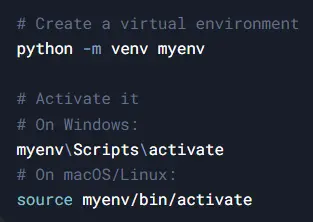
  2. Use Virtual Environments:
    Virtual environments isolate dependencies for different projects, preventing conflicts. Create and activate a virtual environment:
Handling Dependency Conflicts

Pro Tips for Troubleshooting:

  1. Read the Error Message: Python’s error messages are usually descriptive. Look for clues in the traceback.
  2. Check the Documentation: If you’re using a third-party library, the documentation often includes troubleshooting tips.
  3. Search Online: Chances are, someone else has faced the same issue. A quick search on Stack Overflow or GitHub Issues can save you time.

Conclusion:

In this article, we’ve walked through the key steps to create, distribute, and maintain Python packages. You’ve learned how to organize code into modules and packages, import them effectively, handle advanced scenarios like dynamic imports, and troubleshoot common issues like import errors and dependency conflicts. By following best practices and using tools like setuptools and PyPI, you can share your work with the world.

Want to use your package in a real project? Try these Python project ideas or build a GUI calculator with your own modules.

So, now it’s your turn! Start building your own Python packages, whether it’s a small utility or a full-fledged library. By contributing to the Python community, you’ll not only improve your skills but also help others solve problems

Here are some links for readers who want to dive deeper into specific topics, you should definitely check them out!

https://packaging.python.org/

https://pypi.org/help/

https://peps.python.org/pep-0008/