

描述
IrisAI brings powerful AI chat capabilities to your WordPress site with semantic vector search (RAG) and source citations. Choose between two flexible connection modes and deploy with either a beautiful full-page chat interface or a convenient floating widget.
Watch the full setup & demo video:
Key Features
- Dual Interface Options – Full-page chat with hero section and wave animations, or floating chat widget with customizable positioning
- Vector Search (RAG) – Semantic search of your content using embeddings with automatic source citations
- Flexible Connection Modes – Proxy Mode (IrisAI hosted service) or BYO Mode (bring your own OpenAI API key)
- Complete Customization – Custom system prompts, configurable AI models, adjustable token limits, brand colors
- Privacy & Security – API keys never exposed to frontend, all requests server-side, GDPR compliance features
- Features – Multi-site support, chat history, auto-inject widget, rate limiting protection
Perfect For
- Customer support automation
- Website FAQs and knowledge base
- E-commerce product assistance
- Educational content interaction
- Documentation search
- Internal company wikis
How It Works
- Connect – Choose Proxy or BYO mode and enter credentials
- Index – Select content types and start vector indexing
- Deploy – Add shortcode or enable auto-inject widget
- Customize – Adjust colors, prompts, and behavior to match your brand
Privacy First
IrisAI respects user privacy and data protection. Keys stored securely in WordPress database, server-side API calls only, optional privacy mode disables query logging, user consent checkbox for AI processing, and GDPR-ready features included.
Documentation
Complete setup guide and documentation available in the plugin’s Usage tab. Get step-by-step instructions, troubleshooting tips, and best practices.
Frontend Dependencies
This plugin includes the following open-source libraries:
- sine-waves.min.js – MIT License – Wave animation effects (https://github.com/isuttell/sine-waves)
- three.min.js – MIT License – 3D graphics library (https://github.com/mrdoob/three.js)
External Services
This plugin connects to external APIs to provide AI-powered chat responses and semantic (vector-based) search functionality.
The plugin may communicate with the following third-party services, depending on how it is configured by the site administrator.
IrisAI Proxy Service (api.irisai.cloud)
When using Proxy Mode, this plugin sends requests to the IrisAI proxy service to process AI chat queries and vector search requests.
What the service is used for
• AI chat responses
• Semantic (vector-based) search over your site content
• Usage tracking, rate limiting, and billing management
What data is sent
• User chat messages
• Relevant indexed site content (for vector search)
• Website domain (for license verification)
• API authentication token
When data is sent
• When a user submits a chat query
• When content is indexed for vector search
Service provider
IrisAI
Website: https://irisai.cloud
Terms of Service
https://irisai.cloud/terms
Privacy Policy
https://irisai.cloud/privacy
OpenAI API (api.openai.com)
When using BYO (Bring Your Own API Key) Mode, or when the IrisAI proxy forwards requests, this plugin communicates directly or indirectly with OpenAI’s API.
What the service is used for
• Generating AI-powered chat responses
• Processing embeddings for semantic search
What data is sent
• User chat messages
• Relevant indexed site content (for vector search)
When data is sent
• When a user submits a chat query
• When content is indexed for semantic search
Service provider
OpenAI, L.L.C.
Website: https://openai.com
Terms of Service
https://openai.com/terms
Privacy Policy
https://openai.com/privacy
Usage Examples
Shortcodes
Full-Page Chat:
[irisai_chat]
Creates a beautiful full-page AI chat interface with hero section, animated wave background, large search input, suggestion chips, real-time AI responses, and source citations.
Floating Widget:
[irisai_widget]
[irisai_widget position="bottom-right"]
[irisai_widget position="bottom-left"]
[irisai_widget position="top-right"]
[irisai_widget position="top-left"]
Creates a floating chat button that opens a popup window with compact chat interface, persistent chat history, and mobile-friendly fullscreen.
Vector Search Setup
- Go to Settings > IrisAI > Vector Search
- Select content types to index (Posts, Pages, Custom Post Types)
- Configure chunk size (200-2000 characters, default: 900)
- Configure chunk overlap (0-500 characters, default: 150)
- Click “Start Indexing” to begin background processing
- Enable “Auto Re-index” to automatically update on content changes
System Prompt Customization
Customize the AI’s behavior with system prompts using available variables:
{site}– Your website URL{lang}– User language preference
Example customizations by business type:
- E-commerce: “Always mention our 30-day return policy when asked about returns”
- Service Business: “For pricing questions, invite users to schedule a consultation”
- Restaurant: “For reservations, direct users to call (555) 123-4567”
Best Practices
For best results:
- Use full-width page template for [irisai_chat]
- Index your most important content first
- Add 5-8 relevant prompt suggestions
- Keep system prompt clear and concise
- Test on mobile devices before launch
- Enable privacy mode if handling sensitive data
Recommended setup:
- Use [irisai_chat] on dedicated page: “AI Assistant” or “Ask AI”
- Enable auto-inject widget for site-wide access
- This gives users both a destination and quick access
Token recommendations:
- 800-1000 tokens: Normal chat (balanced responses)
- 1500-2000 tokens: Developer mode or detailed explanations
- 3000-6000 tokens: Long-form content or article generation
Troubleshooting
Chat not working?
- Verify API credentials in General tab
- Check domain is registered in proxy dashboard (Proxy Mode)
- Ensure sufficient credits (Proxy Mode)
- Confirm content is indexed (Vector Search tab)
- Check browser console for JavaScript errors
- Enable WP_DEBUG in wp-config.php for detailed logs
Vector search not finding content?
- Confirm indexing completed successfully
- Check selected content types are correct
- Try re-indexing content
- Clear vector search cache (General tab)
- Verify chunk size isn’t too large or small
Widget not appearing?
- Check auto-inject is enabled (Widget tab)
- Verify no JavaScript conflicts
- Clear browser and WordPress cache
- Check theme compatibility
- Try manual shortcode placement
Privacy Policy
IrisAI is designed with privacy in mind:
- API Keys: Stored securely in WordPress database, never exposed to frontend
- Chat Queries: Optional logging (disabled in privacy mode)
- Chat History: Stored in user’s browser localStorage (client-side only)
- Vector Data: Your content chunks stored in WordPress database for search
- Usage Stats: Available only in Proxy Mode dashboard (irisai.cloud)
What data is sent to third parties:
- OpenAI: User queries and relevant content chunks (when BYO or Proxy mode is used)
- IrisAI Proxy: Only in Proxy Mode – queries, API authentication, usage tracking
- No other third parties receive data
User rights:
- Users can clear their chat history via “New Chat” button
- Site owners can disable query logging (Privacy Mode)
- Complete data removal via clean uninstall option
Recommendations:
If you use IrisAI on your site, we recommend adding AI data processing to your privacy policy, implementing user consent (checkbox available in Advanced settings), enabling privacy mode for GDPR compliance if needed, and informing users their questions are processed by AI.
Uninstall
When you delete IrisAI via the Plugins screen, you can optionally remove all plugin data including settings, vector search data, cached search results, and database tables.
To perform clean uninstall:
- Go to Settings > IrisAI > Advanced tab
- Enable “Remove data on uninstall” option
- Save changes
- Deactivate the plugin
- Delete the plugin from Plugins screen
- All data will be removed automatically
Credits
- Plugin by IrisAI Team
- Website: https://irisai.cloud
- sine-waves by Isaac Suttell
- three.js by three.js authors
屏幕截图

AI chat page 
AI chat widget 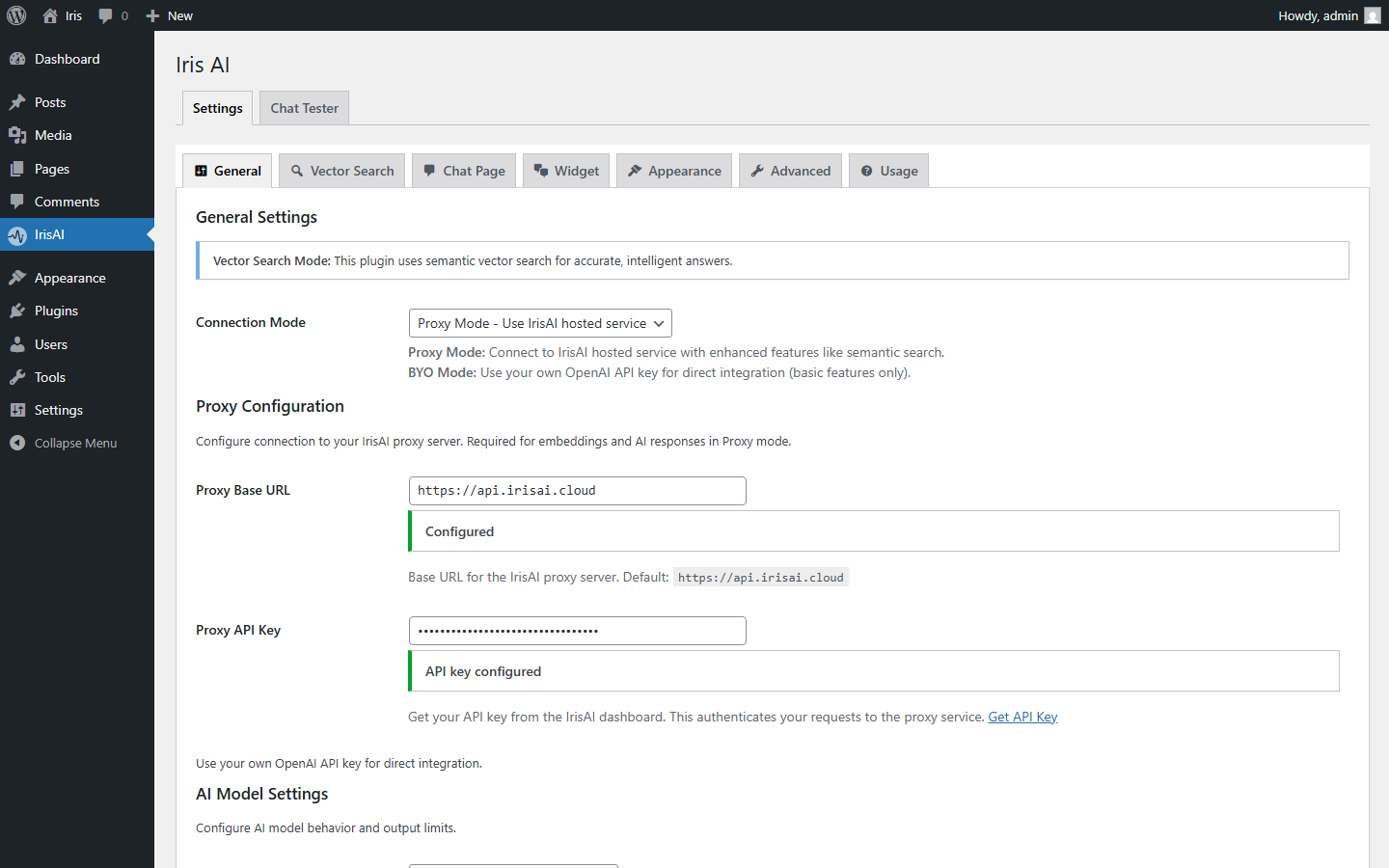
Admin settings
安装
Automatic Installation
- Log in to your WordPress admin panel
- Go to Plugins > Add New
- Search for “IrisAI”
- Click “Install Now” then “Activate”
- Go to Settings > IrisAI to configure
Manual Installation
- Download the plugin ZIP file
- Go to Plugins > Add New > Upload Plugin
- Choose the ZIP file and click “Install Now”
- Activate the plugin
- Go to Settings > IrisAI to configure
Quick Start Configuration
For Proxy Mode:
- Go to Settings > IrisAI > General tab
- Select “Proxy Mode”
- Enter Proxy Base URL:
https://api.irisai.cloud - Enter your Proxy API Key (from irisai.cloud dashboard)
- Select AI model (GPT-4o Mini recommended)
- Click “Save Changes”
For BYO Mode:
- Go to Settings > IrisAI > General tab
- Select “BYO Mode”
- Enter your OpenAI API key
- Enter model name (e.g.,
gpt-4o-mini) - Click “Save Changes”
Index Your Content:
- Go to Vector Search tab
- Select content types to index (Posts, Pages, etc.)
- Click “Start Indexing”
- Wait for completion (background process)
Deploy Chat Interface:
Option A – Full Page:
- Create a new page (e.g., “AI Assistant”)
- Add shortcode:
[irisai_chat] - Use a full-width template for best results
- Publish and add to navigation
Option B – Floating Widget:
- Go to Widget tab
- Enable “Auto-inject Widget”
- Choose position (bottom-right, etc.)
- Save Changes
Or manually add [irisai_widget] to any page
常见问题
-
Is RAG (Vector Search) available in both modes?
-
Yes! Both Proxy and BYO modes support full vector search capabilities with semantic matching and source citations.
-
Do I need an OpenAI account?
-
Not if you use Proxy Mode. With Proxy Mode, you use IrisAI prepaid tokens. For BYO Mode, you’ll need your own OpenAI API key.
-
Are API keys visible in the browser?
-
No, never. All API keys are stored securely in your WordPress database and all AI requests are processed server-side only.
-
Can I use both interfaces at the same time?
-
Yes! You can have the full-page chat on a dedicated page and the floating widget on all other pages. This is actually the recommended setup.
-
How much does it cost?
-
The plugin itself is 100% free with no limitations. You only pay for Proxy Mode prepaid tokens or OpenAI API usage in BYO Mode.
-
How often should I re-index my content?
-
Enable “Auto Re-index” in Vector Search settings to automatically re-index when posts are saved. For manual indexing, re-index after significant content updates.
-
What AI models are supported?
-
Proxy Mode: GPT-4o Mini, GPT-4o, GPT-4 Turbo, GPT-5
BYO Mode: Any OpenAI model -
Can I customize the AI’s behavior?
-
Absolutely! You can write custom system prompts, set maximum response length, add custom suggestion prompts, and define brand personality and tone.
-
Is it GDPR compliant?
-
IrisAI includes GDPR-ready features including privacy mode to disable query logging, user consent checkbox, and data minimization options.
-
Does it work with caching plugins?
-
Yes, IrisAI is compatible with popular caching plugins. Vector search results are cached separately for optimal performance.
-
Can I use it on multiple sites?
-
BYO Mode: Yes, unlimited sites with your OpenAI key
Proxy Mode: Up to 5 domains per IrisAI account -
What about mobile devices?
-
Both interfaces are fully responsive. Chat page has optimized layout for all screen sizes, and widget becomes fullscreen on mobile devices.
-
Can I translate the plugin?
-
Yes! IrisAI is fully translation-ready.
-
What happens if my credits run out in Proxy Mode?
-
The chat will stop working and show your custom error message. Top up credits via your irisai.cloud dashboard.
-
Does it work with page builders?
-
Yes, both shortcodes work with all major page builders including Elementor, Divi, Beaver Builder, WPBakery, and Gutenberg.

贡献者及开发者

更新日志
2.0.1
- Added YouTube demo video to plugin description.
2.0.0
- Introduces the new Setup Wizard.
1.0.5
- Responsive style fixes
1.0.4
- Improved compatibility with block themes by safely replacing the theme hero block with the live chat on the front-end while preserving the editor preview
- Simplified chat interface by removing unused empty-state card markup to improve performance and reduce unnecessary HTML output
1.0.0
- Initial public release
- Full-page chat interface with [irisai_chat] shortcode
- Floating widget with [irisai_widget] shortcode
- Dual connection modes (Proxy and BYO)
- Vector search with RAG capabilities
- Source citations and reference links
- Customizable wave animations
- Brand color customization
- Chat history with localStorage
- Auto-inject widget option
- Privacy mode and GDPR features
- Rate limiting protection
- Multi-language support
- Responsive mobile design
- Complete admin documentation
- Background indexing system
- Cache management
- Clean uninstall option