
 Html5 Video Player
 Let’s see the Settings of the Htlm5 Video Player plugin. Navigate to the Html5 Video Player > Settings.

You will see there are some settings, such as-
- Preset
- Color Setting
- Custom Style
- Player Translation
- AWS S3 key Setting
- End Screen
- Shortcode/Player
- Convert .srt to .vtt
- Speed
- Import/Export
- Caption
Click on any of the options and customize it as you want.
Preset, Color, Custom Style and Player Translation
Select the Preset from Settings of Html5 Video Player, you can change the preset settings of the player.
Change preset options like Repeat, Muted, Auto Play, Player Width, Seek Time, Auto Hide Control, and Preload

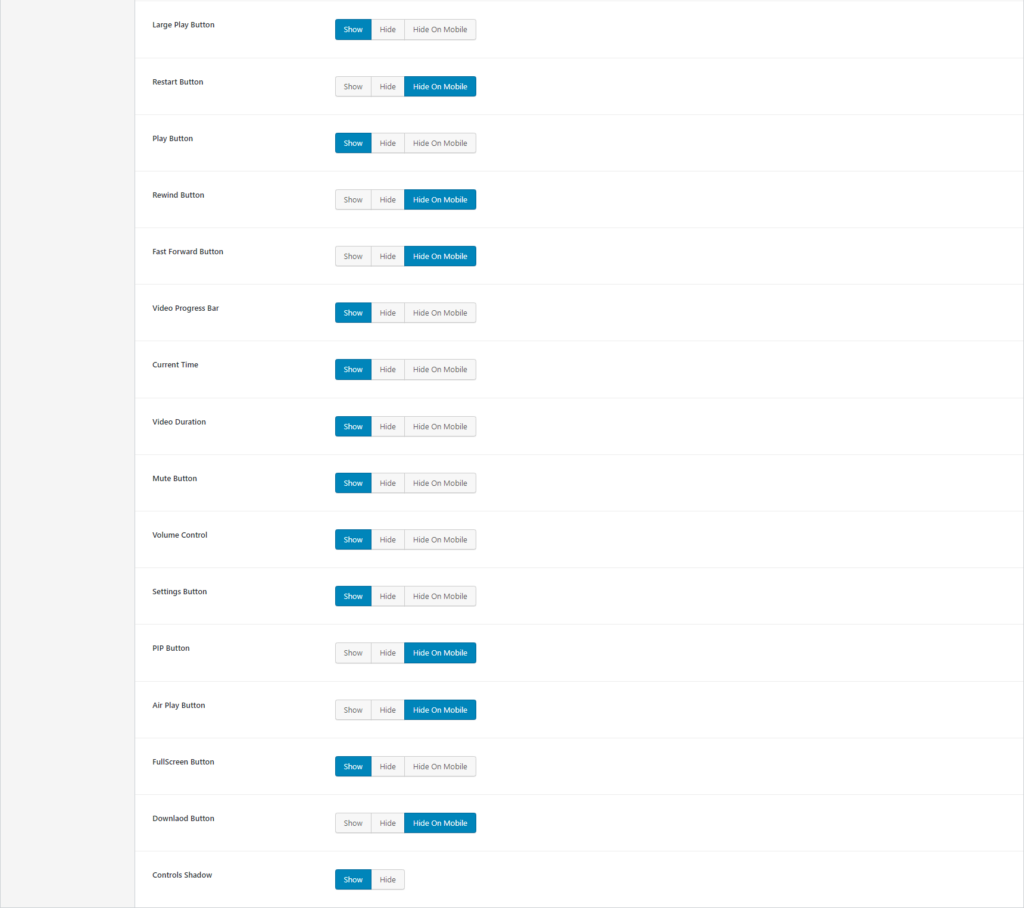
You can also set the visibility of the elements for the player, Below the preload, you can set visibility for Large Play Button, Restart Button, Play Button, Rewind Button, Fast Forward Button, Video Progress Bar, Current Time, Video Duration, Mute Button, Volume Control, Settings Button, PIP Button, Air Play Button, FullScreen Button, Download Button, and Controls Shadow
Color
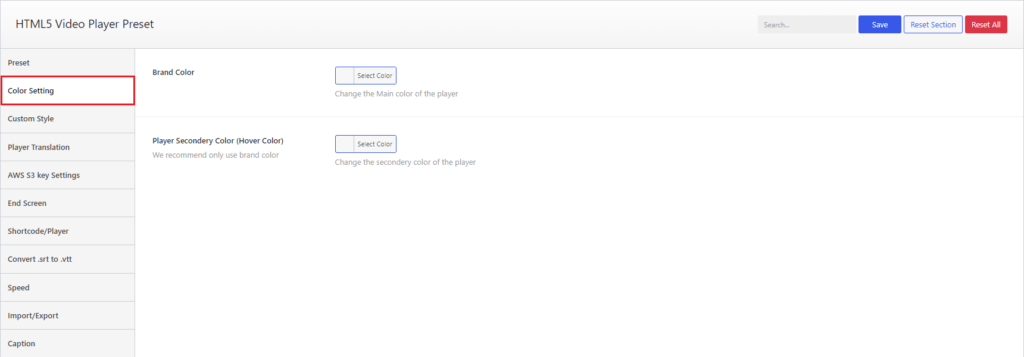
Go to Color from Settings, to set Brand Color and Player Secondary Color(Hover Color).
Custom Style
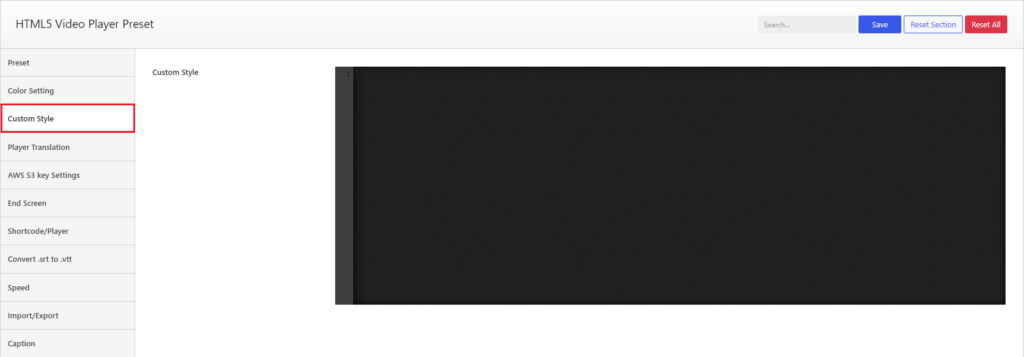
Select Custom Style from Settings. Here you can write Custom Style.
Player Translation
Go to Player Translation from Settings, you will see the translation settings to set the labels in your preferred languages or in your preferred text.
You can change Restart, Rewind {seektime}s, Play, Pause, forward {seektime}s, Seek, {currentTime} of {duration}, Played, Buffered, Current time, Duration, Volume, Mute, Unmute, Enable captions, Disable captions, Download, Enter fullscreen, exit fullscreen, Player for {title}, Captions, Settings, PIP, Go back to previous menu, Speed, Normal, Quality, Loop, Start, End, All, Reset, Disabled, and Ad label from here.
Note: Please don’t touch any text between round brackets {}, those are dynamic variables eg: {currentTime}

AWS S3 Key
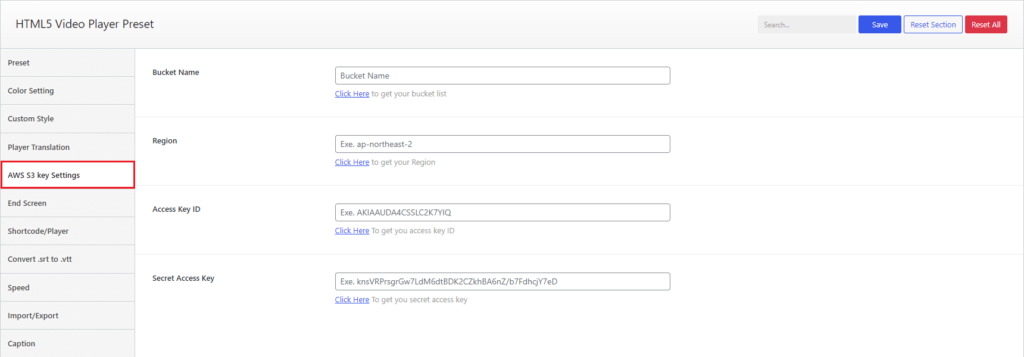
Select AWS S3 Key from Settings to set AWS Bucket Name, Region, Access Key ID, and Secret Access Key.
Get the name and keys from here.
End Screen
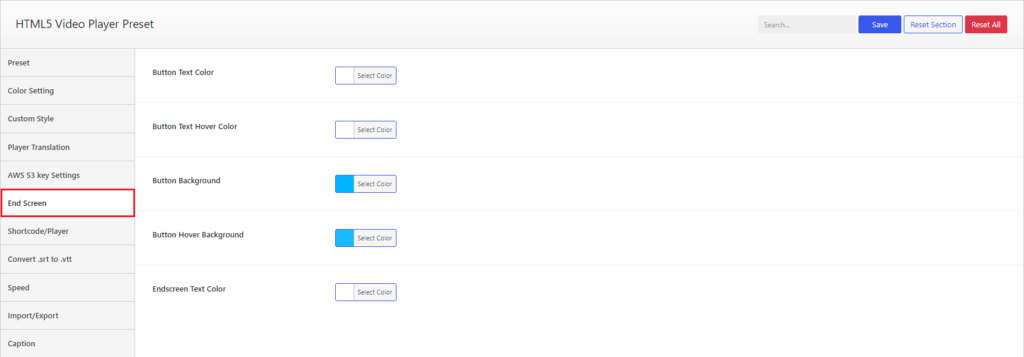
Go to End Screen settings to set end screen Button Colors(text, background), Button Hover Colors(text, background), and Text Color.
Shortcode/Player
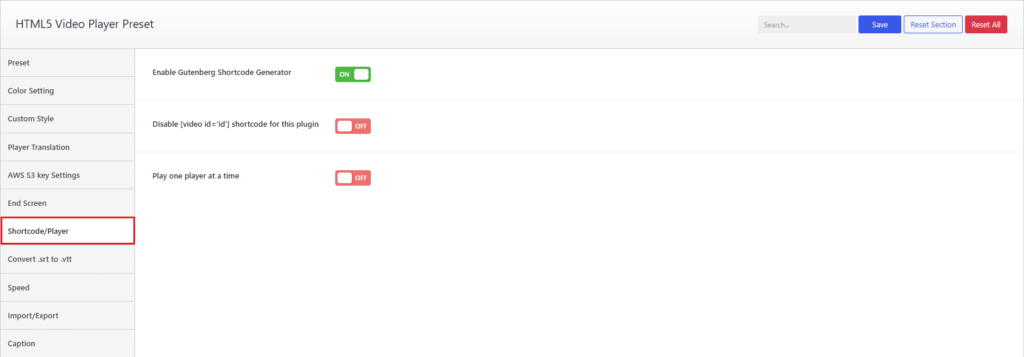
Select Shortcode/Player from Settings. You can Enable/disable Gutenberg Shortcode Generator, Shortcode for plugin, Play one player at a time from here.
Convert .srt to .vtt
Go to Convert .srt to .vtt from Settings. Convert the .srt file to .vtt from here, upload the .srt file and convert it.
This is an experimental setting.

Speed
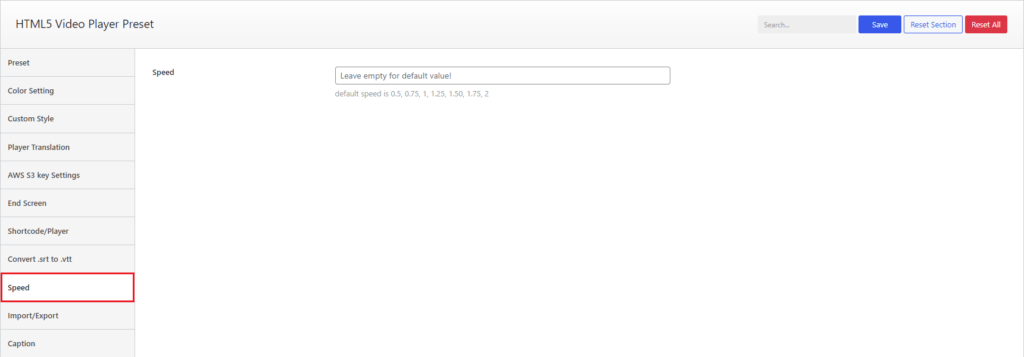
Select Speed from Settings. Here you can set the speed
Import/Export
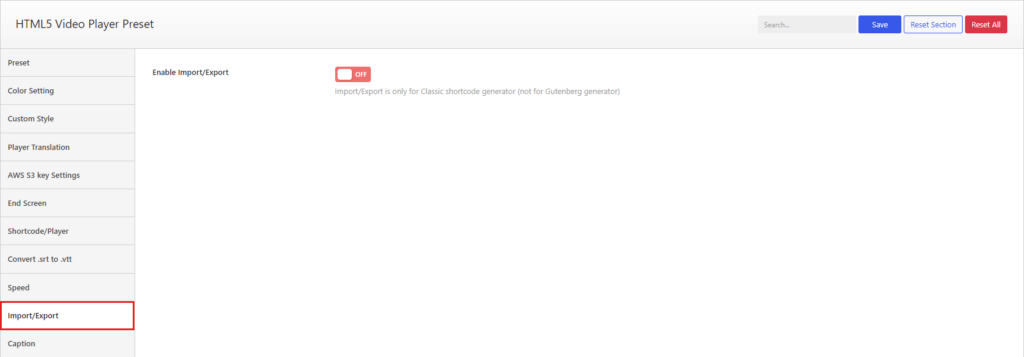
Go to Import/Export from Settings to enable or disable Import/Export settings for the classic shortcode generator.
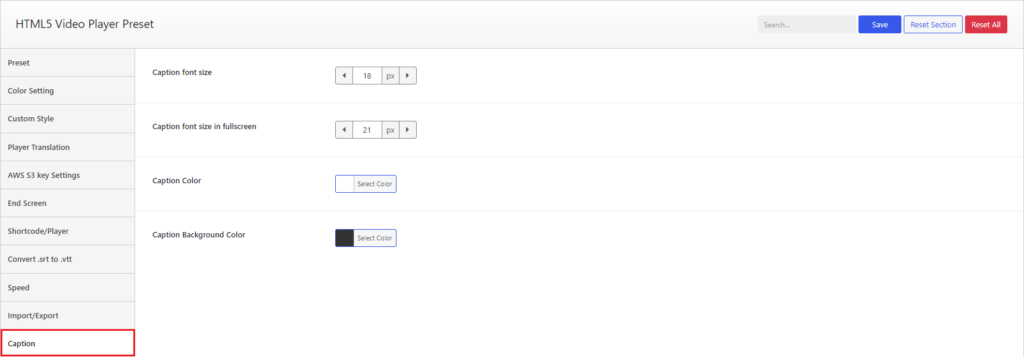
Caption
Select Caption from Settings, here you can change caption style such as font size, font size in fullscreen, color, and background color.
 Save 90%