
ཞིབ་བརྗོད།
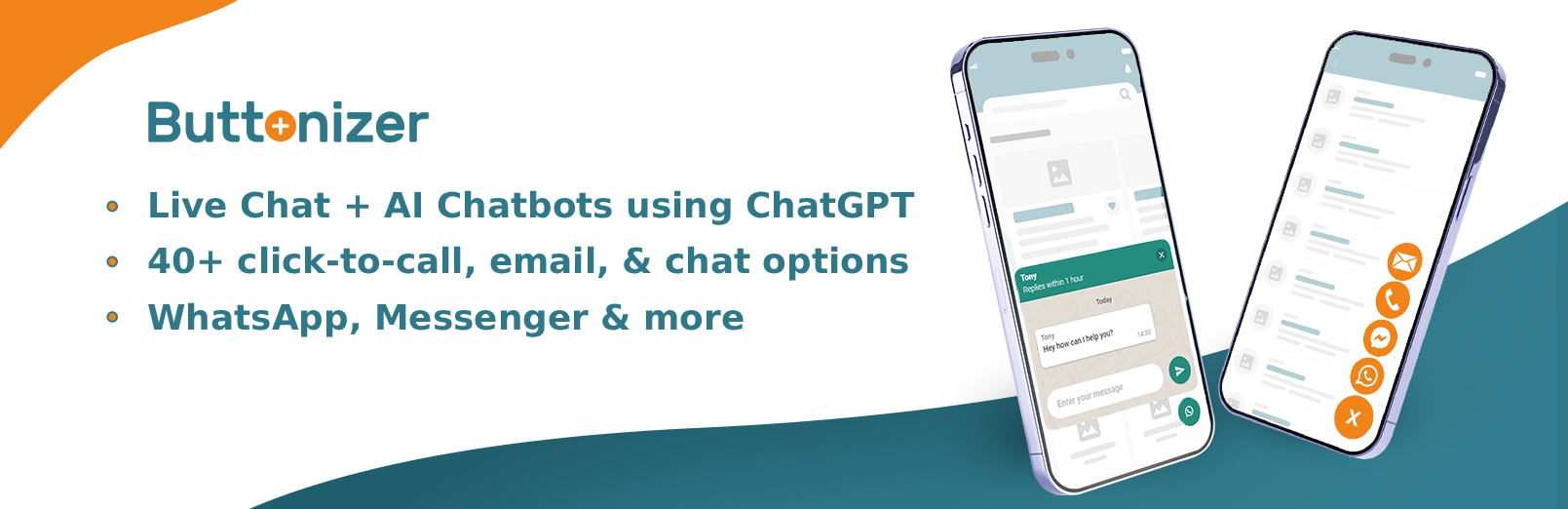
Buttonizer is a powerful platform with Live Chat, AI Chatbots, and Real-Time Visitor Monitoring! In addition to chat features, you can create Call, Email, SMS, & Contact buttons to increase conversions. Supports WhatsApp, Messenger, Live Chat, and 40+ other actions.
- Fully integrated live chat widget to boost sales
- A.I. ChatGPT Chatbots to automate customer support
- Choose from over 40 click actions and chat buttons
- Build unlimited floating buttons or interactive sticky menus (see screenshots below)
- Popup Library with dozens of professionally designed marketing popups
Watch the video below to see how easy it is to add the power of Live Chat and AI Chatbots to your website:
Live Chat, Chatbots, and Popups via Formilla
Buttonizer accounts get Formilla accounts integrated automatically. Both products are managed by the same team, so that means you get access to awesome features such as:
-
Unlimited Live Chats (free): Chat with your visitors while they’re on your website with our embedded widget; no need to send users to another browser tab!
-
Mobile Apps for iPhone, iPad, and Android Devices (free): Chat via your mobile device or tablet by using our iPhone/iPad or Android apps!
-
Desktop Apps for Windows & Mac machines (free): Chat via our dedicated desktop apps instead of our web dashboard to get online even faster.
-
Custom Branding, Colors, & Themes (free): Customize your chat widgets to match your site’s brand. Change the color of the chat button/widget, chat message and font color, backgrounds, etc. Upload your own online and offline live chat images to use in your header, footer, etc. to encourage customers to live chat!
-
Multi-Language Support and Custom Text (free): Customize the text of your chat button/widget in any language of your choice! Easily customize the English text or modify it to read in Spanish, Portuguese, Italian, French, Polish, Chinese, Indonesian, and many more!
-
Popup Library (free with tiered limits): Popup Library with dozens of professionally designed marketing popups. Multiple display types including lightbox/modals, corner widgets, and website bars. Announce a special sale, offer a coupon code, or market virtually anything to your visitors.
-
Real-time Visitor Monitoring: See the number of active visitors on your website in real-time, and initiate live chats with them. View the visitor’s country, recently viewed web pages, referring site (e.g. did they come from a Google search, etc.), are they new vs. returning, IP address, OS in use (Windows, Mac, iOS, Android, etc.), browser, and more. Live Chat visitor monitoring is a paid feature and comes with our Premium package.
-
A.I. Chatbots: A.I. Chatbots leverage ChatGPT’s incredible Artificial Intelligence technology to dramatically reduce support time. Chatbots can automatically respond to common visitor questions around the clock (paid feature add-on). Check out our ChatGPT Chatbots tutorial to learn more.
-
Custom Chatbots: Chatbots work around the clock to automatically qualify leads, book meetings, and provide information about your products or services to customers, even without having to chat with a live person! Chatbots can be added to any Premium package as a paid feature add-on. Check out our Custom Chatbots tutorial to learn more.
-
Proactive Chat: Enable proactive chat to trigger automatically after a defined number of seconds (Premium packages). You can also configure a chatbot to do the same, with even more control over the user flow. For example, a chatbot can proactively popup to engage visitors and qualify them as leads before speaking with a live agent. This works with multiple types of custom chatbots you can create for your business.
-
Mobile Ready Chat Widget: Live Chat widget has a responsive design that adapts to smartphones of any size.
-
Smart Messages: Automatically display custom messages to your visitors in various scenarios (Premium packages).
-
Canned (Saved) Replies: Use simple shortcuts to access saved replies to quickly respond to customers. Premium plans allow for unlimited Canned Replies and our free chat package allows for up to 5.
-
File Sharing: Allow site visitors and agents to securely share files during a chat (Professional package).
-
User/Agent is Typing a Message…: Formilla Live Chat keeps visitors and agents informed if the User or Agent is typing a message. This improves usability and makes live chat more enjoyable.
-
Desktop Notifications: Make sure you don’t miss any chats by enabling notifications to see an alert box every time you receive a chat.
-
Chat Broadcast: With Chat Broadcast, all your online chat agents are notified of an incoming chat and can accept or decline the chat based on their availability.
-
Chat Transfer: Transfer a chat back and forth with other online chat agents.
-
Advanced Customization: Formilla Live Chat software gives you the ability to customize the live chat button and location down to the pixel via Custom CSS (Premium packages).
-
Pre-chat Fields: Before visitors start a chat, require them to provide their contact info first.
-
Contacts Management: We’ll store your contacts in Formilla whenever you have a conversation, or receive one while offline.
-
Multiple Agents: Our Premium package starts with one live chat agent, and you can add additional live chat agents to support incoming conversations.
-
Offline Chats: Formilla Live Chat software automatically displays as an offline version of the chat box on your site when you’re unavailable to livechat.
-
Integrate with hundreds of apps using Zapier: Automatically post livechat transcripts to other apps via Zapier (e.g. Mailchimp, Salesforce, Pipedrive, Zendesk, etc.). Premium package option.
-
Conversation History: Search for a prior chat and assign it to another user of your Formilla Live Chat account.
-
Export Email Data: Formilla Live Chat software allows you to export your customers’ email addresses.
-
Visitor Technical Info: View visitor technical info during a live chat such as operating system, browser, screen resolution, etc.
WhatsApp Chat, Business and 40+ click to chat channels 💬
Buttonizer is specially designed in creating easy, smart floating chat buttons. You can connect your visitors with WhatsApp or WhatsApp Business with ease. You can even create a WhatsApp Popup, work with multiple WhatsApp phone numbers (agents), manage opening and closing times and use page rules.
📱 Mobile: Navigates to WhatsApp Mobile App.
💻 Desktop: Navigates to WhatsApp Desktop App / Web WhatsApp page(web.whatsapp.com)
Click-to-Chat Options 🚀
- WhatsApp Chat. Add your phone number and set a custom text message that your web visitors can send to you. Integrates with WhatsApp business
- WhatsApp Chat Widget
- Click to Call
- Click to Email
- Click to SMS
- Web URL
- Click to Chat
- Formilla Chat Widget (directly integrated into new accounts)
- Facebook Messenger Chat Widget (with popup)
- WhatsApp Chat Widget (with popup)
- X (Twitter) Direct Message
- Slack
- Microsoft Teams
- Snapchat
- Signal
- LINE
- Telegram
- Viber
- Zalo
- Join Signal group
- Browser share menu
- Social Sharing buttons
- X (Twitter)
- TikTok
- VKontakte
- Waze
- Line
- Behance
- Open pop-up
- Formilla Popups (directly integrated into new accounts)
- Poptin
- Elementor Popup
- Popup Maker
- WP Popups
- Scroll options
- Scroll to section
- Back to top
- Scroll to bottom
- Previous page
- Google Maps Button (route navigation)
- Download PDF Button
- Print page
- Copy page URL
- Contact form
- Contact form Webhook support (PRO)
- Iframe Widget (PRO)
- Add custom JavaScript code (PRO)
WhatsApp Chat Popup
You can use WhatsApp as a regular chat button, but you can also add the WhatsApp pop up and let your visitors start the conversation while the visitors are on your website. You can also easily integrate with WhatsApp Business or your regular WhatsApp account. Once the visitors click on the send button, they’ll be redirected to WhatsApp to continue the conversation there.
Filter your buttons (show or hide on devices, different pages, during certain hours, etc.)
- Show/hide button on desktop or mobile devices
- Show/hide when page rules are true (PRO):
- Select single page
- Select categories / tags
- When URL contains …
- Show/hide when the user has a specific role
- Show/hide on a custom time schedule (PRO)
- Choose the start and end date (optional)
- Select the days of the week
- Select at what time the button is visible or hidden for each day of the week
- Exclude dates
So many features!
- Track all your click actions in Google Analytics
- Import extra font-awesome libraries
- Drag and drop your buttons on the UI
- Auto save and revert changes
- Show buttons on scroll
- Show buttons after X seconds
- Add an unlimited number of positions
Example use cases for Buttonizer
-
The Buttonizer advantage. Buttonizer gives you the ability to manage different chat options at the same time. Each visitor is unique, and has a different communication preference. When you let your visitors chat with you using chat apps like Facebook Messenger, WhatsApp, Viber, Telegram, etc, they have the freedom of chatting with you however they prefer, which increases engagement with your website.
-
Launch your favorite live chat. While Formilla Live Chat comes directly integrated, you can use JavaScript as one of your click actions to launch any other live chat product such as Hubspot, Tawk.to, Tidio, Chatra, Zoho, Zendesk, LiveChat, Crisp, Intercom and JivoChat.
-
Connect with your visitors on WhatsApp Business. Connect WhatsApp Business to your site. Your visitors can start chatting with you on WhatsApp Business.
-
Setup different floating buttons on mobile and desktop. Show different chat buttons depending on the device where your visitor is using. Like show a call now and WhatsApp button on mobile and a contact form, email and url on desktop.
-
Add Click-to-call button. Show a phone icon and let your visitors click to call you. You can show different local phone numbers based on page URL or available days and hours.
-
Show different action buttons for different pages. You can use this feature to show separate widgets for different products on your website, show different buttons based on URL for WPML or multi-language sites, display different channels for your landing pages, and more.
Example use cases for Live Chat
There are many reasons why you could be interested in adding a live chat feature to your site. Most commonly, site owners are looking to chat in real-time with visitors in order to offer better customer service or to generate sales.
Live Chat for Customer Service
Data from Shopify shows “businesses that respond to a customer’s chat within five minutes are 69% more likely to get a sale.” Customers don’t like hunting around for information or waiting for responses, and live chat offers the best experience. A live chat agent can chat directly with a customer, which leads to increased customer satisfaction.
One of the benefits of live chat is the ability to learn directly from customers. Chatting with a customer who came to your site looking to solve a problem gives you valuable insight into how users interact with your website. Live chat also helps keep customer interactions on-site, rather than having customers take complaints publicly.
Live Chat for Marketing
Live chat can help in multiple ways throughout the purchase funnel for your business. A skilled marketer communicating to site visitors via a live chat widget can provide great opportunities to educate and engage potential customers.
A live chat widget is an effective way to increase your visitor-to-lead conversion rate. By engaging potential customers right away, you’re reducing the number of visitors who “bounce” off your site. And you can also use live chat to pre-qualify leads, determining a visitor’s actual interest level in what you have to offer.
Live Chat for Sales
Using live chat to help convert site visitors into customers is often referred to as “conversational sales.” Your live chat sales team can help visitors find products or services they are looking for, nurture leads, and answer questions to offer a smooth experience.
Live chat is also a great opportunity for a sales agent to schedule a product demo. Agents can also encourage customers to share their contact information during the chat in order to follow-up in the future.
Read more about live chat use cases on our blog.
How can chatbots help businesses?
The use cases for chatbots are varied, but can be broadly categorized into customer service, marketing, and sales tasks. Automated chatbots can staff the chat feature on your site when live chat agents aren’t available. This makes chatbots an efficient solution for handling common sales and support tasks, while freeing up your team to handle more complex inquiries. For example, you can configure multiple chatbots across your website based on key landing pages, learn where visitors are in the sales process by asking them questions, and perform specific actions based on visitor actions.
Some popular chatbot use cases include:
-
Triage: A chatbot can greet site visitors and ask them to choose from several pre-defined answer buttons to guide them down a given path, similar to an automated phone system. For example, the bot can show options such as ‘I’m new & want to learn more’, ‘Track my order’, ‘Change my password’, ‘Technical help’, along with ‘Other’ if nothing matches the reason for their visit, along with a multitude of other button options based on your business needs.
-
Lead Qualification: To collect contact information from site visitors and ask additional qualifying questions to determine the size of the opportunity, gauge the customer’s interest and where they are at in the buying cycle, or route them right to your sales team or even book a demo on your calendar.
-
Scheduling: With the Calendly scheduling feature, a chatbot can be configured to display your Calendly calendar directly inside the live chat widget for the visitor to choose from any available dates and times for a demo or phone consultation.
-
Frequently Asked Questions: A menu-based chatbot to answer frequently asked questions from visitors. For example, let’s say you have an event coming up and configure a chatbot with pre-defined buttons the visitor can choose from such as ticket costs, directions, schedule, nearby hotels, and more.
-
ChatGPT Chatbot: A ChatGPT Bot dramatically reduces support time by automatically responding to visitor questions at any time — day or night — using the power of ChatGPT’s Artificial Intelligence. A ChatGPT Bot is different from the other bot types since it allows visitors to enter a free-form question, and replies with the most relevant answer based on how it has been trained over time.
Need support or have a question? Check our Community and our knowledge base!
Would you like private support? [Create a private support …
གཏུབ་རེིས།
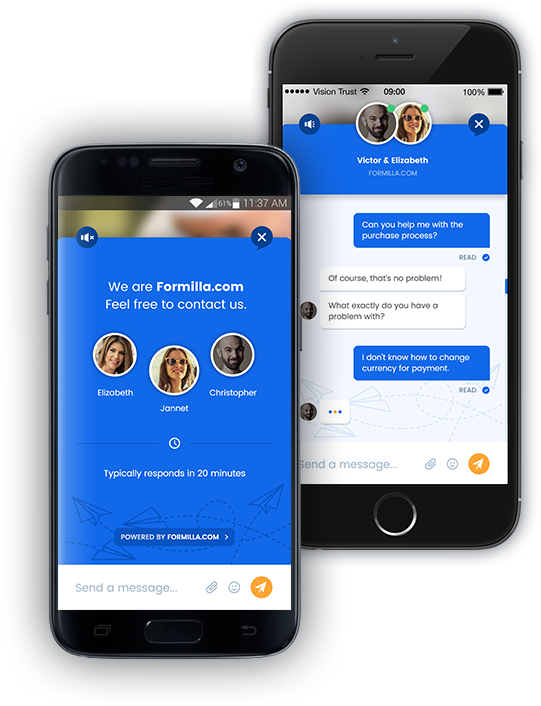
Comes with an integrated Live Chat widget that visitors can use right on your website to chat with you directly! 
Dramatically reduce support time by setting up an AI Chatbot powered by ChatGPT to automatically respond to questions 24/7 
Create many different chat/call/contact actions such as WhatsApp, Messenger, Live Chat, Telegram, Zalo, and 40+ others. 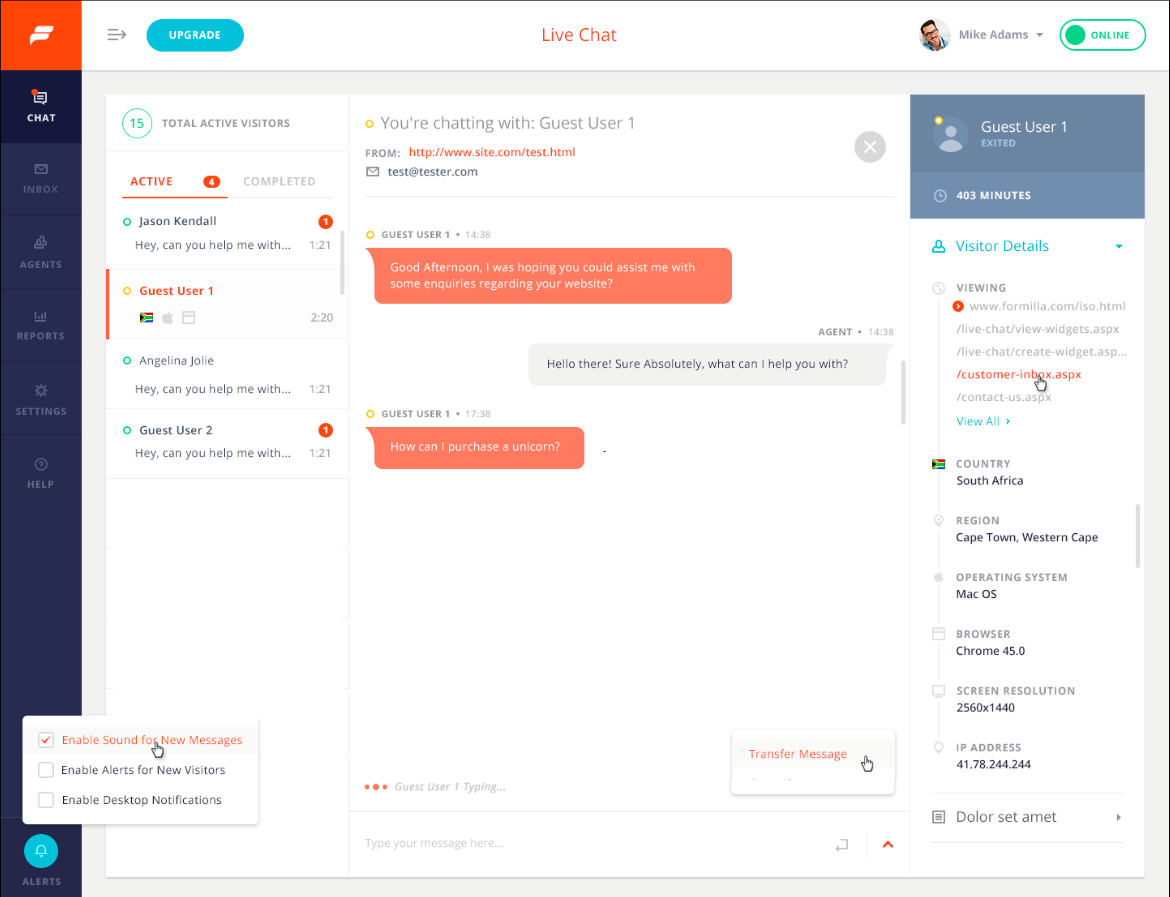
Live Chat Dashboard where you can chat with your website visitors and view critical information such as pages visited, etc. 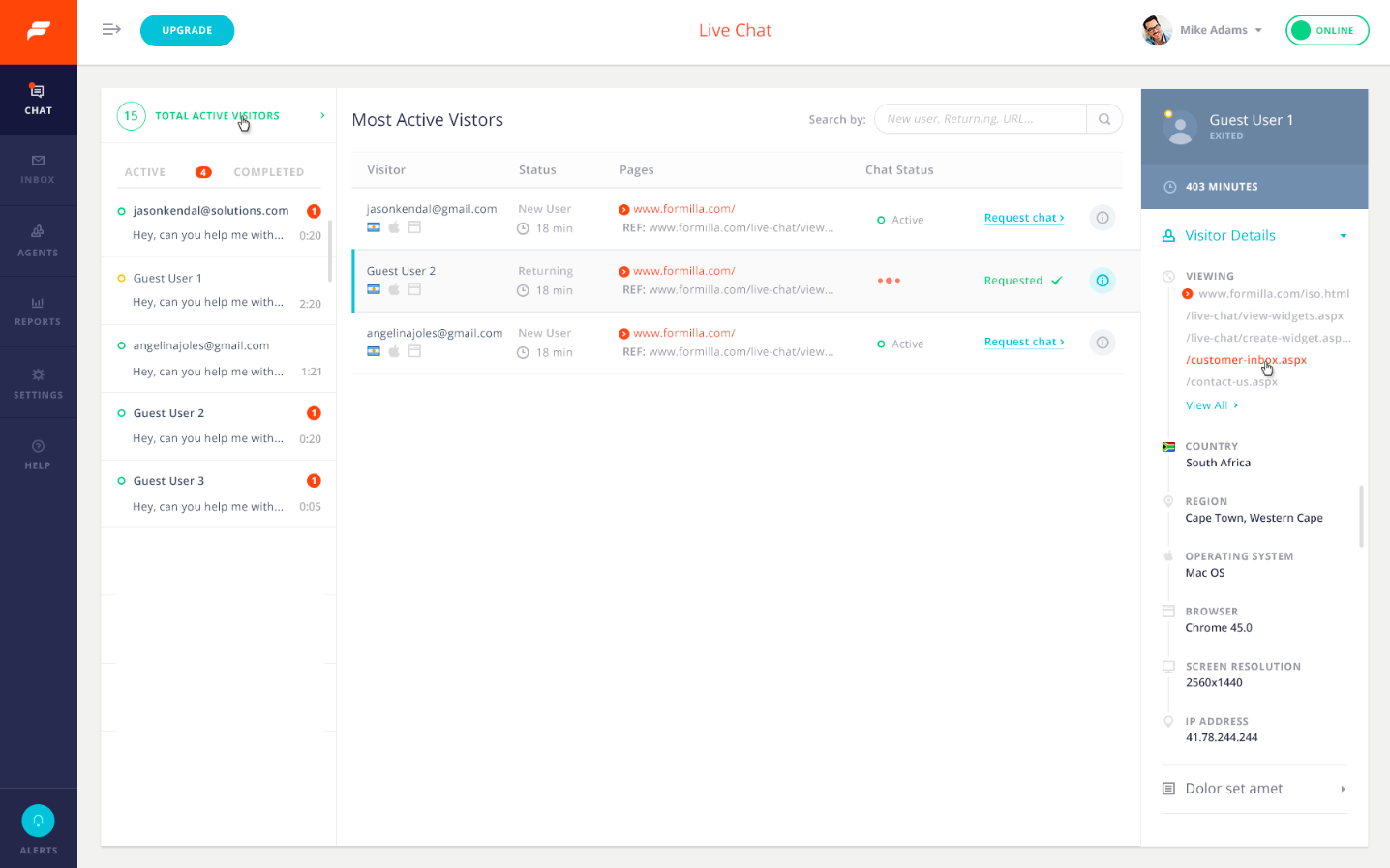
Real-time Visitor Monitoring dashboard where you can monitor your visitors and initiate live chats proactively. 
Live chat with your visitors from your mobile device using our iPhone/iPad or Android apps. Receive push notifications for every chat! 
Use our Popup Library with dozens of professionally designed marketing popups to increase sales. 
Not available to chat? Display our integrated contact form and receive an email as soon as someone submits it. 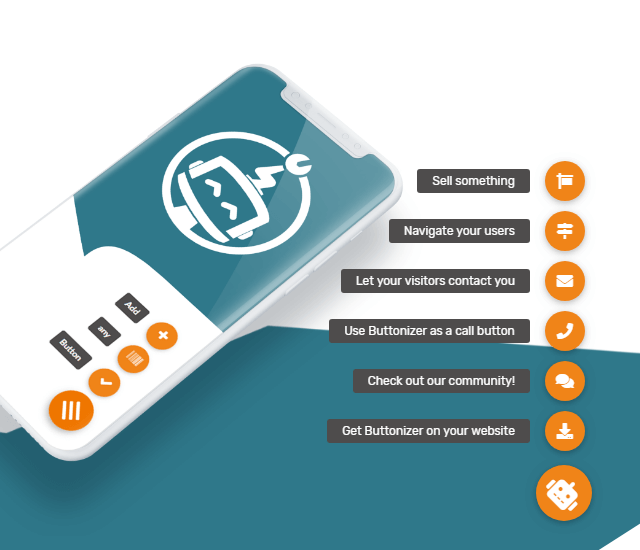
This is a great example of the types of menus and buttons you can create to guide visitors and increase conversions every step of the way. 
Another cool example to illustrate the different styles of menus and actions such as call, email, chat, popup triggers, and so much more! 
Use our dashboard directly from within WordPress to edit your buttons and review conversion reports.
སྒྲིག་འཇུག
For automatic installation:
- Login to your website and go to the Plugins section of your admin panel.
- Click the Add New plugin.
- Under Install Plugins, click the Upload link.
- Select the plugin zip file from your computer then click the Install Now button.
- You should see a message stating that the plugin was installed successfully.
- Click the Activate Plugin link.
For manual installation:
- You should have access to the server where WordPress is installed. If you don’t, see your system administrator.
- Copy the plugin zip file up to your server and unzip it somewhere on the file system.
- Copy the “Buttonizer” folder into the /wp-content/plugins directory of your WordPress installation.
- Login to your website and go to the Plugins section of your admin panel.
- Look for “Buttonizer” and click Activate.
FAQ
-
Please see our video tutorial to learn how.
-
Live Chat, AI Chatbots, WhatsApp chat, Facebook Messenger, Instagram, Email, SMS, Snapchat, X (Twitter), LinkedIn, Microsoft Teams, Vkontakte, Phone (click to call), Telegram, Line, WeChat, Viber, Waze, Zalo, Google Maps, Poptin, Custom URL, Page Select.
-
We have the following widgets natively integrated:
– Live Chat widget
– WhatsApp widget
– Facebook Messenger widget
– Telegram widget
– Contact form
– Iframe widget (PRO)Customize the position and visibility wherever you need. With the iframe widget, you are able to show YouTube videos, integrate Calendly or any other page or website.
-
Please make sure you’ve chosen at least one button and clicked on the green “Publish” button. If you still don’t see any changes on the live site, you can clear the cache of your website if you have a caching plugin.
-
Yes. Start by logging in to your Formilla account, then mouse over Settings and select Widgets from the submenu that appears. On the next page, click the edit/pencil icon under Actions for your chat widget. You can modify the hours of operation from the Widget Details tab and click Save Changes.
-
Will I receive an email notification when my customers contact me while I’m offline from chat?
-
Yes, the Email Notifications option is enabled by default for every Formilla Live Chat widget you create. Removing the email address(es) on the Widget Details tab of the live chat widget configuration page disables the feature. Alternatively, you may add additional email recipients by simply comma-separating each email address. You can respond to emails using your preferred email client, or directly from the Formilla Conversation History.
-
How do I setup a chatbot to automatically respond to customers?
-
Setup a ChatGPT Chatbot and train it to answer questions from your customers automatically. To configure a chatbot (paid feature add-on), you can simply mouse over Automation in the left menu, then select ChatGPT Bots from the sub-menu that appears. At the top of the next screen, click Create ChatGPT Bot to get started.
-
How do I qualify leads by using a chatbot?
-
Chatbots can be used to collect contact information from site visitors as a means to generate leads, and ask additional qualifying questions to determine the size of the opportunity, gauge the customer’s interest and where they are at in the buying cycle, or route them right to your sales team or even book a demo on your calendar.
-
How do I automatically book demos by using a chatbot?
-
Formilla offers a Calendly scheduling feature. Chatbots can be configured to display your Calendly calendar directly inside the widget for the visitor to choose from any available dates and times for a demo or phone consultation. Chatbots can first qualify the visitor, and then decide whether to offer them a demo if they’re a valuable lead.
-
Can I proactively initiate a conversation with my customers?
-
Yes, we call these Smart Messages. Simply login to your account, mouse over Automation in the left menu, then choose Smart Messages from the sub-menu that appears. We normally create your first Smart Message when you sign up, however, you can delete (or edit) it and create your own by clicking the Create Smart Message button and choosing Chat Message to get started. This feature comes with any of our Premium plans and you get unlimited Smart Messages.
-
Can I enable an auto-responder when I don’t respond to an incoming conversation on time?
-
Yes. To enable this setting, start by logging in to your Formilla account, then mouse over Settings and select Widgets from the submenu that appears. On the next page, click the edit/pencil icon under Actions for your chat widget. You should now be in the settings area, where you can select the Advanced Options tab. Simply check the box for the feature “Enable Auto Response”, and enter your desired auto-response text in the field that appears, along with how long (for example, 60 seconds) before it should trigger. Also, be sure to Save Changes when complete. Going forward, any time a website visitor initiates a conversation and you do not respond in 60 seconds, the auto-response will trigger.
-
Can I require my site visitors to provide their email address before starting a conversation?
-
Yes. For free chat accounts, enable this setting by logging in to your Formilla account, then mouse over Settings and select Widgets from the submenu that appears. On the next page, click the edit/pencil icon under Actions for your chat widget. You should now be in the settings area, where you can select the Advanced Options tab. Our free chat plan allows you to require visitors to enter an email address or a message before starting a chat. If you are using either of our Premium packages, you will notice the ability to add pre-chat form fields near the top of the Advanced Options tab instead. You can add up to four fields to your live chat box, such as First Name, Last Name, Email, Phone, or any other Custom field. Keep in mind at least one field must be required for the chat box.
-
Does it work with my mobile phone (e.g. iPhone, Android, etc.)?
-
Yes. Use our mobile apps for iPhone/iPad, or Android devices to chat from your mobile phone on the go! For those using the web interface, it is currently not optimized for your mobile phone.
-
What happens when I choose the ‘Request Chat’ action from the visitor monitoring dashboard?
-
Formilla will pop-up the live chat box to the corresponding visitor of your web site after a few seconds or on the next page load.
-
Can I modify the message displayed to my website visitors when I request a chat with them via the visitor monitoring page?
-
Yes. To do this, start by logging in to your Formilla account, then mouse over Settings and select Widgets from the submenu that appears. On the next page, click the edit/pencil icon under Actions for your chat widget. You should now be in the settings area, where you can select the Advanced Options tab to find the “Request Chat Text” field. Be sure to Save Changes when complete.
-
Does the free package allow for unlimited chats?
-
Yes, our free live chat package allows for unlimited live chats and no limitations on simultaneous chats either.
-
How can I add a WhatsApp chat popup?
-
Download the WordPress plugin, choose the WhatsApp templates, change your phone number, change the text and there you go. You can also choose the WhatsApp widget option to add a popup window. Don’t forget to enter the WhatsApp number with country code
E.g.
country code +1
number: 6123456789
** WhatsApp number: 16123456789 **
གདེང་འཇོག


བྱས་རྗེས་འཇོག་མཁན། & གསར་འབྱེད་པ།
“Buttonizer – Live Chat, AI Chatbot, & Chat Widgets” is open source software. The following people have contributed to this plugin.
བྱས་རྗེས་འཇོག་མཁན།
“Buttonizer – Live Chat, AI Chatbot, & Chat Widgets” has been translated into 2 locales. Thank you to the translators for their contributions.
ཁྱེད་ཀྱི་སྐད་ཡིག་ནང་ལ་ “Buttonizer – Live Chat, AI Chatbot, & Chat Widgets” ཡིག་སྒྱུར་བྱོས།
Interested in development?
Browse the code, check out the SVN repository, or subscribe to the development log by RSS.
དག་བཅོས་ཉིན་ཐོ།
1.0
- First release.
1.1
- Release Date – 07/05/2020.
- Fix – link viber.
2.0
- Release Date – 16/07/2020.
- Add Advanced settings
- Size scale
- Location left – right – bottom
- Hide on mobile or desktop
2.1
- Release Date – 29/07/2020.
- Fix hotline bar
- Add menu Advanced settings
3.0
- Release Date – 07/07/2021.
- Add menu All in one
4.0
- Release Date – 08/06/2022.
- Add Whatsapp
- Add Showroom
- Add Contact form (beta)
- Add css and js
4.1
- Fix showroom and contact
4.2
- Add action links
- Update Tested up to
4.2.1
Tested up to wordpress: 6.2
4.3
- Add hotline 2, holine 3
- Turn off effects
- Add link map
- Add link fanpage
4.4
- Add youtube, instagram, telegram
- Minify Css= 4.4 =
4.7
- Add tiktok
4.7.1
*Tested up to: 6.4
4.7.2
*fix type hotline
4.7.3
- Release Date – 12/07/2024.
- add link messenger
4.7.4
- It is currently under maintenance! showroom and contact
4.7.5
- hide css – js custome
4.7.6
- add pattern to input
4.7.7
- Sanitize and limit the length
4.7.8
- fix esc_html
4.7.9
- fix num phone
4.7.10
- fix num phone
4.7.10 – October 21, 2024
- Bug fixes
- Better sanitizing
- Updated translations
5.0 – October 29, 2024
- 40+ new button actions added
- New: Advanced button builder
- New: Button analytics
5.0.1 – December 18, 2024
- Fix: review button bug
5.0.2 – July 11, 2025
- Fix: bug fix
5.0.3 – September 25, 2025
- Bug fix
5.0.4 – October 16, 2025
- Bug fix
5.0.5 – February 16, 2026
- Minor improvements