

Description
GS Posts Grid is a flexible WordPress plugin that lets you display posts in clean, responsive grid layouts without writing any custom code. It helps organize blog posts and content in a structured, visually appealing way, making it easy for visitors to browse and discover important content.
Designed to work smoothly with standard WordPress themes and popular page builders, the plugin offers multiple layout options for blogs, news sites, magazines, and content-heavy websites. You can control how posts appear, how much content is shown, and how posts are grouped, all while keeping performance and responsiveness in mind across different screen sizes.
🎬 Live Demo ⬆️ Upgrade to PRO 📚 Documentation 🙋♂️ Support
Why do well-organized post layouts make a difference?
As a website grows, managing and presenting posts in a clear way becomes more important. A structured layout helps visitors understand and browse content more comfortably.
- Help visitors scan posts quickly and find relevant content.
- Keep large amounts of content visually structured.
- Highlight important or featured posts naturally.
- Improve consistency across desktop and mobile devices.
- Reduce clutter compared to long, unstructured post lists.
What makes GS Posts Grid practical to use?
- Simple and familiar setup: GS Posts Grid is designed to work with standard WordPress content, making it easy to display posts without changing your existing workflow. You can manage layouts using straightforward settings while keeping full control over your content.
- Flexible display options: Display posts on any page, post, or custom template using grids that adapt to different content needs. Whether you are showcasing recent posts, category-based content, or custom post types, the plugin fits naturally into your site structure.
- Clean and responsive layouts: Posts are presented in organized, responsive grids that adjust smoothly across devices. Layout consistency helps maintain visual balance while improving readability on both desktop and mobile screens.
- Better content organization: By grouping and structuring posts visually, GS Posts Grid helps reduce clutter and makes content easier to browse. Visitors can explore multiple posts without losing context or focus.
GS Posts Grid provides a practical way to organize and present WordPress content, keeping layouts clear, manageable, and easy to maintain over time.
Core features of GS Posts Grid
GS Posts Grid provides a focused set of tools to organize, filter, and display WordPress content in structured grid layouts while keeping setup and management simple.
- Grid display for posts, pages, and custom post types
- Multiple grid layout variations
- Category, tag, and taxonomy filtering
- Post count control per grid
- Post ordering by date, title, ID, or custom order
- Featured image support with adjustable sizes
- Toggle display of title, excerpt, and meta
- Responsive column controls for all devices
- Theme-compatible, consistent layouts
- Shortcode-based grid placement
- Gutenberg block support
- Page builder and theme compatibility
- Lightweight structure with optimized assets
- Custom CSS support
- Standard WordPress query support
- Localization-ready
- Developer-friendly, standards-compliant markup
- No-code setup
- View live Demos »
- Upgrade to PRO »
There are numerous additional options available to cater to various content needs.
Who is GS Posts Grid best suited for?
GS Posts Grid is ideal for users who need a structured and flexible way to display WordPress content without custom development.
- Bloggers who want to present posts in clean, organized layouts
- Content-heavy websites such as magazines or news portals
- Website owners showcasing posts by category, tag, or topic
- Agencies creating reusable post layouts for client websites
- Users who prefer shortcode or block-based content management
GS Posts Grid works especially well when clarity, consistency, and content organization are more important than complex design effects.
Additional Fields for displaying post information
- Custom URL
- Subtitle
- Written By
- PDF URL
- Secondary Image
- Image Gallery
- Media Options
- Video
- Audio
- Media Type Selection: Video/Audio/Gallery Carousel/Thumbnail
General Settings
Go to GS Posts Grid Shortcode to create or edit a shortcode. The General Settings tab lets you control the basic layout, structure, and content display of your posts grid.
Set a shortcode name and adjust column numbers for desktop, tablet, and both horizontal and vertical mobile views to ensure proper layout across devices. Choose a view type and enable pagination when displaying a larger set of posts.
You can control how grid items are linked, including link behavior and link type. Image size options help maintain visual consistency, while Pro settings such as title tag, title length type, and date format give you additional control over content presentation. The Details Control option allows you to manage which post information is shown.
These settings keep your grid flexible while remaining easy to set up and manage.
Style Settings
The Style Settings tab lets you control the visual appearance of your posts grid, helping it blend naturally with your website’s design.
You can apply image filters and hover effects to featured images for a more polished look. Background options allow you to set category background colors or use gradient backgrounds, with angle control for fine-tuning the visual direction.
Typography settings give you control over how text elements appear across the grid. You can customize title typography, while Pro options allow additional control over category, tag, author, date, details, and excerpt typography. These options help maintain visual consistency and improve readability across different layouts.
Style Settings are designed to give you flexible design control while keeping customization simple and straightforward to manage.
Query Settings
The Query Settings tab controls which posts are displayed in your grid and how they are organized.
You can choose how many posts to show and define the order in which they appear using options such as date, title, or custom order. Category-specific ordering options let you control how posts are sorted within selected categories.
Filtering options allow you to display posts from specific categories or tags, helping you focus on relevant content. With the Pro option, you can also select specific posts to display, giving you more precise control over what appears in the grid.
These settings make it easy to build targeted post grids while working with familiar WordPress query behavior.
Visibility Settings
The Visibility Settings tab controls which post information is displayed in the grid and how it behaves based on the selected Link Type.
When Link Type is set to Single Page, visibility options are applied directly to the post grid. You can choose to show or hide elements such as post title, category, tags, author, excerpt, details, and thumbnail for different devices. This allows you to keep the grid clean while showing only the most relevant information.
When Link Type is set to Popup, an additional Popup Fields section becomes available. These fields control what information appears inside the popup instead of the grid itself. Popup fields can be easily reordered using drag and drop, allowing you to define the content flow inside the popup view.
This flexible visibility system lets you control content display separately for grid and popup views, helping you present posts in a structured and user-friendly way across different layouts and devices.
Page Builder Support
- Gutenberg.
- Elementor.
- WPBakery.
- Divi Builders.
- Beaver Builder.
- Oxygen Builder.
- UX Builder.
- TagDiv.
- Genesis.
Documentation
If you have any questions regarding the GS Posts Grid plugin and how to work with it, We recommend referring to our comprehensive online documentation. It provides detailed information and instructions to assist you in navigating and utilizing the plugin effectively. You can find the Documentation here.
Quick Support & Bug Reporting
If you encounter any problems or discover bugs, please post them in our Support channel. We aim to respond as soon as possible (excluding holidays).
Pro users are requested to contact our support channel for dedicated assistance.
🙋♂️ Alternatively, you can reach out to us through our Support or WordPress.org support forum.
Development Team
Crafted and Developed with Passion by GS Plugins
GS Posts Grid’s Shortcode Usage
[gs-posts-grid id=1]
Shortcode PHP Usage
<?php echo do_shortcode( '[gs-posts-grid id=1]' ); ?>
Confused?
🎬 View live Demos »
📚 Documentation »
🔥 You may like other plugins from GS Plugins
Testimonial Slider – Testimonials slider displays rotating customer endorsements and recommendations, helping to build trust and credibility for a business or product.
Logo Slider – Logo slider displays rotating logos of partners, clients, or sponsors, showcasing a business’s relationships and endorsements.
Portfolio – Filterable Portfolio plugin for WordPress allows you to easily display and showcase your projects, highlighting your skills and abilities.
Team Members – Build a Stunning Team Page or Section and Show off Your Team’s Talents!
Projects – Projects showcase displays detailed information including client reviews, ratings, galleries, and videos for a business’s work.
Books Showcase – Books showcase displays detailed information including author, published date, reviews, ratings, and gallery, allowing users to easily find and explore books.
Coaches – Coaches plugin displays coaches’ experience, skills, reviews, ratings, and certifications, helping users find the right coach for their needs.
Posts Widget – WordPress Posts Widget plugin displays the latest posts in an elegant format on the sidebar or any widget area, allowing for easy navigation and quick access to new content on a website.
🎯 WooCommerce Plugins
WooCommerce Products Slider – WooCommerce Product Slider plugin displays products in a visually pleasing, sliding manner, making it easy for customers to browse and find the products they want on an online store.
WooCommerce Variation Swatches – WooCommerce Variation Swatches plugin replaces the default dropdown fields for variable products with visually appealing swatches, making it easier for customers to select product options and improve the overall shopping experience.
WooCommerce Brands – WooCommerce Brands taxonomy plugin allows for easy cataloging of products by adding a brand taxonomy, making it simple to organize and filter products on an online store.
📣 Social Plugins
Dribbble Portfolio – Dribbble Portfolio WP plugin enables you to display your Dribbble shots on your website in a portfolio layout, allowing you to showcase your design work to a wider audience.
Behance Portfolio – Behance Portfolio WordPress plugin allows you to display your Behance projects on your website in a visually appealing layout, making it easy for your audience to view and appreciate your work.
Pinterest Portfolio – Pinterest plugin for WordPress allows you to display your Pinterest pins on your website, giving your audience a chance to view and interact with your boards, and potentially drive more traffic to your Pinterest profile.
Portfolio – Envato – Envato Portfolio Plugin allows you to display your Themeforest and Codecanyon items on your website, showcasing your digital products and making them easily accessible for potential customers.
Youtube Gallery – YouTube Gallery plugin allows you to display videos from a YouTube channel or playlist on your website, creating a visually appealing gallery and making it easy for visitors to access and watch your videos.
🏆 Branding Plugin
Custom Login – GS Custom Login allows you to customize the WordPress login screen, providing an easy way to create a unique and visually appealing login experience for your website users.
PowerUp – Enhance Your WordPress Experience with the Ultimate Security & Convenience Solution – Hide Admin Bar, Login & Logout Redirection, Disable Comments & Restrict WP-Admin Module.
Screenshots

Grid View – Style 14: GS Posts Grid 
Grid View – Style 19: GS Posts Grid 
Horizontal View: GS Posts Grid 
Horizontal Circle View: GS Posts Grid 
Timeline Style: GS Posts Grid 
Slider Style 01: GS Posts Grid 
Slider Style 03: GS Posts Grid 
Filter & Popup View: GS Posts Grid 
All created Shortcodes for the GS Posts Grid Plugin 
General Settings 
Style Settings 
Query Settings 
Visibility Settings for Card and Popup. 
Preference [Global Settings] 
Layout Settings [For Single and Archive Template] 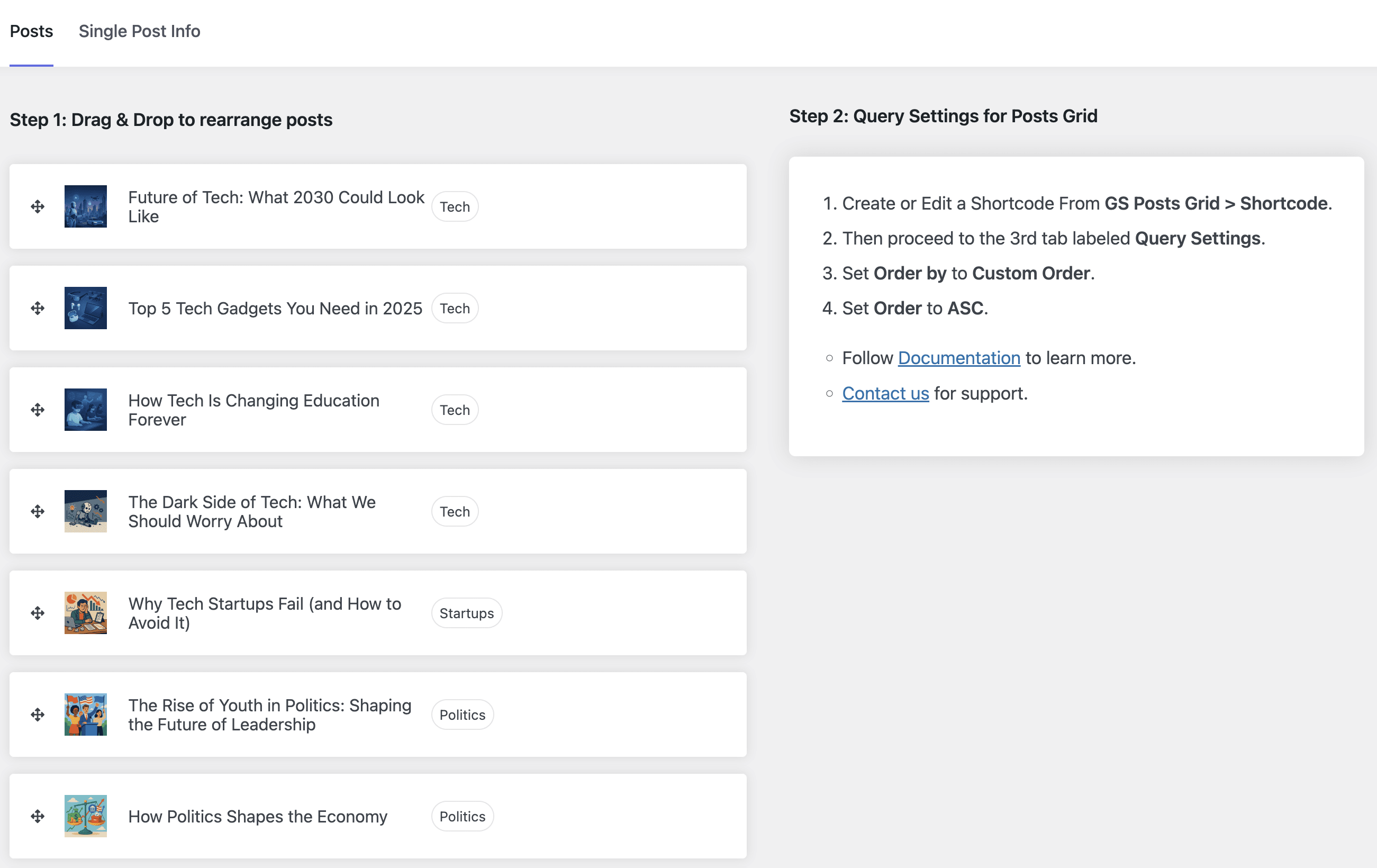
Drag & Drop to rearrange Posts 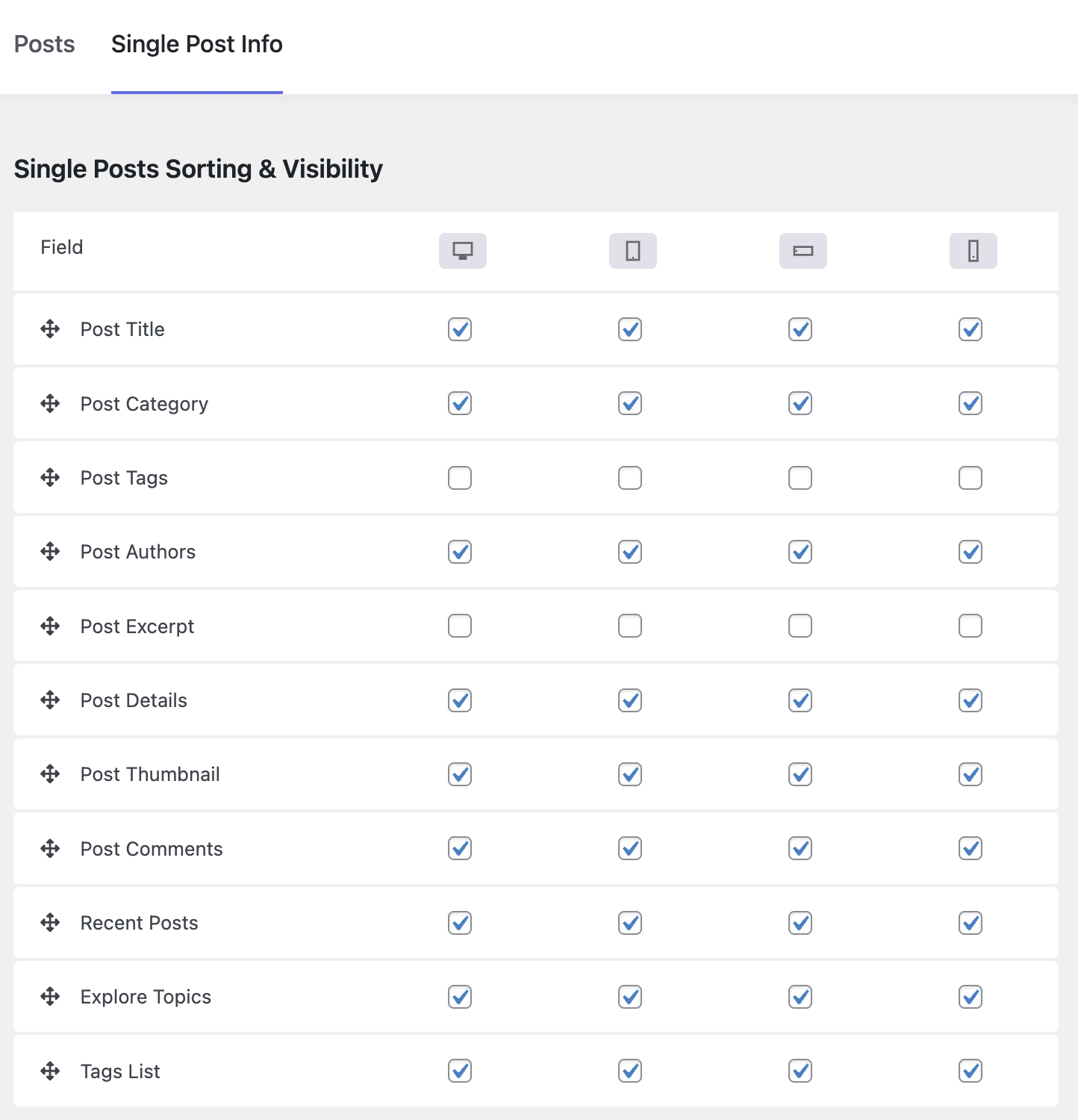
Single Posts Sorting & Visibility
Blocks
This plugin provides 4 blocks.
- Posts Masonry Example block scaffolded with Create Block tool.
- Posts Grid Example block scaffolded with Create Block tool.
- Posts Filter Example block scaffolded with Create Block tool.
- Posts Slider/carousel Example block scaffolded with Create Block tool.
Installation
Install the WordPress Posts Grid plugin as a regular WordPress plugin. Here are different ways to install the WordPress Posts Grid plugin :
Install by Search Plugin
- In your Admin, go to the menu Plugins > Add New
- Search WordPress Posts Grid
- Click to install
- Activate the plugin
- Posts Grid settings will be found – GS Plugins > Posts Grid Settings
Install by Upload Plugin
- Download the latest version of GS Posts Grid (.zip file)
- In your Admin, go to the menu Plugins > Add New
- Select Upload Plugin
- Click on Choose File
- Select downloaded gs-posts-grid-pro.zip & click on Install Now button
- Activate the plugin
- Posts Grid settings will be found – GS Plugins > Posts Grid Settings
Install Plugin using FTP
- Upload gs-posts-grid-pro folder inside the /wp-content/plugins/ directory
- Go to WordPress dashboard > Plugins > Activate the GS Posts Grid
-
Posts Grid settings will be found – GS Plugins > Posts Grid Settings
-
Put [gs-posts-grid id=1] shortcode or select another theme, where you need to display WordPress Posts.
FAQ
-
What will be Posts Featured image dimension?
-
Recommended image size larger than 420px for perfect view on various devices.
-
Do I need to regenerate thumbnail images of existing posts?
-
Yes. But it is optional. You can use the Force Regenerate Thumbnails plugin or any other plugin of your choice.
-
How to use shortcodes inside page templates?
-
WordPress has a great function, do_shortcode(), that will allow you to use shortcodes inside your theme files. For example, to output Posts in a Theme file, you would do this:
<?php echo do_shortcode('[gs-posts-grid id=1]'); ?> -
How do I display posts using GS Posts Grid?
-
After installing and activating the plugin, you can add a GS Posts Grid using the Gutenberg block or by placing the provided shortcode on any page, post, or widget area. Layout and query options can be adjusted easily.
-
Can I display posts in different layouts?
-
Yes. GS Posts Grid supports multiple layouts, including grid, list, masonry, and slider layouts, allowing you to present posts in different formats based on your content needs.
-
Can I filter posts by category or tag?
-
Yes. You can filter posts by category and tag to display only the content you want in a specific grid or section.
-
Can I control how many posts are displayed?
-
Yes. You can set the number of posts to display and control the order in which they appear, such as newest first or oldest first.
-
Does the GS Posts Grid work with Gutenberg?
-
Yes. The plugin includes a Gutenberg block that lets you add and configure post grids visually within the block editor.
-
Can I use GS Posts Grid with the Classic Editor?
-
Yes. Shortcodes are available, so the plugin works smoothly with the Classic Editor as well as widgets and custom template areas.
-
Is the posts grid responsive?
-
Yes. All layouts are fully responsive and automatically adapt to different screen sizes, including mobile and tablet devices.
-
Can I display featured images in the grid?
-
Yes. Featured images can be displayed with posts. Image appearance depends on the selected layout and your theme’s image sizes.
-
Can I show post titles, excerpts, and meta information?
-
Yes. Common post elements such as title, excerpt, date, and author can be displayed based on the plugin settings.
-
Does the plugin support pagination?
-
Yes. Pagination options are available to help display larger sets of posts in a structured way.
-
Will GS Posts Grid slow down my website?
-
GS Posts Grid is designed to be lightweight. Performance depends on factors like image size, number of posts displayed, hosting quality, and caching configuration.
-
Why are my posts not showing as expected?
-
This problem usually happens due to incorrect filter settings, caching issues, or theme conflicts. Clearing the cache and double-checking the category or tag selection often resolves the issue.
-
Is GS Posts Grid compatible with most WordPress themes?
-
Yes. The plugin works with most modern WordPress themes. Styling may vary slightly depending on your theme’s default CSS.
-
Is the GS Posts Grid translation ready?
-
Yes. The plugin is translation-ready and can be used on multilingual websites.
-
Is there a Pro version available?
-
Yes. A Pro version is available for users who need additional layout options and advanced customization features. The free version remains fully usable for standard post grid needs.
Reviews


Contributors & Developers
“GS Posts Grid – Recent Posts, Category Posts, Post Filter, Slider & List” is open source software. The following people have contributed to this plugin.
Contributors


Interested in development?
Browse the code, check out the SVN repository, or subscribe to the development log by RSS.
Changelog
Version 3.0.2 [2nd Feb 2026]
- [Fixed]: Load More Button.
Version 3.0.1 [29th Jan 2026]
- [Updated]: Theme-wise Visibility.
- [Fixed]: Nav Position.
Version 3.0.0 [25th Jan 2026]
- [Updated]: Rewritten the plugin.
Version 1.2.0 [22nd Mar 2023]
- [Updated]: Free, Pro Plugins Pages & Help Page.
- [Removed]: All Admin Notices From the Posts Grid pages.
- [Fixed]: Page Redirection on the Plugin Activation.
- [Fixed]: Free Pro Conflicts.
- [Added]: Menu Icon.
- [Updated]: Menu Name.
version 1.1.9 [24th May 2021]
- [Fixed]: PHP 7.3 Compatibility.
- [Fixed]: Deprecated Function Warning.
version 1.1.8 [19th Dec 2020]
- [Updated]: AppSero Client.
- [Updated]: With WordPress version 5.6
Version 1.1.7 [14th Aug 20]
- [Updated]: With WordPress’s latest version.
Version 1.1.6 [11th July 20]
- [Added]: Appsero client.
Version 1.1.5 [25th Jun 20]
- [Updated]: Bootstrap 4 Grid.
- [Updated]: With WordPress’s latest version.
Version 1.1.4 [6th Feb 2020]
- [Added]: Pagination attribute on the shortcode.
- [Added]: Padding CSS to ul attributes.
Version 1.1.3 [4th Feb 2020]
- [Fixed]: Change post details to ‘get_the_excerpt’ and filter with the strip_tags function.
- [Added]: Pagination on/off option in settings.
Version 1.1.2 [27th Jan 2020]
- [Fixed]: Category-wise posts issue. Fixed query – ‘category_name’ => $group
Version 1.1.1 [22nd Oct 19]
- [Fixed]: Domain name changed & fixed all URLs.
- [Fixed]: Admin CSS.
- [Added]: New Contributors.
- [Added]: Review system.
version 1.1
- Initial release