
BBForms helps you build multipurpose forms in seconds. It lets you create fully customizable forms with advanced features, tailored to your specific needs and workflows.
Access to your WordPress admin area and navigate to BBForms -> Forms menu. At the top of this view you can find the "Add New Form" button.

In addition, you have a shortcut to create forms quickly on BBForms -> Add New menu.
After clicking Add new form, you will be able to either create a blank form or choose from the available templates.

When you select a form template, the editing screen will appear, with the form builder on the left and a preview of the configured fields on the right.

Form
From Form, you can select the fields available to configure your form, as well as use various BBCodes to format it into columns, tables, and more.
Detailed information about all available fields can be found in the Fields section.

Actions
You can set up different actions such as saving the submission, sending an email, or redirecting the user to another URL. These actions will only run once the form has been successfully submitted.
In Actions, you can find information about all the available fields.

Options
The Options section allows you to configure the behavior of the form. In Form Options, you will find all the available settings.

Settings
This section allows you to organize your forms into categories and tags that have been previously created from your WordPress admin area and navigate to BBForms -> Categories menu and BBForms -> Tags menu.

Forms list view
Access to your WordPress admin area and navigate to BBForms -> Forms menu to view the list of created forms, where the information and characteristics of each form will be displayed.

Title: The title of the created form.
Category: Category in which the form has been assigned.
Tags: Tags associated with the form.
Submissions: The number of times the form has been submitted .
Shortcode: The shortcode to insert the form into any post on your site.
Publish your form
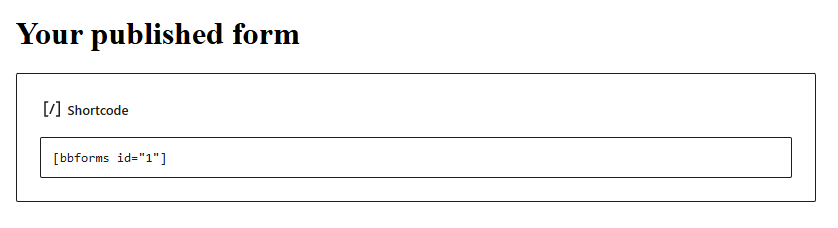
To publish the form in any post or page on your site, simply use the shortcode available at the top of the form editor or in the list view. You can also preview your form in the Preview section of the editor to see the changes applied in real time.

You can paste the shortcode into any page or post, either directly or in the designated section depending on the builder you are using.
This will be the final result. Both in the preview and on the page where you’ve used the shortcode, the styles will depend on the active theme of your site. You also have the option to customize styles directly from the editor.
