
Before you start with this guide, there is everything you will need:
- Our CSV add-on.
The CSV Importer add-on allows you to retrieve data from a CSV file or a Google Sheets worksheet (available only with the Google Sheets integration or AutomatorWP PRO).
The CSV Importer trigger will have the following fields to retrieve the information you need.

Data source
From the Data Source field, you can select the source of the CSV from which you want to extract information. You can choose from the following options:
- Upload file: You can use a file that you have added to the WordPress media library.
- Paste data: You can paste the information from a CSV directly to retrieve the data you need.
- Google Sheets: You can extract information from any Google Sheets worksheet. For this option, the Google Sheets integration must be enabled and configured.
Get data range
You can configure the trigger to retrieve only the necessary data rows, excluding the header, skipping the first lines, or setting a maximum limit of rows to collect.
- Exclude header: Allows you to exclude the header from the CSV.
- Exclude starting rows: Number of starting rows to ignore before reading data. Leave empty for no limit. By default is 0.
- Limit rows: Number of rows to import. Leave empty for no limit. By default is 0.
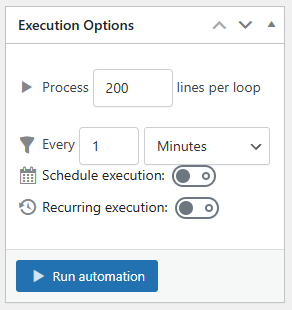
Execution options
This type of automation allows you to execute the trigger manually or automatically on a specific date or on a recurring basis. You can find more information in the documentation on import file automations.
Use the data from CSV
After saving the trigger from the CSV importer add-on, the tags will appear in the following actions to let you place the data value on the action fields of your choice.

You will find 3 groups of tags:
- Column value will change dynamically for the column you specify. This tag supports values such as letters and numbers. For example, you can replace the default “COLUMN” value of the tag with A or 1 to get the data for the first column, B or 2 for the data for the second column.
- Row number will be replaced by the line number that has been processed.
- Column A, B, C… will detect the names of your columns so that you can more comfortably select the one from which you want to obtain information to use in your actions.
Automations samples
You can check the automations samples page where you can see some samples of the possibilities of this add-on.