
All posts automations lets you apply actions on all posts or on a filtered group of posts.
Their workflow is really similar to all users automations, with the difference that you are able to filter by posts, and the user used in each filter, action or tag will be the post author.
In addition, all posts automations can be run manually or automatically on a specific date or on a recurring basis.
This automations are ideal to process several actions over a group of posts to perform operations like:





Creating an all posts automation
Access to your WordPress admin area and navigate to AutomatorWP -> Automations menu. At the top of this view you can find a button to Add new automation.
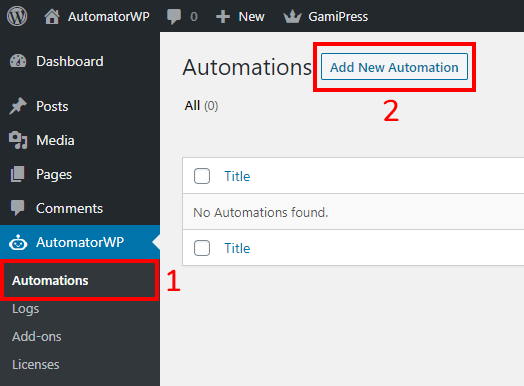
A dialog will appear to let you choose the automation type you want to create, choose All posts and click on Confirm.

You will notice that the automation is already started with a predefined trigger and the box Execution Options, that is exclusive for all posts automations, will appear.

Filtering posts
Inside the “Run automation on all posts” triggers you will find several conditions to filter posts by the fields or metas of your choice:

You can configure all the conditions of your choice to process the automation exactly on the posts you want:

Note that all conditions are applied as an AND condition (eg: Ttitle contais X AND Type is equal to Y).
Additionally, you can use the filters to decide on which posts the automation should run on:

Note: User-based filters will be checked against the post author so a filter like “User has the role X” will check if the author of the post has this role.
Of course, as other automations, you are also able to define filters on the actions area to conditionally run the actions under the posts of your choice:

Execution options
The Execution Options box lets you manage several options about the execution of this automation. The box is placed at right side of the screen and looks like this:

Posts per loop option lets you define how many posts to process in each loop of a run.
For example, if you have 1,000 posts and you set the posts per loop to 200, each run of this automation will have 5 loops (200×5=1,000). Keep in mind that all actions will be processed on every post, so depending of your server capabilities you may need to adjust this setting to what your server is able to handle.
A tip here could be to run the automation manually to see how much time requires each loop, if you see that a loops requires more than 10 seconds, is recommended to reduce the posts per loop for that automation.
Schedule execution lets you schedule the execution of this automation on a specific date. Check this section for more details.
Recurring execution lets you schedule the execution of this automation recursively. Check this section for more details
Run automations manually
Inside the Execution Options box you will find a button named Run automation. Clicking this button you will start the automation manually and you will be able to see the information about the execution status:

Important: Wait on this screen until the automation execution ends. You can open other browser tabs to continue working in other tasks while the automation is running.
Schedule for a specific date
Inside the Execution Options box you have the setting Schedule execution. Checking this option will appear a new set of fields to let you schedule the execution of this automation in a specific date:

Note that is important to configure a future date to schedule correctly this automation.
Recurring schedule
Inside the Execution Options box you have the setting Recurring execution. Checking this option will appear a new set of fields to let you schedule the execution of this automation in a recurring basis:

You are able to configure a period of your choice for this schedule (every day, week, month and year), even more you are able to define the day (in some periods) and the time of the execution:

- Every day: The automation will run every day at time configured.
- Every week: The automation will run the day of the week (Monday, Tuesday, etc) at time configured.
- Every month: The automation will run the day of the month at time configured. Note that if day configuration exceeds the day of the month (eg: You configure 31 and the month has 30 days or 28 days like February) AutomatorWP will execute the automation the last day of that month.
- Every year: The automation will run the day of the year at time configured. If you configure the day at 365 and the year is leap, AutomatorWP will execute the automation the last day of that year.
Completion times
Through the Total times field located in the Save Changes box, you are able to limit the number of completion times allowed for this automation, specially when the automation is configured with a recurring schedule.
For example, if you configure the automation to run the 15th of every month and set a total times of 5, the automation will run only the first 5 months until its activation.
Tags
In all posts automations you will find 3 groups of tags:
- User tags that will change dynamically for every post author who is getting processed.
- Post tags that will change dynamically for every post that is getting processed.
- Number of times tag that is the run number of the automation. For example the first time the automation gets executed, this tag value will be 1, the next execution the tag value will be 2, etc.