JSpinner
Specify the JSpinner value as a percentage.
Section titled “Specify the JSpinner value as a percentage.”
Adding non-selectable characters to a JSpinner text field.
Section titled “Adding non-selectable characters to a JSpinner text field.”
ParticularyNonEditableSpinner
This adds a string to the JSpinner text field that cannot be selected or edited.
Disable direct input to JSpinner.
Section titled “Disable direct input to JSpinner.”
SpinnerEditor
This will disable editing in the JSpinner editor, allowing values to be changed only via buttons.
Hide the JSpinner text.
Section titled “Hide the JSpinner text.”
DecimalFormatSymbols
When a JSpinner that uses SpinnerNumberModel is disabled, the numerical value will be hidden.
Loop through the values of the JSpinner model.
Section titled “Loop through the values of the JSpinner model.”
CyclingSpinnerModel
The JSpinner model is configured to loop when the value exceeds the maximum and minimum values.
Do not allow invalid values to be entered in JSpinner.
Section titled “Do not allow invalid values to be entered in JSpinner.”
NumberFormatter
We retrieve a JFormattedTextField from JSpinner and configure it to not allow invalid values to be entered.
Inner margin when JSpinner is made non-editable
Section titled “Inner margin when JSpinner is made non-editable”
InactiveSpinnerInsets
This modifies the background color and internal margin color when JSpinner is made non-editable.
Arrange the JSpinner buttons on the left and right.
Section titled “Arrange the JSpinner buttons on the left and right.”
SpinnerButtonLayout
Change the layout of JSpinner to place the arrow buttons on the left and right.
Add a ToolTip to a JSpinner button.
Section titled “Add a ToolTip to a JSpinner button.”
Change the date using JSpinner instead of CellEditor.
Section titled “Change the date using JSpinner instead of CellEditor.”
DateCellEditor
In JTable, change the cell editor for the column displaying dates to JSpinner.
Increasing or decreasing values using MouseWheel
Section titled “Increasing or decreasing values using MouseWheel”
Enter a value that exceeds the upper limit in SpinnerNumberModel.
Section titled “Enter a value that exceeds the upper limit in SpinnerNumberModel.”
SpinnerNumberModel
This tests the value displayed when you directly enter a number in the JSpinner's text field that exceeds the upper limit set by SpinnerNumberModel.
Compare the upper and lower limits of JSpinner using BigDecimal.
Section titled “Compare the upper and lower limits of JSpinner using BigDecimal.”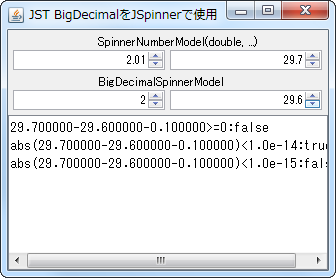
BigDecimalSpinnerModel
When using floating-point models in JSpinner, the maximum and minimum values will now be compared using BigDecimal.
Specify the width of JComboBox etc. by the number of columns.
Section titled “Specify the width of JComboBox etc. by the number of columns.”
SetColumns
The widths of JTextField, JPasswordField, JSpinner, and JComboBox are compared by specifying the number of columns.
Set the date in JSpinner
Section titled “Set the date in JSpinner”
SpinnerDateModel
We will test date changes by setting a SpinnerDateModel with a lower limit in JSpinner.
Use JComboBox instead of JSpinner
Section titled “Use JComboBox instead of JSpinner”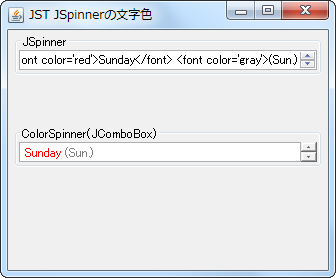
SpinnerTextColor
By using JComboBox instead of JSpinner, we are able to change the text color and other properties of the items.
Convert JSpinner’s notation to hexadecimal.
Section titled “Convert JSpinner’s notation to hexadecimal.”
HexFormatterSpinner
This displays the JSpinner's representation in hexadecimal and the character assigned to that Unicode code point.
Using LocalDateTime with JSpinner
Section titled “Using LocalDateTime with JSpinner”
SpinnerLocalDateTimeModel
Instead of using SpinnerDateModel, which uses Date or Calendar, we create a SpinnerModel that uses LocalDateTime, which was introduced in JDK8, and select the date with JSpinner.
Set a timer to repeat the action while the JButton is pressed with the mouse.
Section titled “Set a timer to repeat the action while the JButton is pressed with the mouse.”
AutoRepeatTimer
This sets up a timer that repeatedly executes a specified action while the JButton is pressed with the mouse.
Restrict the date field that can be changed in JSpinner spins
Section titled “Restrict the date field that can be changed in JSpinner spins”
SpinCalendarField
This restricts the date fields that can be modified using the JSpinner's spin buttons to only those specified by the initial value, rather than the field specified by the cursor.
Specify the increment/decrement size for each date field in the SpinnerDateModel configured in JSpinner.
Section titled “Specify the increment/decrement size for each date field in the SpinnerDateModel configured in JSpinner.”
CalendarFieldStepSize
Set SpinnerDateModel in JSpinner and specify the increment/decrement size for each date field when the spin button is clicked.
Change the JSpinner editor to JLabel to display HTML.
Section titled “Change the JSpinner editor to JLabel to display HTML.”
HtmlSpinnerEditor
This modifies the JSpinner's ListEditor to a JLabel to display the text in HTML.
If the JSpinner value reaches a boundary value, disable the ArrowButton.
Section titled “If the JSpinner value reaches a boundary value, disable the ArrowButton.”
DisableOnBoundaryValues
When the JSpinner value reaches its upper or lower limit, the corresponding ArrowButton is disabled and becomes unclickable.
Change the size of the ArrowButton in JSpinner
Section titled “Change the size of the ArrowButton in JSpinner”
SpinnerArrowButtonSize
This modifies the width and height of the ArrowButton in the JSpinner.
Change the text alignment in the JSpinner editor.
Section titled “Change the text alignment in the JSpinner editor.”
SpinnerEditorAlignment
This modifies the text alignment applied to JSpinner.DefaultEditor in JSpinner.
Make JSpinner’s TextField and ArrowButton semi-transparent
Section titled “Make JSpinner’s TextField and ArrowButton semi-transparent”
TranslucentSpinner
In a JSpinner to which NimbusLookAndFeel has been applied, set its FormattedTextField and ArrowButton to be semi-transparent.
Reverse the direction of increase/decrease using the arrow buttons in JSpinner.
Section titled “Reverse the direction of increase/decrease using the arrow buttons in JSpinner.”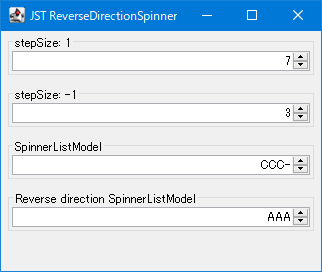
ReverseDirectionSpinner
This controls the increase or decrease of the value when clicking the JSpinner's arrow buttons, or swaps the previous and next directions.
Create a ButtonGroup or JComboBox for selecting an Enum constant using JRodioButton.
Section titled “Create a ButtonGroup or JComboBox for selecting an Enum constant using JRodioButton.”
EnumInputSelect
This process creates selection components such as JRadioButton's ButtonGroup, JComboBox, and JSpinner from a list of enum constants and retrieves the specified enum constant.
Set the JSpinner values so that the sum of the values within the group remains constant.
Section titled “Set the JSpinner values so that the sum of the values within the group remains constant.”
SpinnerNumberModelGroup
Create a group with multiple SpinnerNumberModels and configure it so that the sum of the numbers within the group is constant.
Place the JSlider and the text input field on top of each other.
Section titled “Place the JSlider and the text input field on top of each other.”
CompactSlider
This creates a numeric input component by layering a JSlider and a JFormattedTextField using an OverlayLayout.
Place JSpinner as a MenuItem in JPopupMenu.
Section titled “Place JSpinner as a MenuItem in JPopupMenu.”
SpinnerMenuItem
Use components such as JSpinner or JSlider that do not implement MenuElement as MenuItems for JPopupMenu.
Round down the JSpinner value to the nearest 0.5.
Section titled “Round down the JSpinner value to the nearest 0.5.”
RoundDownToHalfSpinner
This setting will round down or round up to the nearest 0.5 when displaying numbers in JSpinner.
Draw the border of the editor used within JSpinner.
Section titled “Draw the border of the editor used within JSpinner.”
SpinnerEditorBorderPainted
This toggles whether or not the border of the Editor component used internally by JSpinner is rendered.
Separate and enlarge the increase/decrease buttons in JSpinner.
Section titled “Separate and enlarge the increase/decrease buttons in JSpinner.”
HoverEnlargedButtonSpinner
When focus shifts to JSpinner, its increase/decrease buttons are moved from the JSpinner itself to JPopupMenu, and the button size is enlarged to make them easier to click.
Create a time selection component by combining a JFormattedTextField and increment/decrement JButtons.
Section titled “Create a time selection component by combining a JFormattedTextField and increment/decrement JButtons.”
TimePicker
Create a JSpinner-style time selection component by placing increment/decrement JButtons above and below a JFormattedTextField.