JList
Select multiple items in JList using the rubber band and rearrange them by dragging and dropping.
Section titled “Select multiple items in JList using the rubber band and rearrange them by dragging and dropping.”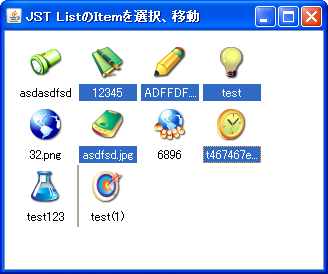
DragSelectDropReordering
This feature allows you to select multiple items in JList using a rubber band and rearrange them using drag and drop.
Select items in JList by specifying a range.
Section titled “Select items in JList by specifying a range.”
JList cell animation
Section titled “JList cell animation”
Rollover of JList cells by moving the cursor
Section titled “Rollover of JList cells by moving the cursor”
Use a larger cell editor to edit JTables.
Section titled “Use a larger cell editor to edit JTables.”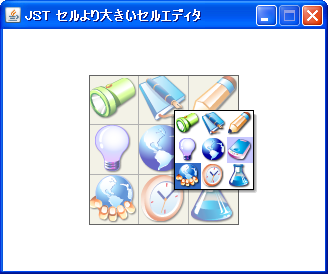
LargeCellEditor
Edit the JTable using a cell editor designed for selecting icons larger than the cells themselves, rather than the standard cell editor.
Using cells of different heights in JList
Section titled “Using cells of different heights in JList”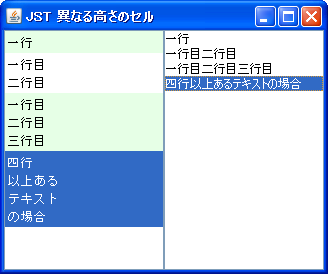
DifferentCellHeight
We use JTextArea as the renderer for JList to create cells of different heights.
Make any item in the JList unselectable.
Section titled “Make any item in the JList unselectable.”
DisabledItem
This sets a ListCellRenderer that makes any item in the JList unselectable.
Disable JList selection
Section titled “Disable JList selection”
Drag-and-drop sorting of JLists using TransferHandler
Section titled “Drag-and-drop sorting of JLists using TransferHandler”
DnDReorderList
We will create a TransferHandler that allows you to select multiple items in a JList and rearrange them using drag and drop.
Drag and drop items from JList.
Section titled “Drag and drop items from JList.”
Add row headers to JTable
Section titled “Add row headers to JTable”
TableRowHeader
Add the row header created with JList to the RowHeaderView of the JScrollPane that has a JTable configured.
Moving items between JLists using drag and drop.
Section titled “Moving items between JLists using drag and drop.”
Use JCheckBox in JList cells
Section titled “Use JCheckBox in JList cells”
Deselect JList
Section titled “Deselect JList”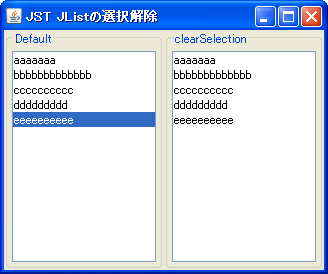
ClearSelection
This setting allows you to deselect a cell in JList by clicking in the blank area outside the cell.
Select multiple items in JList using only mouse clicks.
Section titled “Select multiple items in JList using only mouse clicks.”
ListMouseSelection
Configure JList to allow multiple items to be selected with just a mouse click.
Disable searching and selecting using the first character key input in JList.
Section titled “Disable searching and selecting using the first character key input in JList.”
DisablePrefixMatchSelection
This disables the function that searches for and selects items that match the first character when alphanumeric input is made while JList has focus.
Place a JButton inside a JList cell.
Section titled “Place a JButton inside a JList cell.”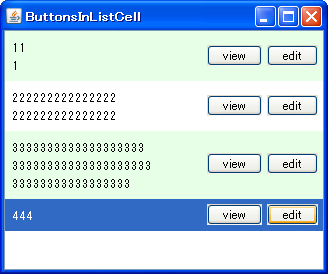
The cursor changes for each component placed within a JList cell.
Section titled “The cursor changes for each component placed within a JList cell.”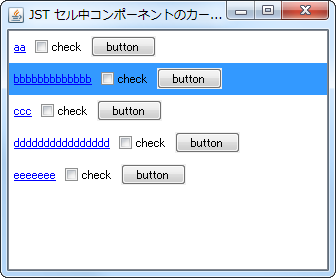
CursorOfCellComponent
Search for the component placed in a JList cell based on the mouse coordinates, and apply the cursor set on that component to the JList.
Display a ToolTip on a JList cell.
Section titled “Display a ToolTip on a JList cell.”
ToolTipOnCellBounds
A ToolTip will only be displayed overlaid on top of the JList cell if the text does not fit within the cell.
Set the drag image in the JList’s TransferHandler.
Section titled “Set the drag image in the JList’s TransferHandler.”
GhostDragImage
Customize the image displayed while dragging a JList item and set it in the TransferHandler.
Drop list items onto the tabs in the JTabbedPane.
Section titled “Drop list items onto the tabs in the JTabbedPane.”
DropOnTabTitle
By dropping an item onto a tab in the JTabbedPane, the selected ListItem will be moved to the JList within that tab.
Select a cell in the JTable and drag and drop it into the JList to copy the Icon.
Section titled “Select a cell in the JTable and drag and drop it into the JList to copy the Icon.”
TableCellTransferHandler
This sets up a TransferHandler that allows you to select cells in a JTable and copy the icons within those cells to a JList via drag and drop.
Filter and display items in JList.
Section titled “Filter and display items in JList.”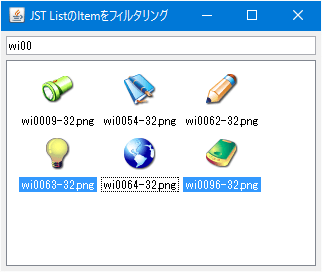
FilterListItems
This performs display filtering based on regular expressions for the title strings of items in the JList.
Retrieving HyperlinkEvents from a JEditorPane configured as a cell renderer for a JList.
Section titled “Retrieving HyperlinkEvents from a JEditorPane configured as a cell renderer for a JList.”
ListCellHyperlinkListener
We will display multiple links in the JEditorPane used as the cell renderer for JList, and configure it to forward mouse click events to generate HyperlinkEvents.
Update the state of the items in the JComboBox dropdown list.
Section titled “Update the state of the items in the JComboBox dropdown list.”
UpdateComboBoxItem
Updates the state and rendering of the items set in the JComboBox dropdown list.
Change the list display of JFileChooser to a single vertical column.
Section titled “Change the list display of JFileChooser to a single vertical column.”
FileChooserLayoutOrientation
This changes the list display of JFileChooser from the default vertical-first newspaper style to the vertical single-column style, which is the default for JList.
Create a calendar using JList that allows you to move between months using the cursor keys and select dates that span across weeks.
Section titled “Create a calendar using JList that allows you to move between months using the cursor keys and select dates that span across weeks.”
CalendarViewList
We will create a calendar using JList that allows you to move to the next week or month using the cursor keys, and to select a range of LocalDate dates that span across weeks.
Create a week calendar using JList and display a heatmap.
Section titled “Create a week calendar using JList and display a heatmap.”
CalendarHeatmapList
Set a JList to a vertical newspaper-style layout to create a week calendar, and then display a heatmap on it.
Sets the viewport size when a JList is embedded within a JScrollPane.
Section titled “Sets the viewport size when a JList is embedded within a JScrollPane.”
VisibleListSizeInScrollPane
This sets the recommended viewport size required to display a JList embedded within a JScrollPane.
Speed up the deletion of large numbers of items from JList.
Section titled “Speed up the deletion of large numbers of items from JList.”
FastRemoveOfListItems
This tests a fast method for deleting a large number of items from a JList's ListModel.
Moving items between JLists using copy and paste
Section titled “Moving items between JLists using copy and paste”
ExportToClipboard
This function allows you to copy and paste items between JLists to duplicate and move them.
Sets the key input delay time used for leading string searches in JComboBox, JList, JTree, etc.
Section titled “Sets the key input delay time used for leading string searches in JComboBox, JList, JTree, etc.”
TimeFactor
This setting configures the multi-key input delay time used for searching the first string via key input in the detailed views of JComboBox, JList, JTree, JFileChooser, etc.
Set the selection color of JList to semi-transparent.
Section titled “Set the selection color of JList to semi-transparent.”
TranslucentList
The selection color of JList is set to semi-transparent, and the background color is made transparent so that the background of the parent panel shows through.
Displaying a GIF image color palette in JList
Section titled “Displaying a GIF image color palette in JList”
IndexColorPalette
This code uses JList to display a list of the color palette and transparency of a GIF image.
Make the JToolTip semi-transparent
Section titled “Make the JToolTip semi-transparent”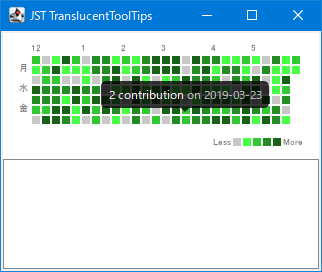
TranslucentToolTips
This sets the JToolTip to semi-transparent and also changes its shape and display position.
Change the color of the drop line that displays the insertion destination when using drag and drop with TransferHandler.
Section titled “Change the color of the drop line that displays the insertion destination when using drag and drop with TransferHandler.”
DropLineColor
This modifies the color of the drop line that displays the insertion destination when using the TransferHandler in JList, JTable, and JTree.
Set the cell layout of the JComboBox dropdown list to newspaper style.
Section titled “Set the cell layout of the JComboBox dropdown list to newspaper style.”
HorizontalWrapComboPopup
This changes the cell layout of the JList elements in the JComboBox dropdown list to a newspaper style.
Change whether JList scrolling is done in cell units.
Section titled “Change whether JList scrolling is done in cell units.”
LockToPositionOnScroll
This setting determines whether dragging the JList scrollbar with the mouse results in either unit-by-unit scrolling with the top edge of the cell fixed, or smooth scrolling.
Sort the models in JList
Section titled “Sort the models in JList”
SortedListModel
This function sorts items in ascending or descending order based on criteria such as the names of the items added to the JList model.
Edit the text of a JLabel placed in a JList cell.
Section titled “Edit the text of a JLabel placed in a JList cell.”
ListEditor
This creates a cell editor that makes the text of a JLabel placed within a JList cell editable.
Create a cell editor using JTextArea and JFrame that allows for fixed width, text wrapping, and height expansion beyond the parent frame.
Section titled “Create a cell editor using JTextArea and JFrame that allows for fixed width, text wrapping, and height expansion beyond the parent frame.”
LineWrapListEditor
A JTextArea is configured to have a fixed width and adjustable height with wrapping based on the length of the text. This is then placed in a JFrame and used as a JList cell label editor that can be displayed outside of its parent frame.
Create a list cell editor with center alignment and line wrapping capabilities using JTextPane.
Section titled “Create a list cell editor with center alignment and line wrapping capabilities using JTextPane.”
CenteredMultiRowCellEditor
Create a center-aligned, line-wrapping editor using JTextPane, add it to a JFrame, and use it to edit list cells.
Create a calendar in JList and select a date range by dragging with the mouse.
Section titled “Create a calendar in JList and select a date range by dragging with the mouse.”
SingleIntervalMouseSelection
This program allows you to select a date range by dragging the mouse on a calendar created with JList.
The tooltips of JList cells have been repositioned to display correctly in accordance with MouseWheelEvent.
Section titled “The tooltips of JList cells have been repositioned to display correctly in accordance with MouseWheelEvent.”
ToolTipAfterMouseWheelEvent
This modifies the target cell and position of the ToolTip that appears after moving a JList within a JScrollPane using the MouseWheel.
Modify NimbusLookAndFeel to retrieve the cell selection color from JList.
Section titled “Modify NimbusLookAndFeel to retrieve the cell selection color from JList.”
RendererUseListColors
This will modify NimbusLookAndFeel to retrieve the cell selection color from JList instead of using the color set in UIDefaults.
Use a JList that can display multiple items as a ComboBoxEditor.
Section titled “Use a JList that can display multiple items as a ComboBoxEditor.”
ListComboBoxEditor
We will use a newspaper-style JList as the ComboBoxEditor, which allows for the display and scrolling of multiple items.
Creating a dot matrix LED digital clock with JList
Section titled “Creating a dot matrix LED digital clock with JList”
DotMatrixLedDigitalClock
Set the JList to a vertical newspaper-style layout and place an LED-like icon in each cell to create a dot matrix LED digital clock.
Move the selected item in JList up and down using a JButton placed on a JToolbar.
Section titled “Move the selected item in JList up and down using a JButton placed on a JToolbar.”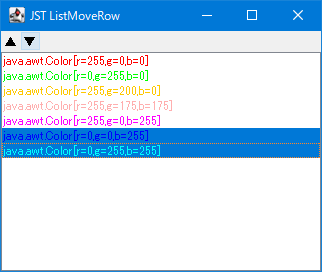
ListMoveRow
Click the JButton placed on the JToolbar to move the selected item in the JList up or down.
This setting allows you to individually configure whether mouse dragging and clipboard item movement are possible in JList.
Section titled “This setting allows you to individually configure whether mouse dragging and clipboard item movement are possible in JList.”
ExportAsDragOrExportToClipboard
This toggles whether to allow mouse dragging or clipboard item movement in a JList with a TransferHandler configured.
Add an item selection checkbox to a JList cell.
Section titled “Add an item selection checkbox to a JList cell.”
ListCellItemCheckBoxes
This adds item selection checkboxes to JList cells, allowing multiple selections without keyboard input.
When renaming is initiated in the JFileChooser cell editor, the file name excluding the extension is selected.
Section titled “When renaming is initiated in the JFileChooser cell editor, the file name excluding the extension is selected.”
SelectFileNameWithoutExtension
This code retrieves the JTextField used as a renameable cell editor in the ListView or DetailsView of the JFileChooser, and sets it so that the file name excluding the extension, rather than the entire file name, is selected.
Draw rounded corners on the cell selection area of a calendar created with JList.
Section titled “Draw rounded corners on the cell selection area of a calendar created with JList.”
RoundedSelectionListCalendar
This code uses JList to create a calendar, rounding all corners of the selected area.
Implement fixed headers in Jlist
Section titled “Implement fixed headers in Jlist”
StickyHeaderList
The system searches for rows within the JList's display area, fixes cells containing specific data as headers on the JLayer, and renders them accordingly.
Display the JButton only when the JList cell is highlighted.
Section titled “Display the JButton only when the JList cell is highlighted.”
ThreeDotsMenuButton
This draws JButtons on a JLayer for highlighting JList cells and displaying context menus.
Place a scrollable JList in the JPopupMenu of the JMenu.
Section titled “Place a scrollable JList in the JPopupMenu of the JMenu.”
ScrollableListMenu
Instead of using JMenuItem, we'll use JList, which allows scrolling and selection, for the JPopupMenu of JMenu.
Add a JCheckBox to a JList cell to enable multiple selections using only the mouse.
Section titled “Add a JCheckBox to a JList cell to enable multiple selections using only the mouse.”
CheckBoxForMultipleSelectionsInListCell
Add a JCheckBox to a JList cell and configure it so that clicking the JCheckBox with the mouse allows you to select or deselect the cell.
Fading out JList items that overflow from JScrollPane.
Section titled “Fading out JList items that overflow from JScrollPane.”
ListOverflowWithFadeScroll
If there are JList list items that overflow from the top and bottom of the JScrollPane, configure them to be displayed with a fade-out effect.
Create a calendar that displays week numbers using JList.
Section titled “Create a calendar that displays week numbers using JList.”
CalendarWithWeekNumbers
Use a JList to display the week number and place it as a row header in a JScrollPane.
Group JList items
Section titled “Group JList items”