Graphics
Change the icon’s color tone with RGBImageFilter
Section titled “Change the icon’s color tone with RGBImageFilter”
RatingLabel
Prepare icons with modified color tones using RGBImageFilter, and then create a component for evaluation.
Create a star shape using GeneralPath, etc.
Section titled “Create a star shape using GeneralPath, etc.”
GeneralPath
Use GeneralPath and other tools to draw star shapes on panels or create icons.
Generate SVG from PathIterator
Section titled “Generate SVG from PathIterator”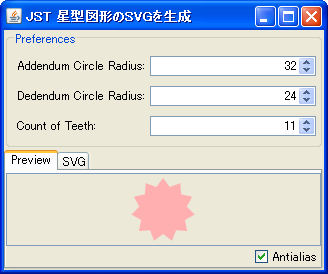
Draw freehand curves in JPanel using the mouse.
Section titled “Draw freehand curves in JPanel using the mouse.”
Convert the image to grayscale using ColorConvertOp.
Section titled “Convert the image to grayscale using ColorConvertOp.”
Get the image size using MediaTracker
Section titled “Get the image size using MediaTracker”
MediaTracker
We will use MediaTracker to obtain the width and height of an image from an image file.
Create an animated icon using Timer.
Section titled “Create an animated icon using Timer.”
Zoom in and out of images using MouseWheel
Section titled “Zoom in and out of images using MouseWheel”
Rotate the font
Section titled “Rotate the font”
TransformedShape
The outline of the characters is obtained from the font, and its center is set as the anchor point for rotation.
Extract comments from a JPEG file.
Section titled “Extract comments from a JPEG file.”
IIOMetadata
This extracts metadata such as comments from a JPEG file in XML format and displays it in JTree.
Shape Inversion
Section titled “Shape Inversion”
Invert the image using AffineTransformOp.
Section titled “Invert the image using AffineTransformOp.”
AffineTransformOp
We use functions like AffineTransformOp to flip images vertically and horizontally.
Create a dotted line using BasicStroke
Section titled “Create a dotted line using BasicStroke”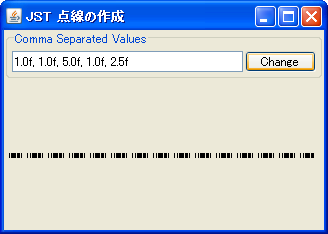
DashedLine
We create a BasicStroke from an array of dashed line patterns and then draw it.
Display an image as the background of the JTextArea.
Section titled “Display an image as the background of the JTextArea.”
CentredBackgroundBorder
Display an image centered using a border as the background for components such as JTextArea.
Display an image as the background using TexturePaint
Section titled “Display an image as the background using TexturePaint”
Arrange images in the background of JPanel
Section titled “Arrange images in the background of JPanel”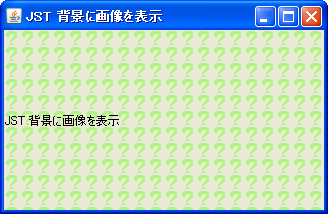
BackgroundImage
Images are displayed in a tiled pattern on the background of the JPanel.
Separator gradient
Section titled “Separator gradient”
Gradient
We will create a JSeparator that gradually blends into the background color using a gradient created with GradientPaint.
Switch the display using RandomDissolve
Section titled “Switch the display using RandomDissolve”
Change the shape of the JComponent
Section titled “Change the shape of the JComponent”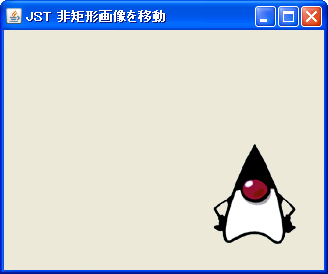
MoveNonRectangularImage
This modifies the area of the component that responds to the mouse cursor to match the opaque area of the image icon set in the JLabel.
Move and rotate images with the mouse.
Section titled “Move and rotate images with the mouse.”
MouseDrivenImageRotation
You can move and rotate the image to any position by dragging it with the mouse.
PixelGrabber retrieves images as an array, edits them, and exports them.
Section titled “PixelGrabber retrieves images as an array, edits them, and exports them.”
PixelGrabber
We create a PixelGrabber to extract the image array and then fill the corners with a transparent color.
Generate an image from an array using MemoryImageSource
Section titled “Generate an image from an array using MemoryImageSource”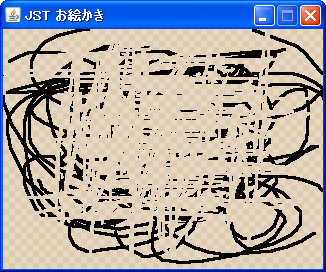
MemoryImageSource
This implements a function that draws lines by dragging the mouse and erases them with an eraser.
Change the style of JSlider
Section titled “Change the style of JSlider”
GradientTrackSlider
Make the JSlider's track and knob transparent, and draw the values in a semi-transparent color.
Set UI in JProgressBar and change the indicator color
Section titled “Set UI in JProgressBar and change the indicator color”
GradientPalletProgressBar
The JProgressBar indicator color changes according to the progress, using a color selected from the palette.
Get the font outline and modify the inside of the string.
Section titled “Get the font outline and modify the inside of the string.”
LineSplittingLabel
By setting a clip, you can limit the drawing area and decorate the inside of the text with a different color.
Rotate the icon
Section titled “Rotate the icon”
RotatedIcon
This tool creates icons rotated 90, 180, and 270 degrees from an image file.
Generate an icon
Section titled “Generate an icon”
Display an image as the background of JRootPane
Section titled “Display an image as the background of JRootPane”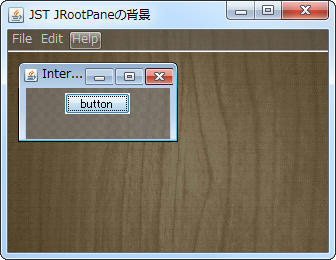
Extract frame images from an animated GIF.
Section titled “Extract frame images from an animated GIF.”
ExtractFramesFromAnimatedGif
This extracts the image from each frame of an animated GIF.
Change the hue of JProgressBar using JLayer
Section titled “Change the hue of JProgressBar using JLayer”
Get points on the Shape using FlatteningPathIterator
Section titled “Get points on the Shape using FlatteningPathIterator”
FlatteningPathIterator
The FlatteningPathIterator is used to obtain and draw coordinate points on a flattened shape.
Use a 9-part image for the JButton.
Section titled “Use a 9-part image for the JButton.”
NineSliceScalingButton
To ensure that the size of the corners and other parts of the JButton does not change when it is resized, we use an image divided into nine sections.
Apply a blur effect to a component using ConvolveOp.
Section titled “Apply a blur effect to a component using ConvolveOp.”
Zooming and scrolling of images displayed in JPanel
Section titled “Zooming and scrolling of images displayed in JPanel”
ZoomingAndPanning
This program applies an AffineTransform transformation to an image displayed in JPanel, allowing you to zoom in, zoom out, and move the image using the mouse.
Obtaining a DataBuffer from WritableRaster and comparing images
Section titled “Obtaining a DataBuffer from WritableRaster and comparing images”
ComparisonDifferenceImages
The pixel arrays are obtained from both images and compared. The differences are highlighted by lowering the alpha value of pixels that are perfectly identical.
Convert HTML imported into JEditorPane into an image.
Section titled “Convert HTML imported into JEditorPane into an image.”
LoadsSynchronously
I will test a method to load HTML with images into JEditorPane and take a screenshot of the entire page once rendering is complete.
You can resize, shrink, and move a JPanel placed within a JScrollPane using the mouse.
Section titled “You can resize, shrink, and move a JPanel placed within a JScrollPane using the mouse.”
ZoomAndPanPanel
This configures the JPanel placed within the JScrollPane so that it can be zoomed in and out using the mouse wheel and its display area can be moved using the scroll bar.
Display image differences using JSplitPane
Section titled “Display image differences using JSplitPane”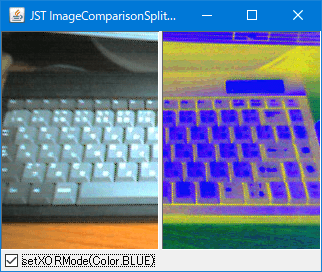
ImageComparisonSplitPane
The original and processed images are displayed overlaid in JSplitPane, and the difference can be checked by changing the display range with Divider.
Generate an Animated GIF file using ImageIO
Section titled “Generate an Animated GIF file using ImageIO”
CreateAnimatedGif
We will use ImageIO to generate an animated GIF and then export it as an image file.
Change the text overflow effect in JLabel to a fade-out effect.
Section titled “Change the text overflow effect in JLabel to a fade-out effect.”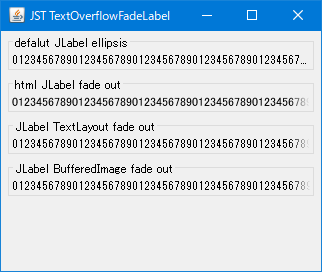
TextOverflowFadeLabel
When text overflows in JLabels or similar elements, instead of using the default ellipsis, a fade-out effect is applied to make the characters near the edges transparent.
Smooth the edges of the window with soft clipping.
Section titled “Smooth the edges of the window with soft clipping.”
SoftClippedWindow
This feature smooths out jagged edges that occur when a window is cropped using a graphic shape, by applying a soft clipping effect.
The JButton’s hover effect is represented by a circular radial gradient.
Section titled “The JButton’s hover effect is represented by a circular radial gradient.”
RadialGradientButton
This will run a circular radial gradient animation as a hover effect for the JButton.
Displaying a GIF image color palette in JList
Section titled “Displaying a GIF image color palette in JList”
IndexColorPalette
This code uses JList to display a list of color palettes and transparent colors for GIF images.
Draw a color wheel on JPanel
Section titled “Draw a color wheel on JPanel”
ColorWheel
A color wheel with brightness fixed to its maximum value is drawn on the JPanel.
Expand the width of the JScrollBar when the mouse cursor hovers over it.
Section titled “Expand the width of the JScrollBar when the mouse cursor hovers over it.”
ChangeScrollBarWidthOnHover
The JLayer is used to capture when the mouse cursor enters or leaves the JScrollBar, and then expands or shrinks its width.
Draw a straight line with an arrow in a JPanel.
Section titled “Draw a straight line with an arrow in a JPanel.”
Display the icon by rotating it in quarter-circle increments.
Section titled “Display the icon by rotating it in quarter-circle increments.”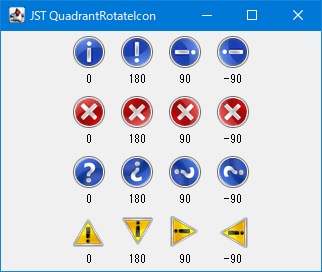
Set the Graphics object to XOR mode and draw the pixel color by inverting it between the XOR-changed color and the current color.
Section titled “Set the Graphics object to XOR mode and draw the pixel color by inverting it between the XOR-changed color and the current color.”
XORMode
The logical pixel manipulation in Graphics is specified to be performed in XOR mode, and the pixel color is then XOR-inverted again using a mask generated by XORing the XOR-changed color with the current color, and then drawn.
Draw a border created from a rounded-corner shape using LinearGradientPaint.
Section titled “Draw a border created from a rounded-corner shape using LinearGradientPaint.”
RoundGradientBorder
Override EmptyBorder and place a rounded-corner shape in its margin, then fill it with LinearGradientPaint.
Display a background image using a JLabel text tag.
Section titled “Display a background image using a JLabel text tag.”
KnockoutTextLabel
This displays a background image drawn on a JLabel as if it were cut out using a text shape.
Move the shape along the PathIterator obtained from the Shape.
Section titled “Move the shape along the PathIterator obtained from the Shape.”
MotionPathAnimation
This program draws an animation on a JPanel that shows a shape moving along a PathIterator obtained from the Shape.
Get the color of the clicked position in the image displayed on the JLabel.
Section titled “Get the color of the clicked position in the image displayed on the JLabel.”
ColorPicker
This code displays an image as an icon in a JLabel and retrieves the color of the image at the position where the mouse clicks.
Take screenshots using Robot
Section titled “Take screenshots using Robot”
ScreenCapture
By using Robot to capture a screenshot image and rendering it as a background image, the JFrame is made to appear semi-transparent.
The results of the 5-point rating scale created with GlyphVector are plotted as labels.
Section titled “The results of the 5-point rating scale created with GlyphVector are plotted as labels.”
FiveStarRatingLabel
Using GlyphVector, we create an outline of a 5-star rating and fill in the inside of the star with the rating value to one decimal place.
Use AffineTransform to place numbers on an analog clock face.
Section titled “Use AffineTransform to place numbers on an analog clock face.”
ClockWithArabicOrRomanNumerals
Use AffineTransform to place Arabic and Roman numerals on an analog clock face.
Use AffineTransform to rotate Arabic numerals and place them on the clock face.
Section titled “Use AffineTransform to rotate Arabic numerals and place them on the clock face.”
ArabicClockFace
Use AffineTransform to position Arabic numerals with different rotations in the upper and lower halves of the clock face.
A hexahedron wireframe is projected onto a JPanel and drawn, then rotated in space by dragging it with the mouse.
Section titled “A hexahedron wireframe is projected onto a JPanel and drawn, then rotated in space by dragging it with the mouse.”
PerspectiveCube
A hexahedron wireframe is drawn on the JPanel using projection transformation, and each vertex can be transformed and rotated in space by dragging with the mouse.
Use AffineTransform to transform Path2D and create numbers for a 7-segment digital clock.
Section titled “Use AffineTransform to transform Path2D and create numbers for a 7-segment digital clock.”
SevenSegmentDigitalClock
Use AffineTransform to transform and combine Path2Ds to create numbers for a 7-segment digital clock.
Debugging JComponent rendering using DebugGraphics
Section titled “Debugging JComponent rendering using DebugGraphics”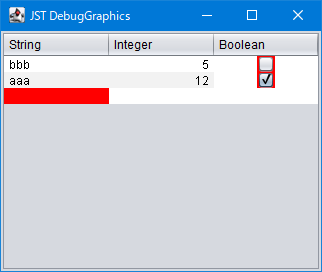
DebugGraphics
Debug the drawing of a JComponent using DebugGraphics, a subclass of Graphics.
Draw a rounded rectangle over the selection rollover of a JMenuItem.
Section titled “Draw a rounded rectangle over the selection rollover of a JMenuItem.”
RoundedSelectionMenuItem
This sets the JMenuItem selection rollover to draw a rounded rectangle instead of a simple rectangle.
Create a rounded rectangle shape with rounded corners as specified by Path2D.
Section titled “Create a rounded rectangle shape with rounded corners as specified by Path2D.”
RoundingSpecificCorners
This creates a rounded rectangle shape by using Path2D to round only the specified corners with Bézier curves.
Change the selection area drawing in JTree to a rounded rectangle.
Section titled “Change the selection area drawing in JTree to a rounded rectangle.”
RoundedSelectionTree
Extend the JTree selection to the entire row and draw it as a rounded rectangle with rounded corners.
Draw rounded corners on the cell selection area of a calendar created with JList.
Section titled “Draw rounded corners on the cell selection area of a calendar created with JList.”
RoundedSelectionListCalendar
This code uses JList to create a calendar, rounding all corners of the selected area.
Applying a mosaic effect to an image using BufferedImageOp
Section titled “Applying a mosaic effect to an image using BufferedImageOp”
MosaicImageFilter
Create a mosaic filter that implements BufferedImageOp and apply a block mosaic to the BufferedImage.
Round the corners of right-angled polygons generated by node selection in JTree.
Section titled “Round the corners of right-angled polygons generated by node selection in JTree.”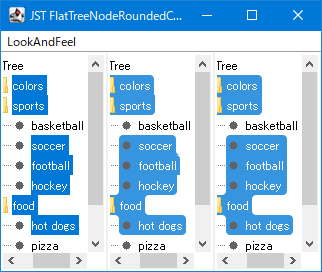
FlatTreeNodeRoundedCornerSelection
The corners of the right-angled polygons generated by JTree node selection are flattened to prevent the creation of sharp points, and then rounded.
Place text on the shape.
Section titled “Place text on the shape.”
TextOnPath
This tool moves and rotates text to align with curves, such as those created using Path2D.
Convert the color to lighter or darker in percentage units.
Section titled “Convert the color to lighter or darker in percentage units.”
TintsAndShadesColors
JColorChooser generates a color palette by lightening or darkening the selected color by a specified percentage.
The ends of the JSeparator are drawn with a fade-out effect.
Section titled “The ends of the JSeparator are drawn with a fade-out effect.”
GradientFadeOutSeparator
We'll use RadialGradientPaint to draw the JSeparator so that both ends fade out.